



The TL;DR
Goose treats external tools as MCP extensions, and a single MCP360 gateway connection can replace a long list of individual tool installations.
-
• One Connection, Full Catalog
Add MCP360 once as a Remote Extension and every tool in its catalog becomes available, without repeating the setup process for each individual tool.
-
• Streamable HTTP, Not SSE
Goose remote extensions use MCP’s Streamable HTTP transport. Selecting the wrong transport type is one of the most common reasons a connection appears active but returns no tools.
-
• Five Minutes, One Real Test
Copy the MCP360 URL, install Goose, add the Remote Extension, and run one real tool call. Verify the result against a source you already trust to confirm the setup is working correctly.
Goose edits files, runs shell commands, and rewrites entire functions without asking twice. Ask it for a live price, a current search volume, or what a competitor’s pricing page says right now, and it has nothing to call. Every fact past its training cutoff turns into a guess dressed up as an answer.
MCP360 gives Goose one gateway URL that replaces a dozen one-off tool connections, so a single Remote Extension is the only setup a full catalog ever needs. Connect it once, and Goose finishes tasks that used to mean switching to a browser halfway through a session.
This guide walks through doing that with MCP360 specifically, a single gateway that puts a whole catalog of external tools behind one URL, so connecting once beats wiring up a new extension for every service you need.
What Is Goose?

Goose is Block’s open-source, local-first AI agent, distributed as a desktop app, a CLI, and an embeddable API. It runs on your machine, executes shell commands, edits files, and orchestrates multi-step workflows instead of just suggesting code. Block released it publicly in January 2025, and the GitHub repository has since passed 51,000 stars.
The agent is written in Rust and ships under the Apache 2.0 license, with no subscription and no vendor lock-in on the model side. Goose works with 15 or more model providers, including Anthropic, OpenAI, Google, and Ollama, and it follows a bring-your-own-key model. The only ongoing cost is whatever the connected provider charges per token.
Why Block Open-Sourced It
Goose started as an internal fix for a problem every Block engineer kept hitting. Every new integration meant custom, one-off code. When the team floated the idea of a shared protocol, Anthropic showed them an early Model Context Protocol specification before it had shipped publicly. Block rebuilt Goose around that spec and shipped one of the first MCP clients available anywhere.
That early bet paid off twice. In December 2025, the Linux Foundation formed the Agentic AI Foundation, and Anthropic’s MCP, Block’s Goose, and OpenAI’s AGENTS.md became its three founding contributions, placed under one neutral governance structure. New protocol capabilities, elicitations, sampling, MCP Apps, tend to land in Goose first, since the project treats itself as a proving ground for the spec before other clients pick up the same features.
Goose Limitations Without MCP
Everything Goose does well by default comes from two sources, whatever sits in the local repo and whatever the underlying model already knows. Both run out fast once a task needs something current.
- Stale training data: Ask about something before the model’s cutoff and Goose usually knows it. Ask about a live rate or this morning’s ranking, and it’s guessing from an outdated reference point.
- Blunt scraping: The built-in Computer Controller extension pulls a raw page, but pagination, login walls, and rate limits break it fast. MCP gives Goose a standard way to call an external tool and get back real data instead of a guess.
- Locked credentials: Paid APIs and internal dashboards stay out of reach until a specific extension carries the right key.
- No outside actions: Goose edits local files without asking twice. Updating a CRM record or posting to Slack is a different problem, since neither one lives on disk.
An MCP extension fixes all four at once, added one time per tool or one time for a whole catalog of them.
How Goose Connects to MCP Servers
Goose calls every tool connection an extension, and extensions come in a few flavors.
- Built-in extensions: Ship inside Goose itself, developer tools and file access chief among them, with the Developer extension on by default.
- Command-line extensions: Run as a local process on your machine, communicating over stdin and stdout.
- Remote extensions: Connect over HTTP to a server running somewhere else entirely, using MCP’s Streamable HTTP transport. An older SSE option still works for servers that haven’t updated, but Streamable HTTP is the direction the spec has been moving.
A local extension needs its own install, its own command, and its own entry in goose configure. A remote extension only needs a URL, and tools load on demand instead of loading into context all at once, so a growing catalog costs nothing extra on the context side. You can browse ready-made options in the MCP Server Directory before wiring up anything custom.
Goose also checks every external extension against a vulnerability database before it activates, and blocks anything flagged with a clear error instead of failing silently. A bad or tampered server gets caught at the connection step, not mid-task.
That’s the extension type used in the walkthrough below.
Connecting MCP to Goose, Step by Step
The steps below work for any server that speaks MCP’s Streamable HTTP transport. MCP360 is the working example because it puts one URL in front of a full catalog of tools instead of a single one, so the result is easy to see and test once it’s live.
Step 1. Copy Your Gateway URL
- Sign in to your MCP360 dashboard (the free tier needs no card) and open or create a project.
- Open MCP Servers in the sidebar.
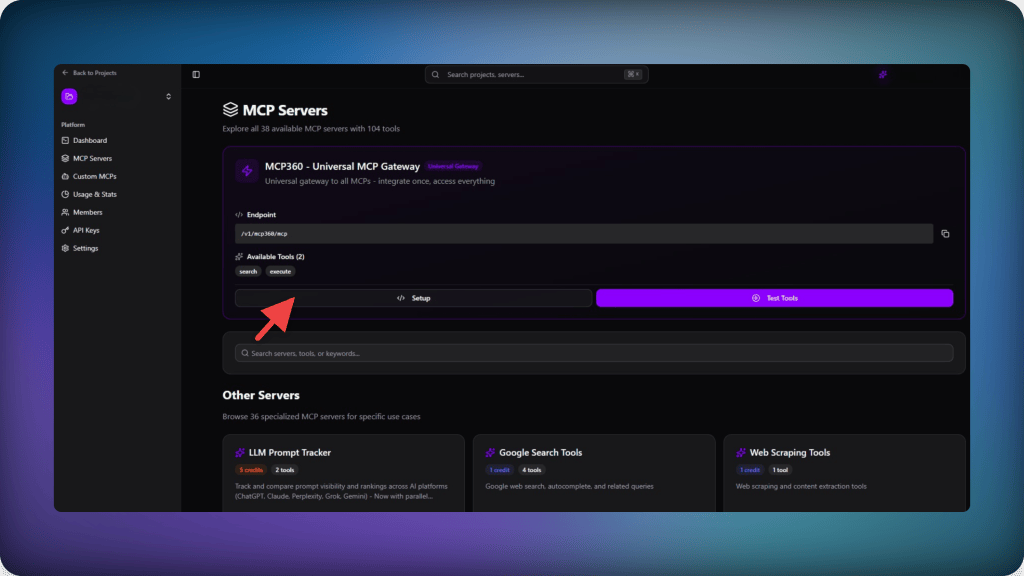
- Choose the Universal Gateway for the full tool catalog, or a single server if only one tool domain matters for this agent.
- Copy the URL. Your API key is already embedded in it as a query parameter, so there’s nothing else to paste separately.
https://connect.mcp360.ai/v1/mcp360/mcp?token=YOUR_API_KEY

Step 2. Install Goose
- Download the desktop app for macOS, Linux, or Windows, or install the CLI with the command below.
curl -fsSL https://github.com/aaif-goose/goose/releases/download/stable/download_cli.sh | bash
- On first launch,
goose configurewalks through picking a model provider before it ever touches extensions. Pick whichever one you already have a key for.
Step 3. Add MCP360 as a Remote Extension
Two paths get to the same result.
From the CLI.
- Run
goose configure. - Select Extensions option from left sidebar.

- Click on the add custom extension button.
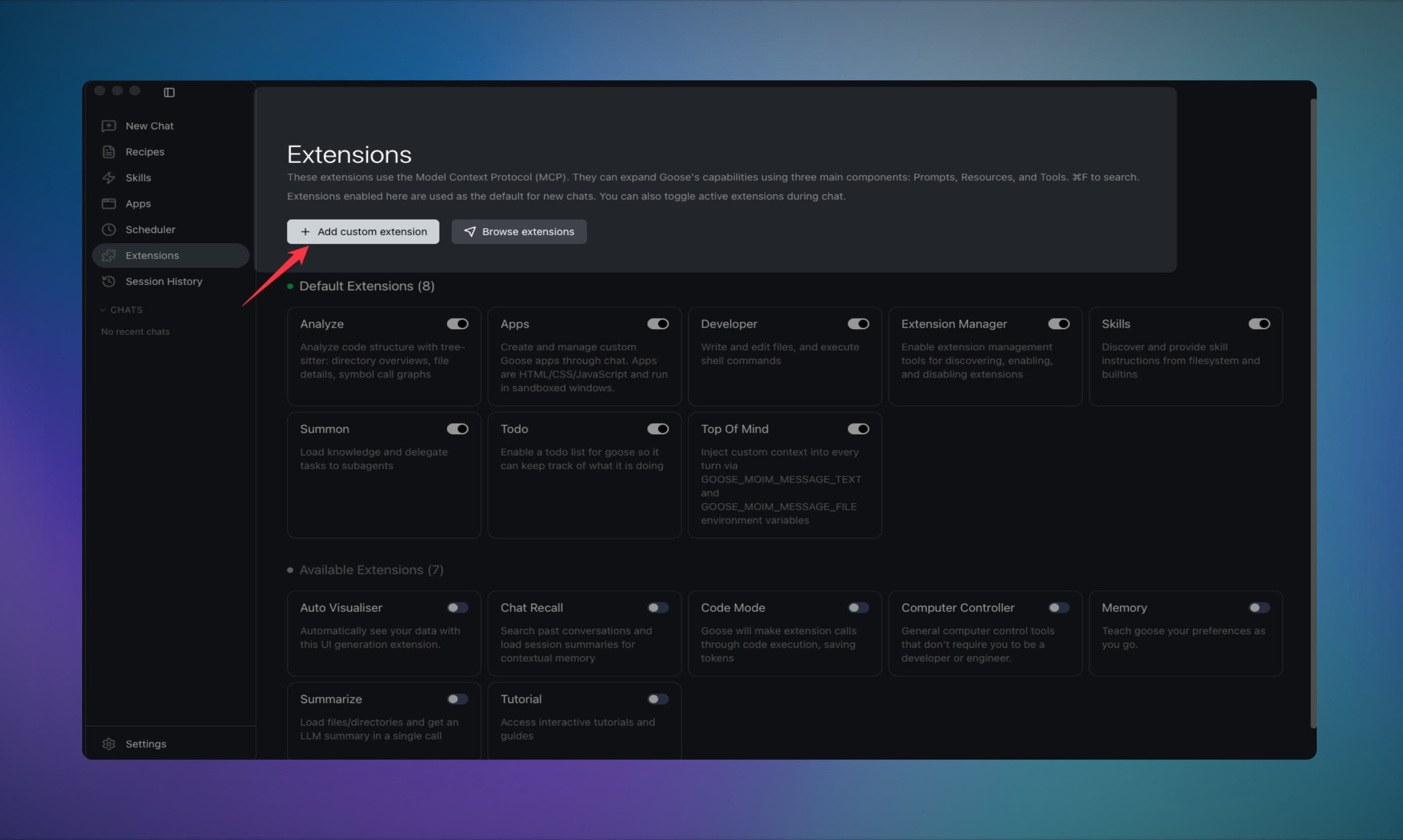
- Give it a name, and paste the gateway URL from Step 1.
- Set a timeout. Three hundred seconds covers most tool calls, raise it if a particular tool tends to run long.
From Goose Desktop.
- Open Extensions in the left sidebar.
- Click Add custom extension.
- Name the extension, set Type to HTTP, and paste the gateway URL.
- Click Add Extension to save it.
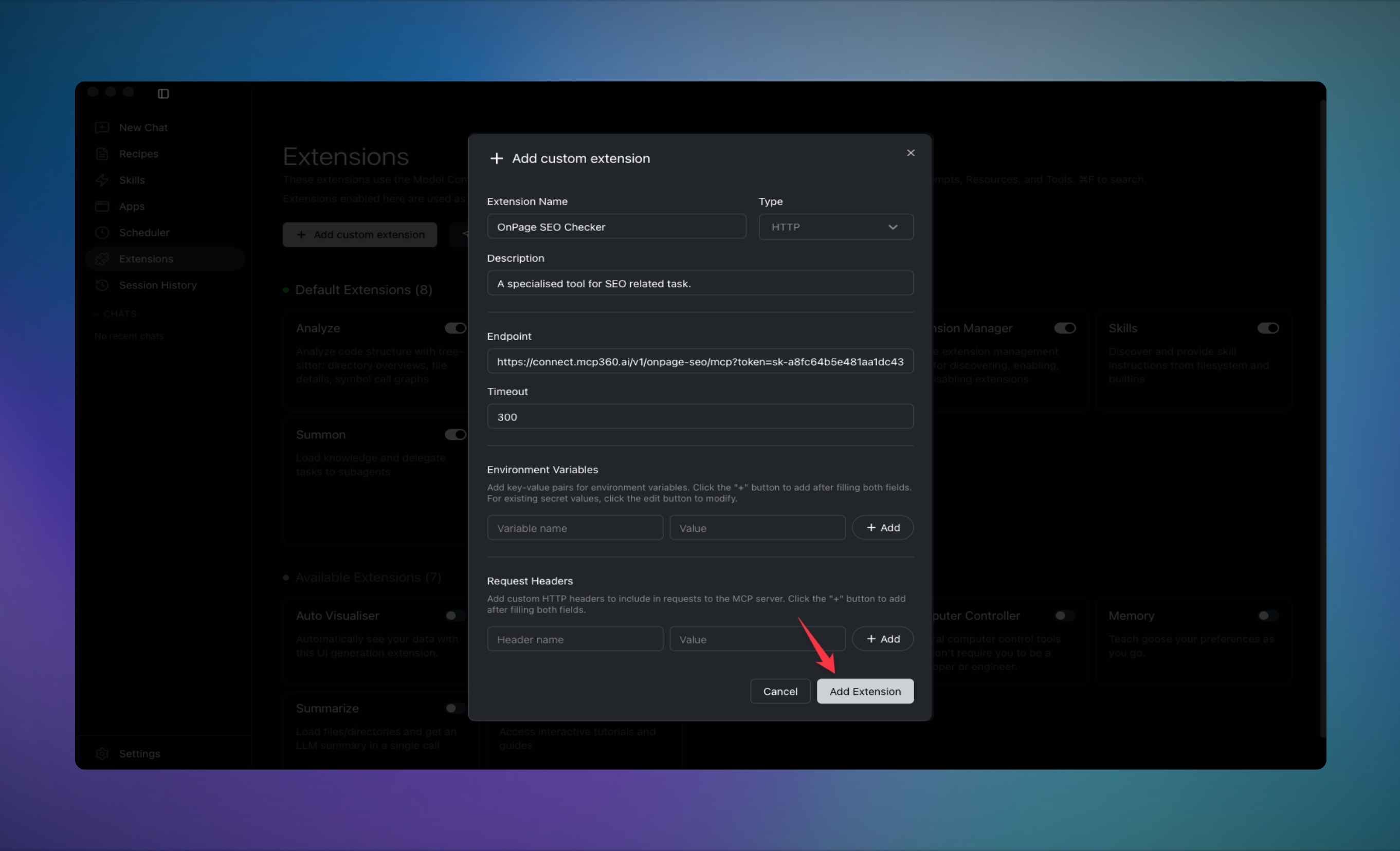
- It shows up in the Extensions list right away.

Because the token already lives inside the URL, there’s no separate header or environment variable to configure for this connection, a small but real convenience given that header support for remote extensions is a newer addition to Goose.
- Prefer not to touch the config permanently? A single CLI flag adds the extension for one session only.
goose session --with-streamable-http-extension "https://connect.mcp360.ai/v1/mcp360/mcp?token=YOUR_API_KEY"
Treat that URL as a secret once it’s saved. It carries your API key the same way a password would, so keep it out of shared config files or committed repositories, and rotate the key from your dashboard if a machine holding it is ever lost or shared.
Step 4. Verify the Connection
Start a session and ask Goose directly what tools it has access to. It lists whatever the extension exposed during the handshake. For a config-level check, run goose info -v, which prints the full configuration, including every enabled extension and its timeout.
A connected extension that lists no tools almost always comes down to a transport mismatch, since MCP360’s gateway speaks Streamable HTTP specifically, not SSE. A transport mismatch is one of several common connection failures worth ruling out first.
Once the connection checks out, ask Goose for something that actually needs a tool call, current search volume for a keyword, or a live price on a specific product. Cross-check the answer against the source directly. A match means Goose reached the gateway and pulled real data instead of guessing from its training set.
Benefits of Connecting MCP to Goose
Connecting external tools doesn’t change what Goose already does well. It changes what a single session can finish without switching to a browser halfway through.
- Developers: Current pricing, keyword, or product data lands in the same session as the code that depends on it, instead of a hardcoded placeholder fixed later.
- QA and release engineers: A fix gets checked against real API responses instead of a diff, catching data-format regressions that only show up against live behavior.
- Content and SEO work: Real search volume or SERP data lands straight in a terminal session, no separate research pass before writing.
- Ops and growth tasks: Goose checks competitor pricing or listing changes on a recurring, scheduled basis and flags what moved.
- Outreach and business development: Domain records, site metadata, and current search visibility compile into one company briefing instead of five open browser tabs, the same research a lead-generation workflow runs at scale.
- Anyone maintaining documentation: A written doc gets checked against the live product or API it describes, with drift flagged instead of missed.
The same gateway URL works the same way in Claude and Cursor. Codex and Gemini CLI use it too, just through a different extension menu, so a team running more than one agent is not rebuilding this setup for each one.
Frequently Asked Questions
What is Model Context Protocol (MCP)?
Model Context Protocol is an open standard that lets an AI agent call an external tool and get back real data instead of relying on training data alone. A server exposes a set of tools over the protocol, and any MCP-compatible client can connect to that server and use those tools directly inside a session, without a separate integration built for each one.
What is Goose?
Goose is Block’s open-source, local-first AI agent, released in January 2025 and now governed by the Linux Foundation’s Agentic AI Foundation. It runs as a desktop app, a CLI, and an embeddable API, works with 15 or more model providers under a bring-your-own-key model, and carries an Apache 2.0 license with no subscription required.
How do I connect an MCP server to Goose?
Add it as a Remote Extension over Streamable HTTP, either through the goose configure wizard, Goose Desktop’s Extensions panel, or a single CLI flag for a one-off session. MCP360 provides a working example, a gateway URL with an API key already built in, so the whole setup is one name, one URL, and one save click, no separate header or environment variable needed.
Does Goose support remote MCP servers over HTTP?
Yes. Goose recognizes three extension types, built-in, command-line for local processes, and remote for servers running elsewhere over HTTP using MCP’s Streamable HTTP transport. An older SSE option still works for servers that haven’t updated. Remote extensions only need a URL, which is what makes connecting a hosted gateway simpler than wiring up several local servers one at a time.
Is Goose free to use?
Goose itself is free and open-source under the Apache 2.0 license, with no subscription tier. It follows a bring-your-own-key model, so the only ongoing cost comes from whichever LLM provider gets connected, Anthropic, OpenAI, Google, Ollama, or one of 15 or more others, billed separately by that provider based on usage.
Why connect Goose to a gateway instead of individual MCP servers?
A gateway turns several one-by-one extension setups into a single connection. Each individual MCP server otherwise needs its own install, its own command, and its own entry in goose configure, which gets tedious past the second or third tool. MCP360 replaces that with one URL standing in for a whole catalog, so new tools become available without touching the setup again.
How do I verify Goose is actually using a connected MCP server?
Start a session and ask Goose directly what tools it has access to, it lists whatever the extension exposed during the handshake. Running goose info -v shows the full configuration, including every enabled extension. The real test is asking for something that needs a live tool call, current search volume or a live price through MCP360, then checking the answer against the source.
What should I do if Goose won’t connect to an MCP server?
Start with the transport type. A server that shows as connected but returns no tools is usually set to the wrong option, MCP360’s gateway specifically uses Streamable HTTP, not SSE. After that, check that the URL and token are correct and that the timeout is long enough for slower tools, 300 seconds covers most cases before it needs raising.
Conclusion
Goose tends to pick up new MCP capabilities before most other clients do, and MCP360’s catalog adds new tools on its own schedule. Neither setup step repeats. The same gateway URL just keeps doing more over time.
Once the prebuilt catalog covers the obvious cases, wrapping an internal API or a private tool as its own MCP entry is the natural next step, so it shows up in Goose the same way everything else in the catalog does. MCP360’s free tier needs no card, so testing costs nothing but the five minutes from Step 1. Start with one tool call you can verify against a source you already trust, then open up as much of the catalog as the next task needs.

Article by
RajniAI & Tech | Senior Content Writer
Rajni is a senior content writer covering AI agents, automation, and no-code tools. She writes across the AI space, from chatbots and customer support to MCP and agent workflows, focused on how businesses actually put these tools to work.