



The TL;DR
Getting a Claude MCP server connected correctly comes down to matching the setup method to the surface you use, since Claude Web, Desktop, and Code each register servers differently.
-
• What It Does
Connecting an MCP server gives Claude a live tool it can call during a conversation to retrieve current search data, pricing, rankings, and other external information instead of relying only on training data.
-
• Why It Matters
Claude Web and Desktop use the same account-level connector system, while Claude Code uses its own
claude mcp addcommand and configuration file. A server registered through the wrong method may work on one surface but remain unavailable on another. -
• The Result
Once the server is registered correctly, Claude can check live data during the conversation instead of guessing, regardless of which supported surface you are working from.
Claude reasons well and writes well, but everything it knows stops at a training cutoff. Ask it for today’s keyword volume, a live product price, or whether a domain is still registered, and it can only guess unless something gives it a way to check. That something is an MCP server, a small program that exposes a live tool Claude can call mid conversation instead of answering from what it already knows.
The complication is that Claude isn’t one product with one connection method. Claude Web runs in a browser, Claude Desktop is a separate app on your machine, and Claude Code runs from a terminal for coding work. Each surface has its own way of picking up an MCP server, and a setup that works perfectly on one does nothing on another.
This blog covers all three, using MCP360’s gateway as the running example since it’s built to be reachable from each surface through a single hosted connection. By the end you’ll know exactly which method belongs to which surface and how to wire up a server correctly the first time.
What Is Claude?

Claude is Anthropic’s AI assistant, built for research, writing, analysis, and code. Three surfaces cover most of how people actually use it day to day, and each one connects to MCP servers a little differently.
Claude Web runs at claude.ai in any browser, with no install required. Claude Desktop is a native app for macOS, Windows, and Linux that adds local file access and a few desktop-only features on top of what the web version does. Claude Code is a command-line tool built for software work, run from a terminal or an IDE, with its own way of managing project context and tools.
All three understand the Model Context Protocol, the open standard that lets Claude call external tools. What differs is how each surface registers a server, and that’s what the rest of this guide walks through.
Claude Versions
Claude comes in three versions, each designed for different workflows:
- Claude Web: Browser-based interface for quick tasks, research, and content generation. Works on any device with a web browser.
- Claude App: Desktop and mobile application for ongoing projects and persistent workflows. Available on macOS, Windows, iOS, and Android.
- Claude Code: Command-line tool for writing, debugging, and reviewing code directly within your terminal or IDE.
Core Features
- Persistent context: Claude tracks history and project context over multiple exchanges, so a connected tool’s output from ten messages back is still available when it’s relevant again.
- Direct file reading: PDFs, screenshots, and code files don’t need to be transcribed first, which matters when a connected tool hands back a document instead of plain text.
- Same setup, any model: Claude runs on several model tiers, including Claude Opus 4.8, Claude Sonnet 5, and Claude Haiku 4.5, suited to different levels of task complexity, but the MCP setup on each surface is identical no matter which one you’re running.
- Live data on demand: Web search covers general current events. An MCP server goes further, reaching a specific tool’s actual data, which is the subject of the rest of this guide.
Why Connect Claude to an MCP Server
On its own, Claude can only answer from its training data and the information you provide in the chat. That works for many tasks, but it falls short when you need real-time information like current prices, domain availability, or live SEO rankings, because those change constantly.
- A training cutoff: Training data has a cutoff, and even data from before it was never a live feed of prices or rankings to begin with. Claude will guess anyway, convincingly, which is harder to catch than a flat “I don’t know.”
- A live tool call: An MCP server exposes tools Claude can call mid conversation. Instead of reciting a stale answer, Claude sends a request, gets back current data, and answers from that instead of memory.
- One connection, many tools: A single-purpose server gives Claude one tool. A gateway-style server sits in front of a full catalog instead, search, SEO data, e-commerce lookups, and more, so one connection replaces what would otherwise be a separate integration for every tool, each with its own token to manage and its own way to break.
- Multiplied across three surfaces: Ten tools connected separately to Web, Desktop, and Code means roughly thirty setups to maintain. Route the same ten through a gateway and that drops to one setup per surface, regardless of catalog size.
What follows is the setup itself, one section per surface, starting with Claude Web since it takes the fewest steps to get right.
How to Connect Claude Web with MCP
Claude Web works in your browser, making it accessible from any device. We’ll be connecting it to MCP360, enabling web-based workflows with full tool access.
Step 1: Choose your tools
- Log in to your MCP360 dashboard.
- Open an existing project or create a new one.
- Navigate to the MCP Server option from the sidebar.
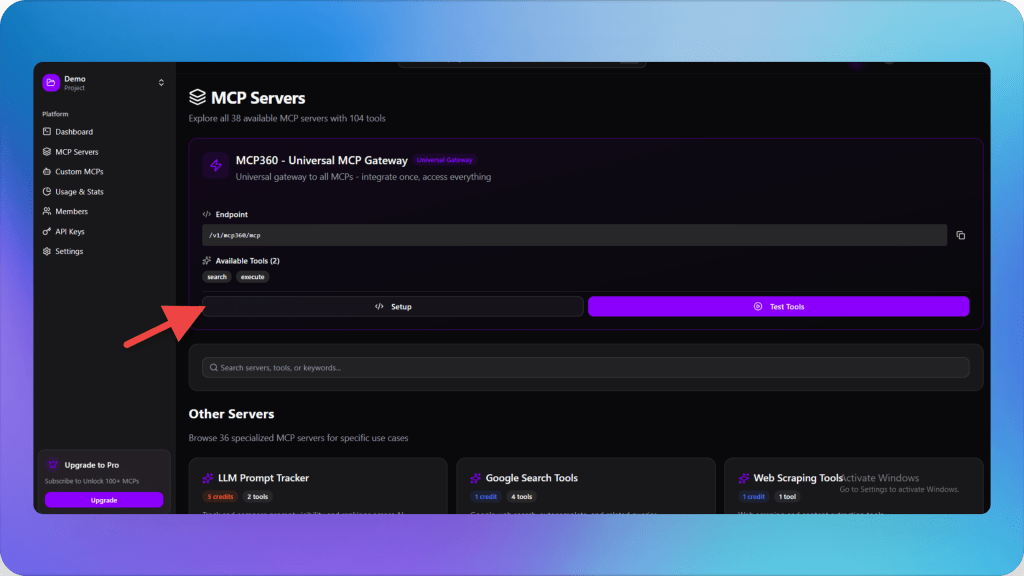
- You can copy the universal gateway or the link of the tool to connect.

Step 2: Connect MCP server in Claude Web
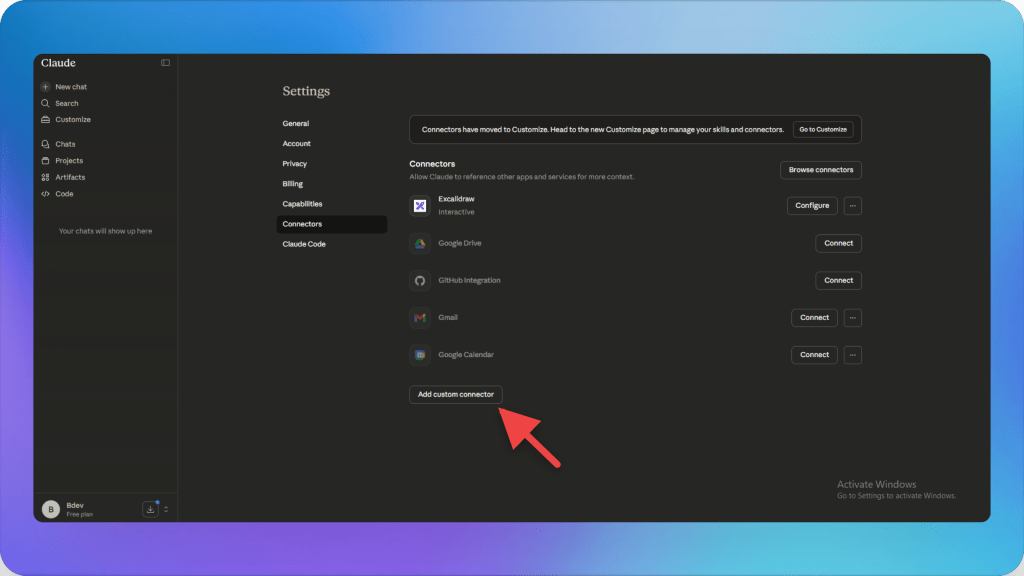
- Open Claude Web and click Settings.
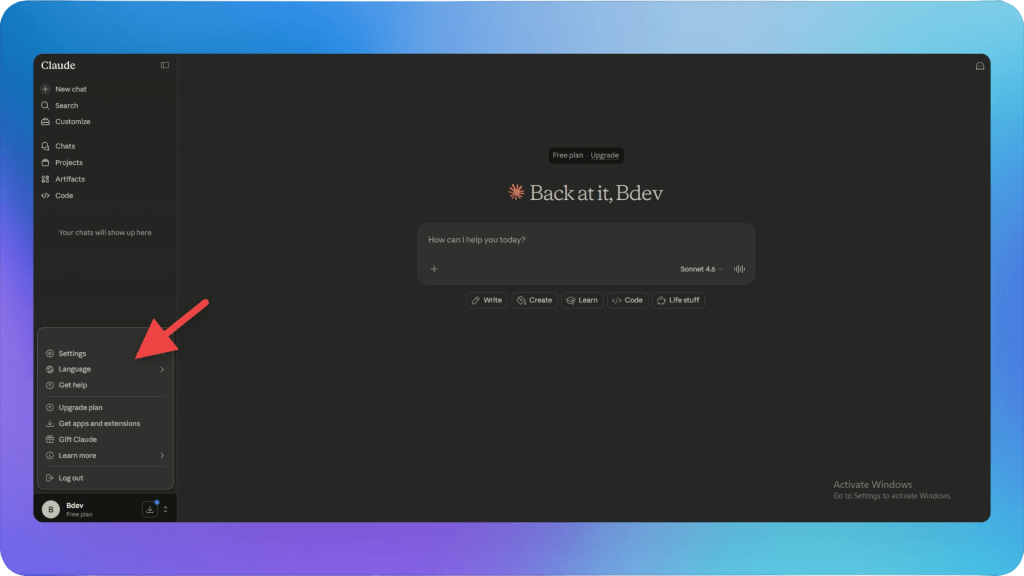
- Navigate to the Connectors section.
- Click on Add Custom Connector.
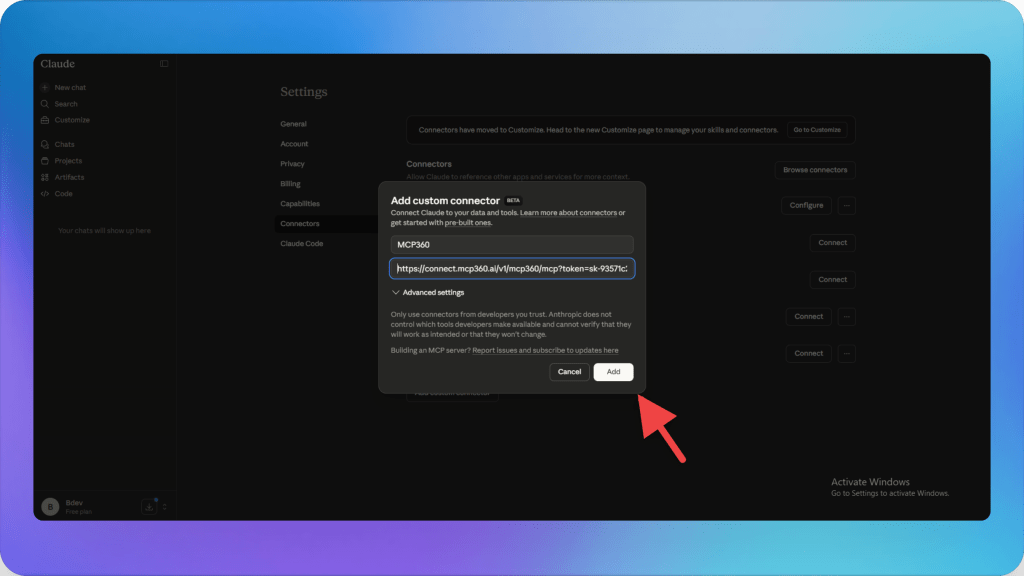
- Enter the server name.
- Paste the tool link and token copied from MCP360.
- Click Add.
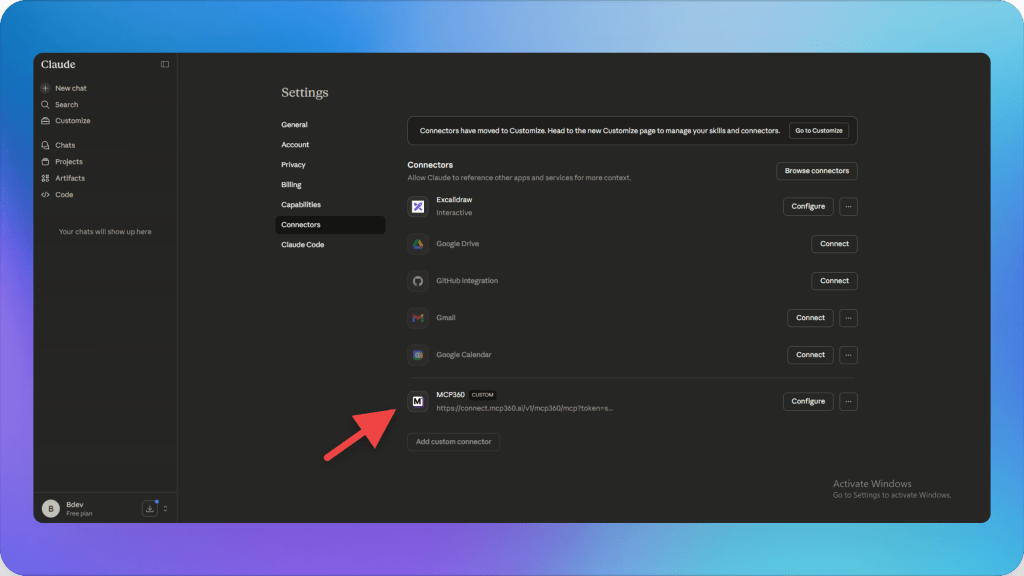
- Please reload Claude Web and return to the Connectors page. You can see your MCP tool listed.
Step 3: Using MCP tools in Claude Web
Once connected, Claude Web can:
- Automatically select the most appropriate MCP tool for your queries.
- Make sure parameters are correctly configured for accurate results.
- Execute tasks and automate workflows without switching between platforms.

You’re all set! Claude Web is now fully connected to your MCP360 server, enabling smooth testing, automation, and real-time data access.
Connecting MCP with Claude App
Claude App provides a persistent workspace for ongoing projects. Connecting it to MCP360 brings tool access into your daily workflow.
Step 1: Prepare Your MCP360 Tools
- Log in to your MCP360 dashboard.
- Navigate to the “Server” section.
- Select a server code or choose the universal tool to copy all tools.
- Click on the “Copy” button to copy the code.
Step 2: Connect MCP Server in Claude App
- Open the Claude App and go to Settings.
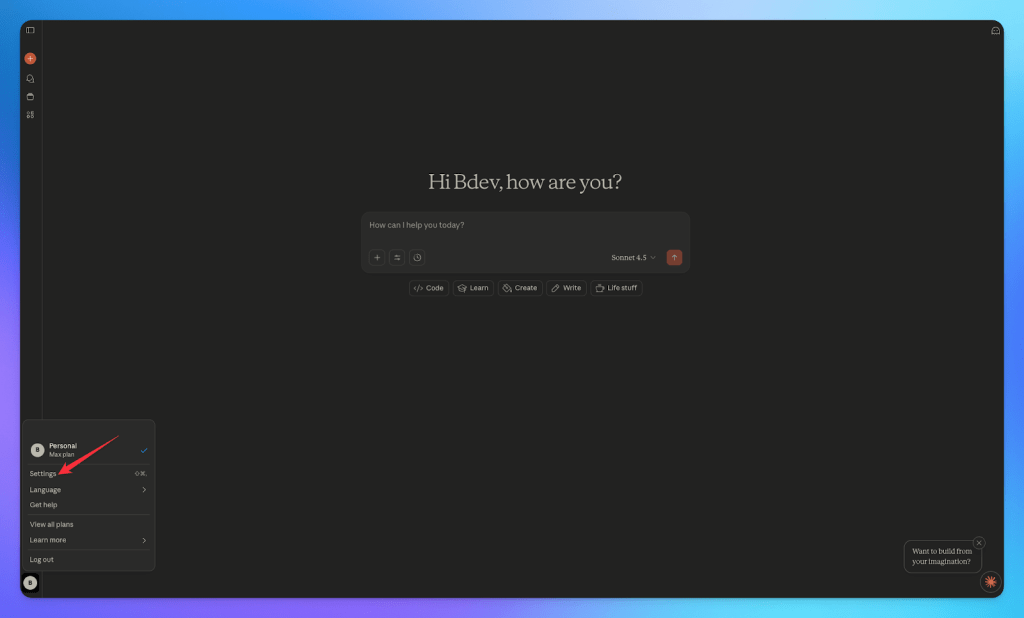
- Navigate to the Developer section.
- Click on Edit Config.

- Now paste the MCP server code copied from MCP360.
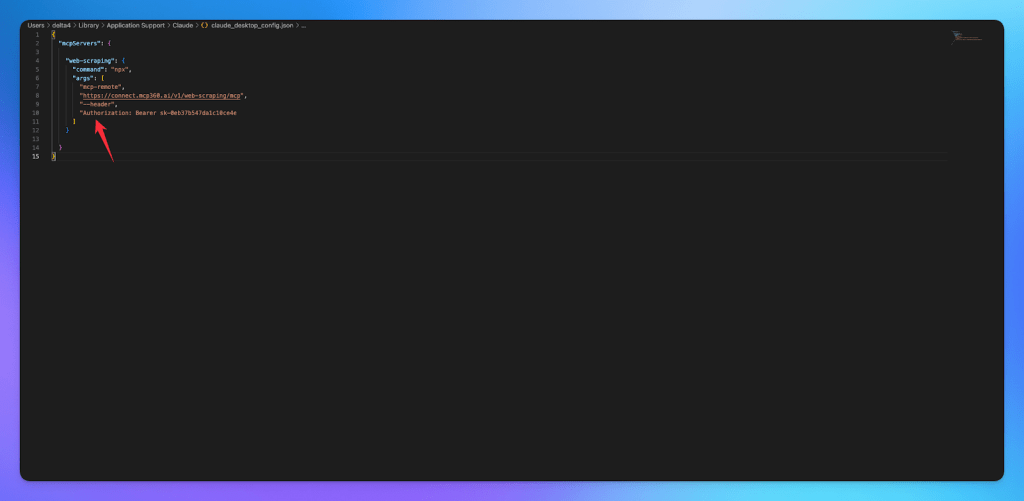
- Reopen the Claude app and go back to the developer section. Your added MCP tool should now be listed.

Step 3: Using MCP Tools in Claude App
Once connected, the Claude app can:
- Automatically select the most appropriate MCP tool for each query.
- Ensure parameters are correctly configured for accurate results.
- Execute tasks, automate workflows, and handle real-time data without switching platforms.
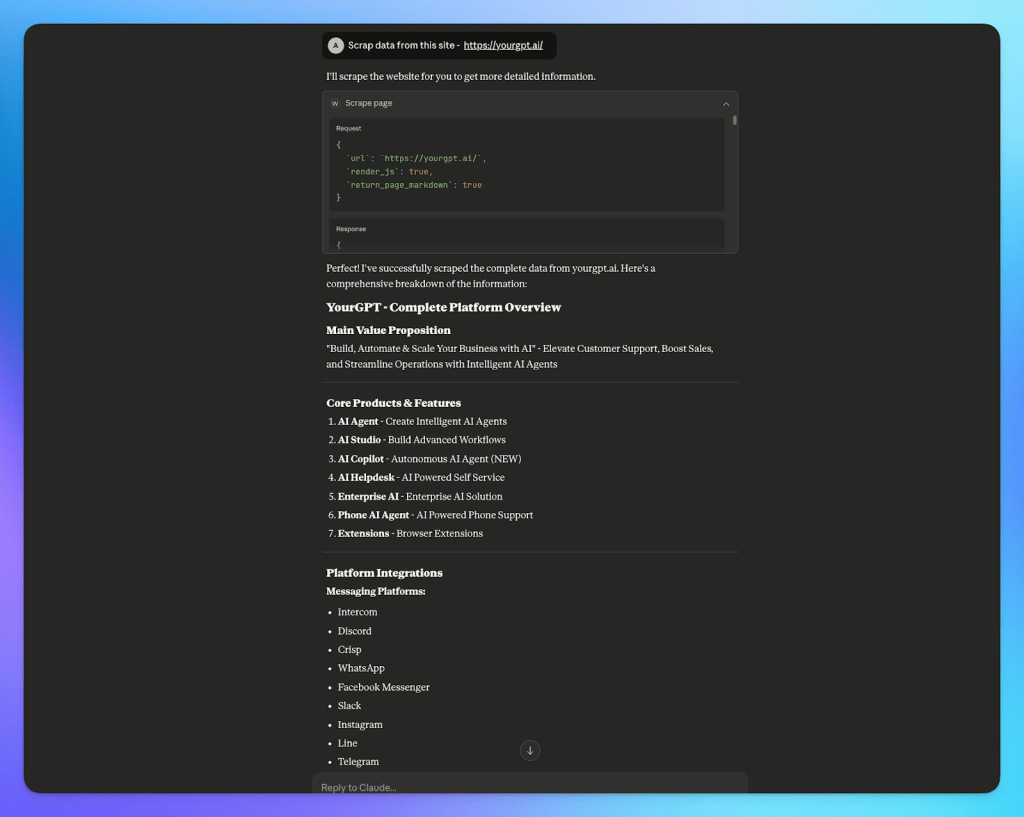
Claude App is now fully connected to your MCP360 server, enabling smooth automation, real-time data access, and efficient workflow management.
Connect MCP with Claude Code
Claude Code operates in your terminal or IDE, bringing AI assistance directly into your development environment. MCP360 integration makes it even more powerful during coding sessions.
Step 1: Prepare Your MCP360 Tools
- Log in to your MCP360 dashboard.
- Navigate to the “Server” section.
- Select a server code or choose the universal tool to copy all tools.
- Click on the “Copy” button to copy the code.

Step 2: Open Claude Code and Configure MCP
- Locate the MCP JSON file used by Claude Code to manage endpoints.
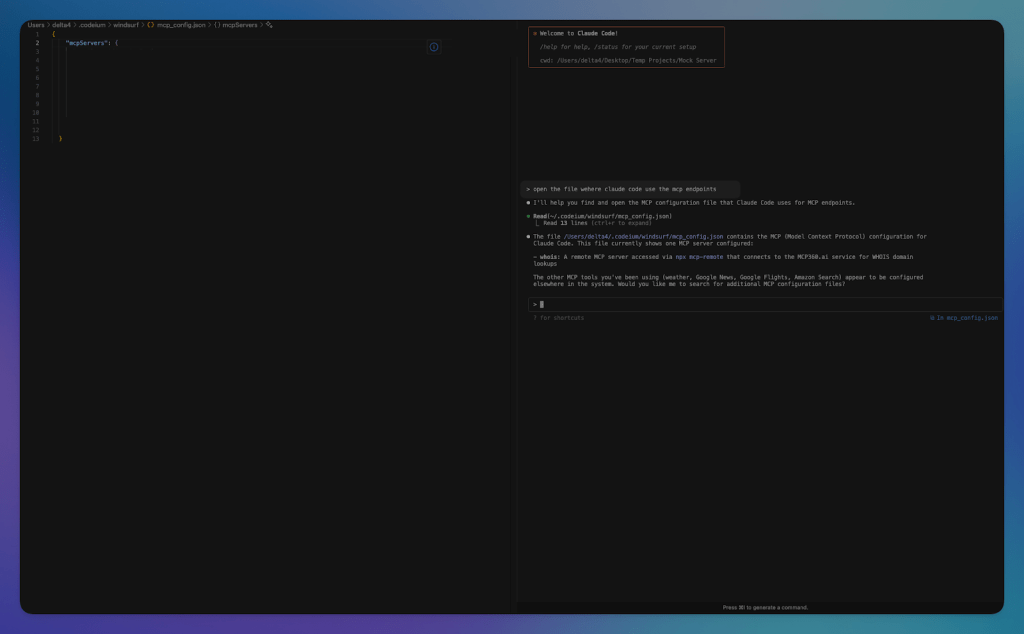
- Open the file in your preferred editor or via terminal.
- Paste the MCP server code copied from MCP360.
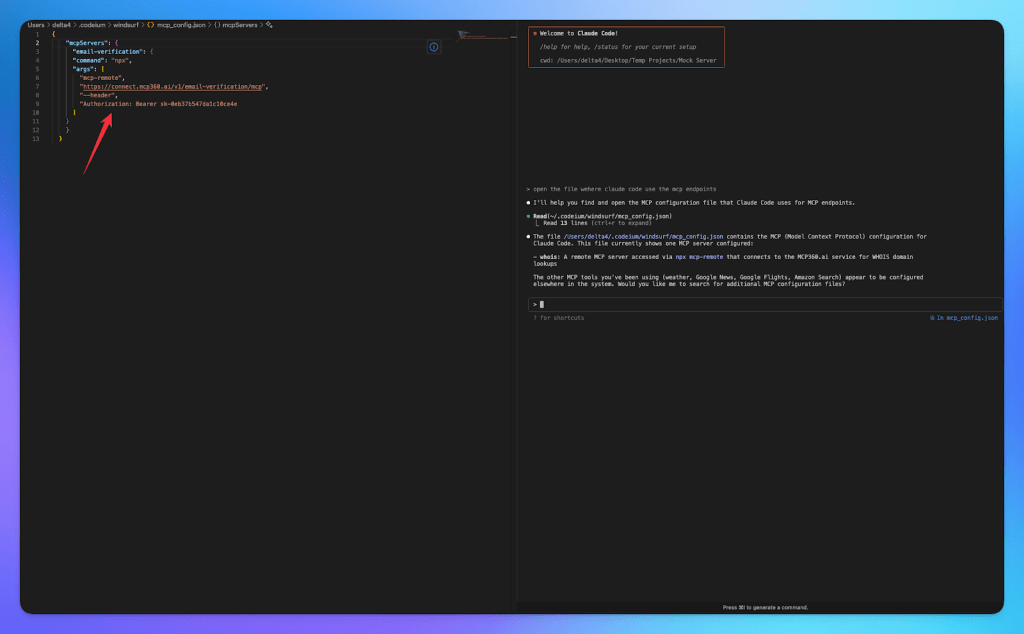
- Save the file and restart Claude Code if needed.
Step 3: Using MCP Tools in Claude Code
Once connected, Claude Code can:
- Automatically select the most appropriate MCP tool for your queries.
- Ensure query parameters are configured accurately for precise results.
- Execute automated tasks, fetch real-time data, and integrate multiple tools directly from the terminal.
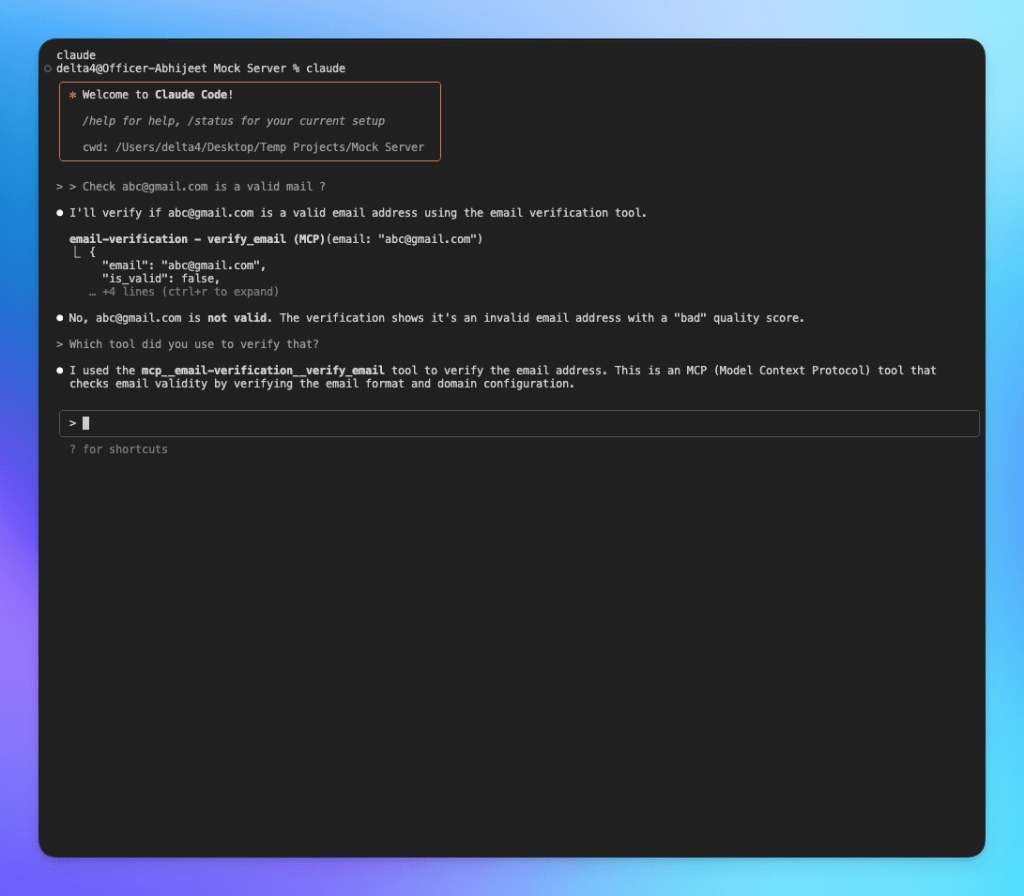
Your Claude Code is now connected to MCP360, enabling smarter automation, direct tool access, and a seamless coding workflow.
Now that Claude Web, App, and Code are fully connected to MCP360, you have a unified setup. Every tool and workflow can run through a single gateway. With the integration finished, let’s look at the key benefits you unlock by combining Claude with MCP360.
What This Integration Enables
Connecting Claude to MCP360 allows your agent to use external data tools. It uses a single, consistent interface. MCP360 provides access to a wide set of ready-to-use MCP servers. You can also add custom MCPs when needed.
For Marketing and Growth Teams
Marketing work runs on external data that goes stale by the week. Connected agents can:
- Run web searches across Google, Bing, DuckDuckGo, Yahoo, and other engines to check competitor visibility
- Pull trend data from Google Trends and YouTube to catch what’s rising before it peaks
- Track news mentions and coverage through Google News without checking five separate alert feeds
For Research and Analysis Teams
Research work means pulling from many sources and holding them against each other. Connected agents can:
- Draw on multiple search engines and marketplaces in a single pass instead of five open tabs
- Compare product features, pricing, and reviews across platforms without a manual spreadsheet
- Pull academic papers and citations through Google Scholar, useful when a claim needs a source behind it
For Development Teams
For developers, this is about giving an agent controlled access to external data through one execution layer, MCP360’s gateway among them, instead of wiring a dozen separate ones. That means:
- Searching and executing tools across an entire server catalog without wiring individual integrations one at a time
- Agent workflows that pull live data from search engines, marketplaces, and public datasets straight into an application
- Swapping or adding a server to test agent logic without touching the rest of the workflow
- Every external call routed through the same interface, so tool access stays consistent across environments
For Content and SEO Teams
Content and SEO work leans on search and page-level data more than most other functions. Agents can:
- Run keyword research through dedicated keyword tools without switching to a separate platform mid-draft
- Check on-page factors, titles, meta, headings, structured data, without a manual audit tool
- Pull page metadata and URL details for recurring audits and content planning
For E-commerce and Market Intelligence Teams
Product and pricing intelligence is its own full-time job on most teams. Agents can:
- Search and compare products across Amazon, Google Shopping, Walmart, and eBay in one request
- Track pricing, availability, and reviews as they change instead of checking each listing by hand
- Monitor category trends and competitor positioning without a separate scraping setup
For Custom and Internal Needs
The prebuilt catalog covers a lot, but not everything a team needs sits in a public API. A custom MCP server closes that gap: wrap an internal system or a private API, or extend a workflow with proprietary data, all still routed behind the same interface as everything else. That option matters most for teams that need control over their own data sources, beyond whatever a public API already covers.
What to Check When a Server Won’t Show Up
Most connection failures fall into a short list of causes, in roughly the order worth checking.
- Restart required (Web and Desktop): Claude Desktop only reads
claude_desktop_config.jsonon launch. A saved edit does nothing until you fully quit and reopen the app. On the web, a new connector needs to be toggled on for the current conversation before it’s usable. - Wrong scope (Code):
claude mcp addregisters to your current project by default. If a server that worked yesterday seems to have vanished, you’re likely in a different directory. Re-add it, or use--scope userso it follows you everywhere. - Relative paths (Desktop and Code): Both surfaces start local servers with an undefined working directory, so a path like
./dataor~/projectsfails silently. Use full absolute paths. - Node.js missing or not global: Any server launched with
npxneeds Node.js installed, andnpmneeds to be installed globally fornpxto resolve packages reliably. - Network-blocked remote servers: A custom connector reaches your server from Anthropic’s cloud infrastructure, not your local network. If your server sits behind a corporate firewall or VPN, it needs to be reachable from the public internet, or you’ll need to allowlist Anthropic’s IP ranges.
Check the logs before guessing. In Claude Desktop, mcp.log covers general connection issues and a file named mcp-server-[name].log holds error output specific to one server. In Claude Code, claude mcp list and the in-session /mcp panel both show a status for every registered server, along with the reason a failed one didn’t connect. For deeper debugging patterns, the server connection troubleshooting guide covers failure modes that show up across gateway and single-server setups alike.
Frequently Asked Questions
What is an MCP server?
An MCP server is a small program that gives Claude access to a specific tool or data source, a search engine, a database, a pricing API, instead of Claude working only from training data and whatever’s pasted into a conversation. Claude sends the server a request, gets back current data, and builds its answer on that. The Model Context Protocol is the open standard defining how that request and response work.
What’s the difference between Claude Web, Claude Desktop, and Claude Code?
Claude Web runs at claude.ai in a browser, with no install required. Claude Desktop is a native app for macOS, Windows, and Linux that adds local file access on top of what Web does. Claude Code is a command-line tool built for software work, run from a terminal or an IDE. All three understand MCP, but each one registers a server through a different mechanism.
Why doesn’t an MCP server I added in Claude Desktop show up in Claude Code?
Claude Desktop and Claude Code keep separate MCP configurations, even when both are installed on the same machine. Desktop reads from claude_desktop_config.json, while Code uses its own claude mcp command and a different config file. Adding a server in one doesn’t register it in the other. A connector added through the account-level Customize and Connectors menu is the exception, since Claude Web, Desktop, and mobile all share that registry.
Do I need to set up a connector separately for Claude Web and Claude Desktop?
No. Claude Web and Claude Desktop share the same account-level connector system, so a custom connector added on claude.ai, an MCP360 gateway URL, for example, shows up in Claude Desktop automatically once you sign in with the same account. The only setup that’s Desktop-specific is a local server running on your own machine, which uses a separate JSON config file instead of the shared connector registry.
What’s the difference between a local MCP server and a remote one?
A local server runs as a process on your own machine, reading files or a database Claude couldn’t otherwise reach, and only works in Claude Desktop. A remote server runs on someone else’s infrastructure and connects through a URL, which is why it works across claude.ai, Claude Desktop, and mobile without any local setup. Whether a server is local or remote determines which connection method it needs, not how useful it is.
How do I add an MCP server to Claude Code?
Run claude mcp add from a terminal in your project directory, not inside a running session. For a hosted server like MCP360, add –transport http followed by a name you choose and the server’s URL. Run claude mcp list afterward to confirm it shows as connected. By default the server registers to the current project only, though passing –scope user makes it available in every project you open.
Why would I use a gateway like MCP360 instead of connecting individual MCP servers?
A gateway server replaces a separate integration per tool with a single connection instead. Ten individual tools connected one by one means ten separate setups to maintain, each with its own token and its own way to fail, repeated across every surface you use. MCP360 works this way, consolidating a full tool catalog behind one connection rather than a separate build for each one.
What should I check if a connected MCP server isn’t showing up?
Start with a restart, since Claude Desktop only reads its config file on launch and won’t pick up a saved edit until it’s fully closed and reopened. Check that any file paths are absolute, not relative, since Claude Desktop starts servers with an undefined working directory. For Claude Code, run claude mcp list to see a connection status for each server, including the reason a failed one didn’t connect.
Conclusion
The setup covered here gets one server working end to end on the surfaces you use most, which is really the only prerequisite for adding more. Once you’ve confirmed a connector responds correctly on one surface, the second and third take a fraction of the time the first one did, since the mechanism for each surface is now familiar.
That connection also doesn’t need rebuilding as things change. MCP360 adds new tools to its catalog monthly, and anything added becomes available through the same connection already in place, with no reconfiguration on your end.
Start with the one tool that maps to something you do every week rather than connecting everything at once. Use it on real tasks for a few days before deciding what to add next. If you’re picking where to go from a broader catalog, our roundup of MCP servers worth trying with Claude Desktop is a reasonable next stop.

Article by
MitaliAI & Automation | Content Writer
Mitali is a content writer covering AI agents, automation, and no-code tools. Her writing spans the AI landscape, from support and sales automation to MCP integrations and agent workflows, with a focus on practical business use.