


The TL;DR
Claude Desktop can help with coding, writing, and research, but it cannot directly access the tools, files, and systems where most work actually happens.
-
• What MCP Servers Are
MCP servers connect Claude Desktop to external systems, allowing it to work with the data, tools, files, and workflows you already use.
-
• Why They Matter
Instead of keeping Claude limited to conversation, MCP servers help turn it into a more practical workspace assistant that can interact with real systems.
-
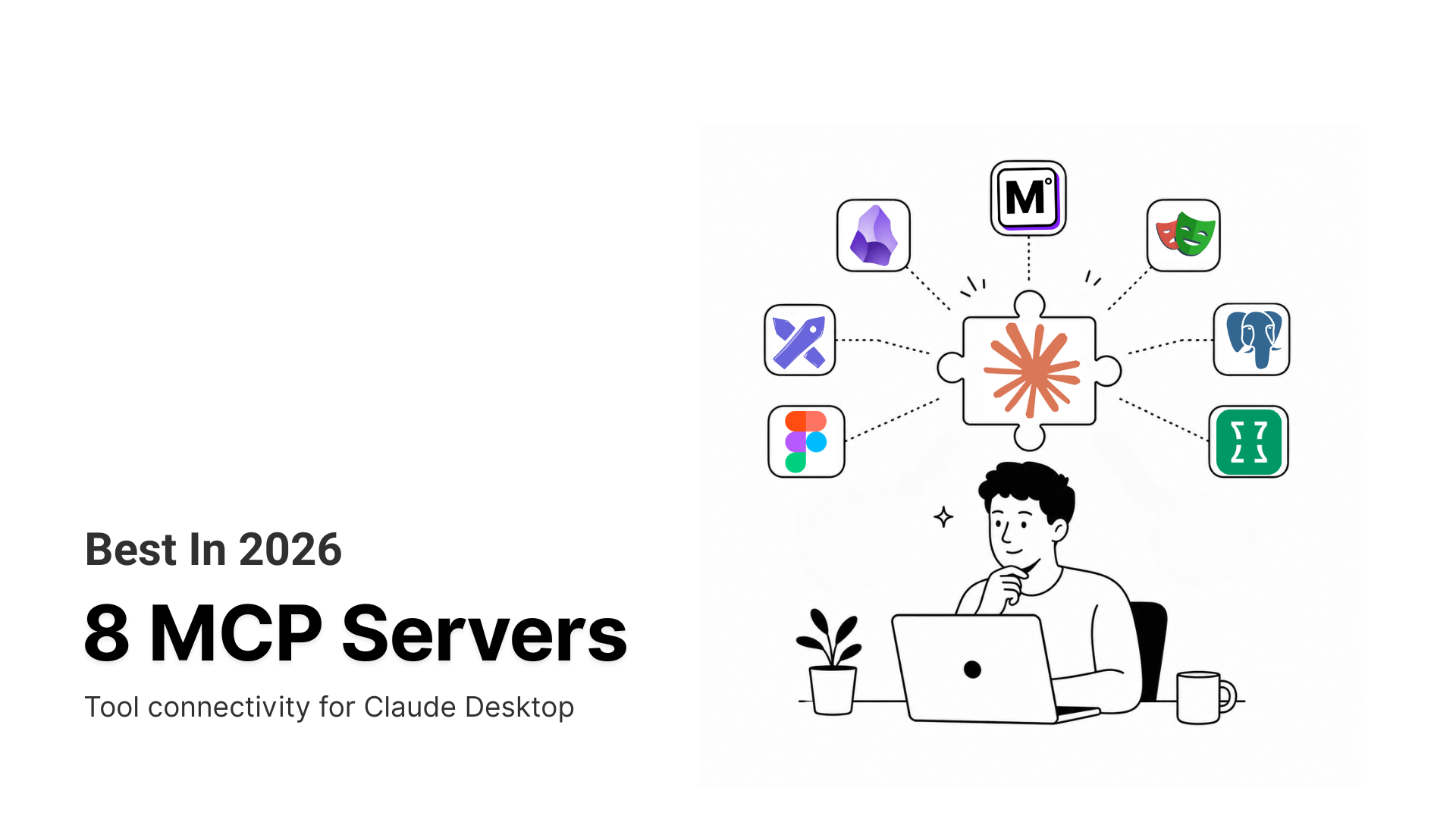
• 8 Best MCP Servers for Claude Desktop in 2026
This guide compares eight useful MCP servers, including what they do, where they work best, and the key limitations to consider before using them.
Claude Desktop is useful like a teammate, but only when it has the same context a teammate would need. It can review code, investigate issues, analyse data, write docs, or research, but most of the real context sits outside the chat.
Your code is in repositories, your data is in databases, your designs are in Figma, and your workflows happen in browsers and business tools. Without access to those systems, Claude is often working with partial context.
MCP servers close that gap. They let Claude access files, SEO & GSO tools, image generation, databases, documentation, design systems, and other tools directly. Instead of constantly moving information into the conversation, you bring Claude closer to where the work already happens.
The result is a more capable AI teammate that can work with real data and real systems rather than only the information pasted into a prompt.
This guide covers the best MCP servers for Claude Desktop in 2026, including what each one does, where it works best, and whether it is worth adding to your setup.
Best MCP Servers for Claude Desktop
Claude Desktop works very differently depending on which MCP servers you connect. Some open up your local machine. Others tie into live browser sessions, databases, or design files. The right choice depends on where your work actually happens.
Every server below has been assessed on what it does, what developers report going wrong, and whether it is genuinely worth adding to your setup.
| MCP Server | Best For | Main Advantage | Main Limitation |
|---|---|---|---|
| MCP360 | Multi-tool environments | Centralizes multiple integrations in one setup | Adds complexity for smaller deployments |
| Excalidraw MCP | Diagramming and architecture design | Creates diagrams from natural language descriptions | Limited export and interoperability options |
| Filesystem MCP | Local development | Direct access to project files and folders | Limited to local storage |
| Playwright MCP | Browser automation | Interacts with live web applications | Authentication workflows can be unreliable |
| Context7 MCP | Framework and library development | Provides current documentation during development | Coverage may be limited for less common libraries |
| Obsidian MCP | Knowledge management | Accesses notes, links, and vault structure | Relies on community-maintained implementations |
| PostgreSQL MCP | Database operations | Generates queries using database schema context | Supports PostgreSQL only |
| Figma MCP | Design-to-code workflows | Uses design tokens and component data directly | Compatibility issues may occur between versions |
1. MCP360
MCP360 is a unified gateway that connects Claude to multiple external services through a single configuration entry. Instead of maintaining a separate MCP server for every tool, you register all your integrations inside one dashboard and point Claude at it. The gateway takes care of authentication, token refresh, retries, and response formatting across every connected service. It supports both off-the-shelf integrations and custom internal APIs.
Pros
- One config for many tools: Replaces per-service MCP setup with a single connection, regardless of how many integrations you are running.
- Centralized credential management: OAuth tokens, API keys, and rate limit handling sit in one place rather than spread across multiple config files.
- Custom API registration: Internal APIs can be added alongside standard integrations and accessed the same way.
- Per-workflow access controls: Tool access can be restricted per workflow, which matters in team environments where not every agent should reach every service.
- Consistent response structure: Outputs from different services return in the same format, which keeps multi-step tasks predictable.
- Pre-built integrations included: Connections to dozens of common services are ready to use once you authenticate, with no per-tool configuration required.
Cons
- Adds unnecessary complexity for small setups: If you only need one or two integrations, the gateway layer is overhead you do not need.
- Free tier cap is low: The free plan runs out quickly, and anything beyond basic usage requires moving to a paid tier.
Best For
Developers and teams running Claude across five or more external services at the same time. If you are connecting Claude to a mix of APIs, databases, and internal tools, MCP360 keeps the configuration manageable. For lighter use, a direct MCP connection is simpler.
2. Excalidraw MCP
Excalidraw MCP connects Claude to Excalidraw, a browser-based diagramming tool known for its hand-drawn visual style. You describe what you want to map out, and Claude builds the diagram for you, placing nodes, drawing connections, and managing layout without you touching coordinates or element positions. Changes appear in your open Excalidraw tab as Claude generates them. Claude works with the graph structure of the diagram rather than raw element data, which means it reasons about how nodes relate rather than just placing shapes.
Pros
- Diagrams from plain descriptions: Systems, flows, and architectures turn into properly connected, spaced diagrams with no manual positioning.
- Mermaid input accepted: Existing Mermaid syntax is converted directly into native Excalidraw elements.
- Real-time updates in the open tab: Changes appear as they are generated with no import or refresh step.
- Structural check before commit: A preview pass catches missing connections and node errors before the diagram is finalised.
- Handles multiple diagram types: Architecture, flowchart, entity relationship, and sequence diagrams all work through the same approach.
Cons
- Preview differs from final output: The SVG check image lacks hand-drawn textures, so it does not represent what you actually see in Excalidraw.
- Freehand and image elements are locked: Anything drawn by hand or added as an image sits outside the graph model and cannot be edited.
- No cross-tool export: Finished diagrams cannot be sent directly to Miro, Lucidchart, or draw.io.
Best For
Developers and engineers who want to sketch out system diagrams or architecture during early planning without building the diagram manually. Good for getting something shareable in front of a team quickly. Not the right tool for diagrams that need to be precise or will end up in formal documentation.
3. Filesystem MCP
Filesystem MCP is an official Anthropic server that gives Claude read and write access to specific folders on your local machine. You define which directories are accessible at setup and nothing outside those boundaries can be reached. Claude can open related files, follow dependencies, and edit across a project directly, rather than working from whatever gets pasted into chat.
Pros
- Full codebase access in one session: No need to paste individual files into chat. The entire project is available for reading and editing at once.
- Simultaneous read and write: One file can be referenced while another is edited in the same task, useful for scaffolding and generation work.
- Broad format support: Code, markdown, JSON, CSV, and plain text all work without extra configuration.
- Strict boundary enforcement: Access is limited to the folders approved at setup, so nothing outside that scope is reachable.
- Coordinated multi-file edits: Changes across several files in a single task stay in sync throughout.
- Fully local: Every operation stays on your machine, which matters for private or sensitive codebases.
Cons
- Local only: Any file not on your machine, including remote repos and cloud storage, requires a separate integration.
- No content filtering: There is no guard against reading files with adversarial instructions embedded, making it risky to point at shared or downloaded content.
Best For
Developers working with Claude on local codebases, especially for tasks that touch multiple files or involve restructuring a project. Not a good fit if your work lives in the cloud or in a remote repository.
4. Playwright MCP
Playwright MCP connects Claude to a real browser session through Microsoft’s Playwright testing library. Claude can navigate pages, click buttons, fill in forms, and read rendered content the same way a person would. By default, it reads pages through accessibility snapshots rather than screenshots, which is faster and does not require a vision-capable model.
Pros
- Browser automation without code: Multi-step flows like form submissions and authenticated navigation run entirely through conversation.
- Works with dynamic pages: A real browser runs under the hood, so JavaScript-rendered content behaves the same as it would for a real user.
- Lightweight page reading: Accessibility snapshots are faster and leaner than screenshot-based approaches, with no image processing delay.
- Session stays open between messages: Complex flows continue across multiple turns without losing state or restarting.
- Step-by-step execution log: Every action is recorded with a pass or fail result after each run.
Cons
- Inconsistent test output: Selector strategies shift between sessions, so regenerated scripts are not reliable enough for automated pipelines.
- Auth flows can break sessions: MFA, OAuth redirects, and permission popups interrupt flows with no recovery path.
Best For
Developers who need to automate browser tasks or generate test scripts without writing Playwright code themselves. Good for testing login flows, scraping rendered content, and documenting apps that have no existing test coverage. Less useful if you need tests that produce the same output every time.
5. Context7 MCP
Context7 MCP, built by Upstash, fetches up-to-date documentation for third-party libraries and injects the relevant sections into the request before any code is written. When a library is mentioned, Context7 identifies it and retrieves the matching docs in the background. It indexes over 9,000 libraries and runs as a hosted service, so nothing needs to be installed locally beyond adding it to your MCP config.
Pros
- Always-current API references: Code is generated from actual documentation for the version in use, not from potentially outdated training data.
- Fewer invented method names: Real API references in context make non-existent functions far less likely to appear in output.
- Targeted doc retrieval: Only the sections relevant to your request are fetched, keeping context usage low.
- Automatic, no prompting needed: Doc fetching happens in the background as part of every request.
- Wide library coverage: Next.js, React, Supabase, MongoDB, and Tailwind are indexed alongside thousands of other packages.
- Free with no account required: Basic usage needs no API key or signup.
Cons
- Gaps in smaller libraries: Less popular packages may have incomplete or stale entries with no accuracy guarantee.
- Free tier limited to 1,000 requests monthly: Heavy use depletes this within a week or two, and higher limits require a paid plan.
Best For
Anyone using Claude to write code against third-party libraries. The accuracy improvement is noticeable immediately, especially for frameworks that change frequently. If you are only going to add one server from this list, this is the one to start with.
6. Obsidian MCP Server
Obsidian MCP gives Claude access to your local Obsidian vault by pointing a server at the vault directory in your Claude Desktop config. Since Obsidian stores everything as plain markdown files, the server works directly with those files on disk. It can read notes, search across the vault, create new files, and follow the wikilink structure between notes.
Pros
- Full vault searchable from chat: Notes are found by title, content, tags, or frontmatter without switching apps or copying anything across.
- Linked notes provide automatic context: The wikilink graph is traversed to surface related material that a simple file search would miss.
- Notes created with correct vault formatting: New files include frontmatter, markdown structure, and wikilinks, fitting naturally into the existing vault.
- Folder and tag structure preserved: The organisational system you have built stays intact rather than being flattened.
- Vault stays local: The server reads from disk only and sends nothing to external services.
Cons
- Search quality varies: Some implementations only match on titles, not note content, which limits usefulness in large vaults.
- File moves can break wikilinks: Implementations without automatic backlink updates will silently orphan connected notes on rename or move.
Best For
Researchers, writers, and developers who keep a knowledge base in Obsidian and want Claude to pull context from it without manual copying. Most useful for vaults built around linked notes rather than standalone files. Start with read-only access and verify backlink handling before enabling writes.
7. PostgreSQL MCP
PostgreSQL MCP connects Claude to a live PostgreSQL database through a connection string passed in as an environment variable. Read and write access are configured as separate capabilities, so querying can be allowed without also granting the ability to modify data. Before writing any query, the full schema is read first, covering table names, column types, indexes, and relationships.
Pros
- Schema-informed queries: Table names, column types, and relationships are read upfront so nothing in the generated SQL needs to be guessed.
- Query plan analysis: Execution plans are retrieved and read to surface missing indexes, sequential scans, and slow joins.
- Independent read and write control: Querying can be permitted while inserts, updates, and deletes remain locked out.
- In-session query iteration: A query is run, results reviewed, query adjusted, and re-run without switching tools or copying output.
- Built-in full-text search: Content searches across text columns run without a dedicated search index already in place.
Cons
- PostgreSQL only: MySQL, SQLite, SQL Server, and others each need a different adapter.
- No result pagination: Full result sets return at once and can overflow the context window without a row limit in the query.
Best For
Developers and analysts who need to explore or query a live PostgreSQL database. Good for understanding an unfamiliar schema, writing complex queries, checking data quality, and diagnosing slow queries. Use a read-only connection or a development database until you are confident in what Claude is doing.
8. Figma MCP
Figma’s official MCP server connects Claude to design files using OAuth. Instead of passing a screenshot for interpretation, it exposes the underlying component data directly, covering names, properties, spacing values, design tokens, and variable collections. Two versions exist. The remote version works for most users, and the desktop version is aimed at enterprise environments with stricter data handling requirements.
Pros
- Code output matches real design values: Spacing, sizing, and token values come from actual file data rather than being estimated visually.
- Tokens and variables flow into code: Color, typography, and spacing from variable collections are used directly in generated output.
- Component mapping cuts mismatches: When Figma components are tied to real code, that mapping is used so output aligns with the actual component library.
- Two-way file access: Content can be added or modified in Design files and FigJam boards, not just read.
- FigJam and Make files included: Access covers FigJam boards and Make resources, not only standard design files.
Cons
- Rate limits fail silently: Calls fail without warning once the per-plan cap is hit, and the exact thresholds are not clearly documented.
- Screenshot tool returns text: get_screenshot produces a written description rather than an image, breaking any workflow that expects a visual.
Best For
Developers translating Figma designs into code, particularly when the file uses a proper component structure with named variables and Code Connect mappings. Works well alongside Playwright MCP when you want to generate code from a design and then verify how it looks in the browser.
How to Choose the Right MCP Server
Start by asking what kind of work you are doing and where that work actually lives. The server that earns a place in your setup is the one that removes a friction point you hit every day, not the one with the longest feature list.
- Local files and code: Use a filesystem server when you need to read, edit, or navigate a project without copy-pasting files into chat.
- Browser work: Separate the task first. Automating a flow and debugging a failing one are different problems that need different tools.
- Code accuracy: If wrong function names and stale API behavior are regular problems, a live documentation server fixes it at the source.
- Database work: Start read-only. It covers most tasks and protects production data while you learn what the integration actually does.
- Design-to-code: The output quality depends on the file structure as much as the server. Named components and proper token systems make a real difference.
- Diagrams and planning: If you sketch systems regularly, generating them from a description keeps the work inside the conversation rather than across multiple tools.
- Linked notes: If your reference material is built around connected documents, direct access removes a manual step you repeat every session.
- Five or more integrations: At that point, managing separate configs for each is a maintenance problem. A single gateway that handles auth and routing across all of them is worth the overhead.
The clearest signal is always where the source of truth lives. Connect to that first, and add from there.
Frequently Asked Questions
How do you add an MCP server to Claude Desktop?
You add it through Claude Desktop’s config. Open Settings, edit the MCP config file with the server’s command or URL and any credentials, then restart Claude Desktop. Newer versions also support one-click desktop extensions. Once connected, a tool icon shows how many tools the server made available.
What does the Context7 MCP do?
Context7 MCP pulls current documentation for third-party libraries and feeds the relevant parts into the request before Claude writes code. Built by Upstash, it indexes over 9,000 libraries as a hosted service. The result is fewer invented method names and code that matches the library version you actually use.
What is the Filesystem MCP server?
Filesystem MCP is an official Anthropic server that gives Claude read and write access to specific folders on your machine. You approve the directories at setup, and nothing outside them is reachable. Claude can open files, follow dependencies, and edit across a project instead of working from pasted snippets.
How many MCP servers can you connect to Claude Desktop?
There is no hard limit, but each server adds another config entry, credential, and point of failure. Three or four stays manageable. Past five, a gateway like MCP360 consolidates them into one connection and handles authentication and routing, so the setup does not sprawl.
Can MCP servers automate browser tasks in Claude?
Yes. The Playwright MCP connects Claude to a real browser, so it can navigate pages, click buttons, fill forms, and read content. It reads pages through accessibility snapshots instead of screenshots, which is faster and needs no vision model. Sessions stay open across messages, so multi-step flows continue.
Can you connect internal or custom APIs to Claude through MCP?
Yes. Beyond ready-made servers, you can expose an internal or third-party REST API as an MCP tool so Claude reaches it like any other server. MCP360 supports this directly, registering custom APIs next to standard integrations under one config, so internal tools work without a separate server.
Are MCP servers safe to use with Claude Desktop?
They can be, with care. Most run locally as subprocesses with your own user permissions, so scope matters. Filesystem MCP limits Claude to approved folders, and database servers let you grant read access without write. Start read-only and confirm what each one can reach before connecting.
Can you control which tools an agent can access across a team?
Yes. In team setups, not every agent should reach every service. Handling this per server gets hard to track as tools grow. MCP360 applies per-workflow access controls from one place, so you decide which tools each workflow can use without editing scattered configs.
Conclusion
The MCP ecosystem is growing with new categories, capabilities, and integrations still being defined. Write operations, session memory, version control, deployment tooling, and internal communication platforms are all in active development. The number of servers worth connecting to will increase, and the coordination overhead increases with it.
Every additional server brings another config file, another credential to rotate, and another point of failure to diagnose. At three or four connections that is tolerable. At eight or ten it becomes the kind of overhead that quietly absorbs engineering time.
MCP360 consolidates all of it into one place. One config covers every connected service. Credentials, access control, and request routing are managed centrally, not scattered across individual server configs. When a connection fails, there is one place to inspect. When access needs to change, there is one place to change it.
Start with the connections that matter most to your current work. Add from there. As the stack grows, centralized management is what holds it together.