



The TL;DR
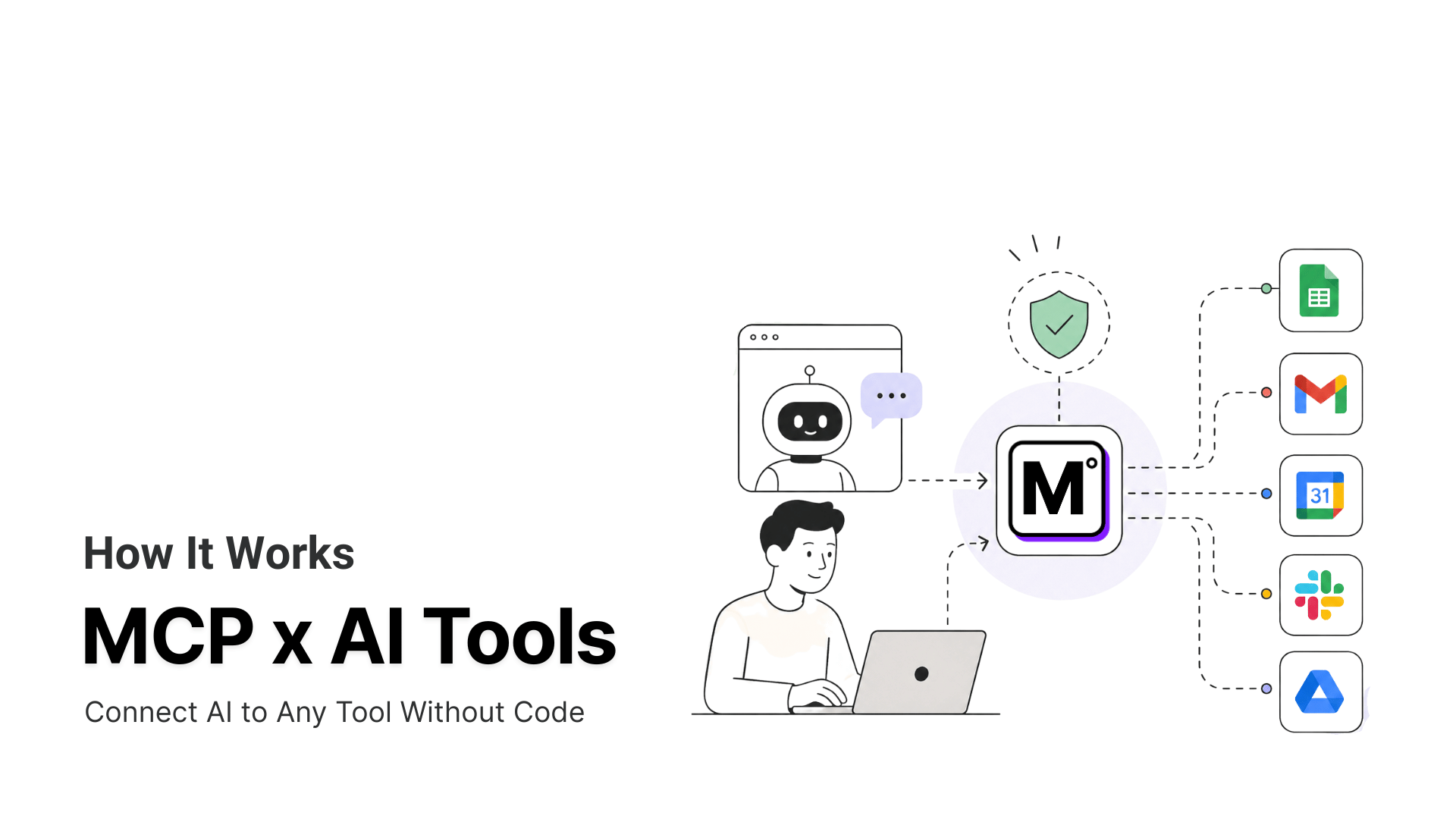
Amazon Q Developer connects to more than 100 external tools through MCP360, using one hosted gateway instead of building a separate custom integration for every tool.
-
• Why Connect MCP360
Amazon Q Developer can reason, write code, and assist inside development workflows, but it cannot directly reach outside systems on its own. MCP360 closes that gap by giving Q Developer one gateway for tool access instead of a custom connector for every external service.
-
• Quick Setup
The setup takes about ten minutes. Copy your MCP360 gateway URL and token, add it as an HTTP server in Amazon Q Developer’s CLI or IDE, and pass the token through the Authorization header.
-
• What to Check First
Before connecting, confirm your language server is patched beyond the June 2026 MCP vulnerability. Also note that Q Developer’s IDE plugins are being replaced by Kiro, and new signups for those plugins have already closed.
Amazon Q Developer reads a codebase, drafts a fix, and runs an AWS CLI command without much friction. The trouble starts the moment a task needs something outside that set. Check a competitor’s current price, look up a record in an internal system, pull live SERP data before writing a feature, and Q has nothing to reach for. It can reason about the problem. It cannot act on it.
Model Context Protocol closes that gap. It’s an open standard that gives an AI assistant a consistent way to call external tools, and Amazon Q Developer supports it natively across both the CLI and the IDE extensions. Amazon Q Developer can connect to an MCP server one at a time, each with its own install and its own config entry, but that gets unwieldy past two or three tools. MCP360 solves that by putting a whole catalog of MCP servers behind a single gateway, so Amazon Q MCP setup becomes a one-time connection instead of one per tool.
This blog walks through that setup on both surfaces, then covers the security controls worth checking before you point any of this at a production account.
What Is Amazon Q Developer?

Amazon Q comes in two separate products, and only one of them is relevant here. Amazon Q Business is an enterprise assistant for internal documents and business applications. Amazon Q Developer is the coding assistant, the one that lives in VS Code, JetBrains, Eclipse, Visual Studio, the AWS console, and the command line. MCP support belongs to Q Developer. If your goal is external tool access, Q Developer is the product you configure.
Q Developer ships in two tiers. The Free tier includes 50 agentic requests per month, access to the current Claude models, and works in both the IDE and CLI. The Pro tier runs $19 per user per month and adds higher limits, admin controls through IAM Identity Center, and IP indemnity. MCP works on both tiers. The Pro tier additionally lets an administrator govern which MCP servers a team is allowed to connect.
Amazon Q Developer End-of-Support Timeline
Before you spend ten minutes on this setup, two things are worth knowing. AWS announced in April 2026 that Q Developer’s IDE plugins and paid subscriptions are being replaced by a new product called Kiro. New Q Developer signups stopped on May 15, 2026. The newest Claude models left Q Developer Pro on May 29, 2026, and now ship exclusively on Kiro. Full end of support for the IDE plugins lands April 30, 2027. Existing subscriptions keep working through that date, and Q Developer inside the AWS Console, documentation site, and Slack and Teams chat apps isn’t affected by any of this.
Kiro carries MCP support forward, so an MCP360 connection set up today should carry over conceptually if you migrate later. If you’re setting up Q Developer for the first time today, it’s worth weighing whether to start on Kiro instead, particularly for anything you expect to still be running in 2027.
How Amazon Q Developer Uses MCP Servers
An MCP server is a small program that exposes a defined set of tools to an MCP client, in this case Amazon Q Developer. Q Developer can reach two kinds of MCP server, and the difference determines how much setup work you’re signing up for.
Local servers run as a process on your own machine.
- Q Developer starts and stops the process itself
- Each one needs its own install and its own config entry
- Adding a second tool means repeating the whole setup
Remote servers run over HTTP, hosted outside your machine.
- MCP360 is this kind: a hosted gateway that puts a full catalog of tools behind one URL
- You configure the connection once
- New tools become available automatically as MCP360’s catalog grows, no extra setup on your end
This is the part of Amazon Q MCP setup that actually answers “connect MCP servers,” plural. Wiring up individual local servers one by one works fine for a single tool, but it means repeating the process for every new one. MCP360 turns that into a one-time setup: connect the gateway once, and every server in the catalog, current and future, is available through it.
IfIf you’re new to the protocol itself, our guide to what MCP is covers the basics, and MCP vs traditional APIs explains why the gateway shape cuts down on integration work compared to wiring in each service by hand.
How to Connect Amazon Q Developer to MCP Servers via MCP360
The setup has two supported paths. Use the IDE flow if you work in VS Code or JetBrains. Use the CLI flow if you run Amazon Q Developer in the terminal. If you’re deciding between the two, our breakdown of MCP vs the CLI covers how the execution models actually differ. Both paths point Q at the same MCP360 gateway URL.
Step 1. Copy your MCP360 gateway URL
- Log in to your MCP360 dashboard and open or create a project.
- Open MCP Servers in the sidebar.
- Select the Universal Gateway to reach the full catalog, or a single server for one tool domain.
- Copy the gateway URL and your access token. You will paste these into Amazon Q.

- Copy the URL of any tool you want to connect.

Step 2. Open the MCP configuration in Amazon Q Developer (IDE)
- Open your IDE and sign in to Amazon Q Developer.
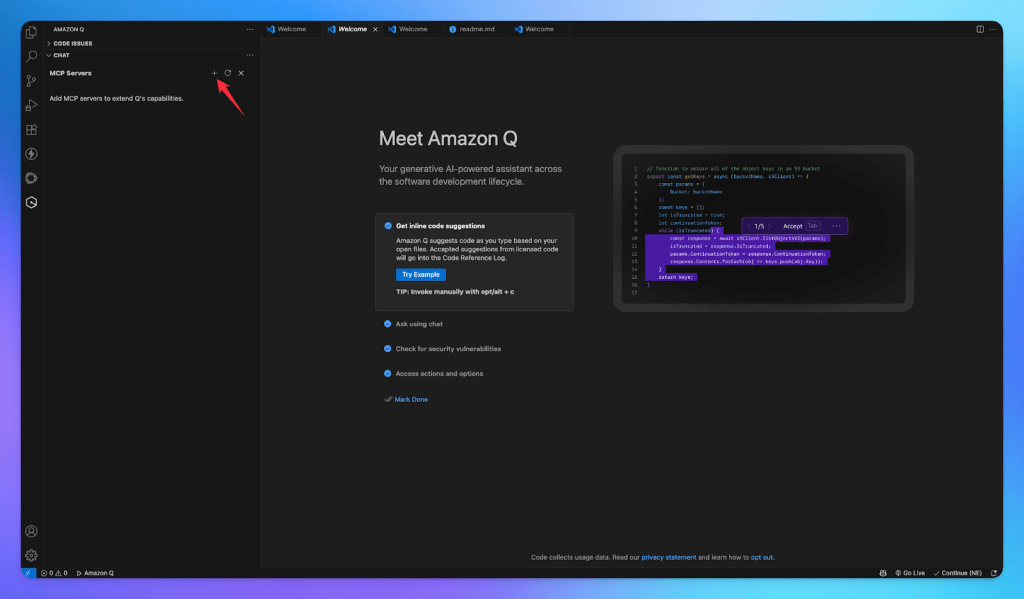
- Open the Amazon Q chat panel, then open the tools or MCP configuration view.
- Choose the plus (+) to add a server, and select the scope. Global scope stores the entry in
~/.aws/amazonq/and applies to all projects. Local scope stores it in.amazonq/inside the current project.

- Select Add MCP Server to start adding your MCP servers.
Step 3. Add the MCP360 server details
- Enter a server name, for example
mcp360. - Set the transport to HTTP, since MCP360 is a remote gateway.
- Paste the MCP360 gateway URL into the URL field.
- If your gateway uses a bearer token, add it under Headers as
Authorization: Bearer YOUR_TOKEN. Set a timeout value if you want a longer initialization window, then save. When you save, Amazon Q attempts to connect. If the endpoint requires OAuth, Q opens a browser page so you can authorize it. If a configuration alert appears at the top of the panel, choose Fix Configuration and correct the entry before continuing.

Step 4. Verify the connection and tools
- In the IDE, confirm MCP360 shows as connected in the MCP Servers panel, and enable it if it is listed as disabled.
- In the CLI, run
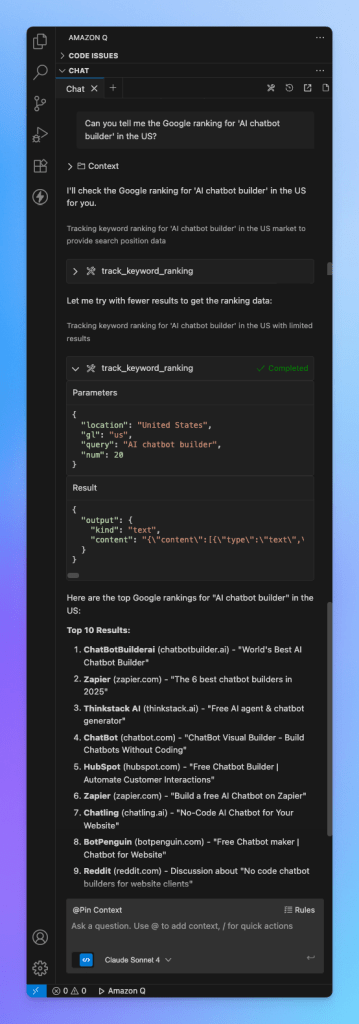
/toolsto see which servers have loaded and which tools are available. Q loads servers in the background, so tools appear as each one finishes initializing. - Run a tool-dependent prompt to confirm real execution, for example asking Q to look up live product data, then cross-check the result against the source.
If tools do not appear or a call fails after the server connects, our guide on how to troubleshoot MCP connection issues walks through the failure points in order.
If tools do not appear or a call fails after the server connects, our guide on how to troubleshoot MCP connection issues walks through the failure points in order.
Amazon Q MCP Security Best Practices
Connecting Amazon Q to MCP360 means Q can act on outside systems using your access token. Two things are worth setting up right: knowing about the patch below, and keeping the connection scoped tightly.
June 2026 Amazon Q MCP Security Vulnerability
Wiz Research found that the language server powering Q Developer’s IDE plugins would auto-execute MCP configurations from a .amazonq/mcp.json file the moment a developer opened a workspace, with no consent prompt. Because the spawned process inherited the developer’s full environment, a single malicious file in a cloned repository could exfiltrate live AWS credentials.
- CVE IDs: CVE-2026-12957 (trust boundary enforcement) and CVE-2026-12958 (symlink validation)
- Fixed in: Language Servers for AWS 1.65.0 and 1.69.0
- Action needed: Reload your IDE to confirm you’re on the patched version. The language server auto-updates in most setups, so this is usually a one-time check.
- Ongoing habit: Treat any MCP configuration that arrives inside a cloned repository, rather than one you typed yourself, as unverified until you’ve read it.
Amazon Q MCP Security Features
Amazon Q’s CLI security model runs on three principles: explicit permission before a tool runs, local execution, and process isolation per server. Every tool also carries a permission level, auto-approved, requires approval, or flagged as dangerous. Check that level for the tools MCP360 exposes, and require approval for anything that writes data rather than just reads it.
Best Practices Before Connecting MCP360
- Scope the connection: Add MCP360 at local (workspace) scope first if only one project needs it, rather than global scope across everything.
- Keep your token out of committed files: Pass it through the Headers field, not the config body, and add .amazonq/ to your ignore rules on shared repositories.
- Use governance controls for teams: On the Pro tier with IAM Identity Center, an admin can disable MCP org-wide or publish an allow-list of approved servers, now configured through the Kiro console rather than a separate Q Developer settings page.
- Rotate your MCP360 token periodically and revoke it immediately if a device with access is lost or a teammate leaves.
Amazon Q MCP Use Cases
Once MCP360 is connected, Q Developer can combine code work with live data in the same session, rather than switching to a browser mid-task.
- Developers: Pulling live marketplace, keyword, or SERP data before writing a feature means the code starts from real inputs instead of placeholder values.
- Teams scoping a migration or integration: Q can gather domain records, DNS data, and page metadata for a target and summarize it without leaving the IDE.
- Growth and product teams: Scheduled queries against product listings can flag pricing or positioning changes since the last run.
- Anyone generating a report from internal data: Combining what Q already knows about your codebase with data pulled live through MCP360 keeps the output current instead of stale the day it’s written.
The catalog grows on MCP360’s side, not yours. New tools become available to Q Developer automatically, without a second round of configuration.
Frequently Asked Questions
What is Model Context Protocol (MCP)?
Model Context Protocol is an open standard that lets an AI assistant call external tools instead of relying only on its training data. An MCP server exposes a defined set of tools to an MCP client. Amazon Q Developer acts as that client, reaching local servers that run as a process on your machine, or remote servers that connect over HTTP.
What is Amazon Q Developer used for?
Amazon Q Developer is AWS’s coding assistant, available in VS Code, JetBrains, Eclipse, Visual Studio, the AWS Console, and the command line. It reads code, drafts fixes, and runs AWS CLI commands directly inside your workflow. It’s a separate product from Amazon Q Business, which handles internal documents and enterprise applications rather than software development.
Does Amazon Q Developer support MCP in both the CLI and the IDE?
Yes. Amazon Q Developer supports MCP natively in the CLI and in the IDE extensions for VS Code and JetBrains. Both surfaces can connect to the same MCP360 gateway URL, so a server configured in one place doesn’t need separate setup for the other. The connection method differs, a JSON config file for the CLI and a graphical panel for the IDE, but the result is identical.
Is it safe to connect an MCP server to Amazon Q Developer?
It’s safe when the server is trusted and your Q Developer language server is patched. A real vulnerability, CVE-2026-12957, let malicious workspace configs auto-execute code before AWS fixed it in June 2026. Beyond staying updated, use token-based remote gateways like MCP360 rather than unverified local scripts, and require approval for any tool that writes data instead of just reading it.
Is Amazon Q Developer being discontinued?
Not immediately, but its timeline is limited. AWS stopped new Q Developer signups on May 15, 2026, and IDE plugin support ends April 30, 2027, in favor of a new product called Kiro. Existing subscriptions keep working until that date, and Q Developer inside the AWS Console, documentation site, and chat apps isn’t affected. Kiro carries the same MCP support forward.
How many MCP servers can I connect to Amazon Q Developer at once?
There’s no hard limit from Amazon Q Developer itself, but each local server needs its own install and config entry, which gets unwieldy past a few tools. A remote gateway avoids that. MCP360, for example, puts more than 100 tools behind one connection, so adding a new tool to the catalog doesn’t require touching your Q Developer configuration again.
What do I do if an MCP server won’t connect in Amazon Q Developer?
Start with the basics, a valid URL, the correct transport type, and a correctly formatted authorization token. In the IDE, a configuration alert at the top of the panel usually points to the specific field that’s wrong. For a gateway connection like MCP360, token scope and header formatting cause most failures. The CLI’s /tools command confirms which servers actually loaded.
Does Amazon Q Developer’s Free tier support MCP servers?
Yes. MCP works on both the Free and Pro tiers of Amazon Q Developer. The Free tier includes 50 agentic requests per month and works in the IDE and CLI, so an MCP connection functions the same way it would on Pro. The Pro tier adds the ability to govern which MCP servers a team is allowed to connect, but that’s an admin control, not a feature gate on MCP itself.
Conclusion
Amazon Q MCP setup through MCP360 takes about ten minutes, one gateway URL and one token. That part isn’t the hard question.
The harder question is who this guide is actually for. AWS stopped new Q Developer signups on May 15, 2026, so if you don’t already have an account, or a seat on an organization’s active subscription, you can’t start one today to try this. That leaves two real audiences: teams already running Q Developer Pro with workflows built around it, and individual Builder ID holders who signed up before the cutoff. For both, the connection still earns its ten minutes. Support runs through April 30, 2027, a little over nine months out from today, plenty of runway for a tool you’re actively using.
If neither describes you, the honest next step isn’t this guide. It’s Kiro, which inherits the same MCP model without the 2027 expiration attached.
The gateway itself won’t need touching again once it’s up. MCP360’s catalog grows independently of whichever assistant reads from it. Connect your MCP360 gateway to Amazon Q Developer and see what’s in the catalog today.

Article by
MitaliAI & Automation | Content Writer
Mitali is a content writer covering AI agents, automation, and no-code tools. Her writing spans the AI landscape, from support and sales automation to MCP integrations and agent workflows, with a focus on practical business use.