



The TL;DR
Codex cannot access live internet data on its own. MCP360 gives it access to external tools through one gateway connection instead of requiring multiple separate MCP server setups.
-
• What It Does
MCP360 connects Codex to more than 100 external tools, including web search, pricing data, SEO checks, and domain lookups, through a single gateway URL added inside Codex Settings.
-
• Why It Matters
Each MCP server normally requires its own command, authentication token, and entry in
config.toml. A single MCP360 gateway connection replaces that long list and makes the configuration easier to manage. -
• Result
The setup takes about five minutes inside Codex Settings and can be verified with the
/mcpcommand. Once connected, Codex can retrieve live information during a session instead of relying only on its training data.
Codex can inspect your repository, run tests, edit multiple files, and help debug code in a single session. But when a task depends on live information, such as today’s exchange rate, a current pricing page, a DNS record, or an external API response, Codex needs a connection to tools outside the local workspace.
MCP servers provide that connection. Model Context Protocol gives Codex a standard way to call external tools during a session, retrieve current data, and use the returned result instead of relying only on previously learned information.
This guide shows you how to add an MCP server to Codex, configure the connection correctly, and confirm that the tools are available using the /mcp command. You will also learn how to identify common setup problems involving commands, authentication, environment variables, and configuration entries.
The basic setup takes only a few minutes. The difficult part is spotting a failed connection because Codex may continue responding without showing an obvious error. By the end of this guide, you will know how to verify that MCP is working before trusting Codex with live-data tasks.
What Is Codex

Codex is OpenAI’s coding agent, available through the CLI, VS Code extension, desktop app, and cloud environment for delegated tasks. Each environment supports a different workflow, and MCP server behavior is not always identical across them.
The CLI currently provides the most reliable MCP setup experience. The VS Code extension has a documented issue where servers that work correctly in the CLI may not always appear inside the editor, which we cover in the troubleshooting section below.
Codex Cloud does not currently run MCP servers directly. A practical workaround is to use MCP tools during a local Codex session, complete the live-data work there, and then hand the finished output to Codex Cloud for the next stage.
Now that you know where MCP servers fit within Codex, the next step is understanding what they add to the coding workflow.
Why Use an MCP Gateway for Codex?
Adding MCP servers to Codex one at a time works fine until the second or third server. Here’s what changes with a single gateway instead.
- Fewer Credentials to Rotate: Each stdio server needs its own
npxcommand and its own environment variable. Each remote server needs its own URL, its own bearer token, and its own line inside[mcp_servers.<name>]. Multiply that by five or six tools, and config.toml turns into a list of credentials to audit individually. A single gateway collapses that list into one entry. - New Tools Show Up Without Touching Config: Add the gateway once, and every tool it exposes becomes reachable through that one connection. New tools added to the catalog show up automatically. Nothing in Codex’s config changes when that happens.
- More of Codex’s Context Budget Stays Free: Tool schemas count against context, and Codex’s own documentation on context management calls out large tool manifests as a common way sessions run short on room to work. Loading ten separate MCP servers, each with its full tool list, spends that budget before the actual coding task starts. A gateway with on-demand loading spends it only on the tools a given task actually calls.
How to Add MCP Servers to Codex (Step-by-Step)
Everything below breaks into three moves. Grab a URL from MCP360, paste it into Codex’s Settings, confirm Codex can see the connection.
Step 1: Get Your MCP360 Server URL
MCP360 is a unified gateway that connects Codex to more than 100 external tools, spanning web search, e-commerce and pricing data, domain and DNS lookups, and email verification, through one integration. It also includes a no-code Custom MCP Builder for wrapping your own APIs into callable tools. Create a free account (no card required for the free tier), then set up the server.
- Log in to the dashboard.
- Open an existing project, or create a new one.
- Select MCP Server from the sidebar.

- Copy the URL of the tool you want to connect, the Universal Gateway for the full catalog, or a single server for one tool domain.

Step 2: Add the Server Inside Codex
- Open Codex and click the settings icon in the menu bar.
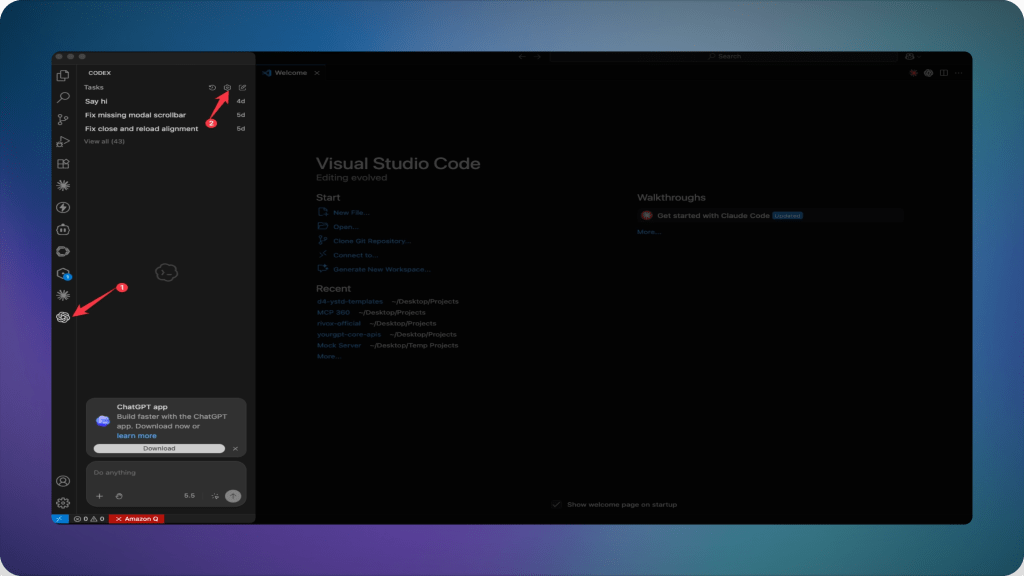
- Go to Codex Settings, then select MCP servers from the sidebar.
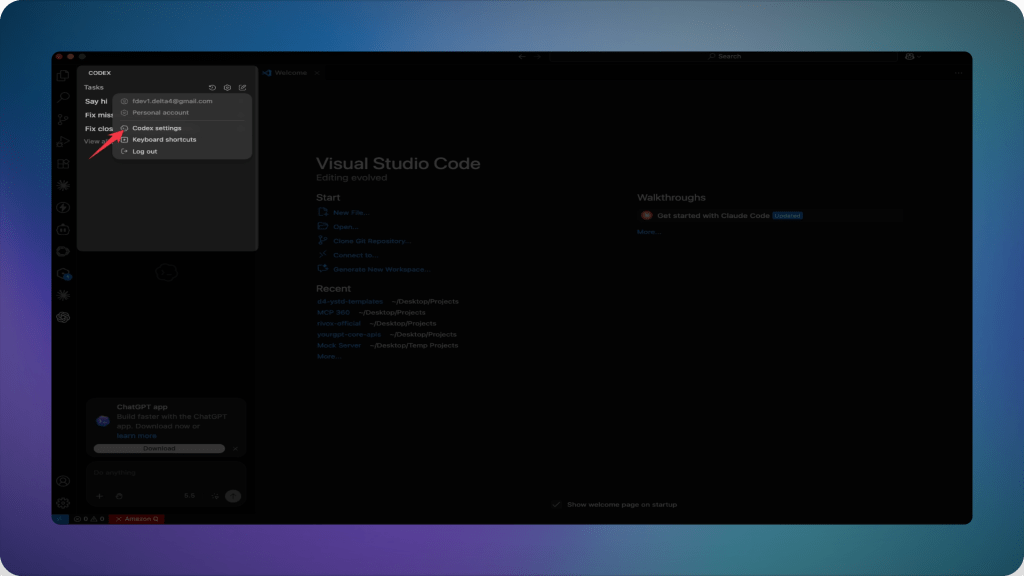
- Click Add Server.

- Set the type to Streamable HTTP.
- Enter a server name,
mcp360works fine. - Paste the server URL copied in Step 1.
- Click Save.
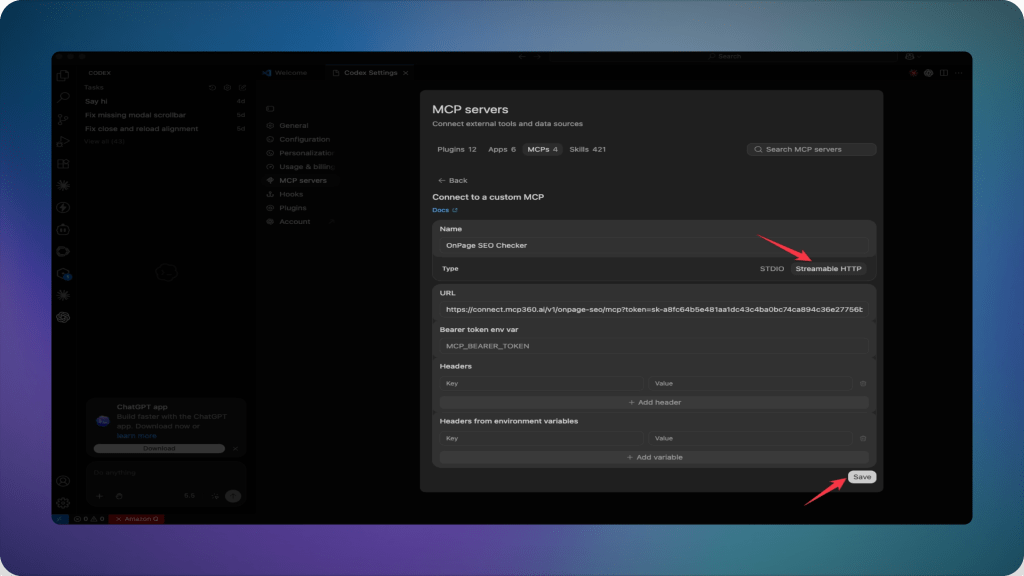
- The new entry shows up in the list right away.

That URL carries your API key as part of the address, so treat it the way you’d treat a password. Don’t paste it into a public chat, a shared doc, or a config file that ends up in version control.
Prefer the terminal to the Settings panel? codex mcp add takes a --url flag and writes to the same config.toml file underneath:
codex mcp add mcp360 --url "<the URL copied in Step 1>"
Step 3: Verify Codex Can See the Tools
Showing up in the Settings list confirms the server is registered. It doesn’t confirm Codex can actually reach it. Check that from a terminal:
codex/mcp
/mcp lists every configured server and whether it’s connected. If the gateway shows up with a tool count next to it, the connection works. If it shows connected with zero tools, or doesn’t appear at all, jump to the troubleshooting section below before assuming the config is wrong.
Confirm it’s actually usable with a prompt Codex can only answer by calling the tool, something it can’t guess from training data:
“Look up the current WHOIS registration date for anthropic.com and tell me who it’s registered through.”
If Codex comes back with a real answer instead of a hedge about not having live access, the connection works end to end.
Global vs Project MCP Configuration in Codex
Codex checks two places for MCP configuration, and the difference isn’t cosmetic. The Settings panel from Step 2 writes to the global file, which covers the common case. Scoping a connection to a single project instead means editing the project’s config file directly.
~/.codex/config.toml is global. Anything defined there is available in every project, every time codex runs. This is the right home for a connection wanted everywhere, which covers most setups.
A project-scoped .codex/config.toml, sitting inside the repository itself, only loads if Codex trusts that project. Trust isn’t automatic. An untrusted project silently ignores its local config, MCP servers included, with no error explaining why a freshly added connection isn’t showing up. Scoping to one repository instead of adding it globally means marking the project as trusted, or the entry does nothing.
Troubleshooting MCP Servers in Codex
Most connection failures trace back to one of four things.
- The URL wasn’t copied in full: MCP360’s server URL carries your API key as part of the address. If it’s cut off, has an extra space, or got mangled by a paste, Codex connects but authentication fails silently.
- The wrong surface is being checked: The VS Code extension has an open bug (issue #6465) where servers connected in the CLI don’t register inside the extension. Confirm in a terminal first.
- The project isn’t trusted: Project-scoped config from an untrusted directory loads nothing, and Codex won’t say that’s what happened.
/mcpshows the server but zero tools: Usually means the URL’s embedded token is invalid or expired. Re-copy it from the dashboard and try again.
If none of that resolves it, MCP360’s own guide to MCP connection issues covers the failure points that sit on the server side rather than the Codex side.
Benefits After Connecting MCP to Codex
What changes depends on who’s driving the session.
- Developers: Debugging gets a live-data option instead of a guess. Ask Codex to check whether a package’s latest version matches the lockfile, or to pull a live API response instead of guessing at a schema from memory, and it can just do that instead of telling you to check yourself.
- Technical SEO and Content Teams: Keyword volume, SERP position, and on-page audit data become part of the same Codex session that’s generating or editing a page, instead of a separate tab being copied from.
- Solo Builders: Fewer credentials to manage. One API key covers what most side projects actually need, search, a pricing check, a domain lookup, instead of five separate signups for five separate capabilities.
Frequently Asked Questions
What is an MCP server?
An MCP server is a small program that gives an AI agent access to a specific external tool or data source, like a search engine, a database, or an API, through the Model Context Protocol. The agent calls it mid-session instead of relying only on what it learned during training.
How do I add an MCP server to Codex?
Open Codex’s Settings, select MCP servers, and click Add Server. Choose Streamable HTTP or stdio depending on the server, enter a name and the server’s URL or command, then save. The new entry appears in the list immediately, though reachability still needs a quick check with /mcp.
How does MCP360 connect to Codex?
MCP360 gives Codex one Streamable HTTP URL that reaches over 100 tools. Copy it from the MCP360 dashboard, paste it into Codex’s Settings under MCP servers with the type set to Streamable HTTP, and save. No local process or separate token field is needed.
Why use Streamable HTTP instead of stdio for Codex MCP servers?
Stdio servers run as a local process Codex has to start and manage, an npx command, a working directory, a process to keep alive. Streamable HTTP servers, like MCP360’s gateway, just need a URL. Codex connects directly, with nothing running locally to babysit.
Does adding MCP360 to Codex slow down its context window?
No. MCP360 loads tools on demand through two meta-tools, search_tools and execute_tool, instead of dumping all 100+ tool schemas into Codex’s context at once. Codex only pulls in the specific tools a task actually needs, keeping the context budget free for the coding work itself.
Why doesn’t my MCP server show up in the Codex VS Code extension?
This is a known, open bug, openai/codex issue #6465. Servers added through the CLI or Settings panel don’t always register inside the VS Code extension, even though the same config.toml is shared. Confirm the connection works in a terminal with /mcp first, then check the extension.
What’s the difference between global and project-scoped MCP config in Codex?
Global config, in ~/.codex/config.toml, is available in every project. Project-scoped config, in a repository’s .codex/config.toml, only loads if Codex trusts that project. An untrusted project silently ignores its local file, so a server added there can appear missing with no error explaining why.
Can I add MCP360 to Codex without touching config.toml?
Yes. Codex’s Settings panel handles the whole MCP360 connection, name, URL, and Save, without opening config.toml directly. That file still stores the entry underneath, which matters if you ever need to edit it by hand for project-scoped access instead of the global default.
Conclusion
The setup itself is small: one URL, pasted into one settings panel. What it makes possible scales with how often a Codex session needs something outside the repository, and for most engineering work, that’s more often than Codex’s built-in toolset covers.
Once the connection is live, the next worthwhile step is checking what else has changed for Codex specifically. Its underlying model gets swapped out periodically, and each swap can change how it calls tools, covered in more detail in what’s actually changed for coding agents running MCP. For anyone building heavier workflows on top of this, Codex’s skill system is the natural next layer to pair with a working MCP connection.
Run the WHOIS check from Step 3. If it comes back real, everything else here is just adding more tools to the same connection.
Tags

Article by
RajniAI & Tech | Senior Content Writer
Rajni is a senior content writer covering AI agents, automation, and no-code tools. She writes across the AI space, from chatbots and customer support to MCP and agent workflows, focused on how businesses actually put these tools to work.