


The TL;DR
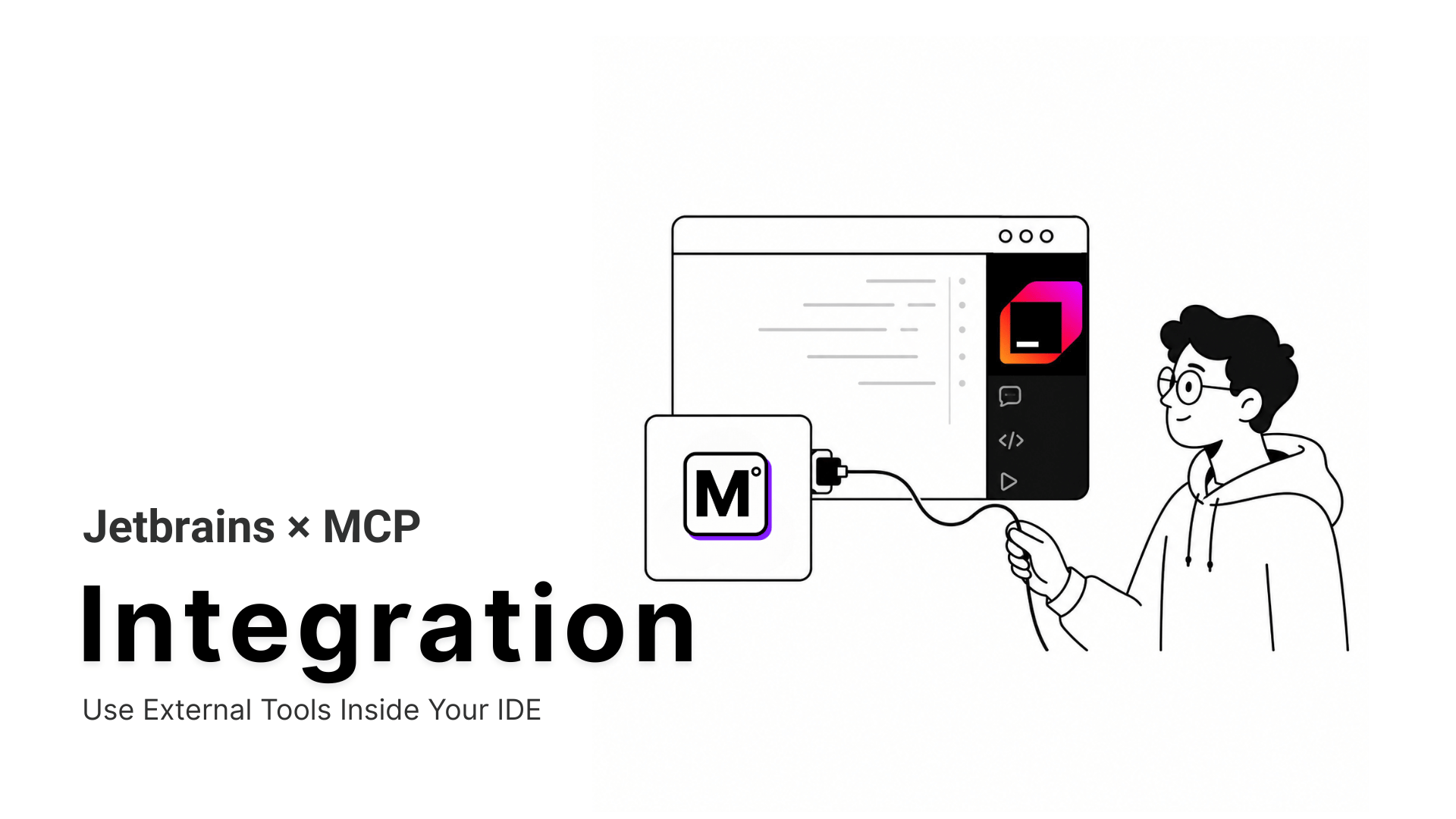
Connecting an MCP server to JetBrains AI Assistant takes one settings panel and a JSON block, but two mistakes cause most first attempts to fail.
-
• Built Into the IDE, Not a Plugin
MCP client support has shipped inside every IntelliJ-based IDE since version 2025.1. Streamable HTTP for remote servers followed in a later update. There’s nothing extra to install for the connection itself.
-
• Two Directions, One Similar Name
JetBrains AI Assistant can pull tools in from MCP servers, or expose the IDE’s own tools out to other AI clients. Opening the wrong settings screen is the first mistake most people make.
-
• A Gateway Skips the Repetition
Connecting a gateway such as MCP360 once brings in a wide tool catalog through a single HTTP entry, instead of repeating the add-server steps for every individual service.
JetBrains AI Assistant can explain a function or refactor a class using whatever is already open in the project, but ask it about a package that updated last week, what a live endpoint actually returns, or what a Jira ticket says, and it has nothing to work with. Training data has a cutoff, and open files don’t include a production database or an issue tracker.
Model Context Protocol gives AI Assistant a way to call out to real tools and data directly, instead of a developer copying information in by hand every time. Native MCP client support has shipped inside every IntelliJ-based IDE since version 2025.1, so the capability already exists. It just needs a server connected to it.
Connecting one starts with the right settings screen. JetBrains has two MCP screens with nearly identical names, and a config copied from a Claude Desktop or Cursor tutorial fails if it lands in the wrong one. This walkthrough uses MCP360’s gateway as the example.
What Is JetBrains AI Assistant
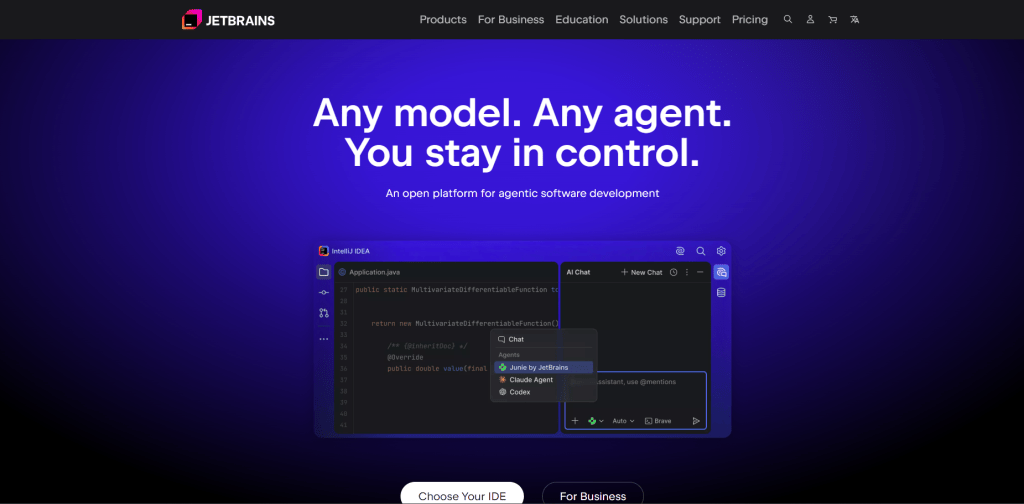
JetBrains AI Assistant is a plugin that adds AI features and coding agents to JetBrains IDEs, including IntelliJ IDEA, PyCharm, WebStorm, GoLand, PhpStorm, Rider, RubyMine, RustRover, CLion, DataGrip, and DataSpell. Some editions bundle it, and the others add it from Settings, Plugins. It comes in four tiers, AI Free, AI Pro, AI Ultimate, and AI Enterprise, which differ in usage limits and available features, per its release notes.
Core Features
- .aiignore support: Mark files or folders that AI Assistant should skip, using .gitignore syntax. A .cursorignore, .codeiumignore, or .aiexclude file in the project root also works, per JetBrains’ restriction settings.
- AI Chat: Ask about the open project, request an explanation, or describe a change in plain language.
- In-editor prompts and completion: Suggestions appear as you type, and prompts typed into the editor work without opening the chat panel.
- Multi-file edits: One request changes several files at once, and each change arrives as a proposal you accept, edit, or reject.
- Model choice: You pick the model for each chat request. Hosted models come from providers including Anthropic, OpenAI, and Google, while third-party and local models connect through your own API key, an OpenAI-compatible endpoint, Ollama, or LM Studio. Local models cannot call MCP tools yet, so use a hosted model for the setup below.
Limitations of JetBrains AI Assistant Without MCP
Without MCP, JetBrains AI Assistant is limited to the context already available inside the IDE and the knowledge built into its model. That creates a few practical gaps.
- Outdated knowledge: The model may not know about recently released libraries, framework updates, API changes, or new documentation.
- No access to live systems: It cannot query a production database, call an external API, inspect a live service, or verify what a system returns right now.
- No direct access to issue trackers: Jira tickets, GitHub issues, support requests, and similar records usually have to be copied into the chat manually.
- No visibility into internal tools: Private APIs, company systems, and proprietary services remain unavailable unless their details are provided in the conversation.
- Repeated copy-paste: Any external information that is not already in the IDE has to be brought into the chat manually, often more than once.
MCP gives AI Assistant a way to call real tools and data instead of guessing from what it already knows. Connect a server, and the chat window that explains your code can also check a package’s current version, query a database, or pull whatever an external API returns right now. The standard replaces wiring up each API by hand with one shared interface.
JetBrains MCP Architecture: AI Assistant vs MCP Server
AI Assistant implements Model Context Protocol in both directions, summarized in the table below.
As a client, it supports three transports for reaching external servers.
- STDIO: AI Assistant launches the server as a local subprocess.
- Streamable HTTP: AI Assistant connects over a single URL, local or remote. It needs AI Assistant 2025.3.1 or later.
- SSE: The legacy transport, kept for older servers.
| Direction | Settings Path | What It Does | Connects To | This Guide |
|---|---|---|---|---|
| AI Assistant as client | Settings › Tools › AI Assistant › Model Context Protocol (MCP) | Pulls tools in from MCP servers you configure | MCP360, or any STDIO, HTTP, or SSE server | Yes, the steps below set this up |
| IDE as MCP server | Settings › Tools › MCP Server | Exposes IDE tools such as build_project and get_file_problems to outside clients |
Claude Code, Codex, VS Code, Junie | No, this is the opposite direction |
The IDE-as-server row relies on the MCP Server plugin, which JetBrains bundles and enables by default since 2025.2. A server added under AI Assistant never touches that screen.
GitHub Copilot Chat is a separate tool in the same IDE. Its JetBrains plugin has its own MCP support and organization policy, so a server added to AI Assistant does not extend to Copilot, the same separation as in a native MCP plus GitHub Copilot setup in VS Code. Codex and other coding agents in JetBrains each keep their own configuration screen.
Organizations using JetBrains IDE Services or JetBrains Central can preconfigure MCP servers and restrict whether developers add their own, so on a managed setup the administrator is the person to ask.
Requirements Before Adding an MCP Server
MCP client support needs IntelliJ IDEA 2025.1 or later with AI Assistant build 251.26094.80.5 or later, Before adding an MCP server, make sure your JetBrains setup supports the connection type you plan to use.
JetBrains added MCP client support in IntelliJ IDEA 2025.1. According to the JetBrains announcement, you need IntelliJ IDEA 2025.1 or later and AI Assistant build 251.26094.80.5 or later. You can check your IDE version under Help › About. If you are on an older build, update the IDE and AI Assistant first.
- AI Assistant 2025.3.1 or later for HTTP servers: MCP360 connects through Streamable HTTP, which JetBrains added in AI Assistant 2025.3.1. Older versions can still work with supported local transports, but not with this gateway setup.
- Use a hosted model: MCP tools are not currently invoked when the chat is using a local model through Ollama or LM Studio. Select a hosted model before testing the connection.
- Choose the right scope: Add MCP360 at the global level if you want its tools available across projects. Project-specific servers, such as a local database or repository tool, are better kept inside that project.
- Node.js is only needed for local STDIO servers: Many local MCP servers launch through
npx, which requires Node.js. MCP360 uses Streamable HTTP, so Node.js is not required for the setup below.
Once the version, model, and scope are correct, you can move on to the MCP settings panel.
How to Add MCP Servers to JetBrains AI Assistant
The steps below use MCP360’s gateway as the worked example, but the same three fields apply to any Streamable HTTP server.
Step 1: Copy Your MCP360 Gateway URL
- Log in to the MCP360 dashboard and open an existing project, or create a new one.
- From the left navigation menu, open MCP Servers.
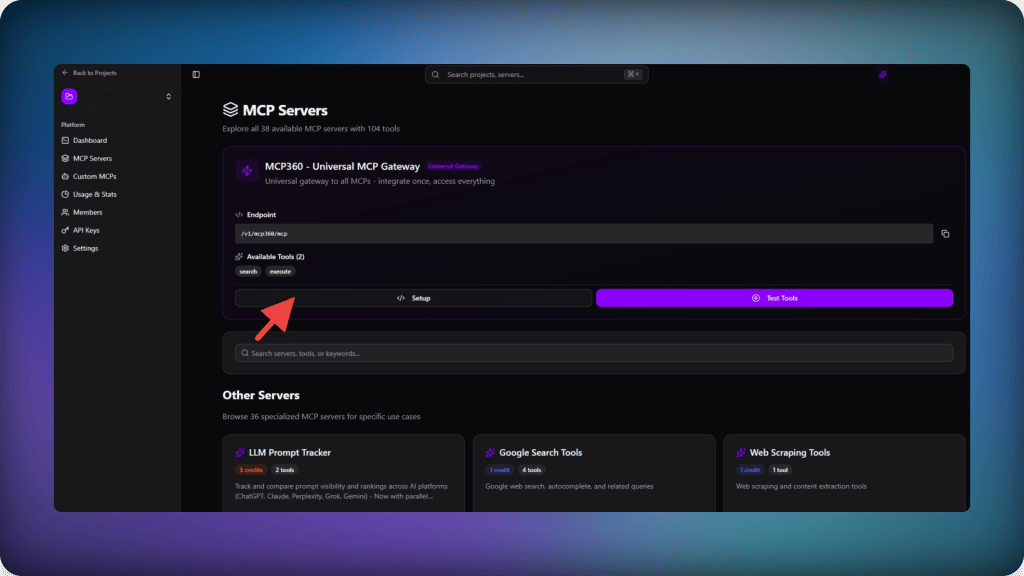
- Select a single server for one tool domain, or the universal gateway for access to every tool in the workspace.
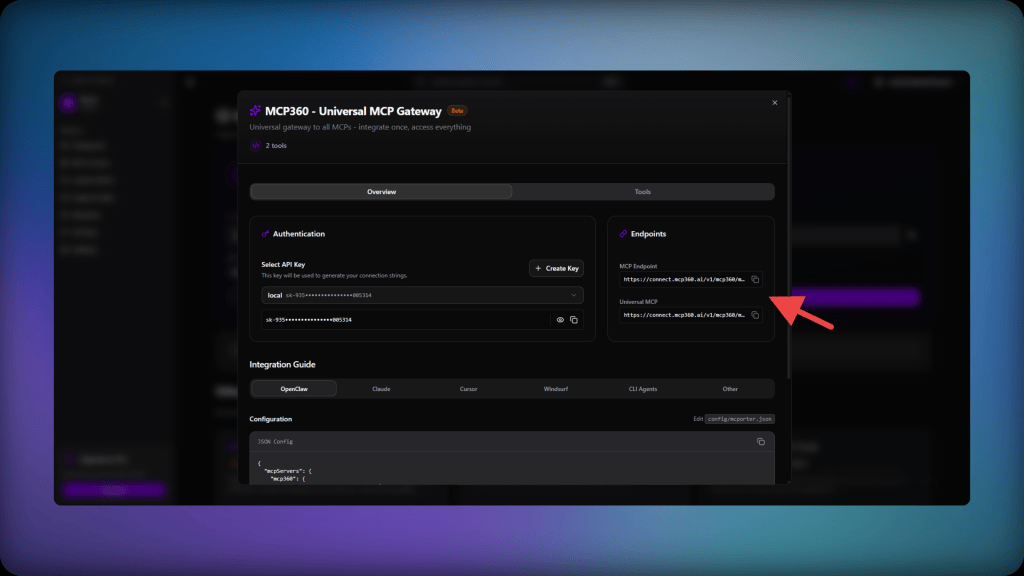
- Copy the Gateway URL. It carries your API key as a token parameter, so treat the string as a credential. Keep it out of public channels and out of committed config files. Per-user OAuth is the alternative when a token in a URL is not acceptable.
Step 2: Install AI Assistant and Open the MCP Settings
- Open the JetBrains IDE, click the Settings icon in the bottom-left corner of the sidebar, and select Plugins.
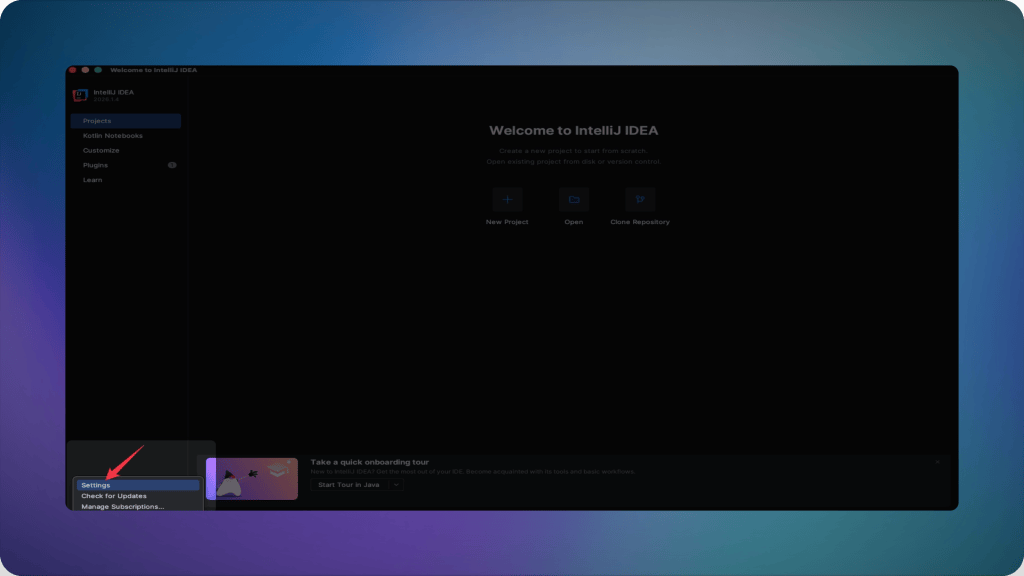
- Search for AI assistant, if it isn’t already installed, install it and restart the IDE.
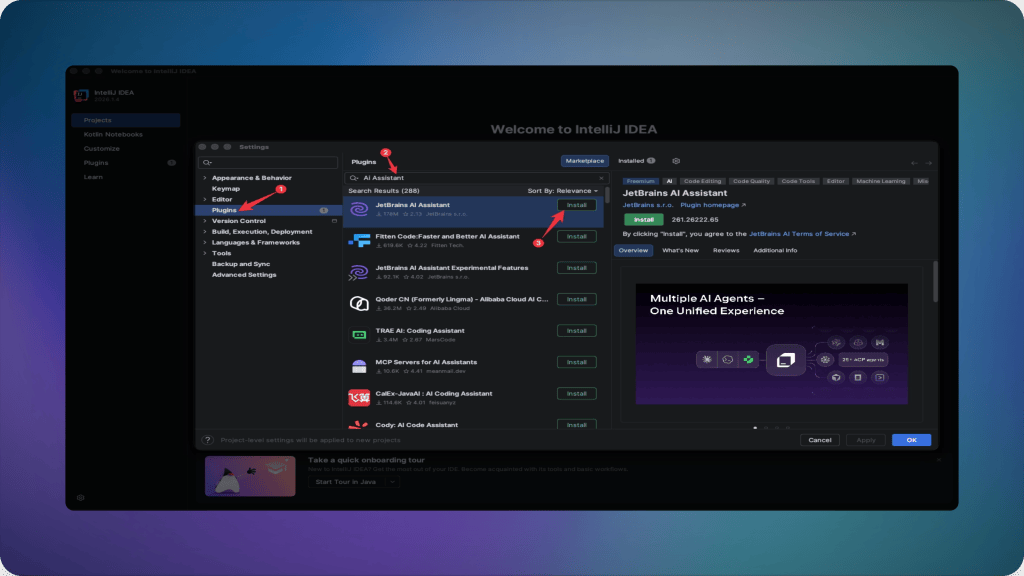
- Once it’s back up, search AI Assistant in Settings again, open Tools, and select Model Context Protocol (MCP).

Step 3: Add the Server as HTTP and Confirm
- Click Add, choose HTTP as the connection type, and paste the Gateway URL inside a JSON block in this shape.
{ "mcpServers": { "mcp360": { "url": "https://connect.mcp360.ai/v1/mcp360/mcp?token=YOUR_MCP360_API_KEY" } }}
Confirm the connection. The added server shows up in the MCP list with its connection status, and typing / in the chat or asking AI Assistant a question that needs live data, like a current exchange rate or a domain’s WHOIS record, confirms the tools actually respond.
- Click OK, then Apply.

- Added Mcp showed up here.
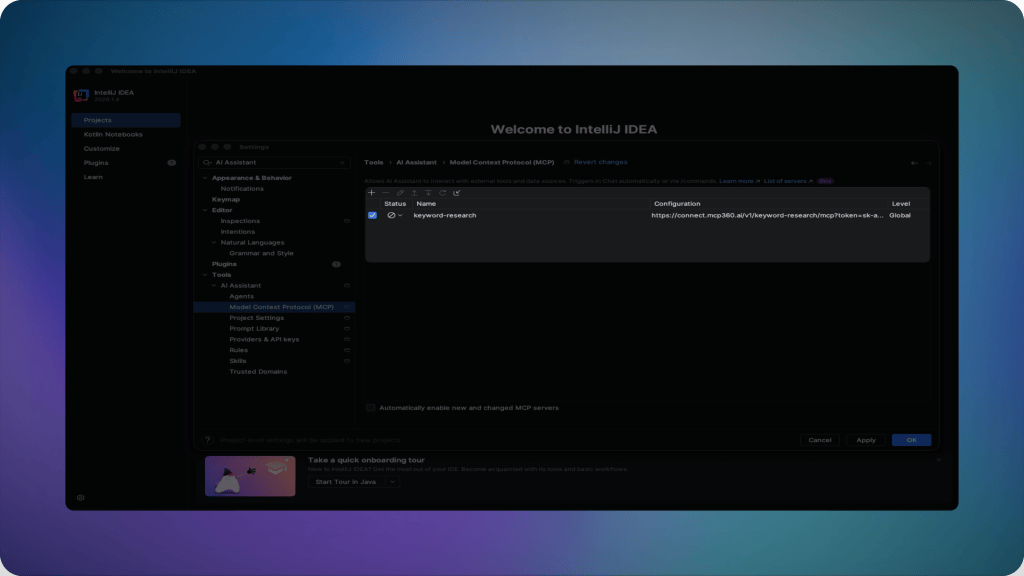
Set the server level to Global if you want the gateway available in every project, and avoid committing this exact block to a project-scoped config file that other people can read, since the URL carries your API key. Handling MCP credentials well matters more as you connect more servers, and this is the simplest place to start.
Adding a Local Server Alongside the Gateway
Not everything belongs behind a remote gateway. A filesystem tool, a local database client, or anything that should stay on your machine still makes sense as a STDIO server. The connection type changes to STDIO, the dialog adds a Working directory field, and the JSON switches to a command and arguments.
{ "mcpServers": { "filesystem": { "command": "npx", "args": ["-y", "@modelcontextprotocol/server-filesystem", "/path/to/allowed/folder"] } }}
Two platform quirks come up often enough to flag here, and both are covered in the troubleshooting section. On Windows, this command can fail until npx becomes npx.cmd. On macOS or Linux with Node installed through nvm, AI Assistant may not find npx at all, even though it works from a terminal. Finding more local servers beyond the handful of essential MCP servers most setups start with is a separate task from connecting the first one.
What Changes Once the Gateway Is Connected
Once the gateway is connected, AI Assistant can work with live tools and current data without leaving the IDE. That changes several common tasks.
- Debugging uses current information: AI Assistant can check a package’s latest version, inspect a live API response, or verify external data instead of relying only on model knowledge that may be outdated.
- SEO checks stay inside the editor: Keyword volume, ranking data, and competitor page details can be pulled into the same chat session as your code changes. See SEO inside a code editor for an example workflow.
- DNS and webhook checks run inline: WHOIS lookups, DNS records, and related diagnostics can be checked next to the code or configuration that depends on them.
- Teams get consistent tool access: A shared project configuration, or the same global gateway setup on each machine, gives teammates access to the same MCP tools. Teams that need tighter permissions and audit controls can use gateway access control and auditing.
The main difference is simple: external checks no longer have to happen in a separate browser tab and then be copied back into AI Assistant.
JetBrains MCP Troubleshooting
Most JetBrains MCP setup problems come down to paths, transport settings, model choice, or admin restrictions. These are the most common cases.
- Windows cannot find
npx: Users on older 2025.1-era builds reported this issue. Replacingnpxwithnpx.cmdin the command field fixed it for some setups. If it still fails, verify the Node.js installation and command path. npxis missing on macOS or Linux: When Node.js is installed throughnvm, the IDE may not inherit the same shell environment as your terminal. Runwhich npxand use the returned absolute path in the MCP server configuration.- The server shows “Connection closed”: Open Help › Show Log in Explorer/Finder and inspect the MCP logs for that server. Local servers usually reveal a missing binary, incorrect path, or startup error. Remote servers more often fail because of an incorrect URL, token, or transport configuration. After changing the settings, click Reconnect.
- Tools disappear after editing the configuration: Click Apply, select the server, and reconnect it. You can also enable automatic activation for new or changed MCP servers if that option is available in your build.
- The server connects but tools are never called: Check which model is active in AI Assistant. Local models from Ollama or LM Studio currently cannot invoke MCP tools, so switch to a hosted model before testing.
- The MCP server option is missing or disabled: JetBrains IDE Services or JetBrains Central administrators can restrict MCP access. If the controls are unavailable, check your organization’s policy before troubleshooting the local installation.
These issues are specific to JetBrains. Problems such as invalid authentication, incorrect transport types, or failed server handshakes can happen in any MCP client. See MCP server connection issues for those broader cases.
Frequently Asked Questions
What is MCP in JetBrains AI Assistant?
Model Context Protocol is the open standard that lets AI Assistant call external tools and data sources instead of relying only on what’s in your open files and its training data. Configuring an MCP server, whether a database tool, a search tool, or a gateway such as MCP360 bundling many tools, gives AI Assistant the ability to check live information and act on it inside the same chat window.
Is JetBrains AI Assistant free?
A free tier of JetBrains AI Assistant exists alongside paid tiers, AI Pro and AI Ultimate, which raise usage limits and widen model choice. The Model Context Protocol settings panel is the same regardless of tier, since it’s part of the IDE rather than a billed feature. What a paid tier changes is how many AI requests you can send, which matters more once MCP tools start feeding extra data into every conversation.
Do I need to install a separate plugin to use MCP in JetBrains AI Assistant?
AI Assistant itself comes pre-installed and enabled in some IntelliJ-based IDE editions, and in others it needs adding first from Settings, Plugins, by searching AI Assistant and restarting after install. Either way, no separate plugin is required for MCP specifically. Once AI Assistant is active, Model Context Protocol support is already built into its settings, ready for a server to be added directly.
Why does JetBrains AI Assistant show "MCP error -1: Connection closed"?
This is one of the most reported MCP issues in JetBrains’ own tracker, and it has more than one cause. For local servers launched with npx, Windows often needs npx.cmd instead of the plain command. On macOS or Linux with Node installed through nvm, the fix is usually an absolute path to the binary. A short default response timeout has also caused this error on older builds.
Can I connect MCP360 to JetBrains AI Assistant without installing Node.js?
Yes. MCP360’s gateway connects over Streamable HTTP, which means the JetBrains settings dialog just needs a URL wrapped in a JSON block, not a command AI Assistant has to launch locally. Node.js and npx only matter for STDIO-based servers that run as a local subprocess, like a filesystem tool. A pure HTTP gateway connection skips that requirement entirely.
Does adding an MCP server in JetBrains AI Assistant also give GitHub Copilot access to it?
No. The MCP servers you add at Settings, Tools, AI Assistant, Model Context Protocol are scoped to AI Assistant’s own chat, not shared automatically with other AI plugins installed in the same IDE. GitHub Copilot Chat, for example, runs in its own isolated environment inside JetBrains IDEs and doesn’t receive tools from AI Assistant’s MCP connections. Each AI plugin needs its own MCP configuration.
What’s the difference between JetBrains AI Assistant as an MCP client and the JetBrains MCP Server?
They’re opposite directions of the same protocol. AI Assistant as a client pulls tools in from MCP servers you configure, which is what this guide sets up. The separate MCP Server plugin turns the IDE itself into a server, letting outside tools like Claude Desktop or Cursor call JetBrains features such as build_project or get_file_problems. Confusing the two settings screens is a common setup mistake.
Can I add more than one MCP server to JetBrains AI Assistant, like MCP360 alongside a local server?
Yes, AI Assistant supports multiple MCP servers at once, each added as its own entry in the same settings table. A gateway like MCP360 handles remote HTTP tools, while a STDIO server such as a local filesystem tool can run alongside it for anything that shouldn’t leave your machine. Each entry connects and disconnects independently, so one failing doesn’t affect the others.
Conclusion
Once the panel is set up correctly, adding a second or third server involves repeating the same three fields, but a gateway connection eliminates most of that repetition. To get this right, you need to remember which of JetBrains’ two MCP settings screens you’re in before you paste anything. The STDIO versus HTTP choice matters far less.
Teams running a mix of editors will hit the same two-screens problem outside JetBrains too, since Cursor, VS Code, and Gemini CLI each draw their own line between local and remote servers in their settings. Anyone connecting more than one or two servers is better off pointing a single gateway at every editor in the stack instead of wiring up services one at a time. MCP360’s free tier covers exactly that starting point, with every server in the catalog reachable through the same API key this guide just used for JetBrains.
Tags

Article by
RajniAI & Tech | Senior Content Writer
Rajni is a senior content writer covering AI agents, automation, and no-code tools. She writes across the AI space, from chatbots and customer support to MCP and agent workflows, focused on how businesses actually put these tools to work.