


The TL;DR
VS Code’s native MCP support is now stable, and connecting an MCP server through GitHub Copilot Agent mode requires the correct configuration file, the right chat mode, and a properly defined server entry.
-
• The Config Format Changed
VS Code now reads MCP servers from a dedicated
mcp.jsonfile stored either in your workspace or user profile. Unlike Cursor and Claude Desktop, it uses a different top-level configuration key, making this the most common cause of setup failures. -
• Agent Mode Is Required
GitHub Copilot only loads and executes MCP tools when Chat is switched to Agent mode. If you’re using the default chat mode, your configured server won’t appear even when everything else is set up correctly.
-
• One Entry Covers the Whole Catalog
A single server definition in
mcp.jsonexposes the complete tool catalog to Copilot. As new tools are added to the server, they become available automatically without requiring additional configuration.
Add a server to mcp.json, restart VS Code, and nothing happens. No error, no warning, just a Copilot tool list that never includes the new server. Copy a working config straight from Cursor and the same thing happens. The file format looks the same. It isn’t.
The root key is named servers in VS Code, not mcpServers like Cursor and Claude Desktop use. That one detail trips up more setups than any actual bug in the protocol. VS Code shipped native MCP support in 2026. The config format changed since the preview days. So did the mode you need to be in, and where the file lives now.
This blogs will help you understand the basics first and then cover the current mcp.json format and a real gateway connection so your Copilot agent gets access to a working tool catalog instead of a config that looks right and does nothing.
What Is VS Code

Visual Studio Code is Microsoft’s free, open source code editor, first released in 2015. It runs natively on Windows, macOS, and Linux, with updates shipping on a monthly cadence. Microsoft built it on Electron, which is part of why the core experience holds up the same way across all three operating systems. It has grown into one of the most widely used editors among professional developers, largely on the strength of its extension catalog and, more recently, its built-in AI tooling.
- Free and open source: The core editor is available under an MIT license, no cost to use.
- Extensions marketplace: A large catalog of extensions for language support, linters, themes, and third-party integrations, without changing the core editor.
- Built-in Git support: Stage changes, commit, and review diffs from the Source Control panel, no separate Git client needed.
- Integrated terminal: Run shell commands and build tools inside the editor instead of switching windows.
- IntelliSense: Context-aware code completion and inline documentation for most major languages, built in.
- GitHub Copilot: The AI extension Microsoft ships on top of the editor, handling chat, code completion, and agent mode.
Agent mode is the part of Copilot that works on its own, editing files, running terminal commands, and reasoning across a multi-step task instead of just suggesting the next line as you type.
Benefits of Using MCP in VS Code
Once the agent can call real tools instead of guessing, a couple of things change day to day.
- Debugging picks up a real-time layer: The agent can pull current documentation or check a library’s latest release before suggesting a fix, rather than guessing from training data that’s already out of date.
- Content and SEO tasks stay inside the editor: A prompt asking the agent to check search volume for a working title, audit a page’s on-page SEO, or pull competitor pricing runs through the same chat session as the edit you’re already making, no separate browser tabs required.
- Comparing options gets a factual anchor: Checking current pricing across two infrastructure providers, or confirming which library actually has more recent commits, runs through the agent instead of a manual side-by-side you’d otherwise assemble by hand.
- Deployment checks happen before you ship: The agent can confirm a CI pipeline passed, flag a package version with a known vulnerability, or check that a domain’s DNS is configured correctly, all without a separate dashboard open in another tab.
- Test cases use real data: A sample response from an actual GitHub server call, or a genuine error trace, builds a more useful test case than placeholder data invented to fill a fixture.
Every one of these comes down to the same shift, an agent that verifies instead of assumes.
GitHub Copilot Agent Mode and MCP
GitHub Copilot’s agent mode can only act on what’s open in your editor or baked into its training. MCP is what gives it a way to reach past that and call real, current tools.
Why Agent Mode Needs MCP
By default, agent mode only knows what’s in your open files and whatever training data it shipped with. It can’t check whether a package updated last week, query a live database, or read a ticket from your issue tracker unless you paste the content in yourself. That gap is what Model Context Protocol closes.
MCP Servers in GitHub Copilot
Model Context Protocol is the open standard, released by Anthropic in November 2024, that lets an AI client call external tools through a shared interface instead of relying only on what you paste into chat. Inside VS Code, an MCP server is a small program, running locally or hosted remotely, that exposes a set of callable functions called tools.
- A GitHub server gives the agent tools for reading issues and opening pull requests.
- A database server lets it inspect a schema and run read-only queries instead of you typing table structures into the chat by hand.
Native MCP Support in VS Code
Agent mode supported MCP early through a preview flag, and that preview status is exactly what’s stale in a lot of the guides still ranking today. Support left preview and became generally available with VS Code 1.102 in July 2025. The access policy changed alongside it.
- Individual plans: Free through Pro+ get MCP the moment VS Code updates, no flag to enable.
- Business and Enterprise: An admin needs to turn on a setting called
MCP servers in Copilot, off by default until they do.
Supported MCP Connection Types
VS Code talks to servers over one of two transports.
- stdio: Local servers run as a child process and communicate over standard input and output.
- Streamable HTTP: Remote servers connect over the network using this transport, VS Code’s current standard for hosted servers, with SSE as a fallback for older servers that haven’t updated yet.
Which transport a server needs determines what its block in mcp.json looks like, covered in the setup steps below.
Workspace vs User MCP Configuration
VS Code splits MCP configuration across two locations. Picking the wrong one is the second most common reason a server never shows up.
- Workspace config: Lives at
.vscode/mcp.jsoninside your project folder. Commit it to source control and every teammate who clones the repo gets the same servers, with no separate onboarding step. - User config: Applies across every workspace you open. Reach it through the
MCP: Open User Configurationcommand in the Command Palette. Personal API keys and servers you use on every project belong here, not in a file your teammates can see.
Both locations share the same schema, and that schema is where most copy-paste failures start. The top-level key is servers, not mcpServers. Cursor and Claude Desktop both use mcpServers. Drop either tool’s config into VS Code and the file still parses as valid JSON. VS Code just reads none of it, because it’s looking for a key that isn’t there.
VS Code also confirms trust before anything runs. The first time a server starts, a dialog asks you to review its configuration and confirm you trust it. Nothing runs until you do. On macOS and Linux, you can go further and sandbox a local server’s file system and network access with a few extra lines in its config block, restricting which paths it can write to and which domains it can reach. Windows doesn’t support sandboxing yet, so the trust dialog is the main line of defense there.
Requirements Before Connecting MCP
Confirm these before you open the Command Palette.
- VS Code 1.99 or newer: Native MCP support needs this version at minimum. Check yours under Help, then About, and update if you’re behind.
- Any Copilot plan: MCP access works the same on Free, Pro, Pro+, and Max. Business and Enterprise organizations need an admin to enable the MCP policy first, described above.
- An account with an active project set up: You need somewhere to generate the gateway URL from before you start. The free tier covers this.
Connect MCP to Copilot’s Agent Mode
MCP360 is a unified gateway that connects AI agents to 100+ tools through one integration, plus a no-code builder for wrapping your own APIs as MCP servers. Instead of adding a search server, an SEO server, and a scraping server as three separate blocks in mcp.json, one entry gives Copilot’s agent access to the whole catalog, and new tools become available automatically as they’re added.
Step 1: Copy Your MCP360 Gateway URL
- Log in to your dashboard and open an existing project, or create a new one.
- From the left navigation menu, open MCP Servers.
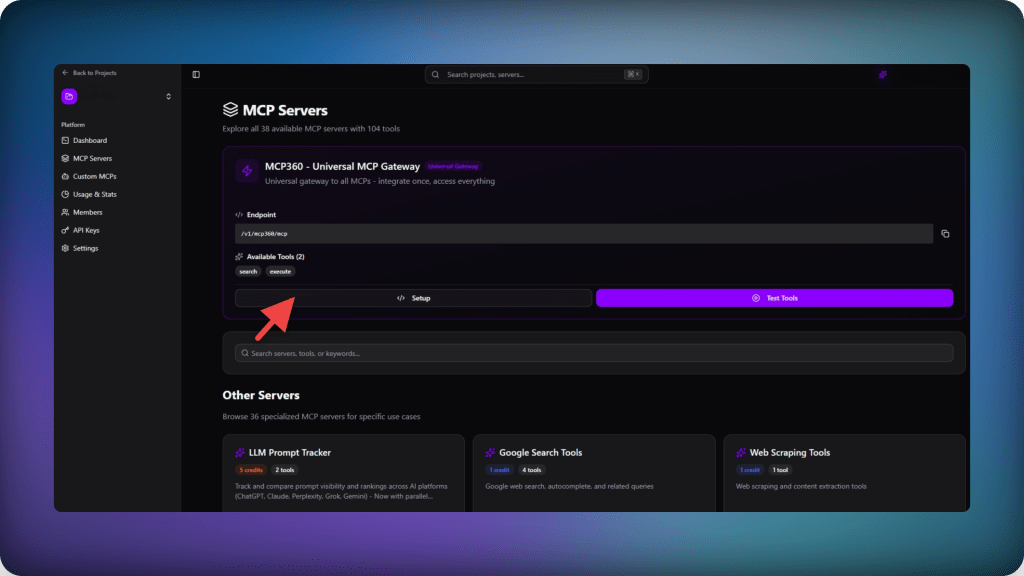
- Pick a single server if you only need one tool category, or select the Universal MCP Gateway for access to every tool in your workspace.
- Copy the gateway URL. You’ll paste it into VS Code in the next step.

Step 2: Add the Server in VS Code
- Open VS Code.
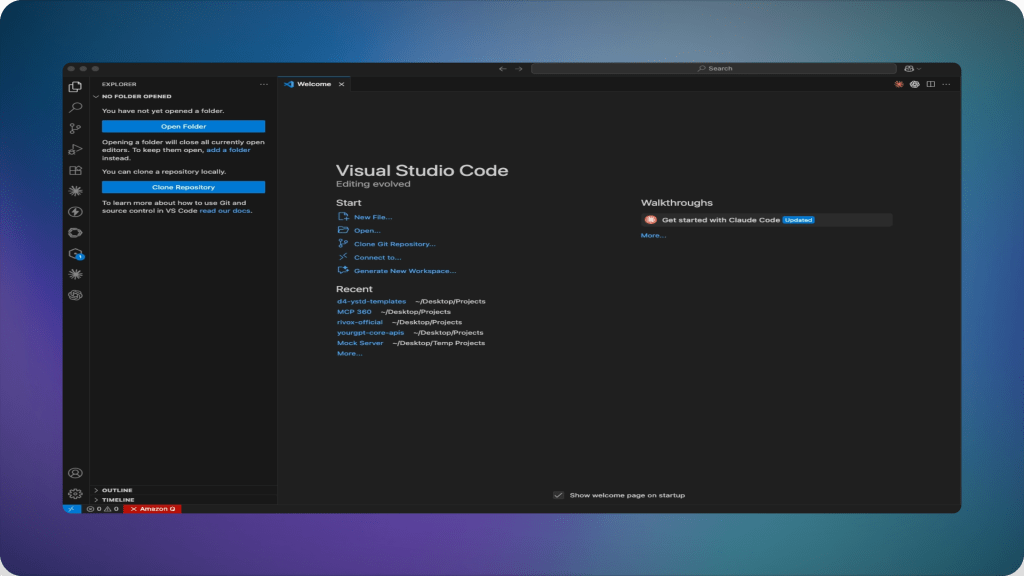
- Open the Command Palette with
Cmd+Shift+Pon Mac orCtrl+Shift+Pon Windows and Linux, then search for and runMCP: Add Server.

- Select HTTP as the connection type when prompted.
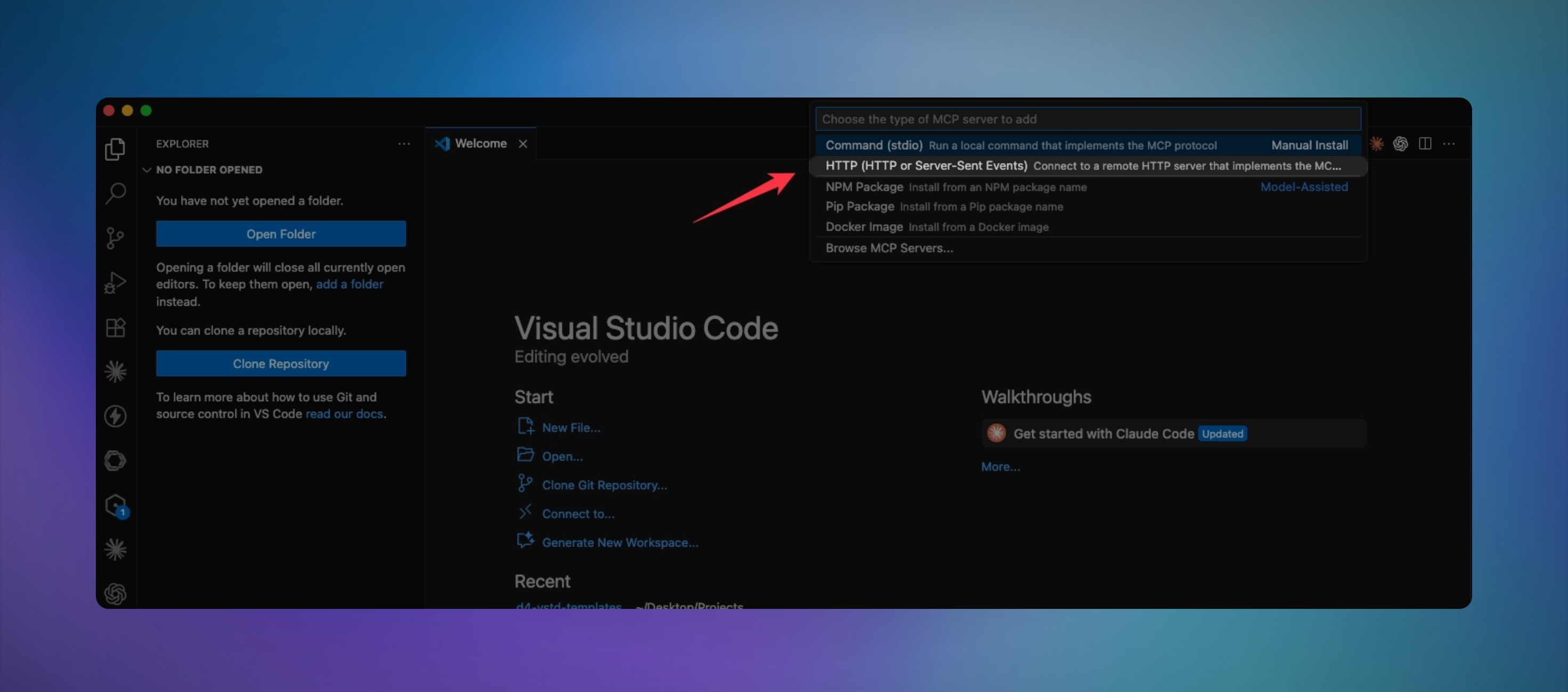
- Paste the gateway URL from step 1, then give the server a name, for example
mcp360.

- Choose Workspace or Global as the target, based on which config location fits from the section above.
VS Code confirms the server is added and writes the entry into mcp.json on its own. No manual JSON editing needed.
Step 3: Confirm the Connection
Confirm the trust dialog when it appears, and start the server if it doesn’t launch on its own. Open Copilot Chat and switch the mode dropdown from Ask to Agent. Click the tools icon to confirm the gateway’s tools are listed, or run MCP: List Servers from the Command Palette to check the connection status directly.
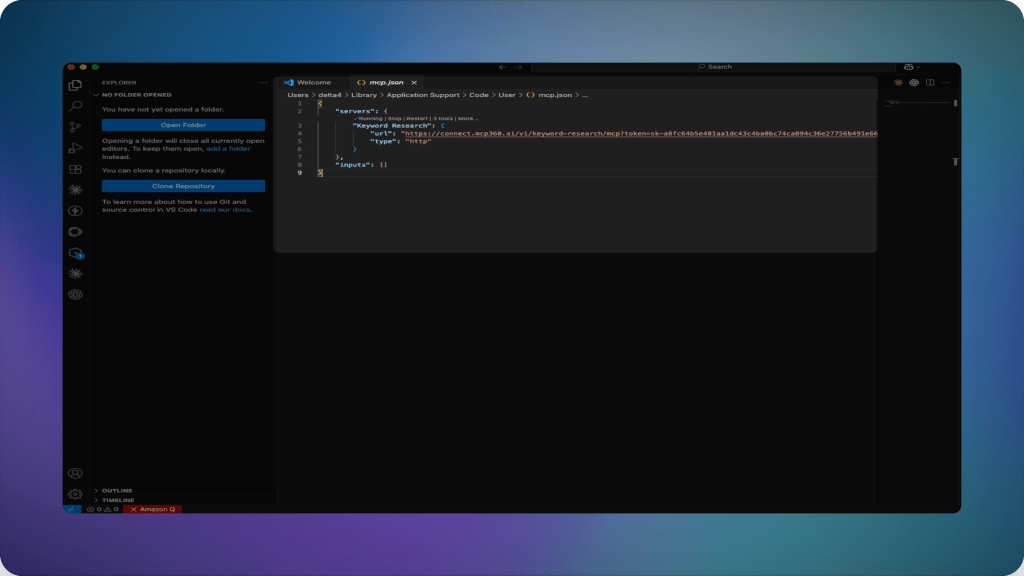
Test it with a prompt the gateway can actually answer, for example a domain’s current search ranking for a target keyword. If the agent calls a tool and returns a real number instead of a guess, the connection works.
Troubleshooting Common VS Code MCP Issues
Most VS Code MCP problems aren’t caused by the protocol itself. They’re usually small configuration mistakes that fail silently, leaving your server missing from Copilot with little indication of what went wrong. Before assuming the server is broken, check these common issues.
- Using the wrong root key: VS Code expects the top-level key to be
servers, while Cursor and Claude Desktop usemcpServers. The JSON remains valid, but VS Code ignores the configuration because it’s looking for a different key. - Missing the
typefield for an HTTP server: If you omit"type": "http"from a remote server configuration, VS Code treats it as astdioserver and attempts to execute the URL as a local command. The resulting error message can be confusing because it doesn’t clearly indicate that thetypefield is missing. - Copilot Chat is still in Ask mode: MCP tools are available only in Agent mode. If Copilot Chat is still set to Ask, your configured server and its tools won’t appear. Before troubleshooting the configuration, switch the chat mode to Agent and check the tools panel again.
npxis waiting for confirmation: When launching an MCP server withnpx, omit the-yflag andnpxmay pause to ask for installation confirmation. Since VS Code can’t respond to interactive prompts during server startup, the process appears to hang. Always include the-yflag fornpx-based MCP servers.- Invalid JSON syntax: A missing comma, unmatched bracket, or trailing comma can prevent every server in
mcp.jsonfrom loading, not just the one you recently edited. If nothing appears in Copilot, validate the JSON before investigating the server itself.
For failure modes specific to one server, rather than the config file itself, you should know about the connection troubleshooting.
Frequently Asked Questions
What is an MCP server?
An MCP server is a small program, running locally or hosted remotely, that exposes a set of callable functions called tools to an AI client. Model Context Protocol, the open standard behind it, lets a tool like GitHub Copilot’s agent mode call these functions instead of relying only on training data. A gateway such as MCP360 bundles many tool categories behind one server entry instead of requiring a separate one for each.
Does GitHub Copilot support MCP?
Yes. GitHub Copilot’s agent mode in VS Code has supported Model Context Protocol since it left preview with VS Code 1.102 in July 2025. Every individual plan, from Free through Pro+, gets MCP access automatically. Business and Enterprise organizations need an admin to enable a policy called MCP servers in Copilot first, since that setting stays off by default until they do.
Why does my MCP server not show up in VS Code?
Two mismatches cause most silent failures. VS Code expects the top-level key servers in mcp.json, while Cursor and Claude Desktop use mcpServers, so a copied config parses fine but registers nothing. The second cause is Copilot Chat sitting in Ask mode, the default, since MCP tools only appear once you switch the mode dropdown to Agent.
What is the difference between VS Code workspace and user MCP config?
Workspace config lives at .vscode/mcp.json inside a project folder and is meant to be committed to source control, so every teammate who clones the repo gets the same servers automatically. User config applies across every workspace you open, reached through the MCP: Open User Configuration command, and fits personal API keys and servers you use on every project instead.
Can I use the same MCP server config in VS Code and Claude Desktop?
The protocol is shared, but the file format is not. A server built for one client generally works with another, since both speak the same Model Context Protocol underneath. VS Code uses servers as the top-level key and expects an explicit type field, while Claude Desktop and Cursor use mcpServers instead. Copying a config between them usually needs that one key renamed.
Does GitHub Copilot support MCP resources, not just tools?
Not fully yet. GitHub Copilot’s agent mode in VS Code currently supports the tools primitive from the MCP specification, letting servers expose callable functions the agent can invoke directly. Resources and prompts, the other two MCP primitives, have more limited support and often need to be added manually through Add Context rather than picked up automatically by the agent.
How do I connect MCP360 to VS Code?
Copy the gateway URL from the MCP Servers section of your MCP360 dashboard, then open the Command Palette in VS Code and run MCP: Add Server. Choose HTTP as the connection type, paste the URL, and name the server. VS Code writes the entry into mcp.json automatically, no manual editing needed. Switch Copilot Chat to Agent mode afterward to confirm it works.
Why use a gateway like MCP360 instead of adding MCP servers individually?
Because one verified entry replaces many. Adding servers individually means a separate mcp.json block, and often a separate account, for every tool category you want. A gateway such as MCP360 covers a full catalog of tools through that single entry, and new additions become available automatically without touching the config again once it grows past a handful of servers.
Conclusion
VS Code’s native MCP support makes it much easier to extend GitHub Copilot with real-world tools, but getting everything working depends on using the correct configuration, connection type, and Agent mode. Most setup issues come down to small mistakes in mcp.json or outdated guides that no longer match the current implementation.
Using a gateway like MCP360 simplifies the process even further. Instead of configuring and maintaining multiple MCP servers, a single gateway gives Copilot access to a growing catalog of tools for SEO, web search, scraping, e-commerce, databases, and more. As new tools are added, they’re available without changing your configuration.
As the Model Context Protocol ecosystem continues to mature, learning how to connect and manage MCP servers is becoming a valuable developer skill. Whether you’re building software, researching documentation, automating workflows, or creating content, a properly configured MCP setup helps GitHub Copilot work with live data instead of relying only on static context making it a more capable and reliable coding assistant.

Article by
RajniAI & Tech | Senior Content Writer
Rajni is a senior content writer covering AI agents, automation, and no-code tools. She writes across the AI space, from chatbots and customer support to MCP and agent workflows, focused on how businesses actually put these tools to work.