



The TL;DR
Firecrawl’s official MCP server lets AI agents scrape the live web and return clean markdown or JSON without requiring a custom scraping stack.
-
• What Agents Gain
Agents in Claude, Cursor, Windsurf, and other MCP clients can use scrape, search, crawl, and interact tools for live-web access. This gives agents structured web data without maintaining a separate headless browser setup.
-
• How to Connect It
Get an API key from firecrawl.dev, add
npx -y firecrawl-mcpto your MCP client’s configuration, save the file, and restart the client. A keyless free tier is also available for basic use without an API key. -
• What to Watch For
Watch for missing API keys, configuration files placed in the wrong path, websites blocking automation, and prompt-injection payloads hidden inside scraped pages.
AI agents are only as useful as the data they can reach. Most are stuck inside what was true at training time, unable to answer questions about today’s pricing or this week’s documentation. The fix is web access, and the fix for web access is scraping, which has historically been one of the messier parts of building anything agent-shaped.
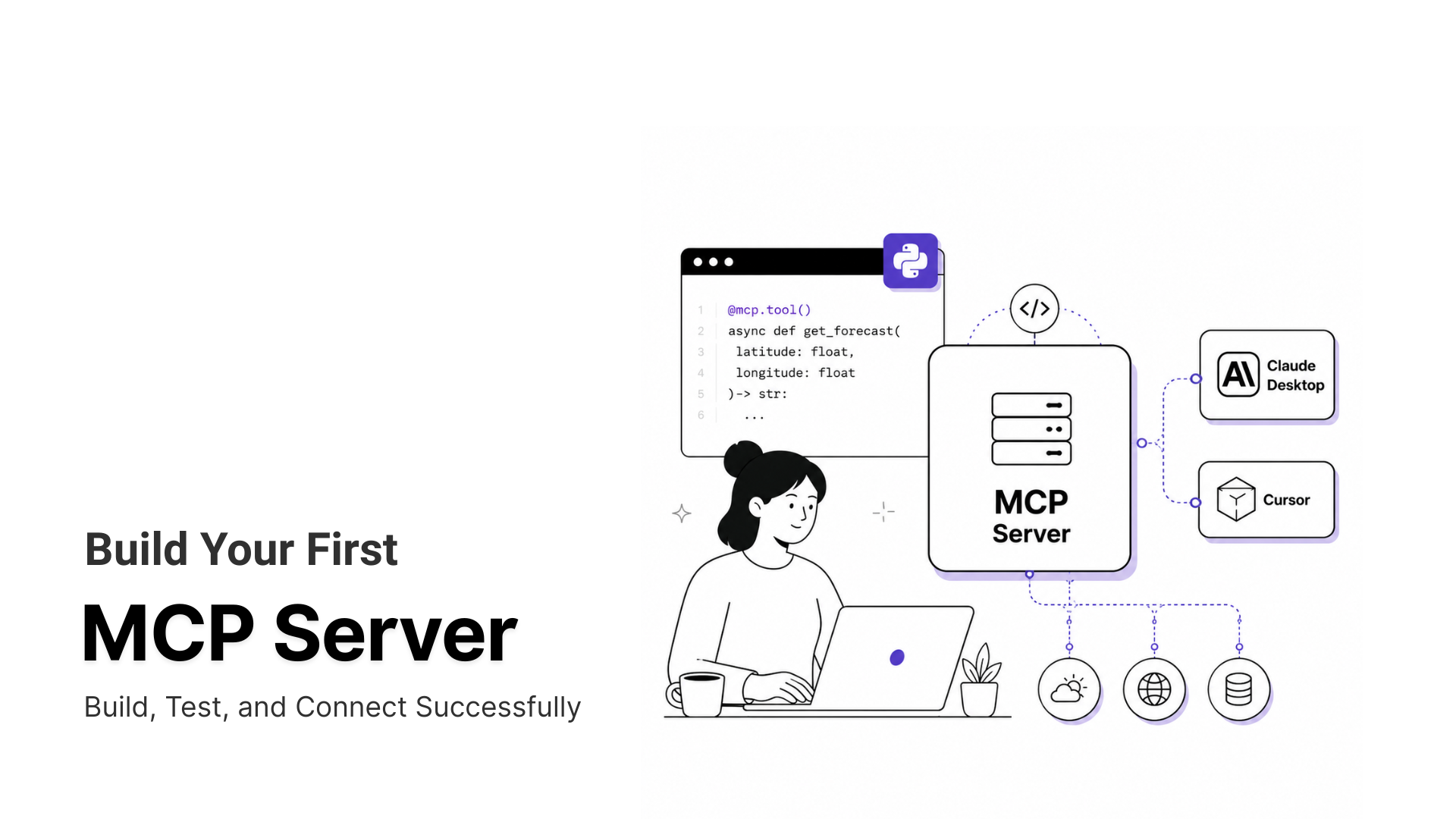
Firecrawl is one of the more credible options for that scraping layer. It’s an open-source API that handles JavaScript rendering and the cleanup work that turns a real web page into something a language model can actually read, and it ships an official MCP server so any agent in Claude, Cursor, or another MCP-compatible client can call it as a set of tools rather than hardcoded API calls.
This guide walks through what Firecrawl does, how to wire it into the common MCP clients, where MCP360’s built-in scraping tool fits as another option, and the security risks worth checking before pointing an agent at the open web.
What Is Firecrawl

Firecrawl is a web data API built specifically for AI applications. Teams use it for deep research agents, RAG pipelines, lead enrichment, competitive intelligence, content generation, and price monitoring, anywhere an application needs live data from the web rather than a static training snapshot.
The API groups its work into six operations:
- Search. Finds relevant pages on the open web and returns full page content from the results, not just snippets.
- Scrape. Converts a single URL into markdown, HTML, a screenshot, or structured JSON.
- Crawl. Walks every page under a website and returns each one as clean markdown.
- Map. Discovers all URLs on a site so the agent can decide which ones to scrape.
- Interact. Clicks, scrolls, types, and waits on a page before scraping it, for sites that need real interaction first.
- Agent. Takes a plain-language description of what you want and handles the searching and navigating to return the result.
What makes the output usable for agents specifically is the cleanup step. Navigation, footers, and ads get stripped out, leaving markdown that uses 93% fewer input tokens than raw HTML scraping would. For an agent burning context window on every tool call, that reduction is the difference between a workflow that fits in a single pass and one that needs three.
Firecrawl is open source under AGPL-3.0, with SDKs under MIT, and the project has built a large following. The main repo sits at 141,786 GitHub stars as of this writing (June 2026), one of the most-starred repositories on GitHub. On the commercial side, more than 1.25 million developers and 150,000-plus companies build with Firecrawl, including teams at Apple, Canva, and Lovable, processing over 5 billion requests to date.
Why MCP for Web Scraping

Scraping is a strong fit for the Model Context Protocol because what an agent needs from a scraper changes task to task. One question wants a single-page summary, the next wants a multi-page crawl, the next wants an open-web search. Hardcoding when to use which makes the agent rigid. Exposing Firecrawl’s capabilities as MCP tools lets the agent pick the right one on its own based on the user’s prompt.
The other half of the fit is portability. The Firecrawl MCP server ships as one package that registers into Claude, Cursor, Windsurf, or any MCP-compatible client with the same config block. No rewrite per agent, no client-specific glue code. Connect it once for a project and the scraping toolset shows up wherever the team uses MCP.
Connecting Firecrawl: Step-by-Step Setup
Setup is the same shape across every MCP client. Install the package, point the client’s config at it, drop in an API key, then run a test scrape to confirm the tools register correctly.
Step 1: Get an API key (recommended, not required for basic use)
Sign up at firecrawl.dev and pull an API key from the dashboard. The keyless free tier works for scrape, search, and interact at reduced rate limits, but crawl, map, and the agent endpoint require a key, so most production setups will want one from the start.
Step 2: Connect Firecrawl MCP to Claude Desktop or Claude Code
For Claude Desktop, open the app’s Developer settings, edit the MCP configuration file, and add the Firecrawl server entry with the API key set as an environment variable:
{ "mcpServers": { "firecrawl": { "command": "npx", "args": ["-y", "firecrawl-mcp"], "env": { "FIRECRAWL_API_KEY": "fc-YOUR_API_KEY" } } }}
Save the file and restart Claude. The Firecrawl tools should now appear in the MCP server list. With a key, the hosted server is also reachable directly at https://mcp.firecrawl.dev/{FIRECRAWL_API_KEY}/v2/mcp if you’d rather skip the local install.
Step 3: Connect Firecrawl MCP to Cursor or Windsurf
Same firecrawl-mcp package, different config location. For Cursor, add it under Settings → MCP. For Windsurf, drop the same JSON block into ./codeium/windsurf/model_config.json. Refresh the MCP list after saving.
Step 4: Verify the connection
Ask the agent to scrape a known URL. Clean markdown back means it works. If it errors or times out, the usual suspects are a bad API key, the target site blocking automated access, or a config file in the wrong path. The last one is covered in detail in troubleshooting MCP server connection issues.
Once the verify step passes, the agent picks up Firecrawl’s tools automatically in any later prompt that needs live web content.
Using MCP360’s Web Scraping Server
Firecrawl isn’t the only way to give an agent scraping access through MCP. MCP360 includes its own Web Scraping server as one of the 100+ tools available through a single gateway connection, alongside search engines, SEO tools, e-commerce data, and domain lookups. It runs at 1 credit per use and uses the same MCP key a team already has for the rest of the catalog.
Which one fits depends on scope. Firecrawl is built specifically for scraping. MCP360 brings scraping into a wider toolkit, so the same connection that handles scraping also covers everything else an agent needs to reach.
Connecting to Claude
- Sign in at mcp360.ai and open your dashboard. Create a new project, or open an existing one.
- Click MCP Servers in the sidebar. Search for the Web Scraping server, or pick the Universal Gateway if you want every MCP360 tool through one connection.
- Copy the MCP endpoint URL.
- Open Claude, go to Settings → Connectors → Add Custom Connector.
- Paste the endpoint URL, give the connector a name, and click Add.
The Web Scraping tools show up in Claude’s tool list the next time you start a chat. The same endpoint pattern works for Cursor, Windsurf, and other MCP-compatible clients through their own config locations.
What Connecting Firecrawl Enables
Once the MCP connection is live, the same Firecrawl toolset fits into a handful of concrete workflows agents commonly run.
- Research Briefs and Article Drafting: Drop a topic into the chat and the agent uses Search to find sources, Scrape to pull each one into clean markdown, then writes the brief or article with citations attached. The work that used to be “open 12 tabs, copy, paste, summarize” collapses into one prompt.
- Keeping RAG Pipelines Fresh: RAG pipelines need fresh content from docs sites, GitHub READMEs, and product changelogs. Crawl handles discovery, Scrape returns markdown the embeddings model can ingest directly. No HTML parser, no proxy pool to maintain.
- Personalizing Cold Outreach: Cold outreach works better when the agent knows what the prospect’s company actually does. Scrape the homepage and about page, hand the markdown to the model, and the opening line of the email references something real instead of a merge field.
- Watching Pages for Changes: Monitor checks a target URL on a schedule and flags changes. Vendor changelogs, docs you depend on, regulatory pages, pricing tables, all watched without writing your own diff job.
These workflows overlap more than they look. A single agent might use all four within the same week of work.
Security Risks Before You Connect
Letting an agent scrape arbitrary URLs and act on what comes back is not a low-risk integration. The risks below apply to any MCP-connected scraper, Firecrawl included.
- Indirect prompt injection: A scraped page can carry hidden instructions that the agent reads as commands once they enter its context. Treat scraped text as untrusted input, not direction the agent should act on.
- Tool poisoning: Attackers can hide instructions inside a tool’s own description, the metadata the agent reads to decide which tool to call. Pull MCP packages only from official sources and review tool descriptions before trusting them.
- Credential exposure: The Firecrawl API key lives in plain text inside the MCP config. Treat it as a production secret, keep it out of shared repos, and rotate it if the config ever leaks.
- Over-broad permissions: An MCP server runs with its own privileges, not the user’s. An agent with crawl or agent-mode access can pull far more of a site than any task needs. Scope prompts and review what gets crawled before pointing the agent at anything beyond public pages.
None of this is a reason to avoid MCP-based scraping tools. It is a reason to keep scraped content out of the agent’s instruction stream and to keep API keys and tool permissions as narrow as the task requires.
Frequently Asked Questions
What is Firecrawl?
Firecrawl is an open-source web data API built for AI applications. It converts any URL into clean Markdown, JSON, or screenshots, handles JavaScript rendering, and provides an official MCP server. This lets AI agents in Claude, Cursor, and Windsurf scrape and search live web content through standard MCP tool calls instead of custom integrations.
How does MCP web scraping work?
MCP web scraping connects an AI agent to a scraping server through the Model Context Protocol. The agent sends a tool call, the server handles page rendering and content cleanup, and then returns structured Markdown or JSON. Servers such as Firecrawl and MCP360 Web Scraping allow agents to retrieve live web content without custom scraping logic.
How do I install Firecrawl MCP in Claude Desktop?
Generate an API key from Firecrawl, open Claude Desktop Developer settings, and edit the MCP configuration file. Add a server entry that runs npx -y firecrawl-mcp with your API key stored as an environment variable. Save the configuration, restart Claude Desktop, and the Firecrawl tools will appear in the MCP tool list.
Does Firecrawl MCP work with Cursor and Windsurf?
Yes. The same firecrawl-mcp package works with Claude Desktop, Cursor, Windsurf, and other MCP-compatible clients. Only the configuration file location changes. Cursor uses Settings → MCP, while Windsurf stores its configuration in ./codeium/windsurf/model_config.json.
Do I need an API key to use Firecrawl MCP?
Not for every feature. Firecrawl’s keyless free tier supports basic scrape, search, and interact operations with limited usage. Features such as crawl, map, agent mode, and extract require an API key. Most production deployments use an API key to unlock the full feature set and higher rate limits.
Is there another way to add web scraping to an AI agent through MCP?
Yes. MCP360 includes a dedicated Web Scraping server alongside more than 100 additional tools, all available through a single MCP gateway. Teams can use the same MCP key for scraping, search, SEO, and e-commerce data without creating separate accounts or maintaining additional configuration files.
What are the security risks of using Firecrawl MCP with an AI agent?
The primary risks include indirect prompt injection through malicious web pages, tool poisoning via compromised tool metadata, exposure of API keys stored in MCP configurations, and overly broad crawl permissions. Treat scraped pages as untrusted input, protect credentials, and limit the websites and actions your AI agent is allowed to access.
Conclusion
Wiring an agent up to the live web has gotten substantially easier. The MCP server pattern collapses what used to be a custom integration into a config file, and Firecrawl handles the rendering and cleanup work that used to belong to your engineering team. The harder remaining question is scoping: which URLs an agent is trusted to fetch, and how you’ll catch the case where a scraped page tries to steer it somewhere it shouldn’t go.
That scoping decision is also where Firecrawl, MCP360’s Web Scraping tool, and any other approach actually differ in practice. Firecrawl gives you crawl, interact, and agent-mode tools if you need to operate at scale or on hostile sites. MCP360 keeps scraping bundled with the rest of an agent’s toolkit if you’re already there for search, SEO, e-commerce, or other intelligence work. Either way, the most important step happens before the config file: deciding which slice of the web your agent is supposed to see, and treating everything scraped back as untrusted input by default.

Article by
RajniAI & Tech | Senior Content Writer
Rajni is a senior content writer covering AI agents, automation, and no-code tools. She writes across the AI space, from chatbots and customer support to MCP and agent workflows, focused on how businesses actually put these tools to work.