


The TL;DR
Building an MCP client from scratch means creating the connection layer that allows a language model to discover and call tools from any MCP server without depending on a prebuilt client such as Claude Desktop or Cursor.
-
• What an MCP Client Does
An MCP client connects to a server, completes the protocol handshake, discovers the tools and capabilities available, and relays tool requests and results between the language model and the server.
-
• Client vs Server
An MCP server exposes tools, resources, and prompts, while the client consumes those capabilities. Each client maintains one connection to one server, even when a host application manages several MCP servers at the same time.
-
• What You’ll Build
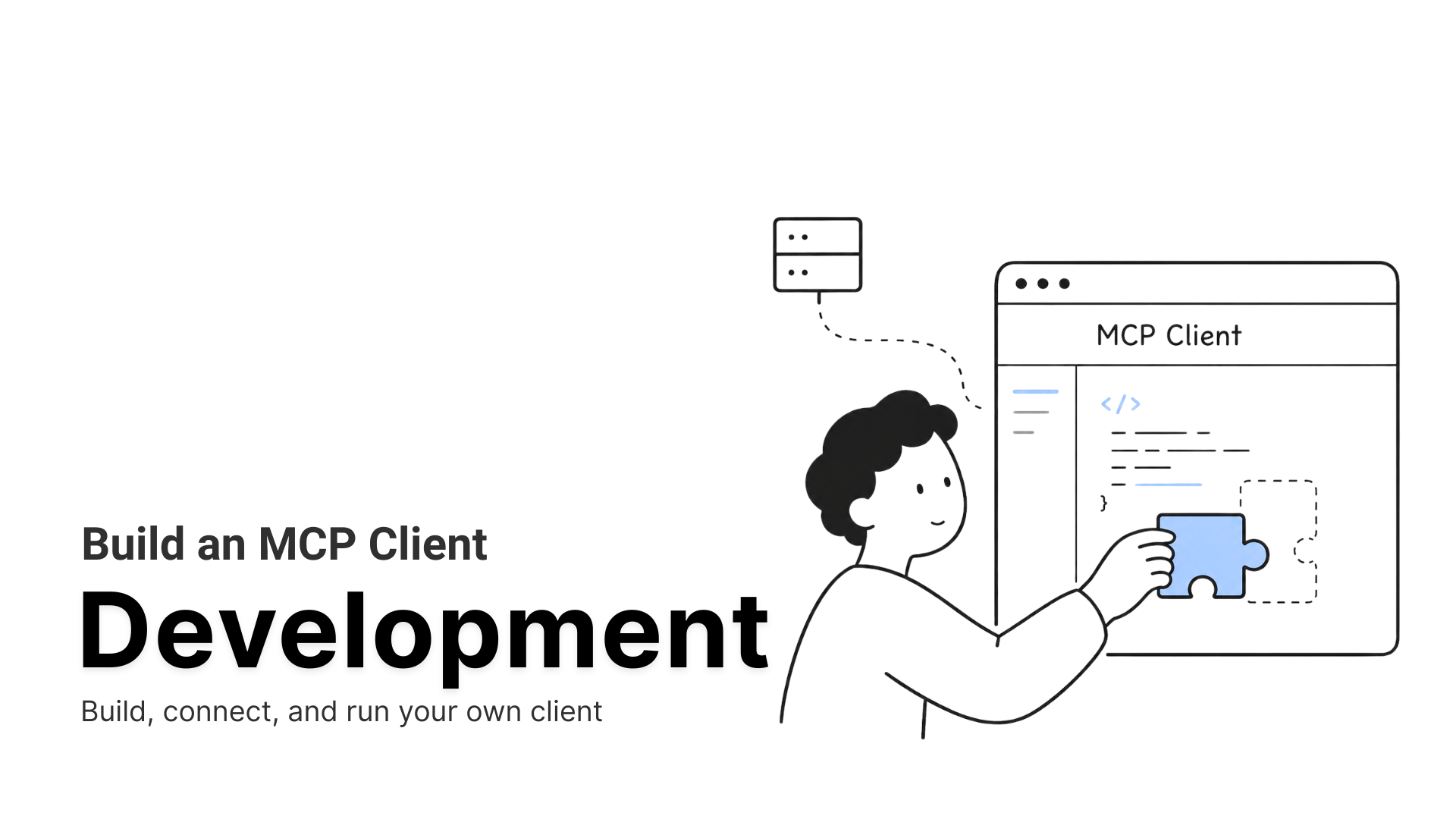
This guide walks through building a working Python MCP client in five steps, starting from an empty folder and ending with a client that can connect to compatible servers and let Claude decide when to call their tools in real time.
Most developers use an MCP client every day, inside Claude Desktop, Cursor, or any tool with a “Connect an MCP server” setting, without ever writing one. That’s fine until a server drops mid-session and the client just prints “Connection refused” or hangs on initialize. At that point there’s no way to tell whether the problem is the transport, a bug in the client’s tool-call handling, or the server itself, because you’ve never built the piece that’s failing.
Building your own client fixes that blind spot. Once you’ve written the connection logic yourself, a broken integration stops being a mystery and starts being a stack trace you can actually read.
This blog builds one from scratch. A working Python MCP client that goes from an empty folder to a full build in five steps, connecting to any MCP server, listing its tools, and handing tool-call decisions to Claude in real time.
What Is an MCP Client

An MCP client is the component inside an AI application that opens a connection to one MCP server, discovers what that server can do, and relays tool calls between the language model and the server.
The Model Context Protocol itself, introduced by Anthropic in November 2024, standardizes how AI applications talk to external tools and data sources. As of the current specification (version 2025-11-25), the protocol defines three participants: a host, one or more clients, and one or more servers.
How an MCP Client Works
The host is the AI application itself, something like Claude Desktop or a custom chatbot you write. The host doesn’t talk to servers directly. Instead, it spins up a dedicated MCP client for each server it wants to use. Connect that host to a Slack server, a database server, and a filesystem server, and it’s quietly running three separate client instances: three connections, three tool lists, three independent points where something can break.
That narrowness is intentional. It keeps each connection sandboxed. A misbehaving or compromised server can’t reach into a different server’s session, because there’s no shared client instance for it to reach through.
MCP Client vs MCP Server: What’s the Difference?
It’s easy to blur client and server together when you’re new to MCP, so it helps to separate their jobs plainly.
A server exposes capabilities. It advertises tools (functions the model can call), resources (data the model can read), and prompts (reusable templates). A server doesn’t know or care which client is talking to it, beyond the connection it maintains.
A client consumes those capabilities on behalf of a host. It has no capabilities of its own to expose, though it hands the server three things in return: sampling (letting the server request a completion from the host’s language model), elicitation (letting the server ask the user a follow-up question), and logging.
| Aspect | MCP Client | MCP Server |
|---|---|---|
| Role | Consumes capabilities on behalf of a host | Exposes capabilities to any client that connects |
| What It Hands to the Other Side | Sampling, elicitation, and logging | Tools, resources, and prompts |
| Connection Cardinality | One client per server connection | One server can serve many clients over Streamable HTTP or a single client over stdio |
| Core Calls in Play | Sends initialize, tools/list, and tools/call |
Handles tools/list and tools/call, then returns the results |
| Real Examples | Claude Desktop’s internal client, Cursor’s client, and the Python client built in this guide | A Slack integration server, filesystem server, or custom weather server |
This split matters practically. If your goal is to add a new integration such as a CRM or a ticketing system, you write a server, since that’s where the capability lives. If your goal is to build a new AI application that can use any MCP-compatible tool, you write a client, since that’s the part that plugs into the ecosystem. The tutorial below builds the second one.
Why Build a Custom MCP Client
Claude Desktop, Cursor, and VS Code’s Copilot chat already ship MCP clients, and they cover the common case well: a person typing into a chat window that happens to have tools attached. A custom build makes sense once you’re outside that case.
- No chat window needed: A scheduled job that checks a database every hour and posts a summary to Slack has no “Connect an MCP server” button to click. The client logic has to live inside that job’s own code.
- Control over the tool output: Prebuilt clients pass results straight through. A custom client can filter a field out, truncate a response, or log it somewhere before it ever reaches the model, useful when a tool returns more than the model should see.
- Embedded in your own product: MCP needs to live inside a product you’re already shipping, not a separate desktop app your users have to install. If your own application calls MCP servers on a user’s behalf, that connection logic belongs in your application’s code, not a third-party client’s.
- Routing to more than one model: Prebuilt clients are typically tied to one vendor’s model. A client you write yourself can send the same tool set to whichever model fits a given request.
- Validating a server before it’s load-bearing: A hand-built client lets you confirm a server’s tools actually behave the way its documentation claims, before that integration gets wired into something people depend on.
None of this replaces Claude Desktop or Cursor for everyday use. It’s about recognizing the point where a general-purpose client stops fitting, and building the narrow one that does.
What You Need Before You Start
The official quickstart supports Python, TypeScript, Java, Kotlin, C#, Ruby, and Rust. This walkthrough uses Python since it has the lowest setup overhead and the widest existing tutorial coverage, but the same five steps apply in any of the supported languages.
Before starting, you’ll need:
- A Mac or Windows computer. Linux works too, though Anthropic’s docs are written for the first two.
- The latest version of Python and
uvinstalled. - An Anthropic API key from the Anthropic Console.
- An existing MCP server to connect to. Use one you’ve already built, the weather server from Anthropic’s server quickstart for a quick demo, or a live server from MCP360’s directory if you’d rather test against something with real data than a toy example.
Step 1: Set Up Your Project
Create the project and install the two packages that do the heavy lifting: mcp (the protocol SDK) and anthropic (the Claude API client).
# Create project directoryuv init mcp-clientcd mcp-client# Create virtual environmentuv venvsource .venv/bin/activate# Install required packagesuv add mcp anthropic python-dotenv# Remove boilerplate, create our main filerm main.pytouch client.py
Store your API key in a .env file rather than hardcoding it, and add that file to .gitignore immediately. A leaked API key is a much more common failure mode than any exotic protocol bug.
echo "ANTHROPIC_API_KEY=your-api-key-goes-here" > .envecho ".env" >> .gitignore
Step 2: Build the Client Class and Connection Logic
Every MCP client needs three things at minimum: a session object to track the connection, a way to manage that connection’s lifecycle, and a reference to the Anthropic client for sending queries to Claude.
import asynciofrom typing import Optionalfrom contextlib import AsyncExitStackfrom mcp import ClientSession, StdioServerParametersfrom mcp.client.stdio import stdio_clientfrom anthropic import Anthropicfrom dotenv import load_dotenvload_dotenv()class MCPClient: def __init__(self): self.session: Optional[ClientSession] = None self.exit_stack = AsyncExitStack() self.anthropic = Anthropic()
AsyncExitStack handles cleanup so that if anything fails partway through connecting, resources still get released instead of leaking. This is the piece most hand-rolled clients skip, and it’s the one that causes hung processes later.
Next, add the method that actually opens a connection. This example uses the stdio transport, which launches the MCP server as a local subprocess and talks to it over standard input and output. It’s the right choice when the client and server run on the same machine, which covers most development and single-user setups.
async def connect_to_server(self, server_script_path: str): is_python = server_script_path.endswith('.py') is_js = server_script_path.endswith('.js') if not (is_python or is_js): raise ValueError("Server script must be a .py or .js file") command = "python" if is_python else "node" server_params = StdioServerParameters( command=command, args=[server_script_path], env=None ) stdio_transport = await self.exit_stack.enter_async_context(stdio_client(server_params)) self.stdio, self.write = stdio_transport self.session = await self.exit_stack.enter_async_context(ClientSession(self.stdio, self.write)) await self.session.initialize() response = await self.session.list_tools() tools = response.tools print("\nConnected to server with tools:", [tool.name for tool in tools])
If your server runs remotely instead, swap stdio for the Streamable HTTP transport. It’s the transport the current spec recommends for anything crossing a network, since it supports standard HTTP authentication (bearer tokens, API keys) and lets one server field many client connections at once, unlike a stdio server, which typically serves a single client.
You’ll see references to an older SSE transport in some tutorials. That transport was the original remote option, later replaced by Streamable HTTP for new implementations. Existing SSE servers still work, but treat any new SSE-only code you find as a signal to migrate rather than a pattern to copy.
Step 3: Send Queries and Handle Tool Calls
This is the part that turns a protocol connection into something useful. When a person types a query, the client sends it to Claude along with the list of tools the server just advertised. If Claude decides a tool is needed, the client executes that tool call through the MCP session, feeds the result back to Claude, and returns Claude’s final answer.
async def process_query(self, query: str) -> str: messages = [{"role": "user", "content": query}] response = await self.session.list_tools() available_tools = [{ "name": tool.name, "description": tool.description, "input_schema": tool.inputSchema } for tool in response.tools] response = self.anthropic.messages.create( model="claude-sonnet-4-20250514", # check the Anthropic docs for the current recommended model ID max_tokens=1000, messages=messages, tools=available_tools ) final_text = [] assistant_message_content = [] for content in response.content: if content.type == 'text': final_text.append(content.text) assistant_message_content.append(content) elif content.type == 'tool_use': tool_name = content.name tool_args = content.input result = await self.session.call_tool(tool_name, tool_args) final_text.append(f"[Calling tool {tool_name} with args {tool_args}]") assistant_message_content.append(content) messages.append({"role": "assistant", "content": assistant_message_content}) messages.append({ "role": "user", "content": [{"type": "tool_result", "tool_use_id": content.id, "content": result.content}] }) response = self.anthropic.messages.create( model="claude-sonnet-4-20250514", max_tokens=1000, messages=messages, tools=available_tools ) final_text.append(response.content[0].text) return "\n".join(final_text)
Notice what’s happening in the loop. The client never decides on its own whether to call a tool. Claude decides. The client’s job is purely mechanical, translating the model’s tool_use request into an actual tools/call message and translating the server’s response back into something the model can read.
Step 4: Add the Chat Loop and Cleanup
Wrap the query processor in a simple interactive loop, and make sure resources get released when the session ends.
async def chat_loop(self): print("\nMCP Client Started!") print("Type your queries or 'quit' to exit.") while True: try: query = input("\nQuery: ").strip() if query.lower() == 'quit': break response = await self.process_query(query) print("\n" + response) except Exception as e: print(f"\nError: {str(e)}")async def cleanup(self): await self.exit_stack.aclose()
Skipping this try/except block is a common shortcut, and it’s the one that turns a single bad tool call into a dead session. Tool calls can fail for reasons entirely outside your client’s control, a server timing out, a missing environment variable on the server side, a malformed argument. Catching those errors means one bad query fails on its own instead of taking the whole chat loop down with it.
Step 5: Run Your MCP Client
async def main(): if len(sys.argv) < 2: print("Usage: python client.py <path_to_server_script>") sys.exit(1) client = MCPClient() try: await client.connect_to_server(sys.argv[1]) await client.chat_loop() finally: await client.cleanup()if __name__ == "__main__": import sys asyncio.run(main())
Run it against any server script:
uv run client.py path/to/server.py
The first response can take up to 30 seconds while the server initializes and Claude processes the query for the first time. That’s expected, not a sign of something broken.
Common MCP Client Errors and How to Fix Them
A handful of errors account for most first-run failures:
| Error | Likely Cause |
|---|---|
FileNotFoundError |
The server script path is incorrect. Try using the absolute path instead of a relative path. |
| Connection Refused | The server process is not starting, or the path passed to it is incorrect. |
| Tool Execution Failed | The server tool requires an environment variable, API key, or credential that has not been configured. |
| Timeout Error | The server is taking too long to respond. Increase the client timeout before assuming the server is broken. |
This table covers what shows up on the client side. If a connection keeps failing after you’ve ruled these out, common MCP server connection issues walks through the causes that live on the server side instead.
One specific case worth calling out. A FileNotFoundError or Connection refused sometimes traces back to a stale path in a config file, not a bug in the code above, especially if you’re also running the same server through Claude Desktop or Cursor with a slightly different config. mTarsier shows every client’s server configs side by side, which makes that kind of mismatch obvious without opening three separate JSON files to compare them by eye.
MCP Client Security: 5 Rules Before Connecting a Server
An MCP client hands a language model the ability to trigger real actions through code running on the server side, so this isn’t a footnote.
The spec requires user consent before any tool call, and treats tool descriptions as untrusted unless they come from a server you already trust. That second rule is the one most first-time builders skip, and it’s where real attacks happen. A threat-modeling study published in May 2026 found prompt injection delivered through poisoned tool metadata across seven major MCP clients, hidden instructions embedded in a tool’s description rather than its output. The same paper cites a dataset of 13,875 MCP servers and 300 clients, more than any team could realistically vet by hand.
Five practices cover most of the exposure:
- Review tool descriptions before trusting them. A
get_weathertool that also asks for filesystem write access is a signal, not a formality. - Scope credentials to the narrowest permission needed. Over-privileged access is the most commonly cited MCP security gap.
- Keep a human in the loop for destructive or irreversible actions, per the spec’s baseline design expectation.
- Store API keys in environment variables or a secrets manager, never in source code, and confirm
.envis in.gitignorebefore your first commit. - Treat sampling requests as something the user must approve. The spec gives users control over whether sampling happens, what prompt gets sent, and what comes back.
Treat every server connection with the same caution you’d give a new browser extension. Useful, but capable of more than its name suggests.
Frequently Asked Questions
What is an MCP client?
An MCP client is the piece of software inside an AI application that opens a connection to one MCP server, discovers what that server can do, and passes tool calls back and forth between a language model and the server. Every AI tool that connects to an MCP server, including Claude Desktop and Cursor, is running one of these behind the scenes, even when the interface never uses the word.
MCP client vs MCP server: what’s the difference?
An MCP server exposes capabilities: tools the model can call, resources it can read, and prompts it can reuse. An MCP client consumes those capabilities on behalf of a host application, sending requests and handing results back to the model. The two also connect differently. One client always maintains exactly one connection to one server, while a single server can serve many clients at once over the Streamable HTTP transport.
Why build a custom MCP client at all?
Claude Desktop and Cursor cover the common case well, a person typing into a chat window with tools attached. A custom client makes sense outside that case, when the connection needs to run inside a scheduled job with no chat window, when you need to filter or redact a tool’s result before the model sees it, or when your own product needs to call MCP servers directly instead of asking users to install a separate app.
What language should I use for an MCP client?
Anthropic’s official quickstart supports Python, TypeScript, Java, Kotlin, C#, Ruby, and Rust, and all of them implement the same underlying steps. Python has the lowest setup overhead and the widest tutorial coverage, which is why most walkthroughs, including builds using uv and the official mcp and anthropic packages, start there. The connection logic, tool discovery, and tool-call handling work the same way regardless of which supported language you pick.
Stdio or Streamable HTTP for an MCP client?
Use stdio when the client and server run on the same machine, since it launches the server as a local subprocess and covers most development and single-user setups. Use Streamable HTTP once the server needs to run remotely or serve more than one client at a time. An older SSE transport shows up in some tutorials, but it has been replaced by Streamable HTTP for new implementations, so treat SSE-only code as something to migrate rather than copy.
Is it safe to let an MCP client call tools?
Only if the client treats tool descriptions as untrusted by default. The MCP specification requires user consent before any tool call, but a 2026 threat-modeling study found that seven major MCP clients were still vulnerable to prompt injection hidden inside a tool’s own description rather than its output. Reviewing tool descriptions before trusting them, scoping credentials narrowly, and keeping a human in the loop for destructive actions cover most of the real exposure.
Where can I find MCP servers to test against?
You can write your own test server, use Anthropic’s official weather server from its quickstart for a quick demo, or connect to a live server with real data instead of a toy example. MCP360’s directory lists servers across categories like search, SEO, e-commerce, and finance, which is useful once you want to confirm your client handles a real tool schema rather than a handful of demo functions.
How do I manage MCP configs across multiple clients?
Once a custom client runs alongside prebuilt ones like Claude Desktop or Cursor, each keeps its own server configuration file, and a stale or mismatched entry in one of them is a common source of connection errors that look like a code bug but aren’t. mTarsier detects every MCP client on a machine and shows their server configs side by side, so a mismatch is visible without opening each client’s JSON file separately.
What if my client needs to connect to many servers?
A larger host application typically spins up one client instance per connected server, whether that’s a database, a ticketing system, or a marketing tool, and the same connection logic covers each one. Once that list grows past a handful of servers, a gateway that exposes many tools through a single endpoint removes the overhead of writing a new connection block for every new server, which is what MCP360 is built to do.
Conclusion
Building an MCP client becomes much easier once you understand its core loop: connect to a server, discover its tools, let the model choose an action, execute the tool call, and return the result. The client you built now gives you visibility into every part of that process.
Next, extend connect_to_server() to support additional servers, add structured error logging, and require user confirmation before sensitive actions. These improvements will help you move from a working tutorial client to a safer and more reliable production setup.
From there, you can embed the same client logic into scheduled automations, internal workflows, or customer-facing AI products without depending entirely on a prebuilt desktop client.

Article by
RajniAI & Tech | Senior Content Writer
Rajni is a senior content writer covering AI agents, automation, and no-code tools. She writes across the AI space, from chatbots and customer support to MCP and agent workflows, focused on how businesses actually put these tools to work.