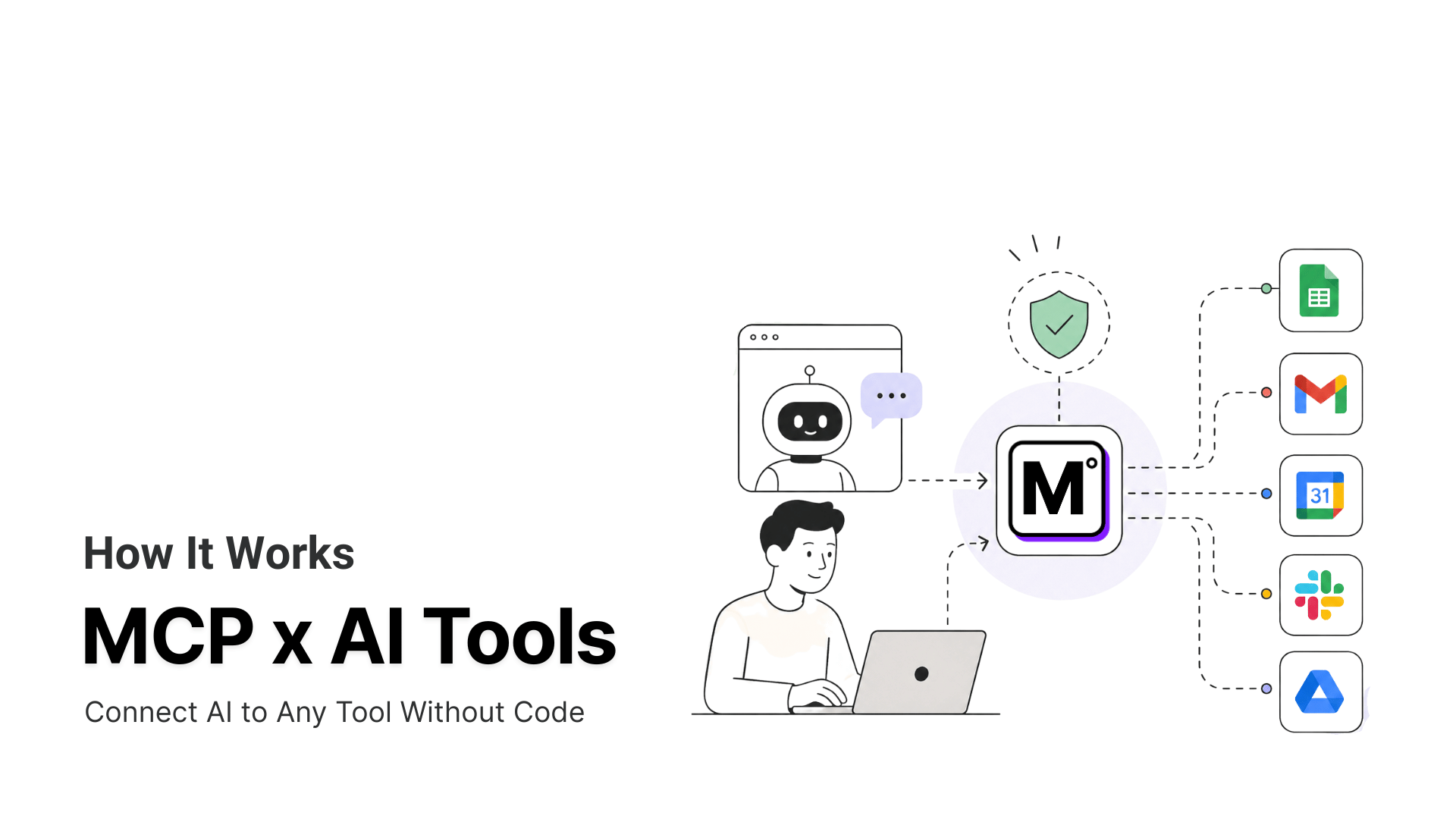


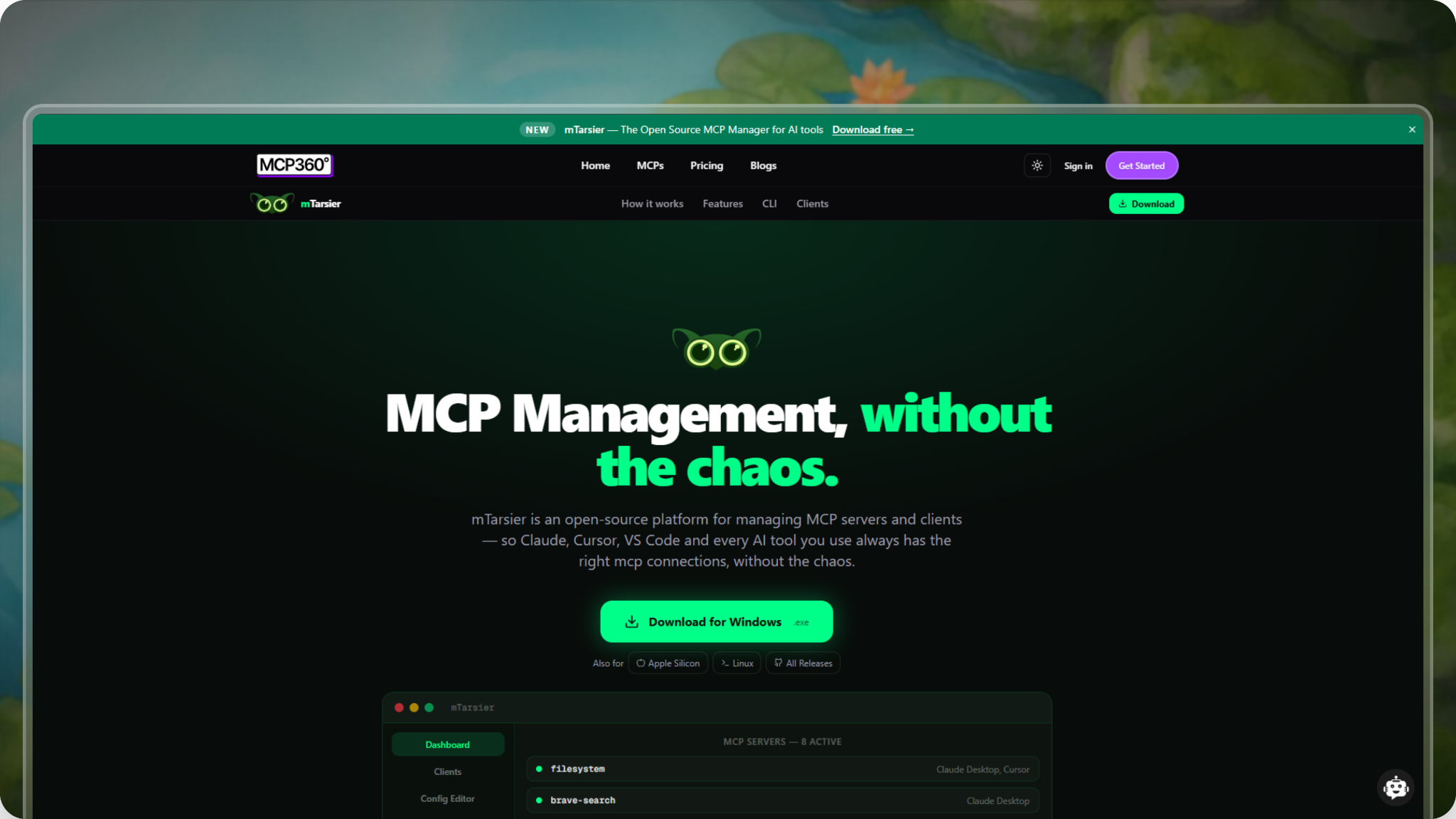
Managing MCP servers across multiple clients is often difficult because each tool stores and organizes its settings differently. This lack of uniformity makes it hard to track server states, apply updates consistently, and maintain reliable configurations. Here are the major challenges:
1. Inconsistent Configuration Storage: Different AI clients store MCP settings in different ways. Some use a single JSON file, others spread settings across folders, and some embed configurations within extensions. This makes it hard to know where settings are located and how they relate to each other.
2. Manual Editing is Error-Prone: Editing configuration files by hand can easily cause mistakes. A missing comma, an incorrect path, or a wrong entry can break server connections. Fixing these issues often requires checking multiple files across different clients, which takes time and can introduce new errors.
3. Difficulty Tracking Server Connections: Without a central view, it is difficult to know which servers are active. It is also hard to determine which need updates. Additionally, knowing how changes in one client affect others is challenging. This can lead to unintentional disruptions or overlooked problems.
4. Team Experience: While working with MCP setups internally, we noticed some issues. Team collaboration is difficult across devices. This issue is exacerbated when multiple team members are involved. Manual syncing is slow and unreliable, complicating the maintenance of a uniform environment.
The adoption of MCP is on the rise, and the observability blocker needs to be fixed.
What is mTarsier?
mTarsier is an open-source tool for managing MCP server configurations across multiple AI clients.
Each AI client handles configurations differently. Some store settings in a single file, while others spread them across folders or embed them in extensions.
mTarsier brings all MCP configurations into one interface. It shows which servers are connected, allows safe editing of settings, and helps maintain consistent setups across tools and machines.
It runs locally on macOS, Windows, and Linux. It does not require a user account. So, teams can manage their MCP servers directly and reliably.
Core Features
1. Centralized Dashboard: mTarsier provides a single interface where all MCP server configurations across supported AI clients are displayed. Developers can immediately see which servers are connected, which need setup, and the current status of each configuration. This eliminates the need to open multiple files or applications to track server setups, saving time and reducing errors.
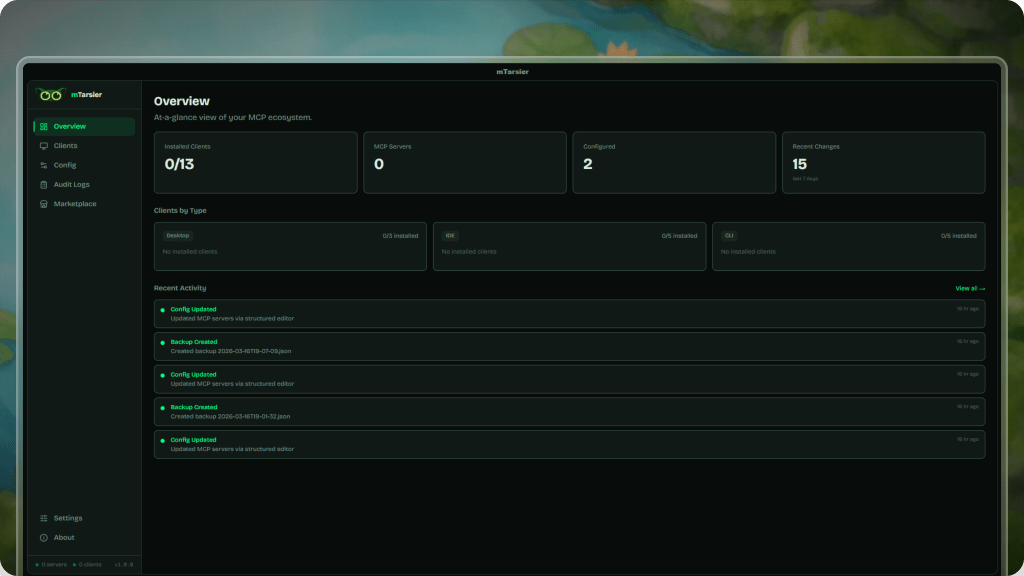
2. Automatic Client Detection: The tool automatically detects installed AI clients and lists their associated MCP servers. This ensures no server is missed and removes the manual effort of locating configuration files across different directories or extensions. It also keeps track of which clients are active and which are not.
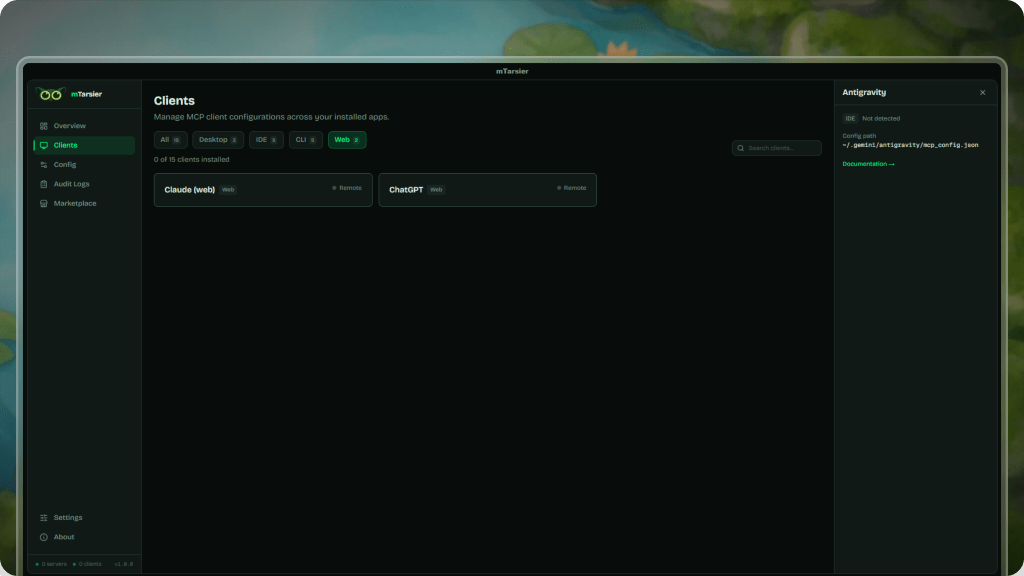
3. One-click install & enable: Developers can edit configuration files directly within mTarsier. Built-in JSON validation checks for formatting errors before changes are applied, preventing broken configurations. Additionally, the tool automatically creates backups before any edits, allowing users to restore previous setups if something goes wrong.
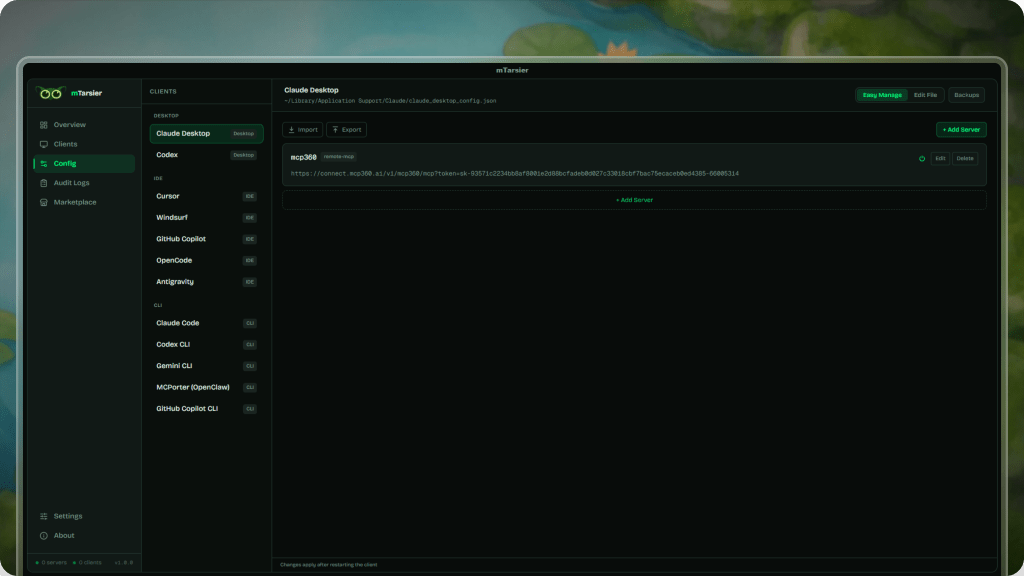
4. Built-in Marketplace: mTarsier includes a built-in marketplace that allows MCP servers to be installed into supported clients without manually editing files. This feature standardizes installations, ensuring that servers are configured correctly and consistently across clients.
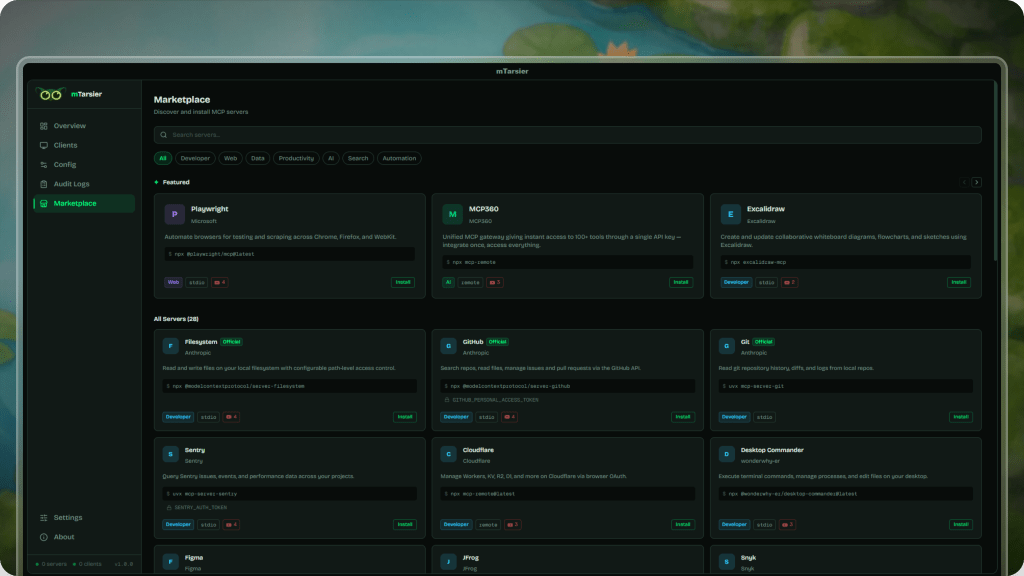
5. Share MCPs with your Team: Setups can be exported as .tsr snapshots. These snapshots capture the entire MCP configuration, making it easy to replicate the same environment on another machine or share setups with teammates. This reduces setup errors and ensures consistency across different systems.

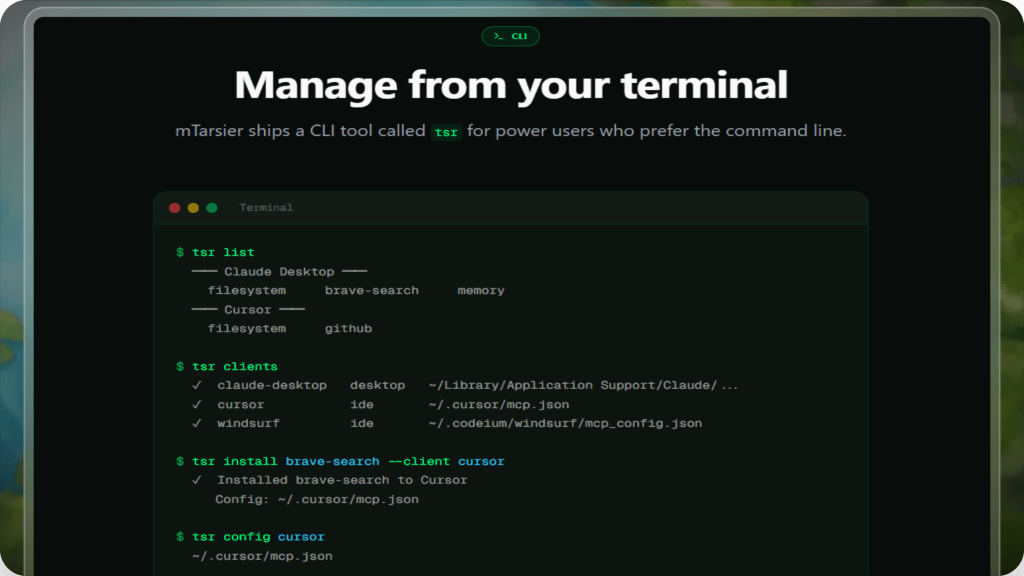
6. Command-Line Interface (CLI): For developers who prefer working in the terminal, the tsr CLI provides the same management capabilities as the graphical interface. It supports both single-client and multi-client setups, allowing flexible workflows and automation scripts without relying on the dashboard.
7. Cross-Platform Support: mTarsier runs locally on macOS, Windows, and Linux. It does not require a user account, which allows developers to manage MCP servers directly on their system. This ensures full control over configurations while keeping the setup private and self-contained.

How to Get Started with mTarsier
Getting started with mTarsier is simple. First, you’ll need to install the application and check your MCP server setups—all from one easy-to-use interface. The steps below work for all supported operating systems.
1. Download the Installer
Visit the mTarsier website and download the installer for your operating system:
- Windows: .exe
- macOS: .dmg (Intel or Apple Silicon)
- Linux: .deb, .rpm, or .AppImage

2. Next Steps After Installation: Reviewing the Dashboard
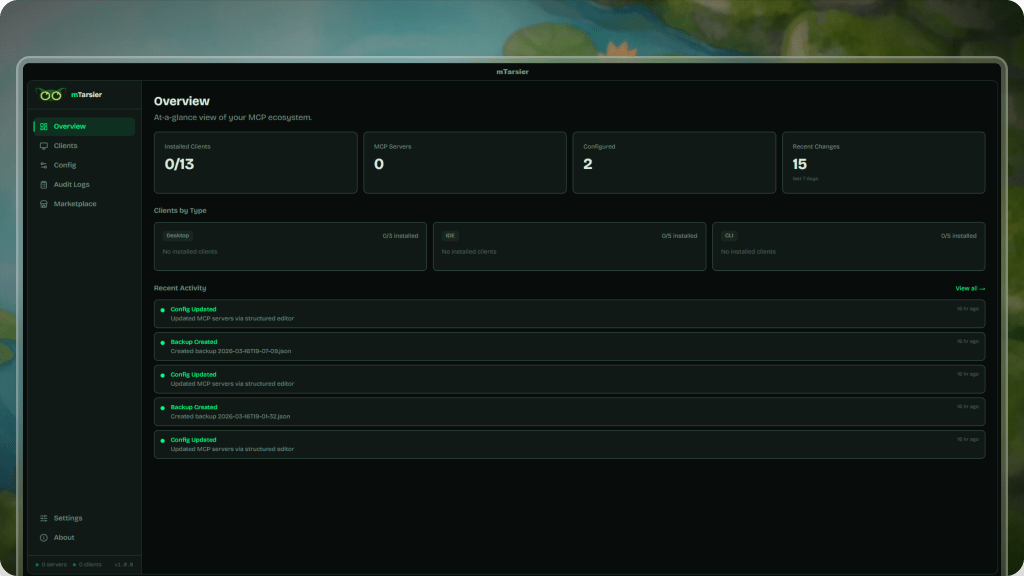
The dashboard shows all detected clients and their associated MCP servers. From here, you can understand which servers are already configured and which require attention.
3. Select the Client
Choose the client from the sidebar where you want to add the MCP server.

4. Manage MCP Servers
You can add new servers, update existing configurations, or fix issues directly from the interface. Built-in validation helps ensure that configuration changes do not break existing setups.
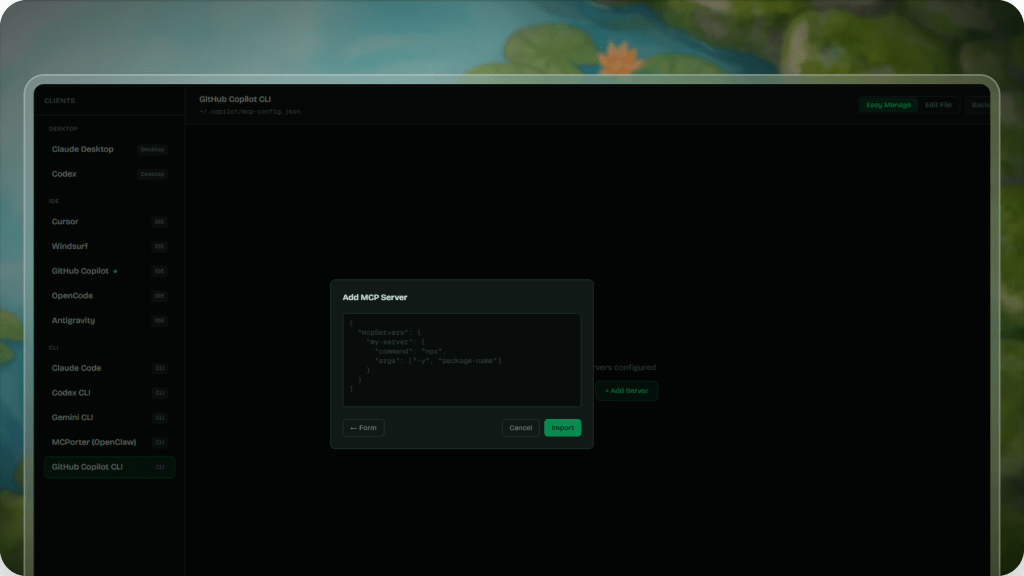
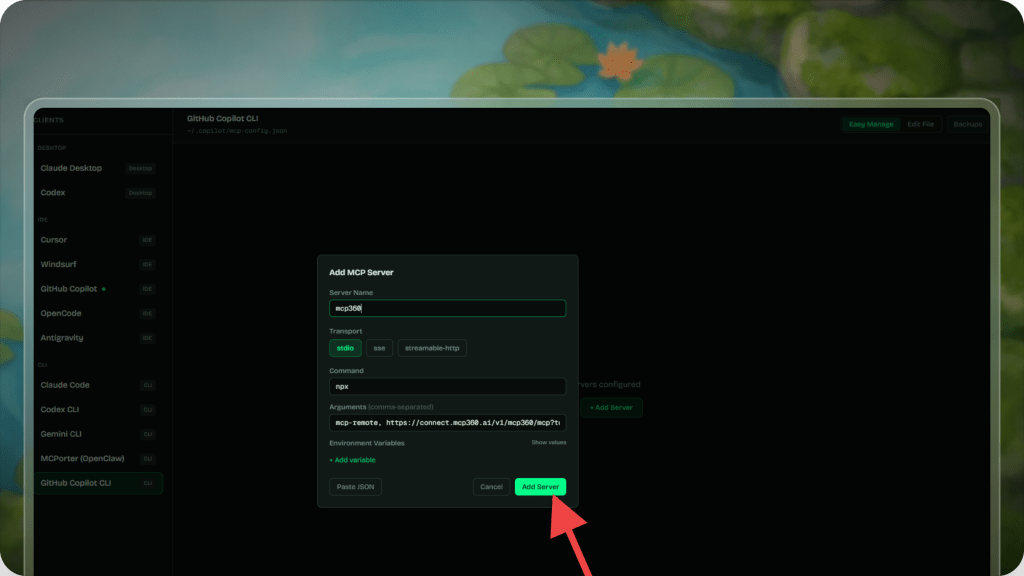
5. Add Server Details
Enter the server name, transport type, command, and required arguments, then save the configuration.
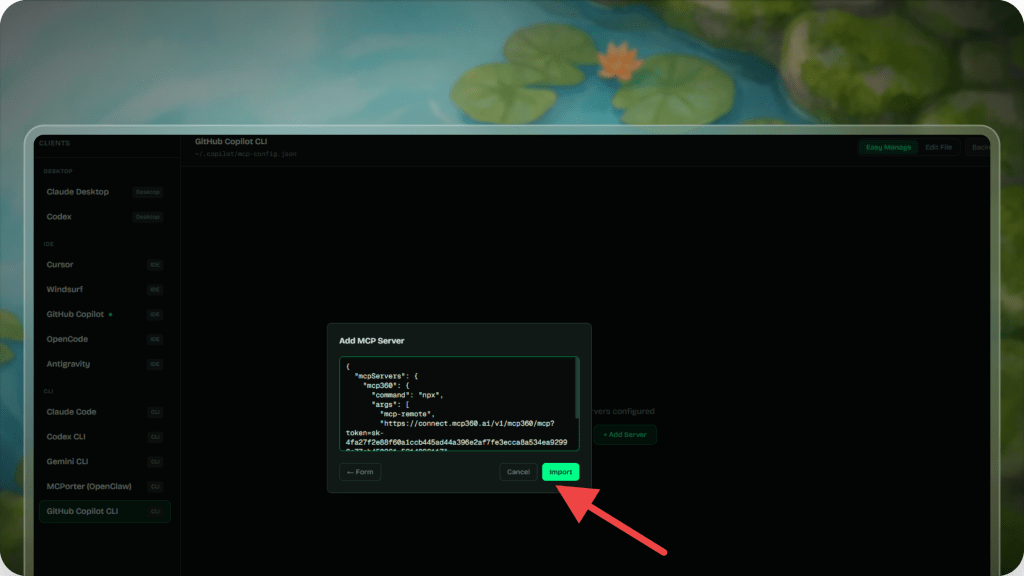
6. Import via JSON
Alternatively, switch to JSON view, paste the configuration, and import it directly.
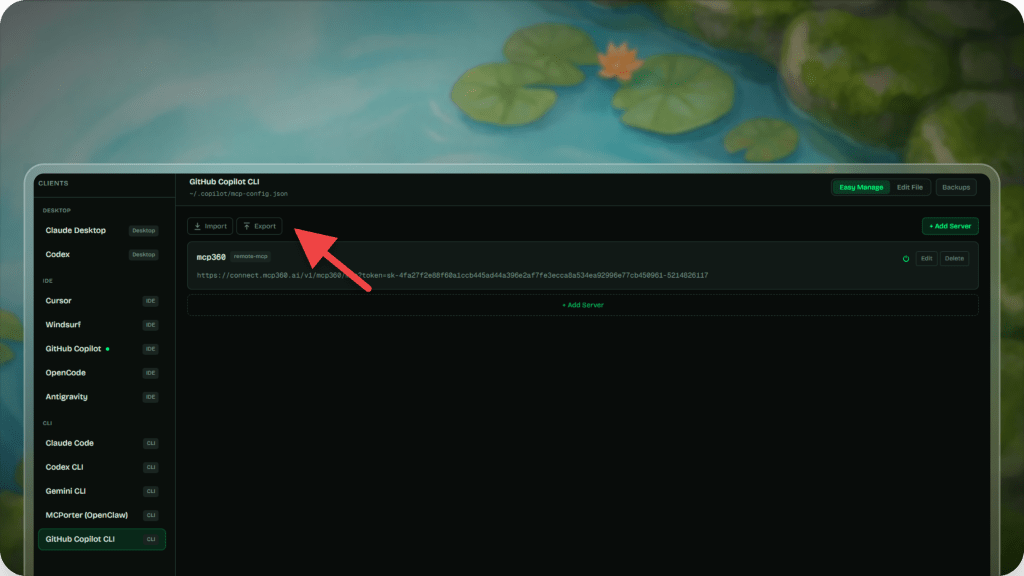
7. Export or Reuse Configurations
To reuse your setup on another machine or share it with others, export your configuration as a .tsr snapshot. This allows the same environment to be recreated without manual setup.
Who Should Use mTarsier
mTarsier is intended for developers & teams who work with MCP servers. They need a clearer way to manage configurations across different setups.
- Developers using multiple AI clients: When MCP servers are used across tools such as Claude Desktop, Cursor, and VS Code, each client handles configuration differently. Managing these setups across tools can become difficult, especially when changes need to be made consistently. mTarsier brings these configurations into a single interface so they can be handled together.
- Developers working with multiple MCP servers: As the number of servers increases, it becomes harder to keep track of their connections and configuration state. mTarsier provides a consolidated view, making it easier to review and manage multiple servers without switching between tools.
- Setups that need to be reused across machines: Recreating the same MCP environment on another system often involves repeating manual configuration steps. mTarsier allows setups to be exported as .tsr snapshots and imported elsewhere, making it easier to reproduce the same configuration.
- Teams who manage configurations locally: mTarsier runs locally on macOS, Windows, and Linux and does not require a user account. It lets configurations to be handled directly on the system without relying on external services.
Frequently Asked Questions
What is MCP configuration?
MCP configuration refers to a set of settings. These settings define how a server is connected. They also determine how it is used within an AI client. It includes details such as commands, file paths, and connection parameters, usually stored in structured formats like JSON.
Will mTarsier affect existing MCP configurations when installed?
No, mTarsier does not change existing configurations during installation. It only reads and displays them. Any modification happens only when changes are made manually, with backups created before applying them.
How does mTarsier handle conflicts between configurations across different clients?
mTarsier does not automatically resolve conflicts. It presents configurations from different clients in one place. This makes the differences visible. They can be reviewed and corrected with full context.
Can configurations exported from one system be used across different operating systems?
Yes, exported configurations can be reused across systems. However, system-specific details such as file paths may need to be updated to match the target environment.
Does mTarsier support adding custom MCP servers outside the marketplace?
Yes, mTarsier allows adding custom servers manually. The marketplace is optional and does not limit the ability to define or manage custom configurations.
How does mTarsier handle clients that are not automatically detected?
If a client is not detected, its configuration can still be managed by locating the files manually. mTarsier focuses on common clients for detection but does not restrict access to others.
How can mTarsier be used with clients like Claude Desktop or Cursor?
mTarsier connects to supported clients by reading their configuration files. Once detected, any changes made in mTarsier are applied directly to those configurations, reflecting in the respective clients.
Is any additional setup needed to connect mTarsier with supported AI clients?
No additional setup is required for supported clients. mTarsier detects them automatically after installation and makes their configurations available for management.
Conclusion
Managing MCP servers across multiple clients becomes difficult when configurations are scattered and handled manually. As setups grow, keeping everything consistent takes more effort, and small mistakes can disrupt working environments.
mTarsier brings everything into one place. This makes it easier to see what is running. It lets you make changes with confidence. It keeps setups consistent across different tools.
If you are working with MCP servers, you can download mTarsier and try it in your own workflow. The project is open source, and contributions are welcome.
mTarsier is a step towards making MCP configuration management more reliable and easier to handle across different environments.

Article by
HimanshuHead of Growth & Engineering
Himanshu is Head of Growth & Engineering, writing about AI agents, MCP, and no-code automation from a go-to-market view. He covers how teams evaluate, adopt, and get real value from AI tools, translating what the tech does into what it means for a business.