



The TL;DR
MCP servers let AI agents connect to tools, but workflows often stall after a tool returns data because users still need to manually prompt the next step.
-
• Limitation
After a tool response, users often have to keep the workflow moving themselves by filtering results, editing outputs, approving actions, or supplying missing inputs.
-
• MCP Apps
MCP Apps turn tool outputs into interactive interfaces like forms, tables, dashboards, and controls, so users can act on results directly inside the conversation.
-
• Why It Matters
Tool results become part of the execution flow instead of static replies, making multi-step tasks easier to complete without repeatedly re-prompting the system.
MCP servers let AI agents search the web, query databases, and call external tools. The problem usually starts after the result comes back. The limitation usually appears after the tool returns a result. In most chat interfaces, the result is still shown as text or structured data. Each follow-up step still depends on another prompt.
That is fine for one-shot tasks. It becomes awkward when the result is only part of the work. Reviewing output, working across connected systems, or supplying missing input often creates a loop. The user repeatedly translates straightforward actions into chat instructions.
MCP Apps address that gap by extending what can happen after a tool responds. The result does not have to remain a passive response while the user drives every next step through chat. The interaction can continue in a more structured way around the same result.
That changes the role of the result. It is not just a response to inspect. It becomes part of the execution flow itself.
Let’s see how MCP Apps reshape the user experience and change what’s possible inside a chat interface.
What is MCP Apps?

MCP Apps extend the Model Context Protocol (MCP) to deliver interactive user interfaces directly into AI chat environments. MCP servers provide HTML-based UIs such as forms, dashboards, or charts. These render in secure, sandboxed iframes and replace plain text responses with visual, actionable elements.
MCP Apps combine tools for backend actions with frontend resources for real-time user interaction. Communication occurs via secure JSON-RPC over postMessage. This setup allows the AI to manage logic while users interact visually.
- Real-time dashboards for metrics, logs, or analytics.
- Multi-step workflows such as approvals, editing, or code reviews.
- Agentic enhancements in IDEs like VS Code for streamlined development.
How MCP Apps Work
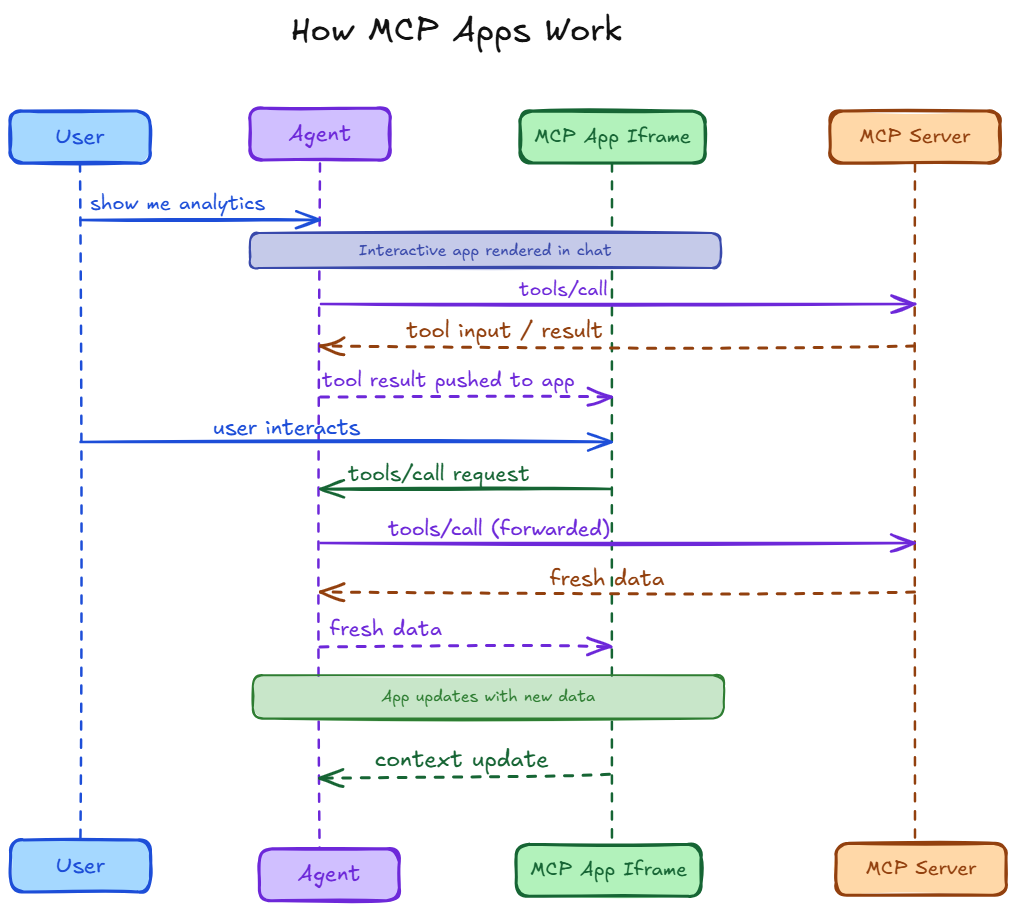
MCP Apps starts with the standard MCP flow. The model selects a tool, the host sends a `tools/call` request, and the server returns a result. The difference is that the tool can also point to a UI resource, so the host can render an interface alongside the returned data.
That interface is usually loaded in a sandboxed iframe. The host does not treat it as part of the main chat surface. It treats it as an isolated component with defined boundaries, which makes it possible to embed interactive UI without giving the server direct access to the host environment.
When the user interacts with that UI, the action is emitted as a structured event rather than another chat message. A filter change, form submission, row selection, or button click is passed through the host over a message bridge, commonly using JSON-RPC over `postMessage`. The host can then map that event back to the relevant tool or app state and send the next request to the server.
Because the host manages both the rendered UI and the tool connection, the flow can continue inside the same interaction. The server receives follow-up input in a structured form, updates the underlying state, and returns the next result for the same UI context. That is what allows MCP Apps to support multi-step interaction without forcing each adjustment back into free-form prompting.
MCP App vs App UI
| Aspect | MCP App | App UI |
|---|---|---|
| Meaning | The full MCP Apps integration pattern around a tool and its follow-up interaction flow | The embedded interface resource rendered by the host |
| Scope | Includes tool metadata, UI resource declaration, host rendering, communication, and follow-up actions | Includes only the interface shown to the user |
| Role | Keeps the interaction attached to the same tool-driven workflow | Gives the user a surface to view or act on the current result |
| Includes UI? | Yes | It is the UI |
| Includes tool logic? | Yes, through the MCP server and tool flow | No |
| Includes host coordination? | Yes | No |
| Handles follow-up actions by itself? | Yes, as part of the overall app flow | No, it depends on the host bridge |
| Best way to think about it | The whole interactive app pattern built on MCP | One interface layer inside that pattern |
MCP UI is the interface the user interacts with, while an MCP App is the broader system that keeps that interface connected to the tool, the host, and the next step in the workflow.
Security and Isolation in MCP Apps
MCP Apps let tools show interactive interfaces inside the chat, even if those tools come from outside the host platform. The system is designed with clear boundaries to ensure a secure and predictable experience, as these interfaces can accept input and trigger actions.
To achieve this, MCP Apps use several safeguards:
- Isolated UIs: The UI from a tool is shown in a special, locked-off space that cannot reach your browser data, your login state, or other sensitive information. This keeps the interface separated from the host environment and limits what it can access.
- Trackable communication: When you click or type in the UI, your actions are turned into clear, structured messages that go back through the same MCP channel. The host can log, check, and manage these messages, so every action from the UI is visible and controlled.
- Host‑controlled permissions: The host platform decides what the UI is allowed to do. It can block certain actions, like opening external links or calling specific tools, and can require your explicit approval before any important action is taken. This means the host stays in charge of what the UI can trigger.
- Pre‑approved templates: In many systems, only UI templates that have been reviewed and approved are allowed to run. It lowers the risk of an unexpected or untrusted interface appearing in the chat and adds an extra layer of security checking at the host side.
These safety measures let MCP Apps stay useful and interactive while still staying within the safe, controlled limits set by the host system. You can use the UI in the chat, but the platform and your own choices make sure the experience is safe and predictable.
Real-World Use Cases of MCP Apps
MCP Apps turn tool outputs into interactive interfaces that fit directly into everyday workflows. Below are four common situations where this really helps.
- Data exploration with adjustable views: A tool can return a data table along with simple controls that let you filter by time, category, or region. Instead of asking the AI to regenerate different versions of the same data, you adjust the filters in the interface and see the results update in the same chat. The tool keeps the context and only shows the part you care about.
- Managing structured records: The tool can show records like tasks, tickets, or items in workflows that involve them. These records can have fields that can be changed, like status, labels, or priority. When you change a value in the interface, MCP sends that change back, applies it right away, and shows the updated value in the same view. It feels like editing a simple list without leaving the chat.
- Input collection with validation: When a tool needs structured input, it can show a form with clear fields and built‑in rules that check what you type. You fill in the form and submit it directly in the chat. The tool processes the data, gives you feedback or confirmation, and keeps everything in the same session. There is no need to repeat the same details in a new prompt.
- Interactive review of generated content: For outputs like reports or structured summaries, the tool can show the content in sections that you can expand, collapse, or rearrange. When you interact with these sections, the changes are sent back through MCP, and the output is updated in place. You refine the result without asking the AI to regenerate the whole response from scratch.
These examples show that MCP Apps are most useful when the output needs follow-up actions such as filtering, editing, validating, or reviewing. You can work directly with the result. Adjust, edit, or explore it as needed. Receive updates in the same flow without restarting the interaction repeatedly.
Frequently Asked Questions
What are MCP Apps?
MCP Apps extend the Model Context Protocol by allowing tools to return interactive interfaces instead of plain text. A tool can display forms, tables, dashboards, or other UI components directly inside the chat, so users can continue working without writing additional prompts.
How do MCP Apps work?
MCP Apps follow the standard MCP flow. A tool returns data along with a UI resource that the host renders in a sandboxed iframe. User actions such as clicks, filters, and form submissions are sent as structured events, allowing the tool to return updated results.
What is the difference between an MCP App and an App UI?
An App UI is the visual interface a user sees. An MCP App includes the entire system behind it, including tool metadata, UI resources, host rendering, communication, and follow-up actions. The App UI is one part of a complete MCP App.
Are MCP Apps secure?
Yes. MCP Apps typically run in isolated sandboxed environments and cannot directly access browser data or user sessions. User interactions are sent as structured messages, allowing the host to monitor and control actions.
When should I use an MCP App instead of plain text?
Use an MCP App when users need to filter, edit, review, approve, validate, or submit information. For simple one-time answers, plain text is usually sufficient.
Can MCP Apps replace a separate web app?
In many cases, yes. MCP Apps keep workflows inside the conversation, reducing the need to switch to external websites or applications. This helps preserve context and streamlines user interactions.
Which AI clients support MCP Apps?
MCP Apps are designed to work across MCP-compatible clients rather than a single platform. Support is expanding across AI chat applications, IDEs, and agent frameworks as MCP adoption grows.
How can I add interactive tools to my AI agent without managing multiple integrations?
Using a gateway such as MCP360 allows you to connect to 100+ MCP tools through a single integration. This simplifies setup, reduces maintenance, and gives agents access to a wide range of tools without separate integrations.
Conclusion
MCP Apps are useful because they address a specific weakness in chat-based tool use. In a standard MCP flow, a tool can return structured data. However, the next step often still depends on another prompt.
That works for one-shot tasks, but it becomes inefficient when the result needs inspection, filtering, editing, confirmation, or submission.
MCP Apps improve that flow by letting the host render an interface tied to the tool result itself. The system can expose controls that map directly to the next action. Users no longer have to reinterpret the output through more natural language. The UI allows the user to interact with the result. The system sends those interactions back through the same host-tool connection. It preserves the state.
That makes MCP Apps most valuable in workflows where the first result is only an intermediate step. Review screens, approval flows, search and filter interfaces, and structured data entry all fit this pattern. In those cases, the main problem is not access to a tool. It is how the user continues working once the tool has responded.
Seen this way, MCP Apps are not just a visual upgrade to MCP. They extend the protocol from tool invocation to tool interaction. The important change is not that responses look more interactive. It is that the protocol can support stateful, user-driven work without pushing every adjustment back into free-form prompting.

Article by
RajniAI & Tech | Senior Content Writer
Rajni is a senior content writer covering AI agents, automation, and no-code tools. She writes across the AI space, from chatbots and customer support to MCP and agent workflows, focused on how businesses actually put these tools to work.