



The TL;DR
Setting up a Claude Cowork connector follows the same short process for MCP360 and other remote MCP servers.
-
• One Setup for Any MCP Server
Adding a custom connector takes the same few clicks inside Cowork’s Connectors settings, whether you are connecting MCP360’s gateway or a remote MCP server you built yourself.
-
• Connectors, Skills, and Plugins Solve Different Problems
A connector gives Cowork access to a tool, a skill provides the instructions for using it, and a plugin bundles both together. Understanding the difference helps you choose the right setup.
-
• Ten Connectors Is a Real Threshold
Once you have more than ten active connectors, the shared Tool access setting recommends switching to on-demand loading. Plan for this early to keep tool selection manageable and efficient.
Cowork can read a spreadsheet you dropped in a folder and turn it into a formatted report without much help. Ask it to pull the numbers from your CRM first, and it stalls, because nothing has told it your CRM exists. That gap between what Cowork can already do with files on your machine and what it can reach in the rest of your stack is exactly what connectors close.
Anthropic ships a directory of pre-built connectors that spans well beyond the familiar names like Slack and Google Drive, reaching into categories like financial services, life sciences, and data tooling. For anything not already in that directory, a custom connector over remote MCP is the standard way to wire up a new tool, whether that’s an internal API, a niche SaaS product, or a gateway like MCP360 that puts dozens of tools behind one connection.
This guide walks through what a connector actually is inside Cowork, how to connect one using MCP360 as the working example, and how much a connector can actually do once it’s live.
What Is Claude Cowork Connector

A Claude Cowork connector is a link that lets Cowork reach outside tools and services while it works. That’s easier to see once you know what makes Cowork different from a regular Claude chat.
Claude chat answers you turn by turn, right there in the conversation, with you present to keep it moving. Cowork works differently. Describe an outcome, step away, and Claude works through a multi-step task on its own, using the same agentic architecture that powers Claude Code but with no terminal required. Sessions running in the cloud keep going even after you close the laptop. Chat and Cowork also share one home, so you start either one from the same message box.
What a Connector Actually Does
A Claude Cowork connector is a link between Cowork and an outside tool or service, and it carries more weight in Cowork than in a regular chat. A task running unattended still needs a way to reach your CRM, your Slack, or your file store, without you there to paste anything in.
Once one is active, Cowork can search, read, and in some cases write to that service, the same way it already reads files you’ve shared in a folder. Here’s what that looks like for three common tools.
- Linear Connect it and Cowork can create issues.
- Slack Connect it and Cowork can send messages.
- Google Drive Connect it and Cowork can search your files.
That’s a different starting point than wiring up each service’s API by hand, since every connector speaks the same Model Context Protocol instead of a one-off integration you’d otherwise have to build and maintain yourself.
Connector vs. Skill vs. Plugin
A connector, a skill, and a plugin solve different problems, and it’s easy to mix them up.
- Connector Gives Cowork access to a tool.
- Skill Instructions Cowork draws on automatically, the know-how for doing a job a specific way.
- Plugin Bundles both together with slash commands into one install.
That’s also why “claude cowork plugins vs skills” is its own common search.
Real Benefits of Cowork Connectors
A connector doesn’t just add a tool to the list. It changes what Cowork can finish without you filling in the gaps.
- Turning a keyword check into a finished brief: Ask Cowork to research keywords for a new landing page, and with a search connector in place it pulls live search volume and difficulty the same way an automated keyword-research workflow does, then builds the brief around numbers that are still true when you read them. Paste a static export instead, and the numbers are already a week old by the time the brief ships.
- Cleaning a lead list before it hits the CRM: Drop a spreadsheet of scraped contacts into a task and ask Cowork to flag anything that won’t deliver. With a verification connector in place, it checks each address with real-time email verification instead of guessing from the domain, the same check an AI lead-generation agent runs before a contact ever reaches the CRM.
- Building a status report from what’s actually true right now: Instead of pasting exports from three systems into a task, Cowork checks Slack, a CRM, or a shared drive directly and builds the report from what’s actually there. A weekly update reflects the current pipeline instead of whatever was true when someone last remembered to export a CSV.
- Keeping a content calendar honest: A video or content connector lets Cowork check what’s actually published and performing before it recommends the next topic, instead of working from a spreadsheet someone updated three sprints ago. It’s the same live-data logic behind an end-to-end YouTube SEO workflow.
Every one of those starts the same way, with a connector already in place before the task begins. Setting one up is the next step.
What You Need Before Connecting
The steps below work for MCP360’s gateway or any other remote MCP server that speaks Streamable HTTP. MCP360 is the example here since one URL exposes a full tool catalog instead of just one tool, the same gateway URL that connects Claude Desktop or Claude Code directly.
- A Cowork-enabled Claude plan: Custom connectors work on free, Pro, Max, Team, and Enterprise, though free accounts are capped at one custom connector.
- An MCP360 account: A gateway URL, copied from your dashboard, or the remote MCP server URL for whatever tool you’re connecting instead.
- On Team or Enterprise: An Owner who can add the connector at the organization level first, in Organization settings > Connectors, before individual members authenticate to it themselves.
- A rough plan for how many connectors you’ll add: Past ten active ones, Cowork recommends switching Tool access to On demand, worth knowing before you connect a second or third tool.
With those four in place, the actual setup only takes three steps.
How to Add a Custom MCP Connector to Claude Cowork
The same three steps apply whether the URL you’re pasting is a gateway or a single-purpose server. If your tool is already in Cowork’s directory, Slack, Google Drive, and dozens of others, skip ahead, connecting one from there takes a single click and no URL.
Step 1. Copy Your MCP360 Gateway URL
- Log in to your MCP360 dashboard and open an existing project or create a new one.
- Open MCP Servers in the sidebar.

- Select a specific MCP server, or the Universal Gateway to reach the full catalog.
- Copy the gateway URL. You’ll paste this into Cowork next.

Step 2. Add MCP360 as a Custom Connector in Cowork
- Go to Customize > Connectors and click “+.”
- Select “Add custom connector.”
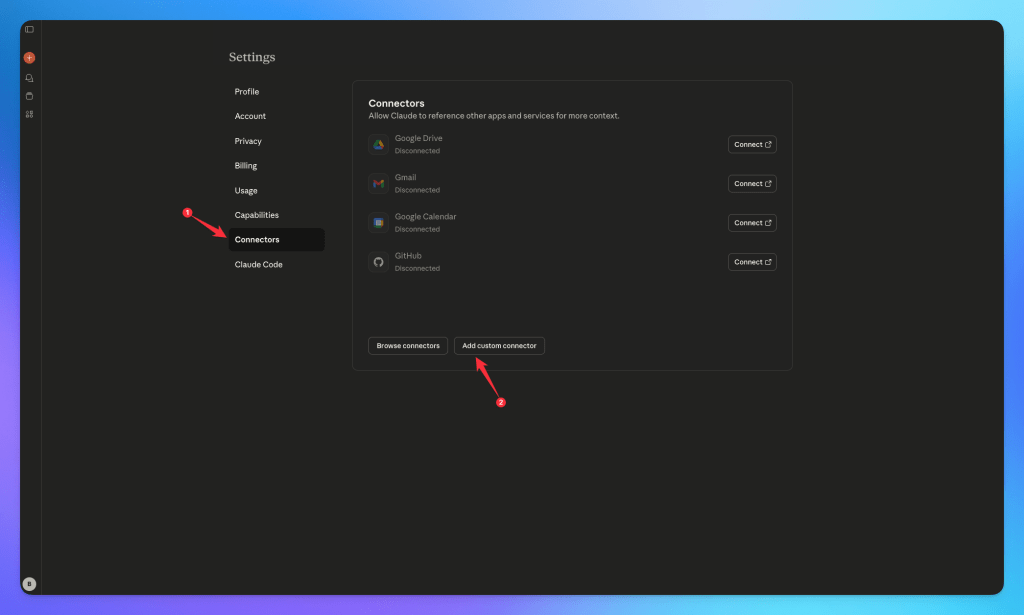
- Enter a name, then paste the gateway URL into the server URL field.

- Expand “Advanced settings” only if your server needs an OAuth Client ID and secret. MCP360’s gateway doesn’t.
- Click “Add,” then follow the authentication prompt.

Step 3. Verify the Connection
- Start a task and ask Cowork to use one of MCP360’s tools directly, for example a product lookup or a keyword check.
- Cross-check the result against the source. If nothing happens, the connector likely isn’t reachable yet, which the note below covers.
The part that trips people up is the network model. Custom connectors are brokered through your Claude account, so the connection to your server originates from Anthropic’s cloud, not your machine, and needs to be reachable over the public internet or allowlisted if it sits behind a firewall. If a connector never shows tools even after it connects, it’s almost always a reachability problem, the same handful of causes that come up whenever a server’s unreachable, blocked by a firewall, or breaks auth through a redirect.
Anything that has to stay on your own machine needs a local MCP server instead of a remote one, reachable only while Claude Desktop is open. mTarsier helps if you’re managing those local configs across more than one client.
Cowork Connector Use Cases
The permission modes above decide when Cowork stops to ask. What it actually does with that access shows up in a few recurring patterns once a real connector sits behind a real task.
- Catching a page that’s already changed: Ask Cowork to check whether a competitor’s pricing page or a partner’s docs have moved since last quarter, and a scraping connector pulls the current page instead of working from a screenshot in an old deck. That’s the same live-fetch approach behind web scraping through MCP.
- Proof the brand is showing up in AI answers: Instead of guessing whether ChatGPT or Perplexity mention the product, Cowork can run the same prompt tracking used to measure AEO visibility and pull back current citations and mentions, not a screenshot someone took last month.
- A document checked against its own source: A connector that surfaces live tool results directly inside a task, the same pattern behind MCP Apps turning results into interactive UX, means Cowork can check a document it’s editing against the system it’s describing, instead of drafting from a static export.
- A marketing chart built from records that are still true: Ask Cowork to build a chart from current spend or lead numbers, and a connector pulls the live figures instead of a spreadsheet from last week’s export. It’s the same real-time approach behind the MCP servers marketing teams are adding to their stack this year.
Each of these still comes back to the same three-step setup covered earlier, just pointed at a different tool.
Frequently Asked Questions
What is a Claude Cowork connector?
A Claude Cowork connector links Cowork to an outside tool or service, letting it search, read, and sometimes write there. It can point at a single tool from Cowork’s directory, or at a gateway like MCP360 that bundles many tools behind one connection.
What’s the difference between a connector, a skill, and a plugin in Claude Cowork?
A connector gives Cowork access to a tool. A skill is instructions Cowork draws on automatically, the know-how for doing a job a specific way. A plugin bundles both together with slash commands into one install.
How do I connect a custom MCP server to Claude Cowork?
Go to Customize > Connectors in Cowork, click the plus button, and select Add custom connector. Paste in the server’s URL, click Add, then authenticate. MCP360’s gateway URL works the same way, giving one connection access to its full tool catalog.
Why won’t my custom connector connect in Claude Cowork?
Usually it’s the network model. Custom connectors run from Anthropic’s cloud, not your machine, so the server needs to be reachable over the public internet. A server behind a firewall or on a private network won’t connect unless you allowlist Anthropic’s IP ranges.
Can I use a local MCP server with Claude Cowork?
Yes, but only through a desktop extension or a plugin, and only while the Claude Desktop app stays open on that machine. Custom connectors using remote MCP work everywhere, but a purely local server is tied to whichever computer is running it.
What’s the difference between Manual, Auto, and Skip mode in Claude Cowork?
Manual asks for permission before most actions. Auto reviews every action for safety and blocks anything unsafe, at the cost of more usage. Skip approves everything without review, which only makes sense for a connector you’ve already trusted with real work.
How many connectors can I add to Claude Cowork before performance suffers?
There’s no hard cap, but Cowork recommends switching Tool access to On demand once you have ten or more active. Routing several narrow servers through MCP360 is one way to stay under that line without losing access to any of them.
Can I add a custom connector to Claude Cowork from my phone?
No. Custom connectors have to be added from Claude on web or desktop first. Once added there, they show up and work on the Cowork mobile app too, you just can’t create a new one from your phone directly.
Conclusion
Connecting a tool to Cowork takes only a few minutes once you have the gateway URL. The real value comes later, when Cowork can use live data, reduce copy-paste work, and complete more of the task without manual gaps.
Keep the connector count focused and permissions controlled. Start each new connector on Manual, test it in one or two real tasks, then move it to Auto once its behavior feels predictable. Most of the risk comes from enabling Skip before you understand what the connector can access or change.
Begin with the tool costing you the most time this week. Connect it through MCP360 or directly, test it in a real workflow, and add the next connector only when the first one is already delivering clear value.

Article by
HarsheenMCP & AI Agents | Content Writer
Harsheen is a content writer covering AI agents, automation, and no-code tools. She writes across topics from chatbots and customer experience to MCP and enterprise workflows, showing how real teams adopt AI in everyday operations.