



The TL;DR
Raycast now supports MCP servers directly on Mac, with local and hosted connections handled through the same setup flow. Getting it working mainly depends on choosing the right transport, meeting Raycast’s AI requirements, and configuring the connection correctly.
-
• Two Transports, One Install Flow
Raycast can connect to local MCP servers through stdio or hosted MCP servers through HTTP. Both are configured from the same MCP installation flow, with the connection details changing based on where the server runs.
-
• Raycast AI Is Required
MCP tools run through Raycast AI, so you need access through Raycast Pro or available trial AI messages. Your Mac also needs to meet Raycast’s supported macOS requirements before the integration can be used.
-
• One Remote Connection Can Cover Multiple Tools
Instead of installing and maintaining a separate local MCP server for every service, you can connect Raycast to a hosted MCP gateway through a single HTTP endpoint and access multiple tools from one connection.
Raycast’s AI layer has grown quickly since it launched, and Model Context Protocol (MCP) support is the newest piece of it, added natively in 2025. Most people searching for this already know Raycast. What they want is exactly what that MCP support does and how to turn it on, and most guides skip straight past the setup form itself, which has fields that don’t map cleanly onto what other clients like Claude Desktop or Cursor expect.
Getting a server connected takes a few minutes once the form makes sense. Getting it connected correctly is a different question. A working macOS version, a Node.js install that Raycast can actually reach, and the right transport for the server you’re adding all matter more than the form lets on, and none of them show up as an error until something quietly fails.
This guide covers what Raycast is for anyone catching up, what its MCP support does today, what has to be true on your Mac before a server will connect, the steps for installing both a local and a hosted server, and the errors that account for most failed setups.
What Is Raycast?
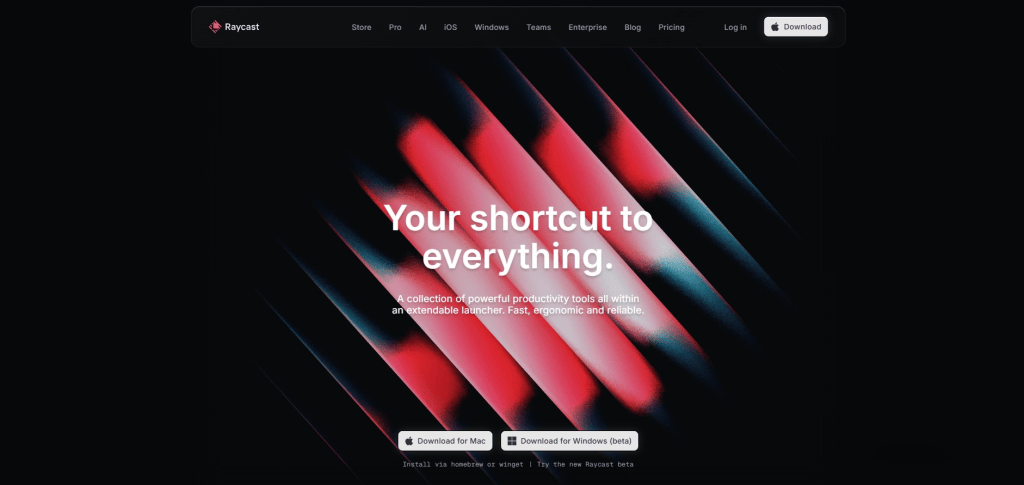
Raycast is a keyboard-driven productivity app for Mac, built as a faster, more extensible replacement for Spotlight. Instead of opening apps one at a time or digging through menus, you press a single hotkey, start typing, and Raycast surfaces the app, file, command, or action you’re after. The core app is free, with a paid Pro tier layered on top for AI, cloud sync, and custom themes. Raycast started as macOS-only and picked up a public Windows beta in November 2025, though Mac is still where most of its extension library and AI features live.
What Raycast Actually Does
A handful of features are what most people mean when they say they “use Raycast,” starting with these four.
- Extensions: Thousands of community-built integrations covering developer tools, project management, and other everyday services, installable from the built-in Store.
- Clipboard History, Snippets, and Quicklinks: Reusable text and one-key shortcuts to files, folders, and URLs.
- Window Management: Keyboard shortcuts for resizing and repositioning windows without touching a mouse.
- Raycast AI: Quick AI for one-off questions, AI Chat for longer conversations, and AI Commands for running a saved prompt against selected text or files.
That last feature, Raycast AI, is where MCP comes in. Before MCP, Extensions were the only way to give that AI layer reach beyond your clipboard and the model itself, and that approach has real limits worth naming.
Why Raycast AI Needed More Than Extensions
Raycast’s Extension Store already covers many of the services people use every day, including GitHub, Linear, Notion, and thousands of other popular tools. The model starts to show its limits when you need something outside that lineup.
- Internal and custom tools aren’t available: An internal company application, a self-hosted service, or a newer AI tool has no path into Raycast AI unless someone builds and publishes a dedicated Extension, even if it’s only needed for a single workflow.
- Integrations don’t carry across AI clients: A tool connected to Claude, Cursor, or another MCP client still needs a separate Raycast Extension because each client uses its own extension framework. The same integration ends up being built and maintained more than once.
- Publishing takes time: Even after an Extension is finished, it must go through Raycast’s review process before appearing in the Store. Depending on review cycles, that can take anywhere from a few days to a couple of weeks.
- Development is tied to Raycast’s own tooling: Extensions are built with Raycast’s API using React and TypeScript. Developers already exposing tools through MCP still have to learn and maintain a second integration just for Raycast.
MCP removes these limitations because it sits outside Raycast’s Extension system, closer to an open protocol than a proprietary API. Instead of building a Raycast-specific integration, developers expose a standard MCP server that any compatible client can use. A server built for Claude, Cursor, ChatGPT, or another MCP client works in Raycast as well, without another codebase, another review process, or another release cycle.
How Raycast Uses MCP Servers
Raycast added MCP to its Mac app in version 1.98.0 on May 8, 2025, initially for local stdio servers only. HTTP support followed as an experimental feature in version 1.100.0 that June, covering SSE and the newer Streamable HTTP format. By version 1.102.0 that July, Raycast had tightened HTTP compatibility further, specifically calling out GitHub and Vercel’s hosted MCP servers.
Inside Raycast, a connected server behaves the same way as an AI Extension. Every server gets an @-mention name, so typing @github or @linear in AI Chat or Quick AI scopes the request to that server’s tools, and each installed server also gets its own Ask command in root search. The two transports work differently under the hood, as the table below shows.
| Transport | How it connects | Best for |
|---|---|---|
| stdio | Raycast launches the server as a local child process and exchanges JSON-RPC over standard input and output | npx packages, Python scripts, and compiled binaries you’d normally run from a terminal |
| HTTP | Raycast connects to a remote endpoint over the network, including the Streamable HTTP variant | Hosted services, including ones that need OAuth, since Raycast handles the authentication flow itself |
That split is why the install form looks different depending on what you’re connecting. It isn’t an inconsistency in Raycast’s design. It’s the form adapting to whether it’s launching a process on your machine or dialing out to one.
What You Need Before Installing a Server
Three things need to be true before an MCP server does anything useful in Raycast.
- macOS 13 (Ventura) or later: Raycast dropped macOS 12 support in April 2025. The separate v2 beta needs macOS Tahoe instead, but this guide covers the stable v1 app most people run.
- Raycast Pro, or the free trial messages: MCP tools only run through Raycast AI. Every account gets 50 free messages to test a connection, and Pro runs $10 a month monthly or $8 a month annual.
- Node.js, for local servers only: Most stdio servers run through npx, so Node.js needs to be installed and reachable from wherever Raycast launches processes. Confirm with
node -vin Terminal. Raycast added NODE_PATH and DENO_PATH to the stdio environment in July 2025 to cut down on this exact failure.
With those three boxes checked, the Install MCP Server command handles the rest.
Set Up an MCP Server in Raycast
Raycast supports installing a server through a deep link some providers offer, or through the Install MCP Server form covered here, which works for anything regardless of whether a one-click link exists. Which fields that form asks for depends on the transport, so the walkthrough below covers a local stdio server first, then a hosted gateway over HTTP as a worked example.
Connecting a Local Server Over stdio
For anything that runs as a local process, the setup happens entirely inside Raycast.
- Search Install MCP Server in Raycast, or open Manage MCP Servers and use the Add Server action.
- Give the server a name, choose Standard Input/Output as the transport, then fill in Command (the executable to run, such as npx), Arguments (what gets passed to it, as a space-separated string or a JSON array), and Environment (any key-value pairs the server needs, such as an API token).
- Press Install MCP Server, or Cmd + Enter. The process starts immediately, since stdio servers don’t need a sign-in step.
A filesystem server is a common example of this pattern, where Command is npx and Arguments is -y @modelcontextprotocol/server-filesystem ~/Documents.
A stdio server runs with your full user account permissions once it starts, the same trust level as running that command yourself in Terminal. Check who publishes a server and how actively it’s maintained before pointing Raycast at anything from the community side of the Registry rather than an official vendor. Raycast asks for approval before it runs any individual tool call by default, which is the main safeguard between installing a server and it actually doing something on your Mac.
Connecting a Hosted Gateway Over HTTP
Reaching many tools through one entry, rather than installing a server per service, is where a hosted gateway works well. We’ll use MCP360, a unified MCP gateway, as the working example. Since Raycast supports Streamable HTTP natively, it connects directly to the hosted endpoint through the built-in HTTP transport, avoiding the bridge process required by clients that only support stdio.
Step 1: Set Up Your MCP360 Server
- Log in to the MCP360 dashboard.
- Open an existing project or create a new one.
- Navigate to the MCP Server option from the sidebar.
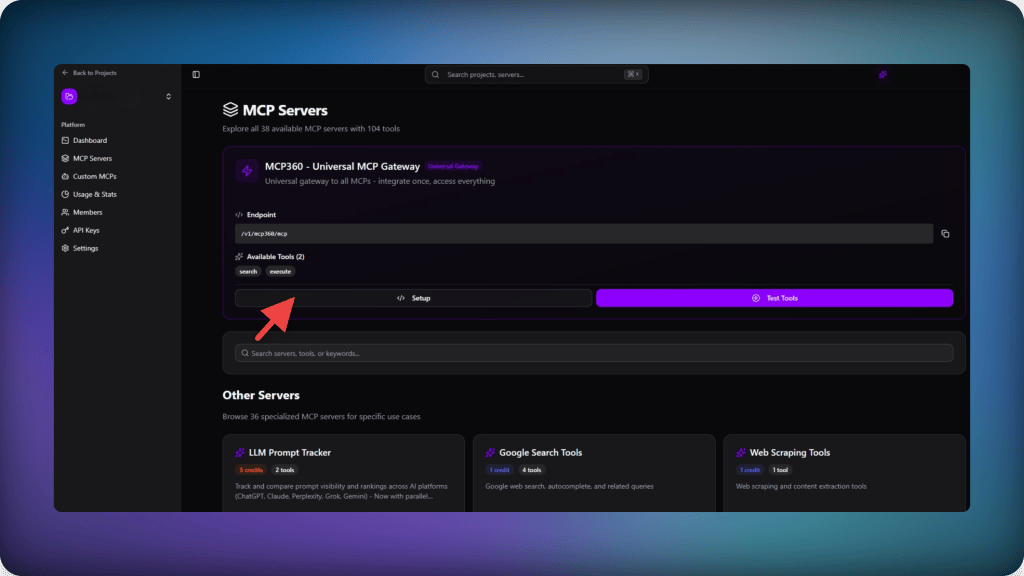
- Copy the Universal Gateway URL or any other MCP server you want to connect to Raycast.

Step 2: Connect Raycast to MCP360
- Open Raycast and search Install MCP Server.
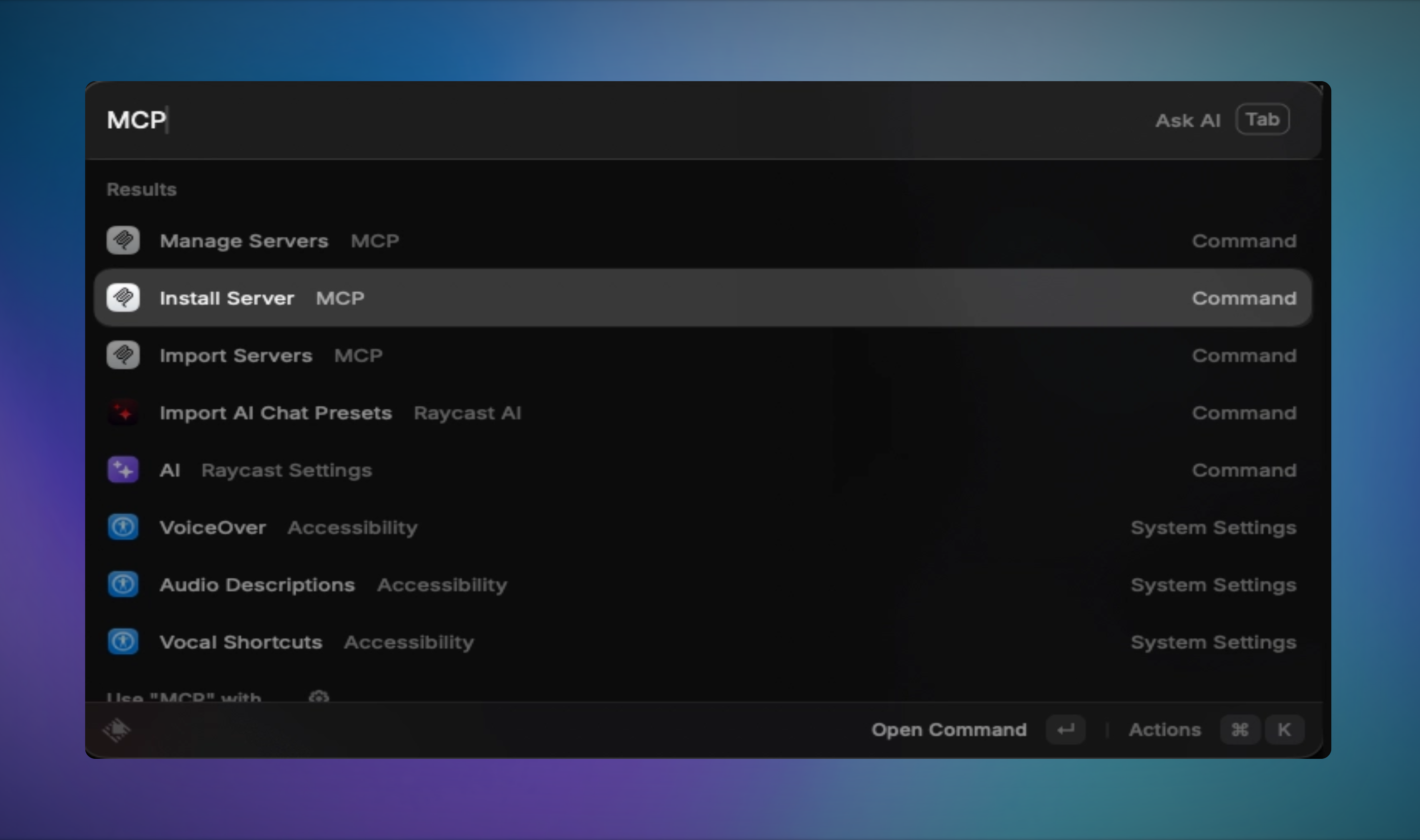
- Give the server a name.
- Set Transport to HTTP.
- Paste the MCP URL copied from MCP360 into the URL field.
- Press
Cmd + Enterto submit the form.

Step 3: Verify the Connection
- Open Manage MCP Servers and search for the server name from Step 2.

Once the connection succeeds, MCP360 appears in the list with its full tool set attached, and no separate sign-in or header configuration is needed since the token travels with the URL itself.
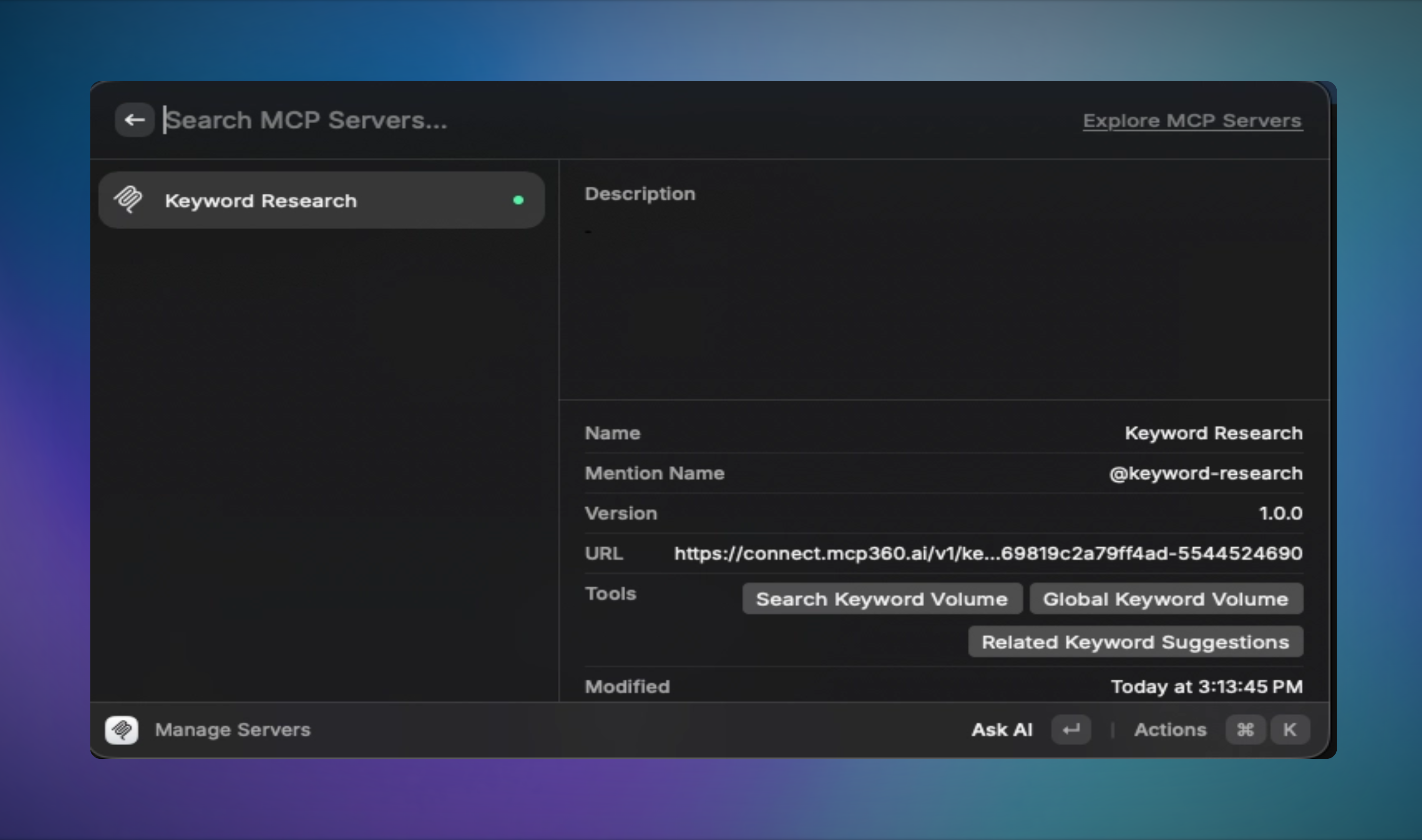
With either path connected, the last thing worth confirming is that Raycast is actually calling a tool, not just showing a server as installed.
Running a Tool for the First Time
Open Manage MCP Servers to confirm the new entry shows Running rather than Stopped or Error. From AI Chat or Quick AI, type @ followed by the server’s name and ask it something scoped to that server, for example @github what’s assigned to me for a local server or a keyword-research question for your hosted server. The first call will ask for approval unless you’ve changed the default in Raycast Settings → AI → Permissions.
Once a tool call returns a real result, the connection is confirmed end to end. Anything that goes wrong from here almost always traces back to one of the causes below rather than the setup itself.
Common Raycast MCP Problems and Fixes
A server that won’t cooperate almost always fails for one of a handful of common causes, and none of them require reinstalling Raycast itself.
- Status shows Running, but @-mentioning it does nothing useful: Confirm you’re using a model that supports function calling. Not every model Raycast offers handles tool calls the same way, and a server with zero usable tools often means the wrong model is selected rather than a broken connection.
- A stdio server shows Error immediately: This is almost always the command not being found. Run the exact command and arguments from the form in Terminal first. If it works there but not in Raycast, the issue is PATH, not the server itself, and restarting Raycast after any environment variable change is required for the new value to be picked up.
- An HTTP server won’t authenticate: Static OAuth needs a Client ID that matches what the service issued you, and a Dynamic OAuth server that fails to redirect usually means the sign-in window was closed before it completed. Use Logout Server from Manage MCP Servers to clear stored tokens and retry from a clean state.
- A working server stops appearing after a Raycast update: Check Manage MCP Servers for an Error state before assuming the server broke. Raycast has changed how it validates JSON schemas from servers before, and a server built against an older schema version can start failing silently after an update.
Working through this list in order usually surfaces the cause faster than reinstalling from scratch, and once a server holds a Running status with tools attached, it tends to stay that way through normal use.
What MCP Servers Enable in Raycast
What a connected server actually adds depends on what you point Raycast at, but a few patterns show up regardless of which servers you pick.
- Everyday questions stop needing a browser tab: A local filesystem server or a connected calendar means Quick AI can answer something concrete about your own files or schedule instead of a generic response built from training data.
- Development tasks get live context: A GitHub or Linear server lets AI Chat check an actual issue, pull request, or ticket status instead of you copying it in by hand first.
- Research and content tasks pull from more than one source in a single pass: A hosted gateway connection can chain a keyword check, a search interest lookup, and a competitor page scrape into one request. MCP360’s catalog covers SEO, e-commerce, domain lookups, and several other categories this way, reachable through the connection set up above.
- New tools show up without a new install: A server-by-server setup means revisiting this whole process every time you want one more tool. A gateway connection adds new tools to the same entry as they’re released.
None of this requires touching the install form again. Whatever a server or gateway adds shows up the next time you type its @-mention, with no separate setup step per use case.
Frequently Asked Questions
What is an MCP server?
An MCP server is a small program that exposes a set of callable tools to an AI client through the Model Context Protocol, an open standard Anthropic released in November 2024. Instead of an AI relying only on training data, a connected MCP server lets it read live data or take real actions, such as checking a GitHub issue or pulling current pricing from an external service.
How does MCP work?
MCP works through a client and server exchanging structured messages over one of two transports, stdio for a local process or HTTP for a hosted endpoint. The client discovers what tools a connected server offers, sends a tool call when the AI decides one is needed, and receives the result back to use in its response. Raycast, Claude, and Cursor all implement this same pattern.
Does Raycast support MCP servers?
Yes. Raycast added native Model Context Protocol support to its Mac app in version 1.98.0 on May 8, 2025, starting with local stdio servers, followed by HTTP support a few releases later. Once a server is connected through the Install MCP Server command, its tools become available in AI Chat, Quick AI, and AI Commands by typing an @-mention, the same way installed Extensions already work.
Why did Raycast add MCP support instead of relying only on Extensions?
Raycast’s Extension API only reaches services a developer has built and published through the Store, which leaves out internal company software, newer AI-native services, and anything self-hosted. MCP removes that limit because it’s an open standard rather than something tied to Raycast’s own API, so any of the thousands of MCP servers already built for other AI clients work in Raycast too.
Do I need Raycast Pro to use MCP servers?
In most cases, yes. MCP tools only run through Raycast AI, meaning AI Chat, Quick AI, or AI Commands, and that layer sits behind Raycast Pro, priced at $8 a month billed annually or $10 a month billed monthly. Every account also gets 50 free AI messages with no subscription required, enough to install a server and test whether it returns a real result before committing to a paid plan.
Do I need Node.js to run MCP servers in Raycast?
Only for local stdio servers. Most run through npx, so Node.js needs to be installed and reachable from wherever Raycast launches processes, confirmed by running node -v in Terminal. MCP360’s hosted gateway skips this requirement entirely, since Raycast talks to it directly over the network instead of launching a local process.
What’s the easiest way to connect many tools to Raycast at once instead of installing servers one by one?
A hosted MCP gateway is the more scalable option once you’re past two or three servers. Instead of repeating the Install MCP Server form for every service, a single HTTP connection to MCP360 brings a full catalog of 100+ tools in through one entry, with new tools becoming available automatically as the gateway adds them, rather than requiring a fresh install each time.
Can Raycast connect to MCP360’s hosted gateway without extra setup?
Yes, directly. Raycast’s HTTP transport speaks Streamable HTTP natively, so connecting MCP360’s hosted gateway only requires choosing HTTP as the transport and pasting the gateway’s URL into the form, no separate bridge process or additional authentication step. That’s simpler than clients whose plugin systems only run local stdio servers, which need an extra adapter to reach the same hosted endpoint.
Conclusion
What’s connected today won’t stay static without some attention. A stdio server tied to an npm package can go quiet if its maintainer stops updating it, and a version bump can rename a tool without warning. A hosted gateway shifts that maintenance off your side of the equation, since a broken upstream API gets routed around before it ever reaches Raycast.
Anyone managing MCP across Claude Desktop and Cursor alongside Raycast can look at mTarsier to keep configs in sync, though Raycast isn’t on its supported list yet.
Start with whichever option takes the least upkeep to justify itself. Pick a hosted connection once the list passes two servers, or stick with a well-maintained stdio server if it’s just one. Start free with MCP360 and drop the Universal Gateway URL into Raycast’s install form in the next few minutes.
Tags

Article by
MitaliAI & Automation | Content Writer
Mitali is a content writer covering AI agents, automation, and no-code tools. Her writing spans the AI landscape, from support and sales automation to MCP integrations and agent workflows, with a focus on practical business use.