



The TL;DR
Codex plugins bundle skills, app connections, and MCP servers into one installable package, turning workflows that previously required several setup steps into a much simpler installation process.
-
• What Codex Plugins Bundle
A single plugin can include skills, app connections, and MCP servers. Plugins can be installed through the Plugin Directory in the Codex app or through the CLI, making complete workflows easier to distribute and reuse.
-
• Why OpenAI Built Them
Connecting Codex to tools such as GitHub, Figma, or search services previously required separate setup for each integration and teammate. Plugins package those dependencies together so the same workflow can be installed wherever Codex runs.
-
• The Security Catch
Plugins can run with the permissions available to Codex and may include code or MCP servers you did not create yourself. That makes plugin source, permissions, bundled dependencies, and MCP servers important to review before installation.
Codex plugins launched in March 2026, and the list of what people can install has kept growing every month since. What has not changed is the setup problem that made them necessary in the first place.
Getting Codex to actually reach the tools a team uses, GitHub, Slack, a design file, a ticket tracker, used to mean a separate MCP entry in config.toml, a separate credential, and a separate explanation for every teammate who needed the same setup. None of that traveled well between machines, and handing it to a colleague usually meant a manual copy-paste with real odds something got missed.
A Codex plugin collapses all of that into one install, and this guide is about knowing exactly what you are installing before you trust it with your repo.
What Are Codex Plugins?
A Codex plugin is a packaging format, not a new capability on its own. Per OpenAI’s own plugin documentation, a single plugin can contain any combination of:
- Skills: reusable instructions Codex loads when a task matches their purpose
- Apps: connections to services like GitHub, Slack, or Google Drive that let Codex read information and take actions in them
- MCP servers: connections that give Codex access to more tools or external data, often through a network transport rather than a local file
The Firecrawl plugin is a clean example of what “bundle” means for a real install. One command registers an MCP server with search, scrape, and crawl tools, alongside skills that teach Codex when to reach for each one, so a person installing it never has to wire the pieces together by hand.
Understanding the plugin.json Manifest
Every plugin carries a manifest at .codex-plugin/plugin.json with a name, version, and description. Depending on what it bundles, the folder can also include:
- a
skills/directory - an
.mcp.jsonfile for a server shipped with the plugin - an
.app.jsonfile mapping a registered app connection - a
hooks/directory for actions that fire at set points in a session
A complete manifest looks like this:
{ "name": "my-plugin", "version": "0.1.0", "description": "Bundle reusable skills and MCP servers.", "skills": "./skills/", "mcpServers": "./.mcp.json", "interface": { "displayName": "My Plugin", "category": "Productivity" }}
Only plugin.json belongs inside .codex-plugin/. Everything else, skills/, hooks/, .mcp.json, sits at the plugin root.
The Evolution of the Codex Plugin Directory
OpenAI rolled out Codex plugins on March 26, 2026. Three weeks later it shipped more than ninety new ones in a single update, folding in names like Atlassian Rovo, CircleCI, CodeRabbit, and GitLab Issues. By June 2, the same packaging format was powering role-specific bundles for sales, design, and finance teams who had never opened a terminal.
That growth pushed OpenAI to migrate what used to be a separate app directory into a single Plugin Directory on July 9, 2026, per its Help Center documentation. Existing app connections stayed intact. Plugins are now the primary way people discover workflow capabilities across both ChatGPT and Codex, and workspace admins manage installation from a single settings panel rather than juggling apps and plugins as two separate systems.
Codex Plugins vs Skills vs MCP Servers
People searching “codex plugins vs mcp” are usually trying to untangle three overlapping terms rather than looking for a product comparison.
| Aspect | Skill | MCP Server | Plugin |
|---|---|---|---|
| What it is | Instructions stored in a SKILL.md file |
A server that exposes tools through the MCP protocol | A package that bundles skills, app connections, and MCP configuration |
| What it does | Guides how Codex handles a specific task or workflow | Connects Codex to external tools, services, and data | Distributes a complete workflow setup as one installable unit |
| Portability | Can work in tools that support compatible skills | Works with MCP-compatible clients, including Codex | Designed for Codex’s plugin system and Plugin Directory |
| How you add it | Copy the skill folder directly, or include it inside a plugin | Add the server configuration to config.toml, or include it inside a plugin |
Install it from /plugins or through the Plugin panel in the Codex app |
The line between skill and MCP server has moved before and will move again. The 2026-07-28 spec update changed some of what each layer is responsible for, worth a read for anyone building rather than just installing.
A Model Context Protocol server speaks a portable protocol, so the same server that works in Codex also runs in Claude Desktop, Cursor, or Gemini CLI. A plugin is the Codex-specific wrapper around that portability, not a replacement for it. Codex skills sit one layer below plugins, loading through progressive disclosure so a setup can carry dozens without any of them bloating a session.
Anthropic ships a comparable system for Claude Code plugins, bundling slash commands, subagents, hooks, and MCP servers into the same kind of installable package, and teams weighing Claude Code against Codex run into this exact packaging question early.
Where to Find and Install Codex Plugins
The Plugin Directory groups every plugin into three sources, whether browsed inside the Codex app or through /plugins in the CLI:
- Curated by OpenAI: reviewed plugins available to every Codex user, covering GitHub, Slack, Gmail, Google Drive, Figma, Notion, and similar core integrations
- Shared with you: plugins another member of your ChatGPT workspace published internally
- Created by you: plugins scaffolded and added to your own workspace
Beyond that default set, codex plugin marketplace add registers an entirely separate catalog, pointed at a GitHub repo, a Git URL, or a local folder:
codex plugin marketplace add owner/repocodex plugin marketplace add https://github.com/example/plugins.gitcodex plugin marketplace add ./local-marketplace-root
That command only registers the source, one entry point into the same wider pool of MCP marketplaces developers already pull servers from for other agents. Nothing installs until a specific plugin from that catalog gets picked.
This is also how most community plugins, the ones not yet in OpenAI’s curated set, actually reach a Codex setup. A marketplace add is one path in. Others, like Superpowers and Context7 below, ship their own one-line installer instead, covered in each entry’s Setup section further down.
Codex Plugin Security Best Practices
Most plugin roundups skip this part. It decides whether a plugin ends up saving time or costing it.
Installing a plugin is closer to adding a dependency than flipping a setting. A bundled MCP server can read files, call external APIs, and return data that feeds directly into Codex’s next action.
OpenAI’s own security and privacy guidance tells plugin builders to apply least privilege and assume prompt injection will reach the server eventually. The same permissions a builder is told to minimize are the ones a plugin asks for on your machine.
The risk is not theoretical. In September 2025, a compromised npm package called postmark-mcp posed as a legitimate Postmark email integration. It shipped with a hidden backdoor that copied every outgoing email to an attacker-controlled address.
Koi Security and Snyk later confirmed roughly 1,643 downloads before the package got pulled. Copies already running in production kept leaking data even after it was removed from npm. Postmark itself never built or maintained the package.
A Codex plugin can bundle exactly this kind of MCP server. That is the failure mode a review process is meant to catch, part of why MCP security hardening has become a spec-level priority instead of a plugin-by-plugin afterthought.
A short checklist covers most of the practical ground before installing anything outside the curated directory:
- Match permissions to the job: A commit formatter has no reason to touch the network. A deployment plugin does, and its source should show exactly where those calls go.
- Check the source before the install button: Community plugins and marketplace entries point to a real repository. Open it.
- Prefer curated over community when the choice exists: OpenAI’s review is not a guarantee, but it clears a higher bar than an unreviewed marketplace entry.
- Disable what is not actively earning its place: A disabled plugin cannot run hooks or load its bundled MCP server, shrinking the attack surface along with the context cost.
How to Install Codex Plugins
Both surfaces use the same underlying Plugin Directory, so a plugin installed in one shows up in the other.
Step 1: Open the Plugin Directory
In the Codex app, select Plugins from the sidebar. In the CLI, start codex and run /plugins. Both show the same three groups, curated, shared, and created by you.
Step 2: Find and Install a Plugin
Search or browse for a plugin, open its details, then select Install in the app or choose Install plugin in the CLI. If the plugin needs an external app, Codex prompts for that connection either during install or the first time the plugin actually runs.
Step 3: Start a New Thread
Bundled skills become available as soon as the install completes, but a fresh thread is the reliable way to pick up the change. From there, describe the task directly and let Codex pick the right installed tool, or type @ to invoke a specific plugin or one of its skills explicitly.
Step 4: Manage or Remove It Later
Reopen a plugin from the browser and select Uninstall plugin to remove it. To keep it installed but turned off, set its entry in ~/.codex/config.toml to enabled = false and restart:
[plugins."gmail@openai-curated"]enabled = false
Uninstalling removes the plugin bundle itself, but any apps it connected stay signed in until managed separately inside ChatGPT. A plugin that shows installed but does nothing when called is usually a connection problem rather than a broken install, the same category of issue that trips up bare MCP servers outside the plugin system too.
Best Codex Plugins to Install in 2026
OpenAI’s curated directory listed 12 plugins as of July 2026, with more than 50 combined across curated and community sources at that point, per Vercel’s plugin roundup, and the total keeps climbing with every monthly update. A mix of official, community, and gateway picks covers most of what a working setup actually needs.
1. GitHub
GitHub is an OpenAI-curated connector plugin that gives Codex direct read and write access to a repository, letting it open pull requests, comment on issues, and change repository state beyond what plain git commands alone can do from inside a session.
Curation means OpenAI reviewed the plugin itself, not that write access comes free of scrutiny. Codex’s own approval settings still govern what it can do once installed, so opening a PR or pushing a commit hits the same permission prompt as any other tool call. For teams already running Codex against GitHub Actions, it pairs naturally with Codex’s built-in code review features.
Setup
Open Plugins in the Codex app, or run /plugins in the CLI, and search “GitHub” under Curated by OpenAI. Select Install, then authorize the GitHub connection when prompted on first use.
2. MCP360
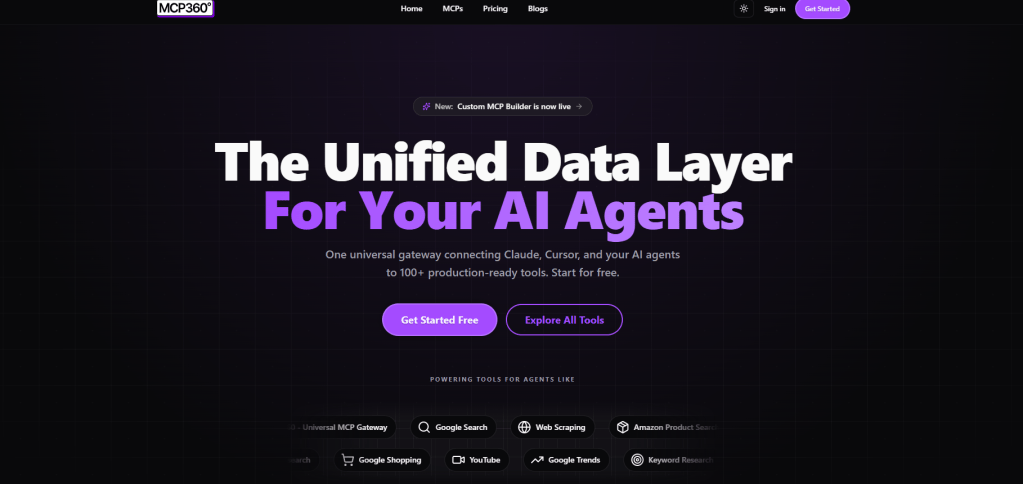
MCP360 is a unified MCP gateway that connects Codex to 100+ external tools through one endpoint, spanning search, SEO data, e-commerce lookups, maps, and dozens of other categories. Tools load on demand through search_tools and execute_tool instead of sitting in context up front.
One gateway connection replaces the separate command, credential, and config entry a session would otherwise need for each tool it wants to reach. A Custom MCP Builder wraps an internal API or a small script behind the same endpoint when the catalog does not already cover something. It is not the only gateway worth a look, and weighing it against building one in-house is a fair comparison for a team that already runs its own infrastructure.
Setup
[mcp_servers.mcp360]url = "https://connect.mcp360.ai/v1/mcp360/mcp?token=YOUR_API_KEY"
Grab the URL with an API key from the dashboard, restart Codex, and confirm the connection with /mcp. The same URL-and-Settings pattern works for adding any MCP server to Codex.
3. Slack

Slack is an OpenAI-curated connector plugin that links Codex to a Slack workspace, letting it read channels, draft replies, and post updates without a manual copy-paste between two windows.
OpenAI named Slack directly as one of the tools Codex now works with “out of the box,” alongside Figma, Notion, and Gmail, when the plugin system first shipped. The practical value shows up most on long-running tasks. Codex can post a progress update to a channel the moment a build finishes, instead of leaving a teammate to check back manually.
Setup
Search “Slack” in the Plugin Directory (app sidebar or /plugins in the CLI), select Install, then sign in to the connected Slack workspace when Codex prompts for it.
4. Google Drive
Google Drive is an OpenAI-curated connector plugin that gives Codex access to Drive, Docs, Sheets, and Slides, so a spec document or a data sheet already sitting in Drive is reachable from inside a coding session, no browser tab required.
Because the connection persists across sessions, a file referenced once stays reachable in every later thread without re-authenticating each time.
Setup
Search “Google Drive” in the Plugin Directory, select Install, and connect the Google account Codex should read from when prompted.
5. Figma
Figma is an OpenAI-curated plugin built on an MCP server that reads frames, components, color tokens, and layout data straight from a Figma file, so a generated component matches the real design instead of a guess built off a screenshot.
Output quality tracks how the source file is organized. Named layers, defined variants, and proper auto-layout produce code that needs little cleanup. A loosely structured file produces something closer to a rough first pass that still needs manual polish.
Setup
Search “Figma” in the Plugin Directory and select Install. Authenticate with a Figma account the first time Codex actually reads a file, not at install time.
6. Notion
Notion is an OpenAI-curated connector plugin that pulls project docs, specs, and prior decisions from a connected workspace into a Codex session, instead of someone pasting that context into the prompt by hand.
A session that starts with “check the Notion page for the Q3 roadmap” can pull that context automatically every time the conversation restarts.
Setup
Search “Notion” in the Plugin Directory, select Install, and authorize the workspace or pages Codex should have access to.
7. Build Web Apps
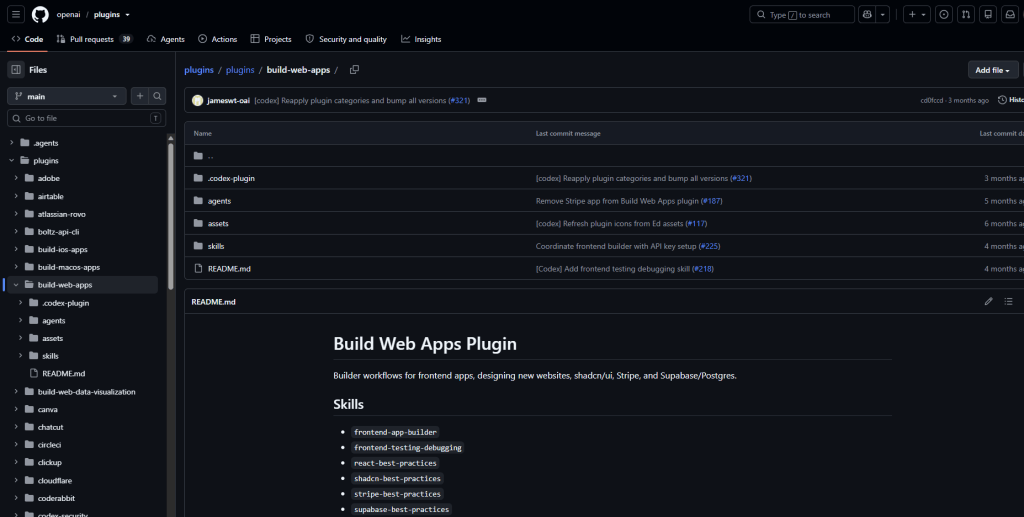
Build Web Apps is an OpenAI-curated bundle plugin that packages the Stripe, Supabase, and Vercel MCP servers with deployment and frontend skills, turning a vague “build this app” prompt into a workflow grounded in the services a project actually depends on.
OpenAI’s own documentation points to it specifically for turning a repo, a screenshot, or a rough idea into a working preview deployment.
Setup
Search “Build Web Apps” in the Plugin Directory and select Install. Connect Vercel, Supabase, or Stripe individually the first time a task actually calls on each one.
8. Firecrawl
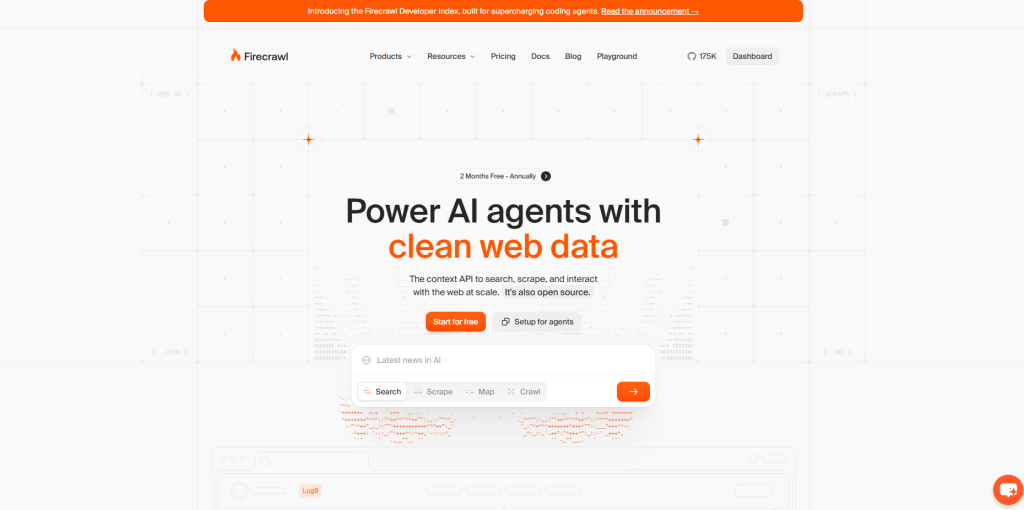
Firecrawl is a community MCP server plugin that replaces Codex’s default, cache-backed web search with live search, scraping, and full-site crawling, returning clean markdown instead of raw HTML.
Useful for a live pricing page, today’s changelog, or a competitor’s docs, where the current state of the page is what the task actually needs, not whatever a training cutoff remembers about it.
Setup
npx -y firecrawl-cli@latest init --all --browser
The --all flag installs Firecrawl across every AI coding agent detected on the machine, including Codex, and --browser opens authentication so the API key gets picked up automatically.
9. Context7
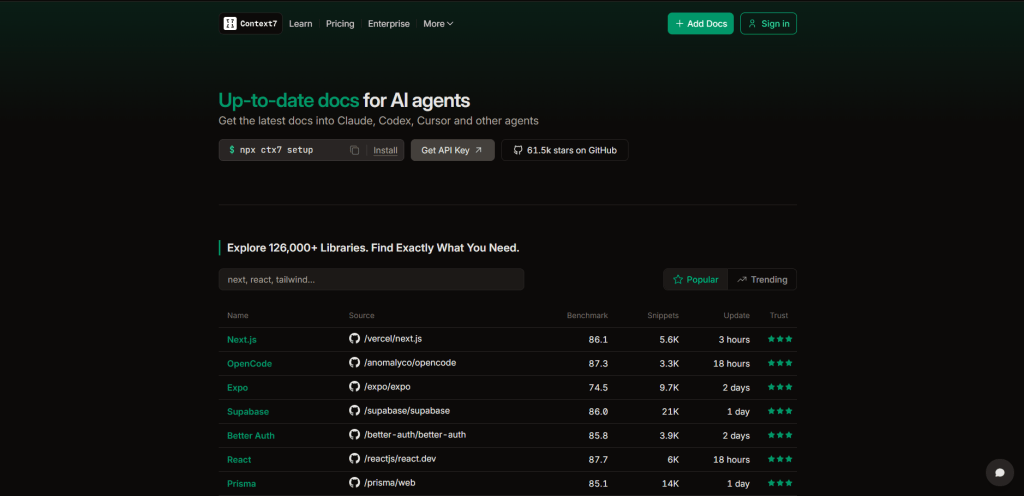
Context7 is a community MCP server plugin that fetches current, version-specific library documentation the moment Codex needs it, instead of Codex guessing from training data that may already be out of date.
The index covers well over 100,000 libraries with freshness and trust indicators per snippet, so a fast-moving framework like Next.js or Tailwind gets accurate guidance instead of whatever the model happened to capture during training.
Setup
npx -y @upstash/context7-mcp@latest install --client codex
Works on a shared, rate-limited tier without any key. Setting a CONTEXT7_API_KEY moves requests onto a dedicated plan.
10. Superpowers
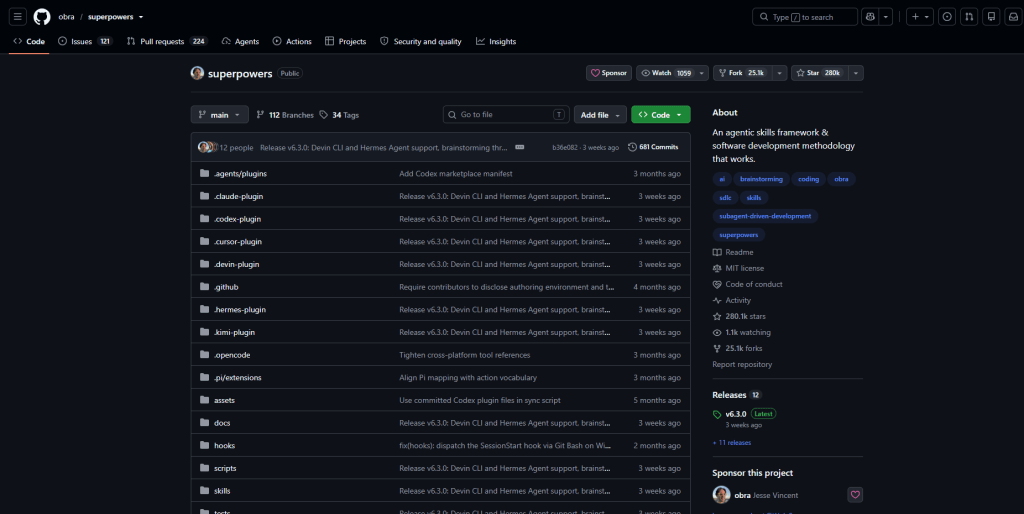
Superpowers is a community skill framework, built first for Claude Code by developer Jesse Vincent under the GitHub handle obra, that wires brainstorming, a written plan, subagent-driven implementation, and test-driven development into one enforced Codex workflow.
It now ships explicit Codex CLI and app support and ranks among the most-starred agent-workflow projects on GitHub. It reads less like a single plugin and more like an entire engineering process encoded as skills.
Setup
In the Codex app, open Plugins in the sidebar and search “superpowers.” In the CLI, run /plugins and search the same name.
Ten more language servers and dozens of partner integrations sit beyond this list, overlapping with the broader set of essential MCP servers for 2026 most of them draw from.
How to Build a Custom Codex Plugin
Nothing in the directory has to match a workflow exactly before a team can standardize on it. Per OpenAI’s build documentation, the fastest path uses the built-in @plugin-creator skill, which scaffolds the manifest and, on request, a local marketplace entry for testing.
Building by hand instead starts with a folder and a manifest:
mkdir -p my-first-plugin/.codex-plugin
{ "name": "my-first-plugin", "version": "1.0.0", "description": "Reusable greeting workflow", "skills": "./skills/"}
From there, a skill lives at skills/<skill-name>/SKILL.md with frontmatter describing when Codex should reach for it. Adding an MCP server means dropping an .mcp.json at the plugin root, either a single-purpose server or a gateway connection like the MCP360 example above.
Testing happens by adding the plugin to a repo-scoped or personal marketplace file and restarting the app. Publishing to the universal directory goes through OpenAI’s submission portal once the plugin is ready for other people to install.
Managing Codex Plugins Across Teams
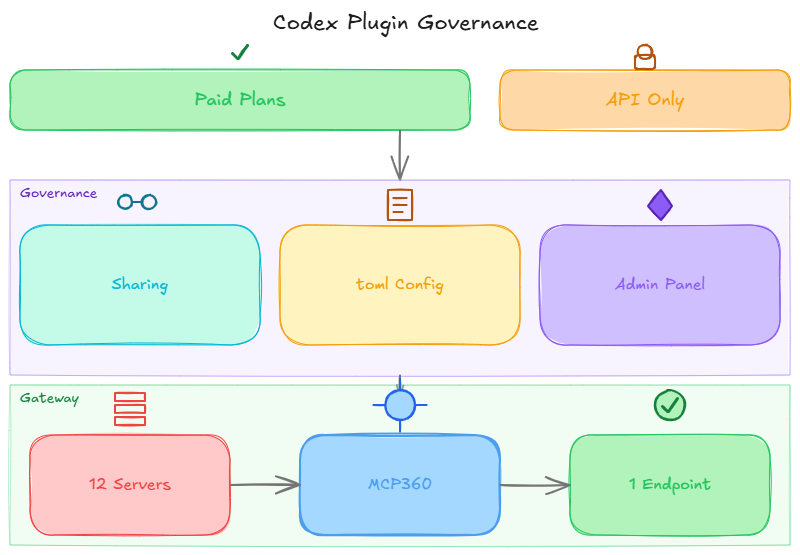
Plugin availability tracks the Codex plan a workspace is on. Per OpenAI’s current pricing documentation, plugins are available on Plus, Pro, Business, and Enterprise or Edu plans, while API-key-only access carries limited plugin support since some first-party plugins are not available that way.
For a team running more than a handful of installs, the controls that matter live at the workspace level rather than the individual one.
- Workspace sharing: a plugin created locally can be shared with specific workspace members or groups from its details page in the app, without publishing it to the universal directory.
requirements.tomlmanaged config: administrators can disable plugin sharing entirely withfeatures.plugin_sharing = false, or set broader policy for what a workspace can install.- Plugin and connector controls: Business and Enterprise plans expose a separate admin settings page for plugins and connectors, distinct from the skill controls covered elsewhere in the same admin panel.
A single gateway connection, the MCP360 example from earlier, reduces what needs auditing under these controls in the first place. One reviewed endpoint replaces a dozen individual server entries, each with its own credential and its own line in a config file someone eventually has to check.
Frequently Asked Questions
What are Codex plugins?
A Codex plugin is an installable package that bundles skills, app connections, and MCP servers into one unit, installed from the Plugin Directory in the Codex app or CLI. Instead of wiring up a separate MCP entry, credential, and explanation for every teammate, a plugin collapses that setup into a single install that works the same way across the Codex app, CLI, and IDE extension.
How do I install a Codex plugin?
Open Plugins in the Codex app, or run the plugins command in the CLI, then search or browse for the one you want. Select Install in the app, or choose Install plugin in the CLI. If the plugin needs an external app or MCP server, Codex prompts for that connection during install or the first time it actually runs, then a new thread picks up the change.
What is the difference between a Codex plugin, a skill, and an MCP server?
A skill is a set of instructions in a SKILL.md file that shapes how Codex handles a task. An MCP server is a live connection that gives Codex access to an external tool or data source over a network. A plugin sits above both, a package that can bundle one or more skills together with MCP server configuration and app connections, distributed as a single installable unit.
Are Codex plugins safe to install?
Curated plugins go through an OpenAI review, but that does not remove the need for scrutiny once installed, since Codex’s approval settings still govern what any plugin can do. Third-party plugins carry more risk because they can bundle an MCP server capable of reading files or calling external APIs. A real npm package impersonating a legitimate MCP integration shipped a hidden backdoor in 2025, which is why checking a plugin’s source matters more than its popularity.
Why does a Codex plugin show as unavailable or fail to install?
Plugins occasionally show as grayed out or unavailable right after a Codex update, a problem several users have reported on OpenAI’s developer community forum following recent releases. The usual cause is a temporary directory sync issue rather than anything wrong with the plugin itself or the account installing it. Restarting Codex, checking for a pending app update, or retrying the install from the CLI instead of the app usually resolves it.
How do I connect Codex to many external tools without installing a separate plugin for each one?
A gateway plugin solves this by routing many tools through one endpoint instead of a plugin per service. MCP360, for example, connects Codex to more than 100 external tools including search, SEO data, and e-commerce lookups through a single config entry, loading tools on demand instead of every schema sitting in context up front. The same approach works for any gateway, not just this one, and it is worth comparing a hosted option against building one in-house.
Which Codex plugins are worth installing first?
The strongest starting set mixes official and community picks with a real, weekly use case, GitHub for repository access, Slack or Notion for team context, and Figma if a project involves design handoffs. Firecrawl and Context7 solve two common gaps, live web data and current library documentation. For workflows that need to reach many outside services at once, a gateway plugin such as MCP360 covers more ground than installing one plugin per tool.
Can I build my own Codex plugin?
Yes. The fastest path uses Codex’s built-in plugin-creator skill, which scaffolds the plugin manifest and a local marketplace entry automatically. Building by hand starts with a folder containing a manifest, then adding a skills directory or an MCP config file for any server the plugin should bundle, including a broader gateway connection such as MCP360’s instead of listing individual servers one by one. Testing happens through a repo-scoped or personal marketplace file.
Conclusion
Codex plugins turned a manual, easy-to-miss setup process into something a team can standardize on and hand off in one command. The plugin count will keep climbing every month this year, which makes the checklist from the security section more useful than any single list of recommendations, including the one above.
Start with a curated plugin that removes a real, weekly friction point, not the newest name in the directory. Add a community plugin only after reading its source. If a workflow needs to reach more than a handful of outside services at once, wire in a gateway before the config file turns into a list of credentials nobody remembers granting.
Codex’s underlying model changes on its own schedule too, and each swap can shift how it calls the tools a plugin bundles, exactly the kind of change tracked in GPT-5.6 Sol and Codex MCP.

Article by
RajniAI & Tech | Senior Content Writer
Rajni is a senior content writer covering AI agents, automation, and no-code tools. She writes across the AI space, from chatbots and customer support to MCP and agent workflows, focused on how businesses actually put these tools to work.