


The TL;DR
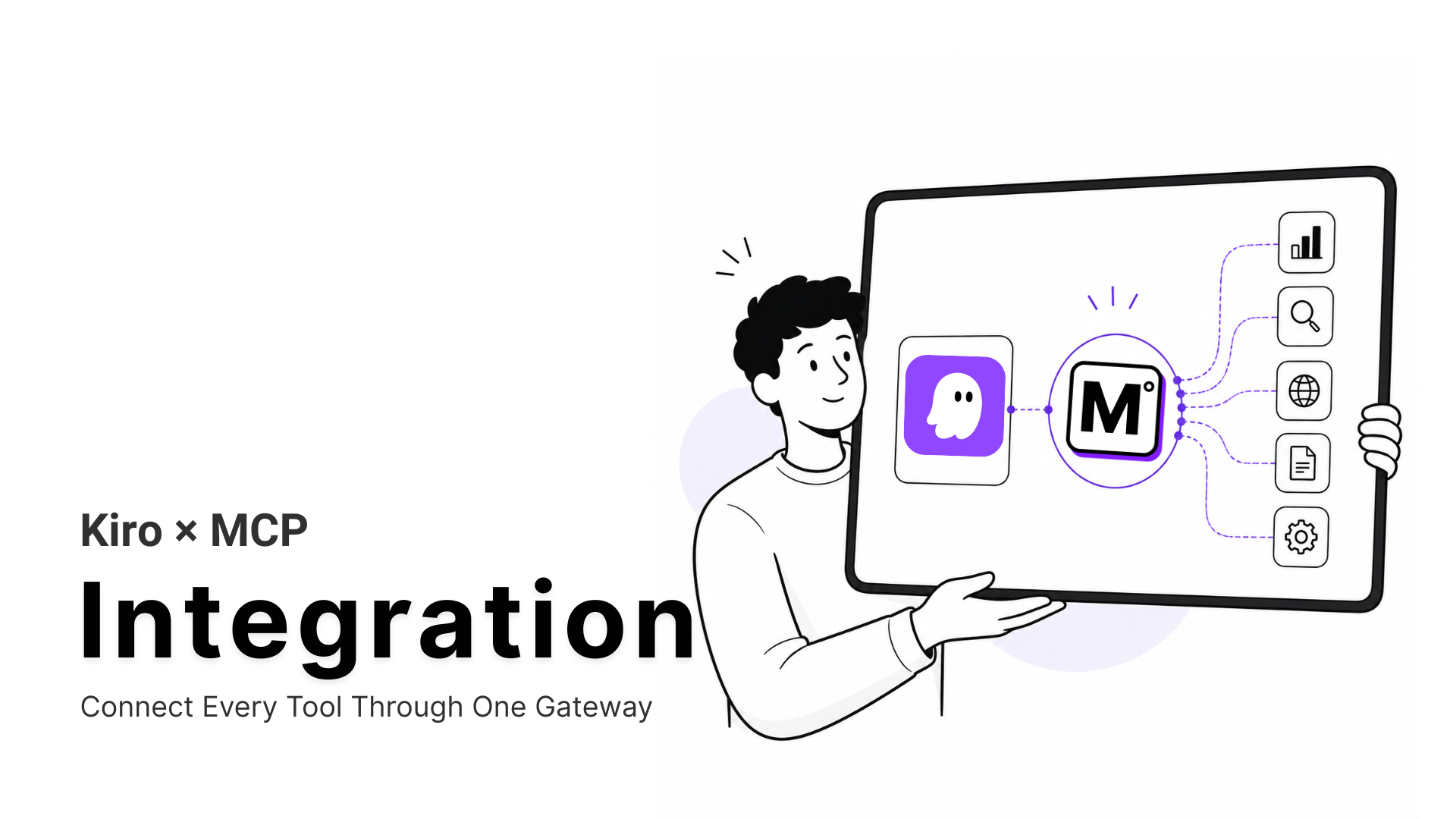
Kiro connects to MCP servers natively through its mcp.json file, while a hosted gateway turns multiple separate server connections into a single configuration entry.
-
• What It Does
A gateway connection replaces one MCP server entry per tool with a single entry in
mcp.json. Kiro’s agent can then access every tool available in the gateway’s catalog through that one connection. -
• Why It Matters
Kiro can read files, edit code, and run terminal commands out of the box. It cannot retrieve current prices, real search volumes, live web results, or an API’s actual behavior unless those capabilities are provided through MCP.
-
• Result
The connection can be configured in under ten minutes. When the gateway adds new tools later, they become available to Kiro without requiring another change to its
mcp.jsonconfiguration.
Open a fresh Kiro workspace and ask the agent to check whether a competitor changed their pricing page this week. It can’t. Kiro reads your files, edits code, and runs terminal commands out of the box, and that’s the extent of what it can reach without help.
Kiro is built on spec-driven development. A request gets turned into requirements and a design before any code gets written. But a spec is only as good as what it’s grounded in. Kiro has no way to check an API’s current rate limits or a keyword’s actual search volume, so it guesses from training data that’s already stale.
Model Context Protocol fixes this. Kiro supports it natively through a JSON configuration file. The catch is each local server needs its own install and config, with its own way to break after an update. A gateway avoids repeating that per tool, which is what this guide sets up, along with what changes in Kiro once it’s connected.
What is Kiro

Kiro is AWS’s agentic development environment, built around spec-driven development instead of the prompt-and-accept loop most AI coding tools use. A request gets pushed through structured requirements and a design document before Kiro writes any code. It’s built on VS Code, so the editor itself feels familiar even when the workflow underneath doesn’t.
Kiro is AWS’s Replacement for Amazon Q Developer
AWS has set a fixed, three-date timeline for retiring Amazon Q Developer’s IDE plugins in favor of Kiro.
| Date | What Changes |
|---|---|
| May 15, 2026 | New signups for Amazon Q Developer’s IDE plugins stop. |
| May 29, 2026 | Claude Opus 4.6 leaves Q Developer Pro, and the newest coding models ship on Kiro only. |
| April 30, 2027 | Q Developer’s IDE plugins reach full end of support. |
AWS confirmed this schedule in its own migration announcement. Existing Q Developer Pro subscribers can still add seats until the 2027 cutoff. Kiro’s command-line tool also inherited much of Amazon Q Developer CLI’s MCP setup, though the IDE’s config schema isn’t identical. Test a copied config rather than assuming it runs unchanged.
None of this requires a paid plan to try. Kiro’s Free tier includes 50 credits a month, and connecting a server doesn’t spend any of them. Only the prompts that use a tool’s output do, at the same rate as any other prompt.
Local vs. Remote MCP Servers in Kiro
Kiro reads MCP configuration from a file called mcp.json, and that file can live in two places. A workspace file at .kiro/settings/mcp.json applies only to the project you’re in, per Kiro’s own configuration docs. A user file at ~/.kiro/settings/mcp.json applies everywhere. When both define the same server name, the workspace version wins.
Inside that file, a server entry takes one of two shapes.
- A local server runs as a process on your machine. Its config needs a
command, what to run, plusargs. Kiro starts it, keeps it alive, and shuts it down when you close the workspace. - A remote server connects over HTTPS to something hosted elsewhere. Its config needs a
urlinstead of a command, plus optionalheadersfor authentication.
That difference is the entire reason a gateway earns its place. Every local server is a separate install and a separate thing to debug. Five local servers means five points of failure. A remote gateway collapses that down to one url entry.
MCP360 works exactly this way, pulling its 100+ tools from a single MCP marketplace instead of a pile of one-off installs, so anything new added there shows up in Kiro without you touching mcp.json again.
What MCP Tools Fix in Kiro’s Specs
Kiro’s spec-driven approach only works if the requirements it starts from are accurate. Without an outside connection, that accuracy depends entirely on training data that’s already stale by the time you’re using it.
- Requirements backed by live data: Kiro can pull current competitor pricing through tools like Amazon Product Search or Google Shopping, so a requirement reflects today’s numbers instead of a guess.
- Steering files that update themselves: A steering file can pull a live exchange rate or a current DNS record using tools like Currency Converter and DNS Lookup, so a reusable spec doesn’t go stale the week after you write it.
- Documentation shaped by real search data: Kiro can check keyword search volume while drafting a landing page, so an SEO call gets made during the writing instead of in a separate review two weeks later.
- Acceptance criteria that verify themselves: A task can confirm something like DNS resolution by calling a DNS Lookup tool before it gets marked done, cutting out a manual check.
Every one of these stays available across every Kiro project once the gateway is connected. Nothing here needs setting up twice.
How to Connect MCP Servers to Kiro
The steps below use the Universal Gateway, its single endpoint covering the full tool catalog, but the same fields apply if you’d rather connect one specific tool server instead.
Step 1: Copy Your MCP360 Gateway URL
- Log in to your dashboard and open an existing project or create a new one.
- From the left navigation menu, open MCP Servers.
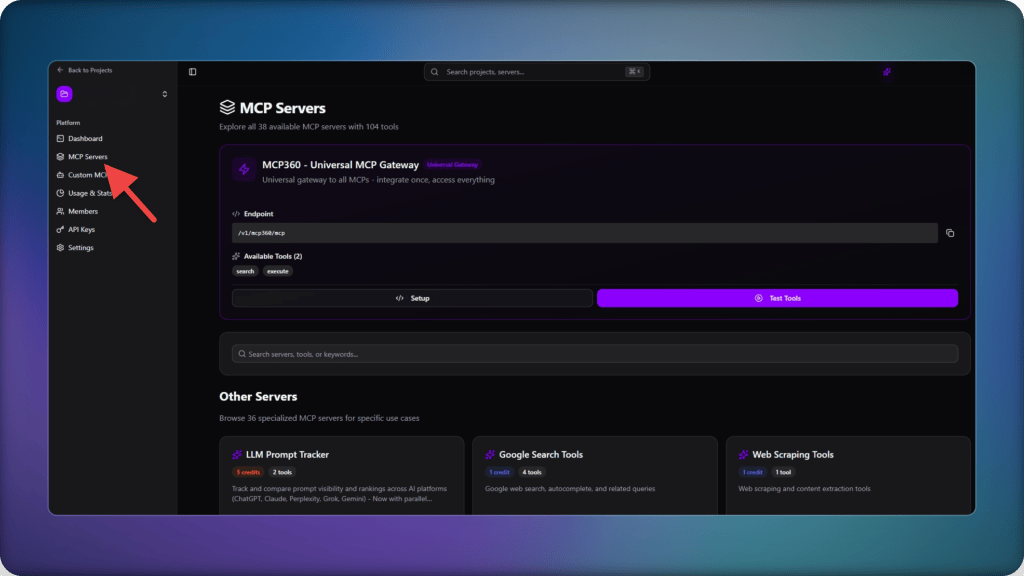
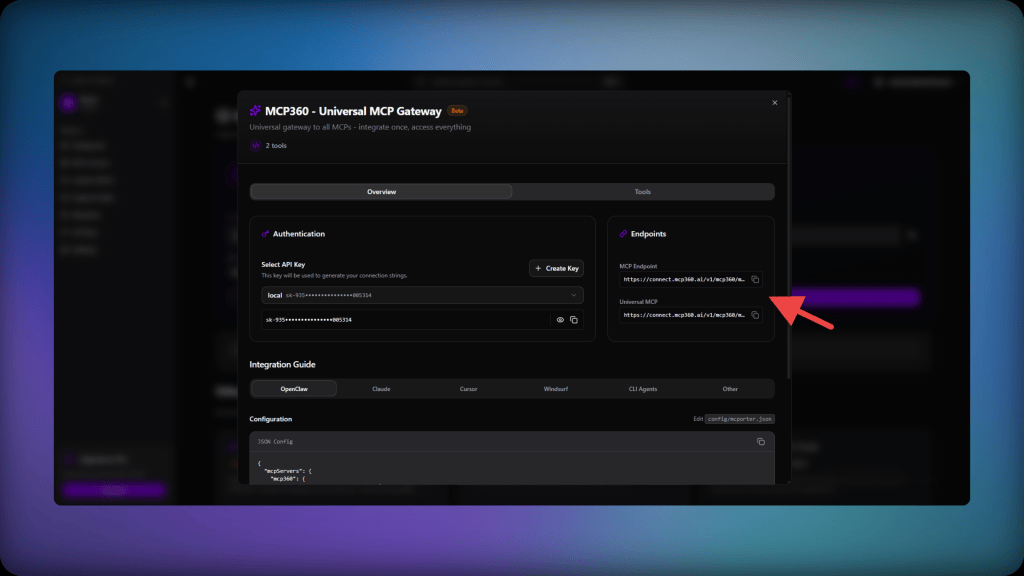
- Select a specific MCP server, or use the Universal MCP Gateway for access to every tool in your workspace.
- Copy the MCP Gateway URL. You’ll paste this into Kiro in the next step.
Step 2: Open Kiro’s MCP Config
- Open the Kiro app.

- Click the ghost icon in the left sidebar.
- In the MCP section, click Open MCP Config.
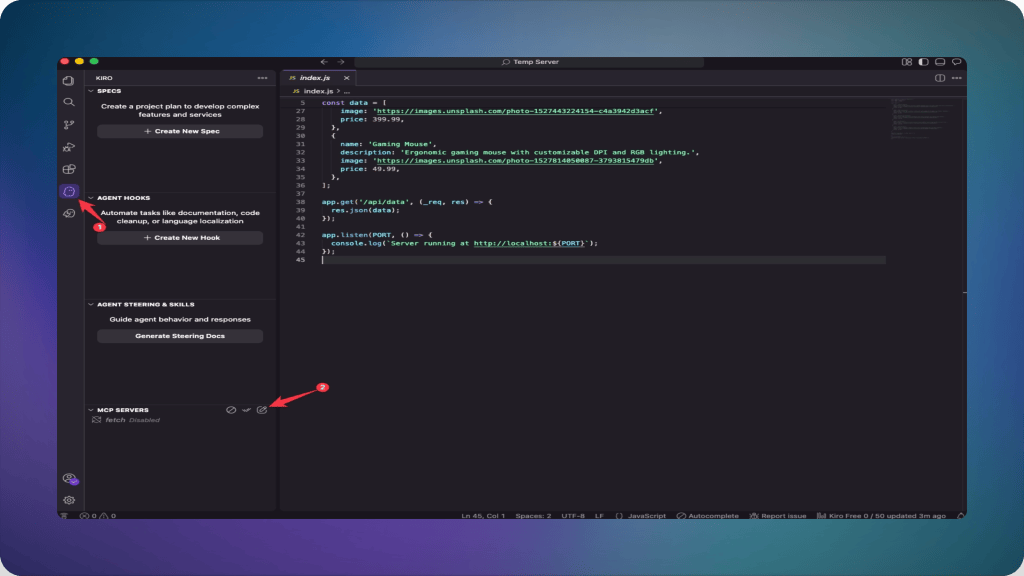
Kiro also has a command-palette route to the same config (Cmd+Shift+P on Mac, Ctrl+Shift+P on Windows and Linux, then search “MCP”), worth knowing if you want the workspace-level file instead of the user-level one that Open MCP Config opens by default.
Step 3: Add the MCP360 URL and Save
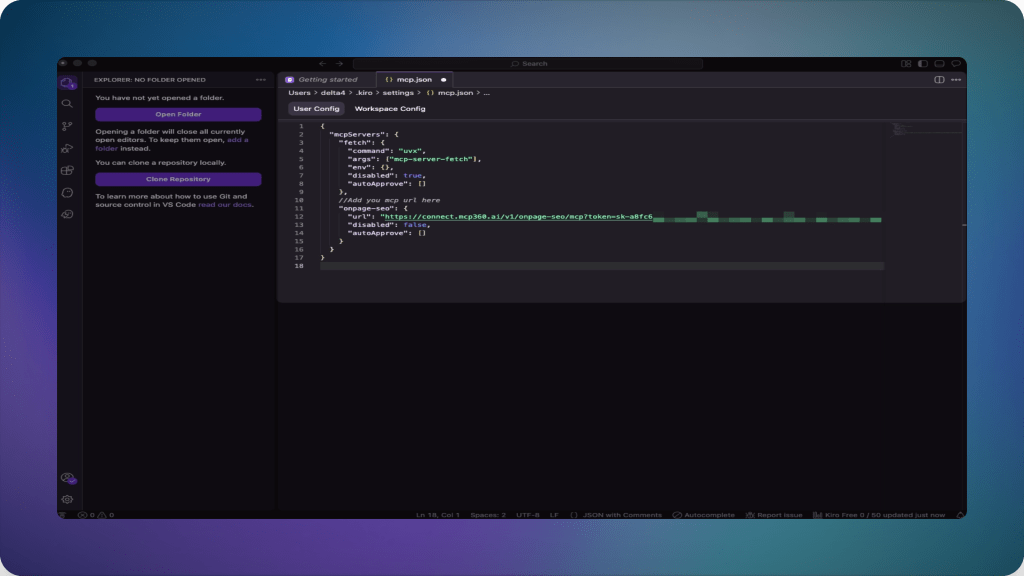
Paste the copied URL into the url field of the config that opens.
{ "mcpServers": { "mcp360": { "url": "https://connect.mcp360.ai/v1/mcp360/mcp?token=YOUR_API_KEY" } }}
Save the changes. If you’d rather not leave a raw token sitting in a URL, Kiro also supports passing it through a headers field with an environment variable reference instead, the same credential-handling pattern that’s becoming standard across MCP clients, so the value never lives in the file itself. That swap is worth making eventually. It isn’t required to get connected right now.
Step 4: Confirm the Connection
Kiro reconnects on save, no restart needed, unlike Cursor, which requires a full restart after any config change. MCP360 shows up as connected in the MCP section, usually within a few seconds to under a minute.
If it doesn’t, open the Kiro panel, select the Output tab, and choose Kiro – MCP Logs from the dropdown to see the actual handshake error instead of guessing.
Run a real prompt to confirm it’s working, not just connected. Try asking Kiro’s agent to pull current keyword search volume for a term through its SEO tools, then check the number against the dashboard directly.

For anything that doesn’t resolve with the steps above, our MCP connection troubleshooting guide walks through the less obvious failure points, including transport mismatches and stale cached tool lists.
Common Use Cases for MCP in Kiro
Once connected, MCP becomes part of Kiro’s everyday workflow rather than something used only during setup. Different teams can call external tools directly from the same workspace, reducing context switching and keeping specifications, documentation, and validation grounded in current data.
- Developers: Verify DNS records, check an IP’s geolocation, or inspect other live infrastructure details while debugging, without leaving Kiro for terminal commands or third-party lookup tools.
- Content and SEO teams: Check on-page SEO and pull live search data before a doc or landing page ships, catching problems before they reach production.
- Spec reviewers: Validate competitor claims, recent industry news, or dependency updates with live search results, ensuring specifications are based on current information instead of outdated assumptions.
- QA engineers: Test scenarios such as disposable email detection, domain validation, or other external checks using real verification tools rather than relying solely on local validation rules.
- Product managers: Compare competitor app ratings, reviews, pricing, or marketplace data while preparing product requirements, giving planning discussions current evidence instead of historical snapshots.
All of these workflows use the same MCP gateway configured earlier. As new tools are added to the gateway, they become available in Kiro without additional installations or configuration changes.
Frequently Asked Questions
What is an MCP server?
An MCP server is a small program that exposes a defined set of tools, prompts, or resources to an AI client using Model Context Protocol, an open standard for connecting AI assistants to external systems. It can run locally as a process on your machine or remotely over HTTPS. A client like Kiro calls those tools when a task needs information it can’t reach on its own.
How does MCP work?
MCP works through a client-server handshake. An AI client, like an IDE or chat app, connects to an MCP server over a defined transport, either a local process using stdio or a remote connection over HTTPS. The server advertises the tools it exposes, the client loads them into context, and the AI calls a specific tool with parameters whenever a task needs it.
How do I connect MCP servers to Kiro?
Kiro reads MCP configuration from a JSON file called mcp.json, editable through the ghost icon panel’s Open MCP Config button or the command palette. Add each server as either a local command-based entry or a remote url-based one, save the file, and Kiro reconnects automatically. A gateway like MCP360 simplifies this further, since one URL entry covers more than 100 tools instead of one server per tool.
Where is Kiro’s MCP configuration file located?
Kiro stores MCP configuration in two possible locations. A workspace-level file lives at .kiro/settings/mcp.json and applies only to the current project. A user-level file lives at ~/.kiro/settings/mcp.json and applies across every project. If both define the same server name, the workspace version takes priority. Note this is different from ~/.kiro/mcp.json, a path some users have mistakenly been pointed to.
Is Kiro’s MCP support free to use?
Yes. MCP works identically across every Kiro tier, including the Free plan’s 50 credits a month. Connecting a server, local or remote, doesn’t consume credits on its own, only the prompts that use its tools do, at the same rate as any other prompt. A gateway like MCP360 also offers its own free tier, so testing a full connection end to end doesn’t require a paid plan on either side.
Why doesn’t Kiro require a restart after changing mcp.json?
Kiro watches its MCP config files and reconnects automatically the moment you save, since it re-reads mcp.json on every save event rather than only at startup. That’s different from clients like Cursor, which require a full app restart before a config change takes effect. If a server still doesn’t show as connected after saving, check the Output panel’s Kiro – MCP Logs for the actual handshake error.
Why is Kiro replacing Amazon Q Developer?
AWS is sunsetting Amazon Q Developer’s IDE plugins in favor of Kiro. New Q Developer signups were blocked on May 15, 2026, Claude Opus 4.6 was pulled from Q Developer Pro on May 29, 2026, and full end of support lands April 30, 2027. Kiro carries MCP support forward with the same core JSON configuration shape, so a connection set up on Q Developer maps directly onto Kiro.
Is it safe to connect a remote MCP gateway to Kiro?
It’s safe when the server comes from a source you trust, since Kiro’s own documentation is direct that a compromised MCP server can access your workspace and credentials without extra confirmation. Use environment variable references instead of hardcoded tokens, and only connect vetted gateways. A gateway like MCP360, for example, is one entry to review rather than auditing a dozen individually installed servers.
Conclusion
Kiro’s spec-driven pitch depends on specs being grounded in something real. Before this connection, “current API behavior” and “actual competitor pricing” were guesses pulled from a training cutoff. After it, they’re a single tool call away.
The gateway won’t need touching again as MCP360’s catalog grows or Kiro adds features, since neither side of the connection changes shape. Point Kiro at a real task next. Somewhere among the most useful MCP servers already sitting behind that one connection, there’s probably a tool for it, though most of it won’t surface until you actually ask for something specific.

Article by
RajniAI & Tech | Senior Content Writer
Rajni is a senior content writer covering AI agents, automation, and no-code tools. She writes across the AI space, from chatbots and customer support to MCP and agent workflows, focused on how businesses actually put these tools to work.