

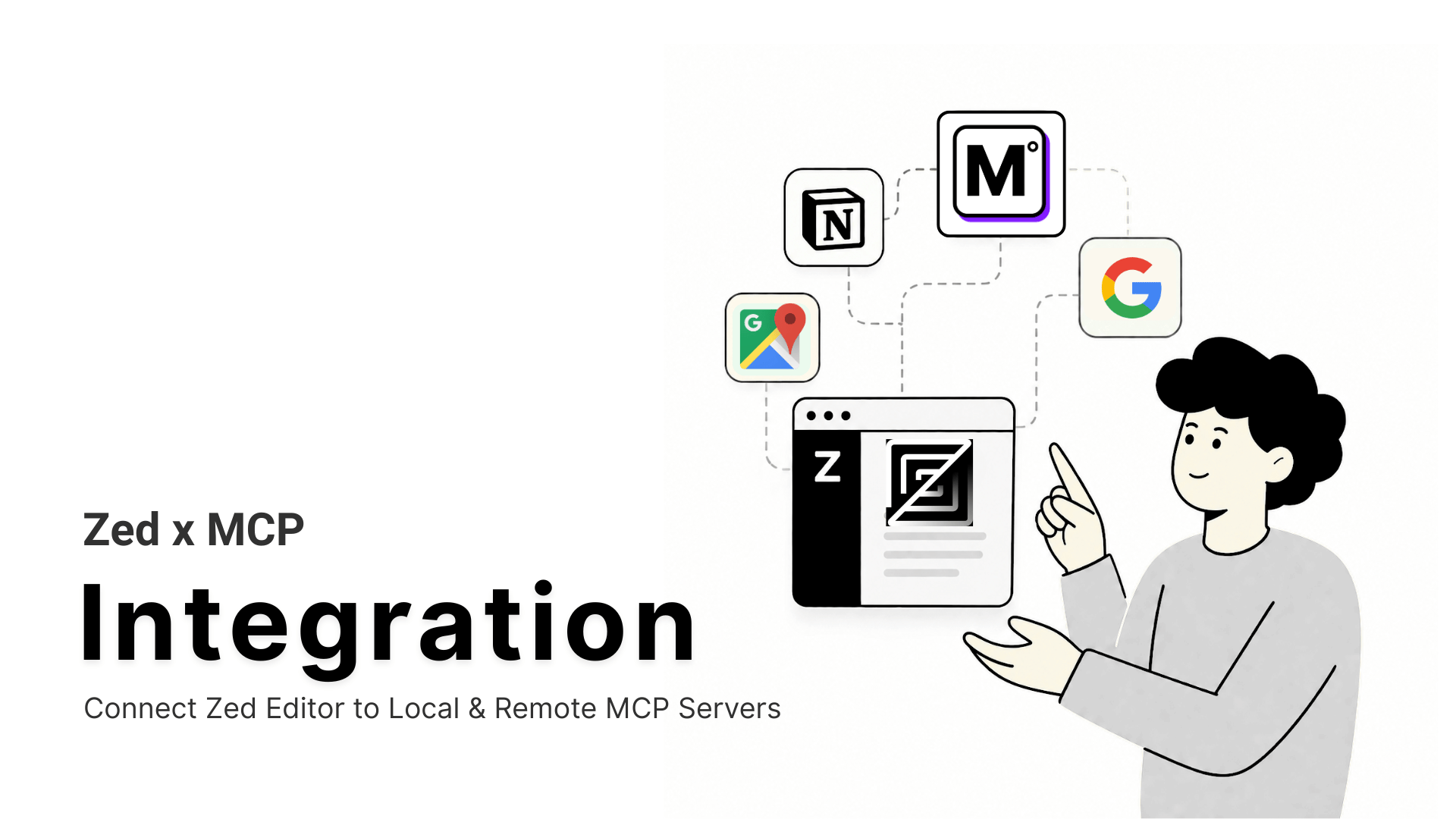

The TL;DR
Zed connects to MCP servers through a settings block called context_servers, and current versions reach a remote server by URL alone.
-
• context_servers, Not mcpServers
Zed uses
context_serversinstead of themcpServerskey most other clients expect. A copied config needs renaming or it does nothing. -
• Native Remote Support Is Current
Older Zed builds needed a bridge tool for remote servers. Current versions connect by URL directly, OAuth included.
-
• Two Paths, One Settings File
A published extension installs in a couple of clicks. Anything else, including MCP360, goes in as a custom entry.
Ask Zed’s Agent Panel to check a package’s current version, pull a live API response, or look up a domain’s WHOIS record, and it comes back empty. The model hasn’t changed. It just has nothing to reach beyond whatever’s already open in your project.
MCP servers fix that. Connect one and Zed’s agent reaches live data through the same interface it already uses for your files and terminal. The package check that came back empty a minute ago returns a real answer instead of a guess.
This Zed MCP setup guide works from Zed’s current context_servers configuration. Zed names its MCP settings differently from every other editor, and remote server support changed enough in the past year that older tutorials point toward a bridge tool you no longer need. This guide walks through a real remote connection as the example and corrects that outdated advice along the way.
What Is Zed Editor?
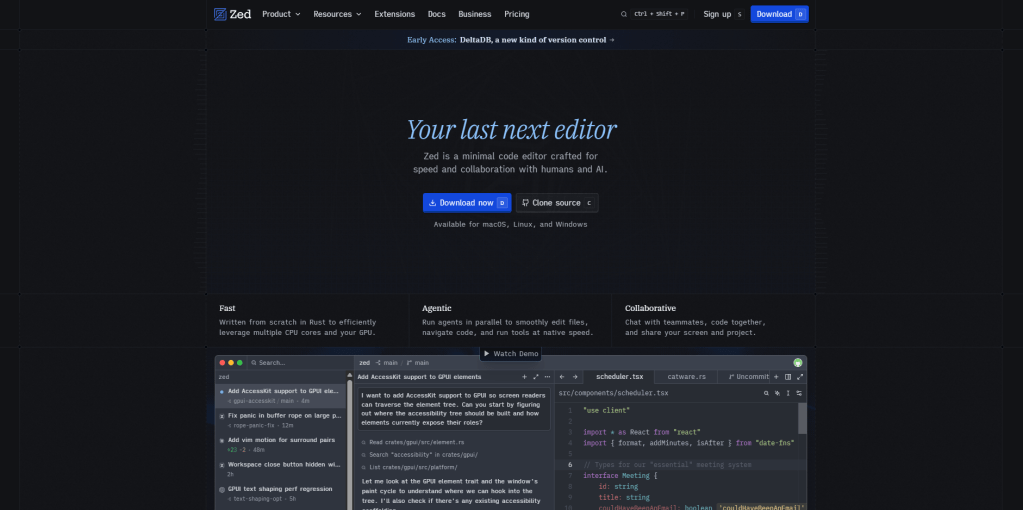
Zed is an open source code editor built by Zed Industries, written in Rust. Nathan Sobo, one of the original creators of the Atom editor, started the project, and it runs natively on macOS, Linux, and Windows. Zed reached its 1.0 stable release in April 2026.
Where some editors bolt AI features on through an extension, Zed builds its Agent Panel directly into the core editor. Alongside inline code completion, an External Agents path runs tools such as Claude Code or Codex inside the same project window. MCP decides what any of those agents can actually reach beyond the code already open in front of them.
Limits of Zed’s Built-in AI Agent
Zed’s Agent Panel reads your open project, edits files, and runs terminal commands well out of the box. The gaps show up the moment a task needs something outside that window.
- Package and dependency versions drift out of date: The model defaults to whatever version was current when it was trained, not whatever shipped last week, so it can recommend an API that’s already been deprecated without knowing it.
- Issue trackers and tickets stay invisible: A GitHub issue, a Jira ticket, or a Linear task lives in a system the agent has no route into, so the details get pasted in by hand every time instead of pulled directly.
- Live API behavior can’t be checked: The agent can describe how an endpoint is documented to behave, but it can’t call it and see what actually comes back right now, including whether the docs are even still accurate.
- Web search and current events sit out of reach: Nothing in the Agent Panel can run a search on its own, so a question about a library or a service that changed after training cutoff gets a guess dressed up as an answer.
- Anything outside the open project doesn’t exist: A production database schema, a deployment log, a domain’s WHOIS record, or a competitor’s current pricing page has no path into a conversation limited to what’s in your workspace.
Model Context Protocol gives Zed a standard way to close each of those gaps at once. An MCP server is a small program, running locally or hosted somewhere, that exposes a defined list of callable tools. Once one connects, Zed’s agent calls any tool on it the same way it calls its own built-in file and terminal tools.
How Zed’s MCP Configuration Differs From Other Editors

Two specific differences set Zed’s config apart from every other MCP client, and both matter more than a naming quirk.
- The key itself is different, and Zed won’t tell you: Most MCP clients use a top-level mcpServers object. Zed calls the feature context servers throughout its documentation and uses context_servers as the settings key instead. A config snippet copied from Cursor, VS Code, or Claude Desktop won’t work until you rename the wrapping key. Drop a mcpServers block into Zed’s settings.json and nothing errors. The editor just ignores a key it doesn’t recognize, so the config looks fine while doing nothing.
- Remote servers used to require a bridge tool: Until fairly recently, Zed could only launch MCP servers as local child processes over stdio. A server that spoke Streamable HTTP needed a stdio-to-HTTP bridge such as mcp-remote sitting in between. Several older guides still describe that as the only option. Zed’s current release supports adding a server directly by URL, with its own OAuth handling for servers that require authentication.
Both differences shape what the setup steps below actually look like compared to a tutorial written even a year ago.
Requirements Before Setting Up MCP in Zed
Four things are worth confirming first.
- Know where the file lives: macOS and Linux keep it at
~/.config/zed/settings.json. Windows uses%APPDATA%\Zed\settings.json. From inside Zed, runzed: open settings filefrom the Command Palette instead of hunting for the path manually.
- Decide local or remote: A server that runs as a program on your machine, most npm-published MCP servers for example, is a local, command-based entry. A hosted service you reach over the internet is remote and URL-based instead.
- Check whether a Zed extension already exists: Community-maintained extensions cover popular servers including GitHub, Context7, Puppeteer, and Brave Search. Installing one skips manual JSON editing entirely.
- Have credentials ready: API keys, tokens, or connection strings go into an env block for local servers or a header for remote ones, never typed into the Agent Panel chat itself.
With those four settled, the actual setup splits into two paths depending on what you’re connecting.
Connecting MCP Server to Zed
Every connection starts on the same page in Zed, whether it ends up as an extension install or a custom entry.
Step 1: Install an MCP Server Extension
Open Settings → AI → MCP Servers. Click Add Server, then Install from Extensions, and search the extension marketplace. Installing an extension handles the command, arguments, and any download steps automatically. After install, Zed opens a setup modal for anything the server still needs, a GitHub extension asks for a personal access token, for instance.
Without a published extension, or when connecting a hosted service instead of a local program, the steps below cover that instead.
Step 2: Copy Your MCP360 Gateway URL
A remote gateway connection is what most readers land on this guide looking for. MCP360 works well as the example. It puts a whole tool catalog behind one URL, and the same steps apply to any other remote MCP server.
- Log in to your MCP360 dashboard and open an existing project, or create a new one.
- From the left navigation menu, open MCP Servers.

- Select a specific server, or use the Universal MCP Gateway for access to every tool in your workspace.
- Copy the Gateway URL. You’ll paste it into Zed in the next step.

Step 3: Add the Remote Server Inside Zed
- Open Zed and go to Settings → AI → MCP Servers. The same page is reachable from the Command Palette via
agent: open settings, then selecting MCP Servers.

- Click
Add Serverin the page header.
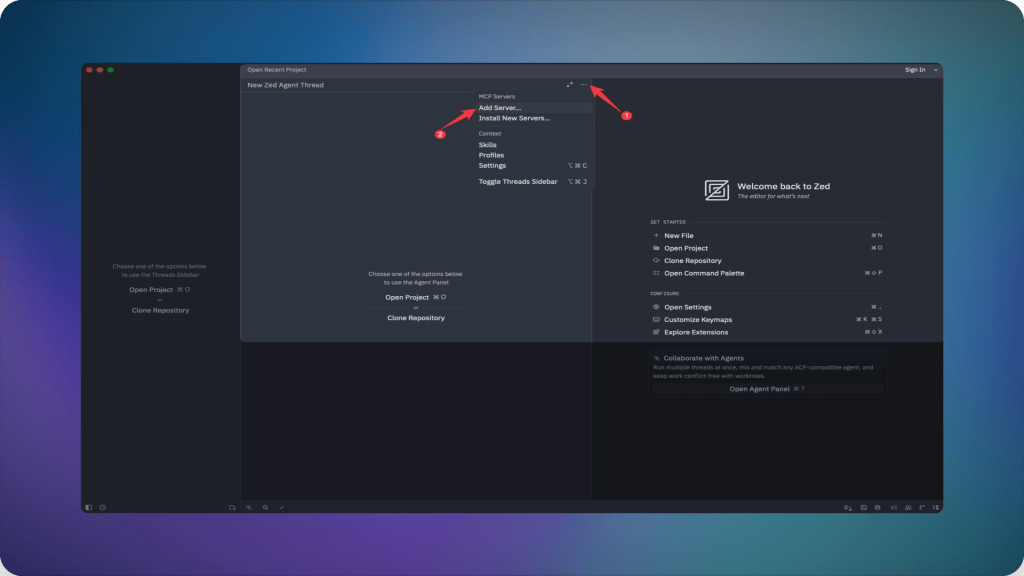
- Click on the add server button.

- Choose
Add Remote Server.

- Give the server a name (
mcp360works fine) and paste the Gateway URL you copied in Step 2. - Click
Save.
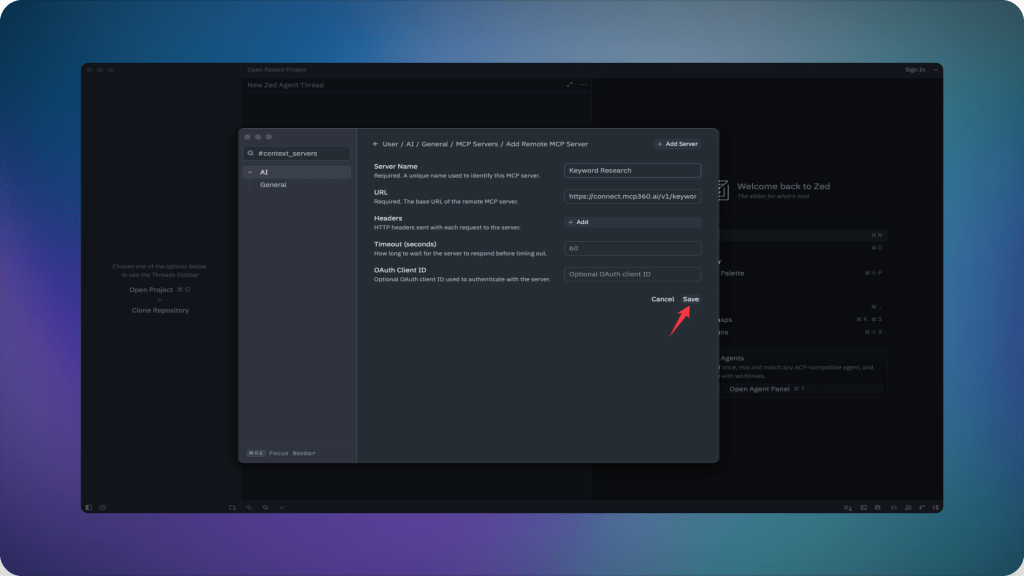
The new entry shows up in the MCP Servers list right away, though the status dot next to it is what actually confirms it connected, covered in the next step.

For a local, command-based server instead, the same Add Server button has an Add Local Server option, or you can write the block directly into settings.json:
{ "context_servers": { "filesystem": { "command": "npx", "args": ["-y", "@modelcontextprotocol/server-filesystem", "/path/to/your/project"], "env": {} } }}
The remote path above is the same as adding this block by hand:
{ "context_servers": { "mcp360": { "url": "https://connect.mcp360.ai/v1/mcp360/mcp?token=YOUR_API_KEY" } }}
A remote server that skips the token in the URL triggers Zed’s OAuth flow automatically on first connection, no extra configuration needed. On an older Zed build without native remote support, the same endpoint still works through a bridge instead, npx mcp-remote https://connect.mcp360.ai/v1/mcp360/mcp?token=YOUR_API_KEY as a local command entry, though updating Zed is the simpler fix.
Keep the token out of a committed .zed/settings.json on a shared project. The global settings file, not the project-scoped one, is the safer place for a live credential.
| Method | Where It Lives | Best For |
|---|---|---|
| Extension | Zed’s extension marketplace | Popular servers with maintained packages |
| Custom entry | settings.json under context_servers |
Hosted gateways, internal tools, anything unpublished |
Manage MCP Tool Permissions
Zed asks for approval before running most tool calls by default, controlled by agent.tool_permissions.default, which accepts "confirm", "allow", or "deny". For a gateway like MCP360, where a server exposes only two meta-tools rather than dozens of narrow ones, per-tool rules stay short:
{ "agent": { "tool_permissions": { "default": "confirm", "rules": [ { "tool": "mcp:mcp360:search_tools", "permission": "allow" }, { "tool": "mcp:mcp360:execute_tool", "permission": "confirm" } ] } }}
Auto-approving discovery calls while keeping execution on manual confirm is a reasonable middle ground, letting the agent browse what’s available without every read-only lookup interrupting your flow, while anything that actually calls out to a service still gets a look before it runs. With that settled, here’s what a working connection actually changes about a normal session.
Benefits of Using MCP in Zed
A working connection changes four things about a normal session, whether the server is a single tool or a full gateway.
- Live data replaces training-data guesses: A connected server checks a package’s real current version, pulls a live pricing page, or queries an actual API response instead of the model inferring from what it learned during training.
- Research stays inside the editor: Keyword checks, competitor lookups, or a quick WHOIS query happen in the same Agent Panel session as the code you’re writing, no browser tab required.
- One gateway covers a lot of ground: MCP360’s single URL exposes search, e-commerce, SEO, and domain-lookup tools together, loaded on demand rather than registered all at once, and the same key works whether you’re in Zed, Cursor, or Claude Desktop.
- Shared projects onboard automatically: A
.zed/settings.jsoncommitted to a repo, with credentials kept out of it, means every teammate who clones it gets the same tool access, no separate setup conversation required.
None of that helps if the connection itself keeps failing, so here’s what usually goes wrong.
Common Zed MCP Setup Issues
Most failures trace back to one of five causes, and a missing comma is a more common culprit than anything exotic.
- Indicator stays red, no clear reason: Check the tooltip first, Zed usually names the failure directly. The most frequent cause is invalid JSON in settings.json, often a missing comma, which Zed flags as a parse error right in the editor.
- Server connects but shows zero tools: For extension-installed servers, this has shown up as a known gap where tools reach Zed’s built-in agent but not an external ACP agent (Claude Code, for example) running in the same workspace. Manually configured servers can hit the same wall. Restarting the server or checking Zed’s logs from the Command Palette usually clarifies which side the disconnect is on.
- 401 or auth errors on a remote server: Confirm the token in the URL or header hasn’t expired, and that it carries whatever scope the server’s tools require. A remote server with no
Authorizationconfigured should trigger Zed’s OAuth flow on its own, if it doesn’t, the server may not implement the standard MCP auth spec yet. - Tools don’t run on Windows: Path issues are the usual culprit. Confirm the command is on your system PATH, or switch to an absolute path in the
commandfield. Some users route throughcmdor WSL for servers that assume a Unix shell. - A custom profile hides your server’s tools: If you’ve built an agent profile that disables tools by default, confirm
enable_all_context_serversis true or that your server is explicitly listed under that profile’scontext_serversblock.
These auth and scope failures show up across most MCP client setups, not just Zed’s.
Frequently Asked Questions
What is an MCP server?
An MCP server is a small program that exposes a defined set of tools an AI agent can call, using the Model Context Protocol as the shared interface. It runs locally as a command line process or remotely over HTTP, and gives an agent access to something outside its training data, a live API, a database, or a file system it wouldn’t otherwise reach.
How does the Model Context Protocol work?
MCP defines a standard request response format between an AI agent and a server exposing callable tools. Once connected, the agent discovers what tools a server offers and calls them the same way it calls its own built in functions, passing arguments and getting structured results back. Zed, Cursor, and Claude Desktop all implement this same exchange, just with different settings keys.
Does Zed support MCP servers?
Yes. Zed has built in support for the Model Context Protocol through a settings block called context_servers, reachable from Settings, AI, MCP Servers in the app. It supports both local, command based servers and remote, URL based ones, with native OAuth handling for servers that require authentication. Zed currently implements MCP’s Tools and Prompts features.
Why does Zed use context_servers instead of mcpServers?
Zed built its own MCP implementation and calls the feature context servers throughout its documentation, using context_servers as the settings key rather than the mcpServers convention most other clients share. A config snippet copied from another editor won’t work until that key is renamed, and Zed won’t show an error, it simply ignores a key it doesn’t recognize.
Do I need a bridge tool to connect a remote MCP server to Zed?
Not anymore in most cases. Older Zed builds could only launch MCP servers as local processes, so a remote, HTTP based server needed a stdio bridge such as mcp-remote in between. Current Zed adds a remote server directly by URL, including OAuth handling, which covers hosted gateways such as MCP360 without any bridge tool required.
Is MCP360 free to use with Zed?
MCP360 offers a free tier alongside paid plans, and connecting it to Zed doesn’t require anything beyond a project API key and the Gateway URL from the dashboard. Pricing and plan limits are set at the account level rather than per editor, so the same key that works in Zed also works in Cursor or Claude Desktop.
Why aren’t my MCP server’s tools showing up in Zed’s Agent Panel?
The most common cause is invalid JSON in settings.json, often a missing comma, which Zed flags as a parse error. If the file is valid, check the status indicator next to the server, a green dot confirms it actually connected. Extension installed servers can also expose tools to Zed’s own agent but not to an external ACP agent running in the same workspace.
Can I connect more than one MCP server to Zed at once?
Yes, Zed supports any number of entries under context_servers, each with its own name and configuration. Adding several servers individually means managing separate credentials and JSON blocks for each one. A gateway approach such as MCP360 collapses that into a single URL exposing many tools at once, loaded on demand rather than registered server by server.
Conclusion
Adding an MCP server to Zed comes down to one settings block and a choice between two paths, an extension for anything published, a custom context_servers entry for everything else. The part most guides get wrong is treating Zed’s remote support like it still needs a bridge tool for every hosted server. Checking your Zed version before following someone else’s screenshot saves more time than any other step here.
Start with one server tied to a task you actually have this week. Verify the green indicator, confirm a real prompt reaches it, then add a second. Once that first connection works, MCP360 covers a third and fourth server without a fresh JSON block for each one, and the same pattern carries over cleanly to Gemini CLI.

Article by
RajniAI & Tech | Senior Content Writer
Rajni is a senior content writer covering AI agents, automation, and no-code tools. She writes across the AI space, from chatbots and customer support to MCP and agent workflows, focused on how businesses actually put these tools to work.