

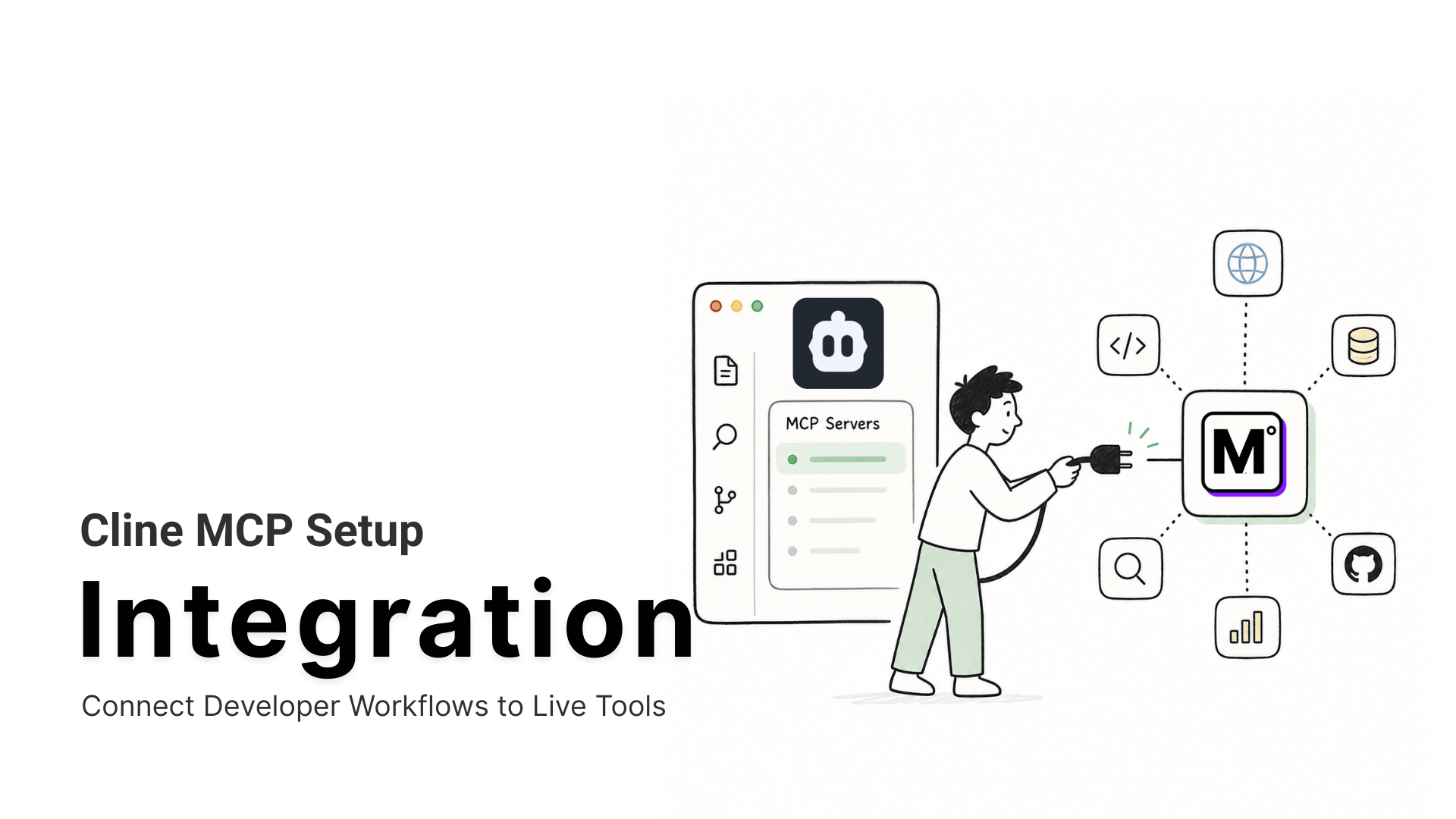

The TL;DR
Setting up a Cline MCP server comes down to picking the right transport type and knowing where its config differs from other clients.
-
• The Capability Gap
Cline reads files and runs commands well, but it can’t check a live API, pull a current package version, or read a ticket unless you paste the content in yourself. MCP is what closes that gap.
-
• Global, Not Project-Scoped
Unlike Cursor, Cline’s MCP settings apply everywhere by default. There’s no separate per-project override, so what you add here follows you into every repo.
-
• The Transport Trap
Skip the
"type": "streamableHttp"field on a remote server and Cline falls back to deprecated SSE, which several current servers no longer accept.
Cline shows a red status instead of green when a remote MCP server won’t connect, and it doesn’t tell you why. No error in the output, no line number, just the color. So you start guessing, re-typing the URL, restarting VS Code, wondering if the API key is wrong, when usually it’s one thing, the JSON is missing “type”: “streamableHttp”.
Model Context Protocol gives Cline a way to reach outside your codebase and your training data, calling a live API or checking a database instead of guessing. The protocol itself is simple. Most setups go wrong in Cline’s own config, matching what a specific server expects.
In this blog you’ll see both server types covered here, local and remote, with the exact JSON each one requires. A full MCP360 connection follows from start to finish, along with the errors that come up most often.
What Is Cline
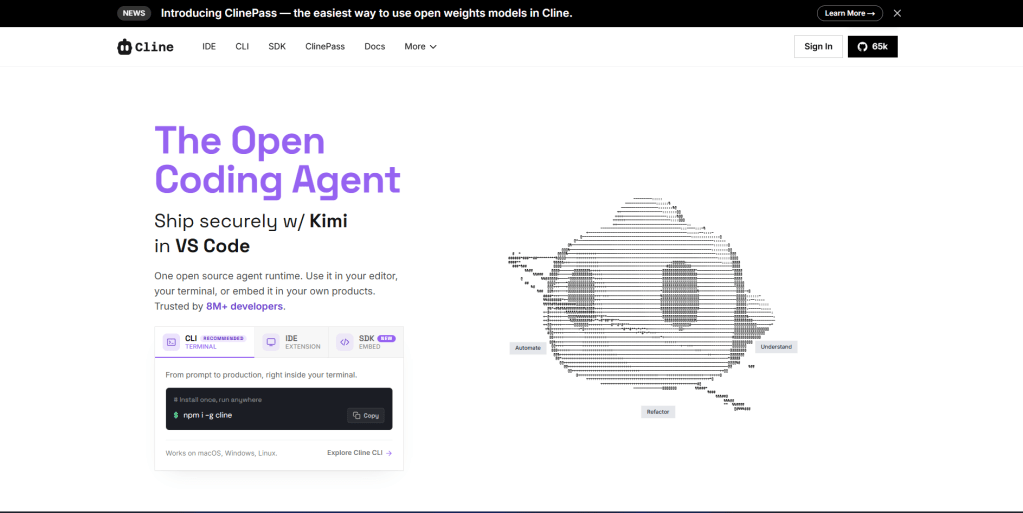
Cline is an open-source, autonomous coding agent that runs as a VS Code extension, with additional support for JetBrains, a standalone CLI, and an embeddable SDK. The VS Code Marketplace listing shows 3,856,159 installs as of this writing, and the GitHub repository carries 63k+ stars. Both ship under the Apache 2.0 license, and the project isn’t tied to a single model provider. It works with Anthropic, OpenAI, Google Gemini, AWS Bedrock, OpenRouter, and local models through Ollama.
How Cline Works
Cline reads your file structure, then works in one of two modes. Plan mode proposes an approach before anything changes. Act mode executes it step by step, editing files with a diff view, watching linter and compiler output as it goes, and running terminal commands directly instead of asking you to paste error logs back in. Every step asks for approval by default, and Checkpoints record a snapshot after each one so you can roll back if something goes wrong.
That approval-gated tool use is the same mechanism MCP plugs into. Ask Cline to add a tool for a one-off task and it builds a small MCP server on the spot. Connecting a server through config runs that same system in reverse, giving Cline standing access to a tool that already exists instead of building a narrow one each time.
Why Cline Needs MCP
Cline isn’t cut off from the outside world entirely. It can curl an endpoint from the terminal or screenshot a page through its browser tool. What it doesn’t have is a structured, repeatable way to do either.
- Data comes back unstructured: Terminal and browser tools reach the internet, but what comes back is raw text or a screenshot, not a clean response Cline can parse and reuse across steps.
- The tools you already run stay disconnected: A ticket tracker, an internal wiki, a production database, none of these are reachable unless you paste the relevant piece into chat yourself.
- Each read is a one-time snapshot: A screenshot or a curl response reflects a single moment. Nothing keeps that answer current the next time you ask, or across a longer task where the underlying data may have already changed.
- Every workaround starts over from scratch: Reading a page today doesn’t mean Cline can read the next one tomorrow without you re-describing the same workaround again.
Every one of these traces back to the same root cause, a workaround improvised for one task instead of a connection built to last. Model Context Protocol replaces that workaround with a standing connection.
Local vs Remote MCP Servers in Cline
An MCP server exposes a set of callable tools to whatever client connects to it. Cline reaches two kinds.
- Local (STDIO): Cline starts the server itself as a child process on your machine, using a
commandandargspair. This suits tools that need direct file system or local database access, and it runs with lower latency since there’s no network hop. - Remote (Streamable HTTP or SSE): Cline connects to a server hosted somewhere else over the network, using a
urlfield. This is the shape a hosted gateway uses, since the server isn’t running on your machine at all.
A local entry looks like this, using the official filesystem server, one of the more common essential MCP servers, as an example.
{ "mcpServers": { "filesystem": { "command": "npx", "args": ["-y", "@modelcontextprotocol/server-filesystem", "/path/to/project"], "disabled": false, "autoApprove": [] } }}
A remote entry follows a different shape, using a url instead of a command. Some remote servers authenticate through a header, like this.
{ "mcpServers": { "remote-server": { "type": "streamableHttp", "url": "https://example.com/mcp", "headers": { "Authorization": "Bearer your-token" }, "disabled": false, "autoApprove": [] } }}
One detail catches people out here. If you don’t set “type”: “streamableHttp” explicitly on a remote entry, Cline defaults to the older SSE transport for backward compatibility, confirmed behavior straight from Cline’s own MCP docs. Several servers, including GitHub’s remote MCP server, now publish only a Streamable HTTP config, so an entry missing that field can connect to nothing and throw a 405 error. Cline’s GitHub repository tracks this exact default-to-SSE behavior as a known issue, and it can bite even if you copied a snippet that worked a year ago.
A second detail matters before you start. Cline’s MCP settings are global. Unlike Cursor, which reads a project-scoped mcp.json inside a repo’s own .cursor folder in addition to a global one, Cline stores MCP server entries in one settings file that applies across every workspace you open. There’s no separate per-project override for MCP specifically, even though newer Cline config types like rules and skills do support project scope now. Add a server once, and it’s available in every repo you work in until you disable it.
Cline MCP Setup Requirements
Confirm these three things before adding a server.
- VS Code version: Cline’s terminal command execution depends on VS Code’s shell integration API, which shipped in v1.93. A version behind that causes commands to fail even after MCP connects correctly.
- Node.js, for local servers: Most STDIO-based community servers, the kind you’d browse in an MCP marketplace, run through npx. Confirm Node is installed and on your PATH before adding a local entry, or the server process won’t start.
- An MCP360 account, for the worked example below: Free to create, and it’s what gives you the gateway URL you’ll copy in Step 1.
With those three confirmed, the setup itself is four steps.
How to Add MCP Servers to Cline
The flow below starts on the gateway dashboard and ends inside Cline.
Step 1: Copy Your MCP360 Gateway URL
MCP360 puts more than 100 tools behind one gateway connection, and the URL you copy here is what Cline needs to reach all of them.
- Log in to your dashboard and open an existing project, or create a new one.
- From the left navigation menu, open MCP Servers.

- Select a specific MCP server, or use the Universal MCP Gateway for access to every tool in your MCP360 workspace.
- Copy the MCP Gateway URL. It already includes your account’s access token, so it’s the only thing you need to paste into Cline.
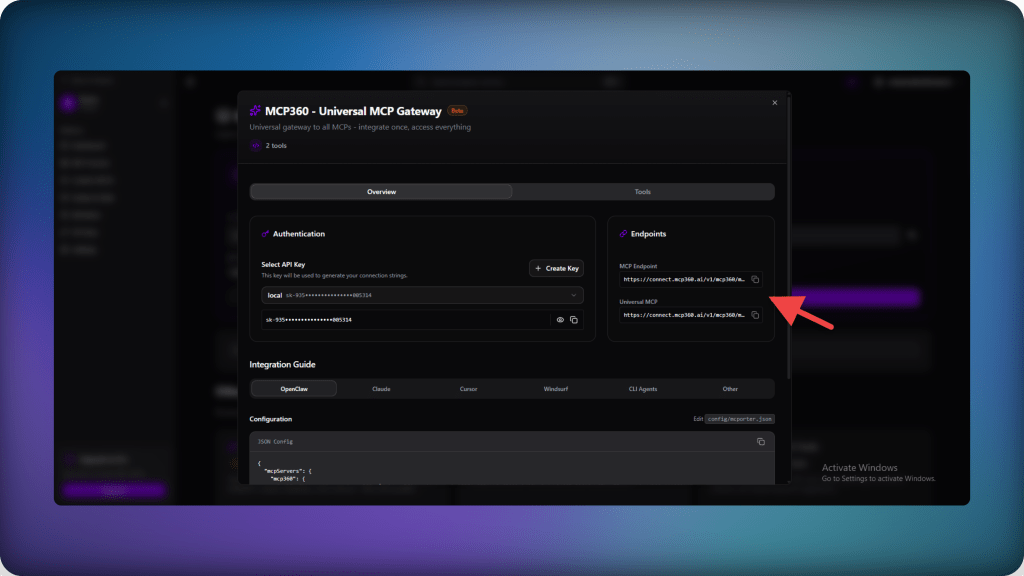
With the URL copied, switch over to VS Code.
Step 2: Install Cline and Open It
Open VS Code Extensions, search for Cline, and click Install. On first launch, Cline prompts you to connect a model provider, either the built-in Cline Provider, ClinePass, or your own API key from Anthropic, OpenAI, or another supported provider. Once that’s done, open the Cline panel from the VS Code activity bar.
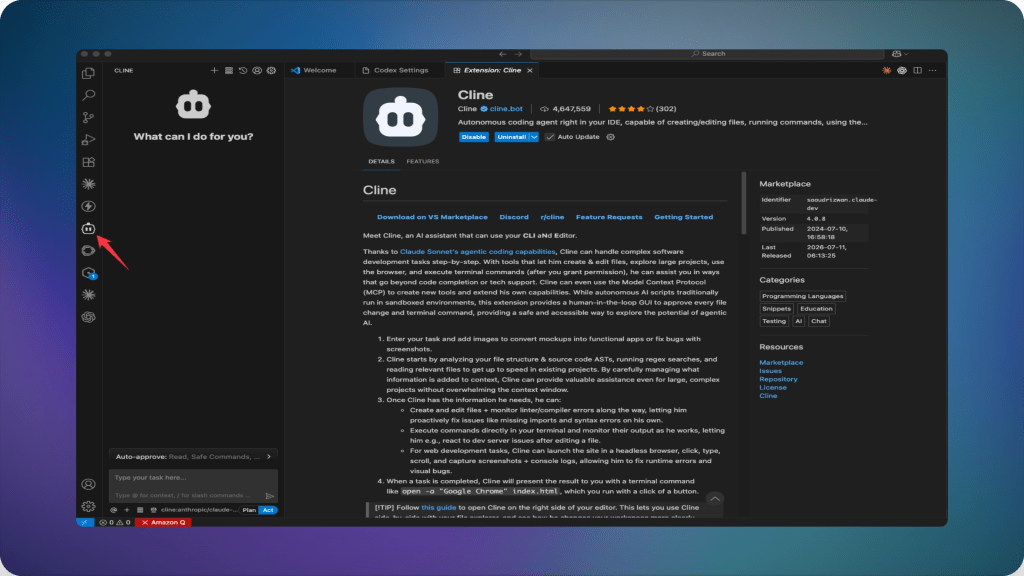
Step 3: Add the MCP360 Server in Cline
- Click Configure MCP Servers, then enter a server name and paste the gateway URL you copied in Step 1.
- Select Streamable HTTP as the transport type, then click Add Server.
- Once the server shows as added, click Done.
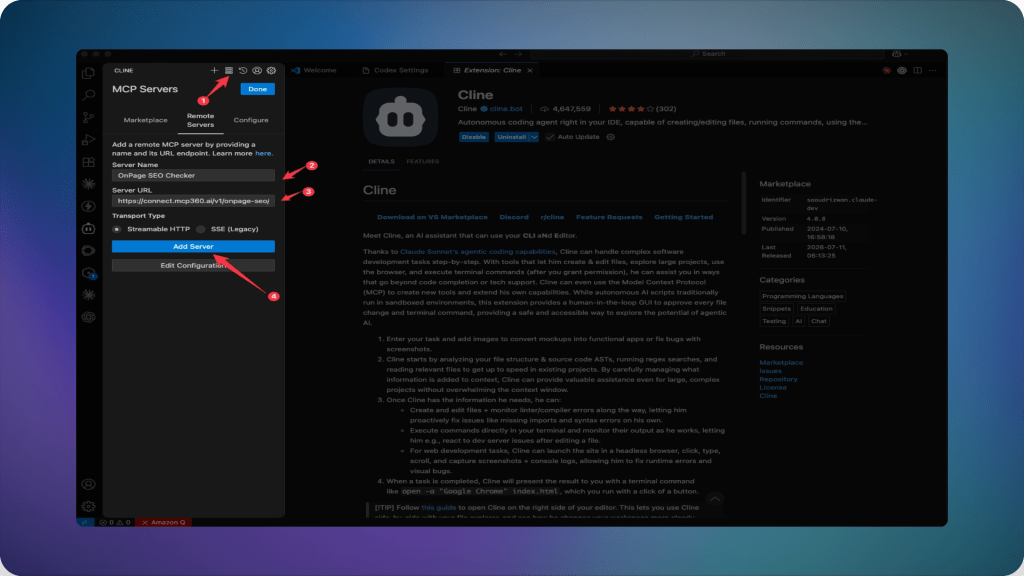
Cline writes this to cline_mcp_settings.json automatically.
Step 4: Verify the Connection

Back in the MCP Servers panel, confirm the entry shows a green connected status rather than red. Then test it with a real prompt, for example asking Cline to search the tool catalog for a keyword-research tool and run it. MCP tool calls require approval by default, a separate toggle from file edits and terminal commands under Auto Approve settings, so Cline shows you the exact call before it runs.
Once that first call comes back with real data, the connection stays live for every task after it. From here, MCP360 keeps adding tools to the catalog without another edit to cline_mcp_settings.json, but the account carries over across clients automatically while the config file doesn’t. Run the same gateway in Claude Desktop or Cursor and each one still needs the same server added to its own config by hand, which is what MCP360’s own mTarsier exists to keep in sync.
What You Can Do with MCP Servers in Cline
Once the connection in Step 4 goes green, five things change inside a normal Cline task.
- Research inside the editor: Pull live keyword volume, SERP data, or domain lookups mid-task, without tabbing to a browser and pasting results back in.
- One entry instead of a queue of servers: Adding a new tool to the catalog doesn’t require touching Cline’s config again. New tools become available automatically.
- Data stays current, not a one-time snapshot: A live schema check or a package-version lookup reflects what’s true right now, closing the freshness gap a screenshot or a single curl response couldn’t.
- Every call stays visible before it runs: MCP tool calls require approval by default, the same as a file edit or a terminal command, so you see exactly what’s being requested instead of trusting an unscoped workaround.
None of this requires touching Cline’s config again after Step 3. The one thing that still needs attention is keeping that same setup in sync if you’re also running it in Claude Desktop or Cursor, since each client keeps its own copy.
Cline MCP Security and Troubleshooting
Adding an MCP server means letting Cline run code you didn’t write and reach services on your behalf, exactly the exposure ongoing MCP security hardening work is meant to close. The Cline CLI’s npm package was briefly compromised this way in February 2026, so a few precautions matter more than getting the JSON right.
- Watch for truncated tokens on auth errors: A cut-off URL still connects but fails on the first authenticated call. Double-check the full string, including the query parameter, was copied.
- Leave approval on: Skip YOLO mode, since it approves every MCP call with no confirmation. Even “Safe Commands” isn’t foolproof, a malicious
.clinerulesfile can flip that flag on its own. - Verify the maintainer first: A local STDIO server runs with your full user permissions. A compromised one has the same reach as a compromised terminal command.
- Keep
cline_mcp_settings.jsonout of commits: Treat any token inside it as a live credential. Add the file to.gitignoreon any shared repository. - Set
"type": "streamableHttp"explicitly: Miss it and Cline falls back to deprecated SSE. The server then shows no tools, or throws a 405 error. - Reload the window after config edits: A JSON save alone usually connects immediately. A stuck status is one of the more common connection issues MCP clients share, fixed with
Developer: Reload Windowfrom the Command Palette.
Most of this list only comes up once. Get the transport type and the approval settings right at setup, and the rest fades into background maintenance you rarely think about again.
Frequently Asked Questions
What is an MCP server?
An MCP server is a program, local or remote, that exposes a defined set of tools an AI client can call through the Model Context Protocol. In Cline, a local server runs as a process on your machine using a command and args, while a remote server, like a hosted gateway, connects over a URL instead. Both give Cline access to systems it can’t otherwise reach on its own, from live APIs to internal databases.
What is Model Context Protocol (MCP)?
Model Context Protocol is an open standard that lets an AI client call external tools through a shared interface, instead of working only from its training data and whatever’s pasted into the conversation. For Cline specifically, that means the difference between reasoning about a live price or a current package version and actually reaching it, since its terminal and browser tools alone don’t return that kind of structured, reusable data.
How do I add an MCP server to Cline?
Open the MCP Servers panel in Cline, click Configure MCP Servers, and add an entry under the mcpServers object in cline_mcp_settings.json, either a local server using a command and args, or a remote server using a url with “type”: “streamableHttp” set explicitly. A hosted gateway like MCP360 uses the remote pattern, with one URL covering its entire tool catalog instead of a separate entry per tool.
What’s the difference between local and remote MCP servers in Cline?
A local server runs as a process Cline starts itself, using a command and args, which suits tools needing direct file system or database access with lower latency. A remote server connects over a network using a url field instead, the shape a hosted gateway uses since it isn’t running on your machine. Remote entries need “type”: “streamableHttp” set explicitly, or Cline falls back to a deprecated transport many current servers no longer support.
Why won’t my MCP server connect in Cline?
The most common cause is a remote entry missing “type”: “streamableHttp”, which makes Cline default to the older SSE transport and fail against servers that no longer support it. Other frequent causes include a JSON change that needs a VS Code window reload rather than just a save, a truncated token in a URL-embedded credential, or a missing Node.js installation for servers that run through npx.
Are Cline’s MCP settings global or per-project?
Global. Cline stores MCP server entries in one settings file, cline_mcp_settings.json, that applies across every workspace you open, unlike Cursor, which reads a project-scoped mcp.json inside a repo’s own folder in addition to a global one. Add a server once in Cline and it’s available in every project until you disable it, so there’s no separate per-project override to manage.
Is it safe to connect an MCP server to Cline?
It’s safe when the server’s maintainer is verifiable and MCP tool approval stays on rather than switching to YOLO mode. Cline has a real security history, including a February 2026 incident where a prompt-injection flaw let an attacker publish a malicious npm release. A hosted gateway like MCP360, where each call requires approval and stays visible before running, reduces the exposure compared to an unscoped local workaround.
How do I connect MCP360 to Cline?
Copy the gateway URL from the MCP360 dashboard’s MCP Servers page, which already includes your access token, then in Cline click Configure MCP Servers, enter a name, paste that URL, select Streamable HTTP as the transport type, and click Add Server. Cline writes the connection to cline_mcp_settings.json automatically, giving access to MCP360’s full tool catalog through that single entry.
Conclusion
A connected gateway doesn’t stop growing once the JSON is saved. MCP360 adds new tools to its catalog every month, and each one becomes available to Cline automatically, with no further edits on your end. The setup here was a one-time cost for access that keeps expanding on its own.
The same connection carries into Claude Desktop, Cursor, or whatever else joins your toolchain later, using the Cursor MCP setup guide as the equivalent walkthrough for that client’s different config model. What’s worth remembering isn’t the exact JSON syntax, since Cline’s own docs will likely change again. It’s leaving every MCP call visible before it runs, regardless of which client or which server sits on the other end.

Article by
MitaliAI & Automation | Content Writer
Mitali is a content writer covering AI agents, automation, and no-code tools. Her writing spans the AI landscape, from support and sales automation to MCP integrations and agent workflows, with a focus on practical business use.