


The TL;DR
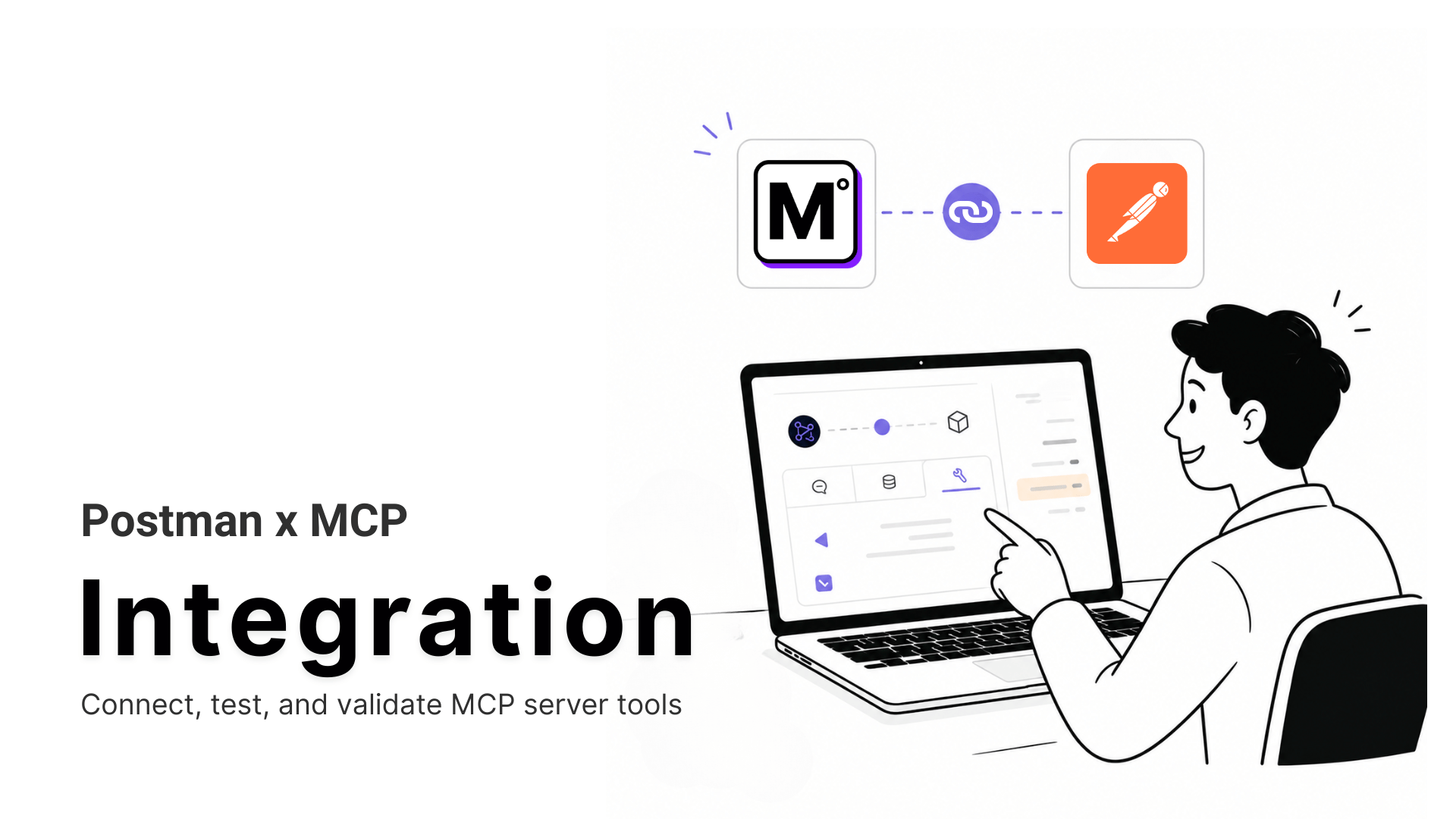
Postman becomes a direct test bench for MCP360 tools, showing exactly what each call returns before an AI agent uses it.
-
• Two Products, One Name
Postman offers its own hosted MCP server and a separate built-in MCP client for testing external MCP servers. This guide focuses on the client.
-
• Quick Setup
Copy a tool URL from the MCP360 dashboard, create an MCP request in Postman, choose HTTP, paste the URL, and click Connect to view the available tools.
-
• Common Setup Mistakes
Most failures come from choosing the wrong transport, using an expired or missing bearer token, or expecting the Universal Gateway to list more than search_tools and execute_tool.
Postman already handles the request-building and response-reading most developers do by hand for any REST API. A tool call takes the shape of a structured JSON-RPC message with its own schema, and getting that shape wrong is easy to do without noticing. Skip testing it directly, and an agent’s first tool call quietly becomes the test, surfacing a wrong argument name or a missing auth header as confused model output instead of a clear error.
Postman’s MCP client is built for exactly this. It’s a request type already inside the same tool most API developers have open, and it calls any MCP server directly, showing the raw JSON going in and out before an agent gets near it. Here’s how to connect it and see exactly what a tool call returns, before an agent ever makes one.
What Is Postman MCP

Postman is a widely used API platform that developers rely on to build, test, and document HTTP, GraphQL, and gRPC requests. Postman has recently extended that platform to MCP too, and “Postman MCP” now covers two distinct capabilities, not one feature, both built on Model Context Protocol (MCP), the open standard letting AI models call external tools through a shared interface.
Postman acting as an MCP server exposes its collections, environments, and API specs as tools an AI coding agent, like Claude Code or Cursor, can read, write, or run directly.
Postman’s built-in MCP client is a request type that connects to any MCP server, not just Postman’s own, functioning like any other MCP client built for the protocol. Instead of hand-crafting JSON-RPC calls or using curl, it points at a server’s URL, lists its tools, and runs them to show the raw response.
These two capabilities share a name but solve opposite problems, one turns Postman into something an agent talks to, the other into a tool for testing MCP servers before an agent ever touches them. This guide covers the client.
Core Capabilities
- Connect to any MCP server: Paste a server’s URL into a new MCP request, choose Streamable HTTP, and connect, regardless of who built or hosts it.
- Discover available tools automatically: Once connected, Postman lists everything the server exposes under the Tools, Resources, and Prompts tabs, no separate documentation needed.
- Call tools with real parameters: Pick a tool, fill in its arguments, and run it, the same way you’d test a REST endpoint.
- Inspect raw request and response data: See the exact JSON-RPC message sent and the response returned, surfacing auth errors or bad arguments before an agent makes the call.
- Save and share working requests: A working connection becomes a reusable request that a teammate, or a future session, can rerun instead of rebuilding the setup from scratch.
How It Works
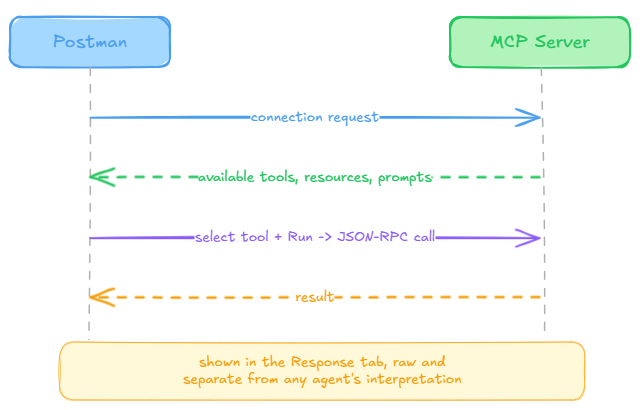
Postman sends a connection request to the MCP server’s URL over Stream able HTTP. The server responds with its available tools, resources, and prompts. Selecting a tool and clicking Run sends a structured JSON-RPC call with the chosen parameters. The server executes the call and returns a response, which Postman displays directly in the Response tab, readable and separate from any agent’s interpretation of it. Postman’s own documentation covers the request type in full.
Where Postman Falls Short Without Native MCP Support
Postman handles REST, GraphQL, and gRPC well, but an MCP server doesn’t behave like a typical API. Before Postman added a dedicated MCP request type, testing one this way created several separate problems.
- Tool discovery is manual: A regular HTTP request has no way to ask a server what it can do. MCP servers expose a queryable list of tools, resources, and prompts that has to be requested and read before anything else is possible.
- JSON-RPC has to be hand-built: MCP runs on JSON-RPC 2.0, a specific envelope with a method, parameters, and an ID, none of which a standard HTTP request type builds automatically. Getting that shape wrong breaks the call silently.
- The handshake falls on you: Before a server does anything, MCP requires an initialization exchange where the client and server agree on protocol version and capabilities. A plain HTTP request doesn’t sequence that handshake, so testing by hand meant firing off multiple requests in the right order.
- Results come back unparsed: Tool responses come back as structured content blocks, not arbitrary JSON. A regular response viewer has no concept of that shape, so reading a result meant parsing it manually instead of seeing it laid out as a tool result.
- STDIO servers are out of reach: MCP defines both STDIO for local processes and Streamable HTTP for remote servers. A standard HTTP request type only ever covers the second, so testing a locally running server wasn’t possible through Postman at all.
Postman’s MCP client closes all five gaps at once. It understands the handshake, discovers what a server exposes without extra configuration, builds the JSON-RPC message automatically, renders tool results in a readable format, and supports both transports the protocol defines.
Setup Requirements
Three things need to be in place before starting, and none of them cost anything to get.
- An account and API key from MCP360, the gateway used as the live example throughout this guide. The free tier covers everything here, so there’s no need to commit to a paid plan just to test a connection.
- Postman, desktop or web, with a workspace available to create requests in. Any current version includes the MCP request type used here, no separate install or beta flag needed.
- A tool or gateway URL, found in the MCP360 marketplace or any other MCP server’s own documentation. Copy a single server’s URL to test one tool domain, or the Universal Gateway URL to reach the full catalog through one connection. Where to find and copy this is covered in the first step below.
With those three in place, the connection takes just three steps.
How to Connect Postman to MCP
Getting a tool URL happens on the MCP360 dashboard. Everything after that happens inside Postman.
Step 1: Copy Your MCP Server URL

- Log in to the dashboard.
- Open an existing project, or create a new one.
- Select MCP Server from the sidebar.

- Find the tool or server to test and copy its URL. The URL already carries an access token as a query parameter.
Step 2: Connect Postman to the MCP Server

- Open Postman, go to a workspace, click the + icon, then choose MCP to create a new MCP request.
- Change the method to HTTP.

- Paste the copied URL into the URL field. It already carries the token.
- Click Connect. Once the connection succeeds, the tools on that server show up under the Tools, Resources, and Prompts tabs.
Step 3: Call a Tool

- Pick a method from the Tools tab and fill in the parameters it needs.
- Click Run. The Response tab shows exactly what the server returned.
Connecting through the Universal Gateway instead of a single tool’s URL changes what the Tools tab shows. Expect two entries, search_tools and execute_tool, rather than every tool listed individually. Call search_tools with a keyword to find the right tool, then call execute_tool with that tool’s name and arguments.
What You Can Actually Do with This Setup
With the connection working, here are five concrete things it’s actually good for.
- Catch a bad lead-routing field early: Call the tool with a real email or company name and confirm the fields match what a sales agent’s prompt expects, before that mismatch shows up as a silent failure in production.
- Read real SEO numbers, not a summary: Run a keyword-research or rank-tracking tool and see the raw numbers directly, before a content pipeline builds headlines around someone’s paraphrase of them.
- Put two tools head-to-head: Run the same kind of request against two candidates in the catalog and judge the actual responses, not just their descriptions.
- Replay exactly what an agent saw: When an agent’s output looks wrong, run the identical tool call in Postman to see the literal response it was working from.
- See the real credit cost upfront: Most tools bill one credit per call, though a few cost more, keyword research runs ten credits and the LLM Prompt Tracker runs five (current tool-by-tool credit costs). Seeing that number here costs less than finding out after an agent has been calling it all week.
Each of these replaces a guess with something actually seen, which is the entire point of testing here before an agent does.
Securing and Troubleshooting Your Connection
The token in that URL functions like a password, and every call against it also draws down account credits, so a leaked key is a billing problem as much as a security one. The five points below cover keeping it safe and fixing the failures that show up most.
- Keep the token in Vault: Store it as a Vault secret instead of pasting it into the URL or a plain variable. Vault secrets stay encrypted locally and never sync to Postman’s cloud, unlike a URL query parameter or a regular collection variable that travels with a shared workspace. Reference it from the Authorization tab using
{{vault:your-secret-name}}. - Watch the workspace scope: A personal workspace keeps a request private. A team workspace makes it visible to every collaborator with access, so share requests without the credential attached and let each person add their own key.
- Rotate on exposure: A token in a public collection, a config file, or a screenshot needs rotating from the dashboard right away, which invalidates it everywhere it was in use, including inside any agent already wired up to it. Teams moving off static keys entirely can look at workload identity federation.
- Failed connections mean transport or token: Clicking Connect and getting nothing back usually means STDIO was chosen instead of Streamable HTTP. A 401 or 403 means the token is missing, expired, or not referenced correctly from a Vault secret.
- Bad results rarely mean a broken connection: The Universal Gateway shows only
search_toolsandexecute_toolby design, not a full list. A single tool’s URL showing nothing likely points at a project that no longer exists, and a tool call that runs but returns an error usually means the arguments were wrong or the account ran out of credits.
For broader credential guidance or failures that sit outside Postman itself, the current MCP security guidance and the guide to common MCP connection issues cover those separately.
Frequently Asked Questions
What is Model Context Protocol (MCP)?
MCP is an open standard, released by Anthropic in November 2024, that lets an AI client call external tools through one shared interface instead of pasted-in text.
What is an MCP server?
An MCP server is a program, local or hosted, that exposes tools, resources, or prompts an AI client can call directly instead of relying on training data or manual copy-paste.
What’s the difference between Postman’s MCP server and its MCP client?
They’re two separate products sharing a name. Postman’s MCP server lets coding agents like Claude Code manage Postman’s own collections. Postman’s MCP client is a request type built to call any MCP server, including MCP360.
How do you test an MCP server using Postman?
Create a new MCP request in Postman, set the method to Streamable HTTP, paste the server’s URL, and click Connect. Once connected, the Tools tab lists what that server exposes, and picking a method lets you call it with real parameters and read the exact response. MCP360’s gateway URL works the same way as any other MCP server’s address.
What is MCP360?
MCP360 is a unified gateway connecting AI agents to 100+ external tools through one integration, covering categories like web search, SEO research, and e-commerce data. One gateway URL reaches the whole catalog, with tools loading on demand instead of all at once.
Why does Postman only show search_tools and execute_tool instead of a full tool list?
That happens when the connection goes through MCP360’s Universal Gateway rather than a single tool’s URL. The gateway exposes two meta-tools instead of listing every tool individually, so a connected client’s context stays light. Call search_tools with a keyword to find the right tool, then execute_tool to run it.
How do you keep an API key secure when testing MCP tools in Postman?
Store it as a Postman Vault secret instead of pasting it into the URL field or a plain variable. Vault secrets are encrypted locally and never sync to Postman’s cloud. Reference the secret from the Authorization tab, and rotate the key right away if it’s ever exposed.
Why test an MCP server in Postman before connecting it to an agent?
Testing a tool call directly shows the real response and any auth problems in a readable format, before an agent’s first call quietly becomes the test. A bad header turns into a clear error instead of confusing agent behavior.
Conclusion
A tool verified in Postman before an agent touches it fails safely if it fails at all. The response comes back readable, the argument that was wrong is visible, and the fix is a request rerun instead of a debugging session traced through a model’s reasoning after the fact. That same saved request becomes the first place to check when something breaks later, answering whether the problem sits in the connection itself or in the agent built on top of it.
That habit keeps paying off as the catalog grows, part of why MCP is expanding so quickly as the standard for how agents reach tools. Each new tool reaches through the same URL-and-token pattern proven out in this guide, so verifying the next one takes the same three steps rather than a new integration to learn, and the same approach carries over to a custom MCP built through the platform’s own builder when the catalog doesn’t already cover what’s needed. Start with 10 essential MCP servers for a shortlist of what to test first.

Article by
RajniAI & Tech | Senior Content Writer
Rajni is a senior content writer covering AI agents, automation, and no-code tools. She writes across the AI space, from chatbots and customer support to MCP and agent workflows, focused on how businesses actually put these tools to work.