



The TL;DR
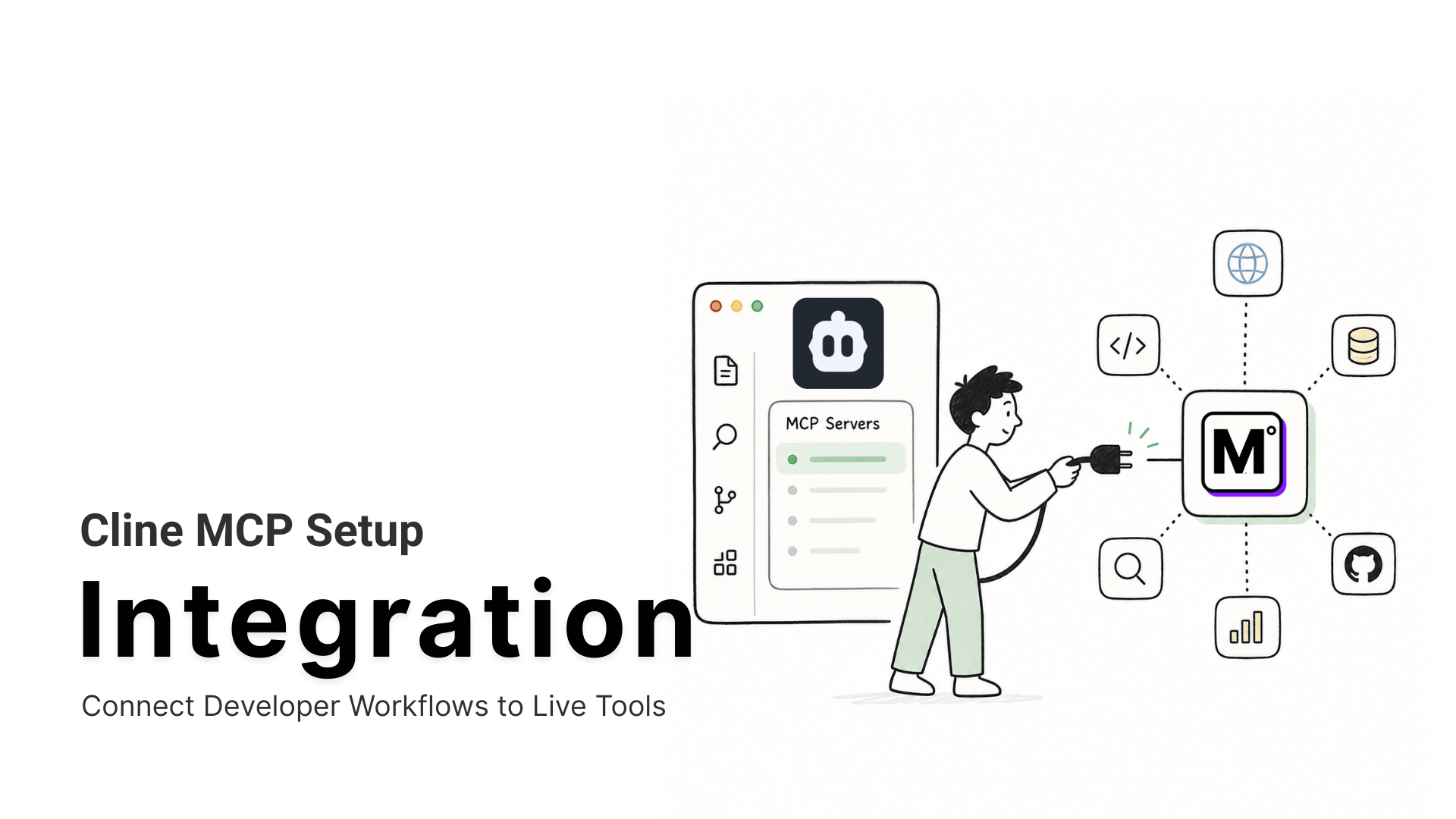
Dify’s built-in MCP client calls external tools through a single hosted connection instead of hard-coding a separate integration for every service.
-
• The Gap Native MCP Closes
A Dify agent reasons well over what’s in the prompt and the knowledge base, but it has no way to reach a live system on its own. MCP gives it a standard way to call one.
-
• Quick Setup
Adding a server means pasting a URL into Dify’s Add MCP Server (HTTP) form under Tools → MCP. Budget about five minutes per server.
-
• What to Check First
Dify’s documentation doesn’t currently state which MCP protocol version it targets. The only public figure, from the v1.6.0 launch post, is over a year old. Step 2 below covers what to check before trusting a server built against a newer spec.
A Dify agent writes a support reply, drafts a workflow branch, and reasons through a multi-step task on its own. The moment that task needs something outside Dify, a live price check, a record in another system, a current search result, the agent has nothing to reach for. It can describe the problem. It cannot act on it. That gap barely shows in a demo. It shows up fast once real users start asking real questions.
Dify addressed this with native MCP support, shipped in v1.6.0. Any agent, chatflow, or workflow node calls a tool from an external MCP server the same way it calls a built-in one, with no hand-written integration behind it. That’s the difference between an agent that talks about doing something and one that actually does it.
Let’s connect Dify to MCP, using MCP360’s gateway as the working example so one setup step reaches many tools instead of one at a time, along with the mistakes worth avoiding before a connection goes into production.
What Is Dify

Dify is an open-source platform for building AI agents, chatbots, and multi-step workflows on a visual canvas, without hand-written orchestration code behind the app. It sits alongside a small set of other low-code agent builders, most of which share the same visual-canvas approach and differ mainly in hosting model and licensing terms.
Every app built on that canvas is one of four types: Chatbot, Agent, Chatflow, or Workflow. A model node connects to a knowledge base, an agent strategy, and a tool, and the app runs from there. These four app types resurface directly in Step 3 below, where a connected tool gets added to whichever one is being built. Using Dify as an MCP Server
Dify can also act as an MCP server, letting apps like Claude Desktop or Cursor call your Dify workflow directly through a unique, authenticated MCP endpoint. Keep this URL secure like an API key, and rotate it if it’s ever exposed.
Major Features
Four platform capabilities show up across nearly every serious Dify build, independent of which app type it’s wrapped in:
- Knowledge Pipeline: A visual RAG pipeline handles document ingestion, chunking, embedding, and hybrid vector-plus-keyword retrieval, with connectors for sources like Google Drive, Notion, and cloud storage.
- Plugin Marketplace: Model providers and data-source connectors install as plugins rather than custom code, so a team adds a capability once and reuses it across every app it builds.
- Multi-model support: Apps aren’t locked to one provider. Model nodes can call OpenAI, Anthropic, Google, or xAI models interchangeably, swapped per app or per node.
- Built-in observability: Logs, latency, and usage data are available per app, so a team can see what a live agent actually did, not just what it was designed to do.
Those four app types, running on top of these four capabilities, are what the MCP connection below adds to, not replaces.
Why Dify Needs MCP
Every Dify app runs on a model plus whatever context it’s given directly: a prompt, a knowledge base, the output of a previous step. None of that includes what is happening right now in a system Dify was never told about. A few examples make that gap concrete:
- Order or account status: Ask a Dify support agent what the status of order 4471 is. That data lives in a fulfillment system the agent has never seen.
- Competitor pricing: A rival’s current price was never in the prompt and never made it into the knowledge base.
- Domain or registration status: Whether a domain is registered, expired, or up for renewal right now isn’t something training data or a static knowledge base can answer.
- Anything published in the last hour: This morning’s search results, breaking news, a just-announced price change, none of it existed yet when the model was trained or the knowledge base was last indexed.
- The outcome: Without a way to reach outside its own canvas, the agent either declines to answer or states a guess as though it were verified.
Two ways to close that gap exist, one that scales badly and one Dify now ships natively:
- Hand-written API calls, one service at a time: Before Dify shipped native MCP support, this meant one HTTP request node per external service, each with its own authentication, its own response parsing, and its own risk of breaking silently the moment the upstream API changed its schema. It holds up for one integration. It becomes a maintenance project by the third or fourth.
- Model Context Protocol, one standard for every service: MCP standardizes that per-service work into one protocol every compliant tool already speaks. Native support means any agent, chatflow, or workflow node in Dify calls an MCP tool the same way it calls a built-in one, with no hand-written integration behind it.
Dify’s own Tools → MCP screen solves the protocol problem but not the setup-per-tool problem. Adding a server there means one URL, one credential, one connection to maintain, and adding a second tool means repeating that exact process:
| One server per tool | One gateway, many tools | |
|---|---|---|
| Connections to maintain | One per tool (Notion, Linear, a pricing API, each separate) | One, regardless of catalog size |
| Adding tool #10 | A new URL, a new credential, a new entry | A routine refresh, no new server |
| Credential rotation | Multiplies with every added tool | Stays fixed at one token |
| Manageable up to | Two or three tools before it gets unwieldy | The size of the gateway’s catalog |
The one-server-versus-one-gateway split above mirrors a broader difference between MCP and traditional API integration. Each API needs its own authentication and its own response parsing. MCP replaces that with one standardized protocol every client already understands.
How to Connect an MCP Server to Dify
Getting a server connected takes just three steps: copy your MCP Gateway URL, add it to Dify, and verify that the tools are available. This setup uses MCP360’s Universal MCP Gateway as the example, showing how one connection gives your Dify agents access to many tools instead of requiring a separate setup for each one.
Step 1: Copy your MCP360 gateway URL
- Log in to your MCP360 dashboard and open an existing project or create a new one.
- From the left navigation menu, open MCP Servers.

- Select a specific MCP server, or use the Universal MCP Gateway to get access to every tool in your MCP360 workspace through one connection.
- Copy the MCP Gateway URL. It carries your access token embedded in the URL itself, formatted as
https://connect.mcp360.ai/v1/mcp360/mcp?token=YOUR_API_KEY, so no separate header configuration is needed on Dify’s side. This is the URL you’ll paste into Dify in the next step.

Step 2: Add the server in Dify
- Open the Dify workspace and go to Tools → MCP.

- Click Add MCP Server (HTTP).

- Paste the MCP Gateway URL from Step 1 into the Server URL field.
- Give it a Name & Icon the team will recognize, for example “MCP360” or “Tool Gateway.” Dify tries to pull a matching icon automatically.
- Set a Server ID: lowercase letters, numbers, underscores, and hyphens only, 24 characters or fewer. Once an app depends on this ID, changing it breaks that app, so choose something permanent, such as
mcp360-gateway, rather than a name likely to change later.

Saving the form connects Dify to the server, resolves any OAuth handshake automatically, and pulls the tool list. A server card appears once tools are found.
Confirm a server’s protocol version before pointing a production app at it. Dify’s docs don’t state a current version, and the last public figure, 2025-03-26 from the v1.6.0 launch, is over a year old and predates two revisions, including the stateless rework finalizing July 28, 2026. Check the server’s own docs for its version, and test it against Dify directly rather than assume compatibility.
Step 3: Verify the tools and use them
- Click the new server card and confirm the tool count matches the plan in use.
- Open an Agent, Chatflow, or Workflow app. MCP tools appear grouped under the server name, for example “MCP360 » Keyword Research,” alongside Dify’s built-in tools.
- For each tool parameter, decide whether Dify’s Auto setting or Fixed fits. A search tool’s
queryparameter usually stays on Auto. AnumResultscap is often safer set to Fixed. - Run a real prompt that should trigger the tool, then check the output against the source rather than only confirming the call succeeded.

A server showing “Unconfigured Server” needs its URL rechecked and re-authorized. A server that connects but shows no tools needs an Update Tools click, useful after the catalog on the other end changes. An app that previously worked and now fails almost always traces back to a changed Server ID, re-adding the server with the original ID resolves it. For anything outside these three cases, a fuller breakdown of MCP connection failures and fixes covers the rest.
Once tools show up here, the connection technically works. Whether it holds up safely and reliably depends on a few things worth checking before moving on.
Common Dify MCP Integration Mistakes to Avoid
A working connection and a safe, reliable one aren’t automatically the same thing. A handful of mistakes come up often enough during this specific setup to call out directly.
- URL-based token exposure: The gateway URL carries its token as a query parameter, not a header, so it can land in browser history, access logs, or referrer headers. Don’t open it directly in a browser or paste it into tools that log outbound requests.
- One token across every integration: Reusing the same MCP360 project everywhere makes usage impossible to trace and access impossible to revoke selectively. Give Dify its own project.
- Protocol mismatch: Dify’s documented protocol support hasn’t been restated since 2025-03-26 at launch, and the spec has moved twice since. A server built against a newer version can connect without error yet behave inconsistently. Check its protocol version before adding it, not after.
- Changing the Server ID: Every app references a server by this ID. Renaming or recreating it breaks every app already using that server, without warning. Set it once and leave it alone.
- Skipping data verification: A green connection only confirms Dify reached the server, not that it returns correct results. Run one real prompt and check the output before trusting it.
Catching these takes the same few minutes as the setup itself. Once a server is connected cleanly, what it makes possible depends on which team is using it.
Dify MCP Integration Use Cases
Once a gateway is connected, a Dify agent’s available tools extend past whatever ships with the platform.
- Live order and account lookups mid-conversation: Support teams building a Dify chatbot can pull a live order status or a domain lookup instead of falling back to a canned “I’ll check on that” reply. For teams whose primary need is customer support at scale rather than a single internal workflow, YourGPT is built specifically for that job as a no-code alternative, and connecting it to MCP360 follows the same gateway pattern used here for Dify.
- Content briefs backed by real search volume: Content and SEO teams can wire the Keyword Research or Google Rank Tracking tools into a Dify workflow that drafts an outline, so the draft starts from real search volume instead of a guess.
- Lead qualification with real firmographic data: Sales and research teams can add the WHOIS & Domain Lookup tool to an agent that qualifies leads, so the agent pulls real firmographic data before drafting an outreach note.
- Competitor price checks before a listing goes live: E-commerce and product teams can connect Amazon Product Search or Google Shopping to a Dify workflow that checks a competitor’s current price, instead of someone checking manually across several browser tabs.
- One internal tool, reused across every app: Anyone maintaining an internal tool can wrap it once with a no-code API-to-MCP builder and reuse it across every Dify app the team builds afterward, instead of writing a one-off plugin per app.
Each of these starts from the same three-step setup above. The only difference is which tool in the catalog gets pulled into which app.
Frequently Asked Questions
What is an MCP server?
An MCP server is a small program that exposes a defined set of tools over the Model Context Protocol, a standard that lets an AI agent discover what a service can do and call it directly. Instead of building one custom integration per service, any MCP-compatible client, including Dify, can connect to any MCP server through the same request format.
How does MCP work?
MCP standardizes tool access into one protocol. A client like Dify connects to a server’s URL, the server responds with the tools it exposes and what parameters each one takes, and the client’s model calls those tools the same way it calls a built-in one. That discovery step replaces writing custom authentication and response-parsing code for every service by hand.
What does Dify’s MCP integration actually do?
Dify’s native MCP support, shipped in version 1.6.0, lets any agent, chatflow, or workflow node call an external MCP server the same way it calls a built-in tool. Before this shipped, reaching an outside system meant writing an HTTP request node by hand for each service. Native support replaces that per-service glue code with one standard connection method.
What’s the difference between MCP and a traditional API integration?
A traditional API integration is built for one specific service, so it breaks silently the moment that service changes its schema, and adding a second service means writing an entirely separate integration from scratch. An MCP server advertises its own tools and parameters at connection time, so a client like Dify discovers what’s available automatically instead of that being hard-coded in advance.
What is an MCP gateway, and why use one instead of adding servers one at a time?
Dify connects to MCP servers one at a time, each with its own URL and credential. A gateway like MCP360 puts an entire catalog of tools behind a single connection instead, so adding a tenth tool costs the same as adding the first. Credential rotation and URL management stay fixed at one token rather than multiplying with every service added.
How do I add an MCP server to Dify?
In Dify, go to Tools then MCP and click Add MCP Server (HTTP). Paste the server’s URL into the Server URL field, name it, and set a permanent Server ID using lowercase letters, numbers, underscores, and hyphens. Saving the form connects Dify to the server and pulls its tool list automatically. MCP360’s gateway URL connects an entire catalog this same way, in one step.
Is it safe to store an MCP server URL that has an access token in it?
Treat that URL like a password, not a bookmark. MCP360’s gateway URL, for example, carries its access token as part of the URL itself, so anyone who has it can call every tool available to that project. Store it in a secrets manager rather than a shared document, use a separate project per integration to limit exposure, and regenerate it immediately if it’s ever leaked.
Why did my working Dify MCP connection suddenly break?
The most common cause is a changed Server ID, since every app that uses a server references it by that ID, and renaming or recreating it breaks every app already built on it. A server showing “Unconfigured Server” usually needs its URL rechecked and re-authorized, and one that connects but shows no tools just needs an Update Tools click.
Conclusion
The setup in this post takes about five minutes. The value shows up later, the first time an agent answers with real data instead of a guess, and every time after that a new tool takes a form fill instead of a rebuild.
Pick one workflow that already stalls on missing information, whether that’s an order status, a domain check, or a competitor price, and connect a single tool to it first. One working connection, tested against a real prompt, tells a team more about whether this fits than reading through the rest of the catalog.
The bigger payoff comes later. As Dify’s own MCP support and the underlying protocol keep changing, that change happens in one place, the gateway, rather than in every app built on top of it. Add the next tool when the next workflow actually needs one, not before.

Article by
MitaliAI & Automation | Content Writer
Mitali is a content writer covering AI agents, automation, and no-code tools. Her writing spans the AI landscape, from support and sales automation to MCP integrations and agent workflows, with a focus on practical business use.