


The TL;DR
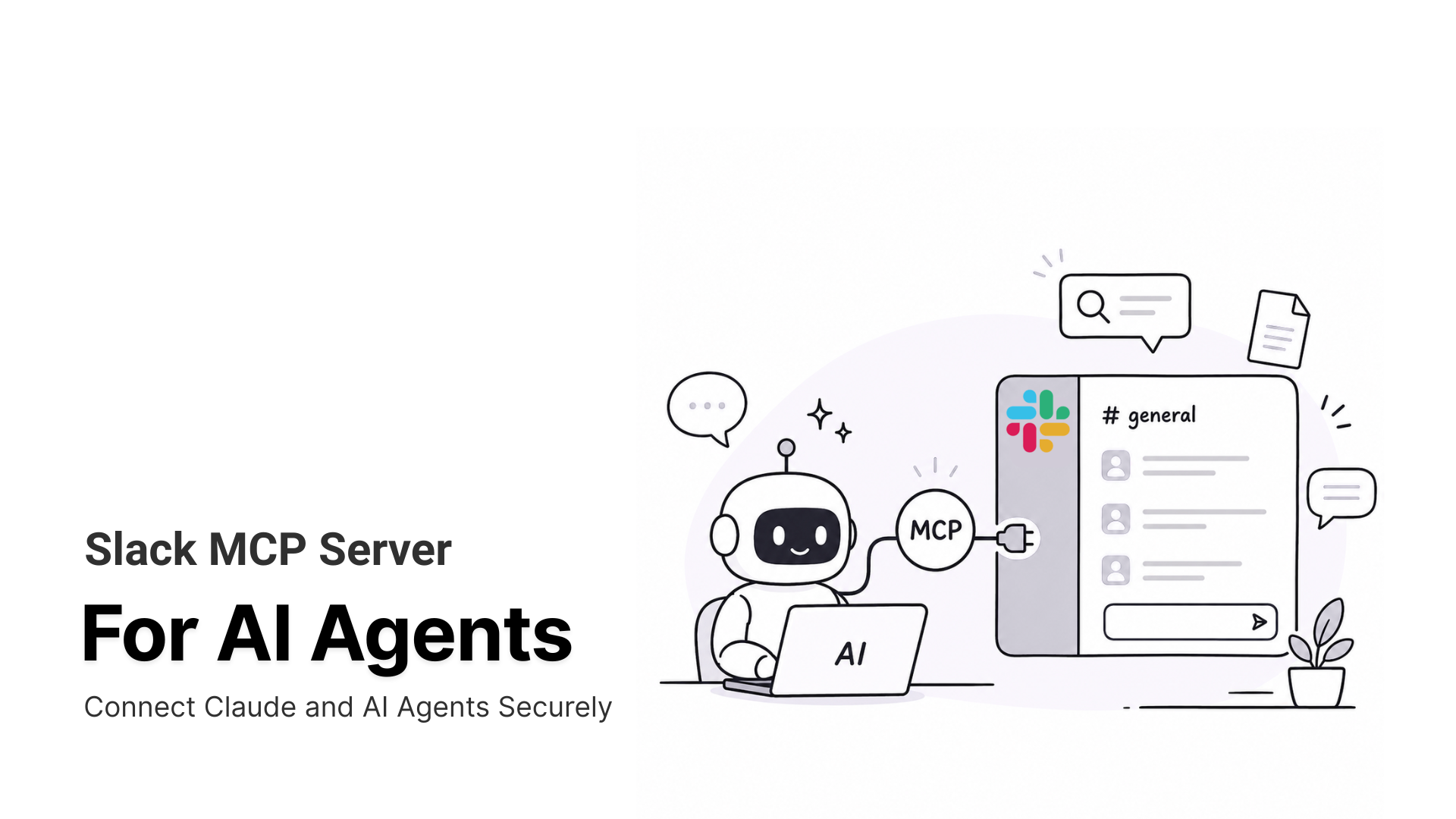
The Slack MCP server lets AI agents like Claude and Cursor securely search, read, and post in Slack, removing the need to manually copy threads into prompts.
-
• Why It Matters
Without a Slack connection, AI agents cannot access workspace context on their own. Every thread, decision, update, or support conversation has to be copied manually, which slows down work and increases the chance of missing important context.
-
• Three Connection Routes
Teams can connect Slack through the official Slack MCP server with admin approval and OAuth, use a self-hosted server for local control without formal sign-off, or route Slack through a gateway like MCP360 alongside other tools from one endpoint.
-
• Security First
Slack access should start with read-only permissions. Reading messages is easier to audit and recover from, but posting or writing actions can create irreversible changes, so teams should confirm each agent call before expanding access.
In February 2026, the official Slack MCP server reached general availability, turning Slack into a first-class data source for AI agents. It gives an agent a permission-scoped path into the workspace where a team’s decisions, discussions, and operational history already live.
The problem it solves is simple but expensive. Without a Slack connection, an agent cannot access workspace context on its own, so people have to carry that context manually. A developer copies a thread into a prompt, explains what it means, and then repeats the same process an hour later for the next question. Across a team, that manual relay quickly becomes a bottleneck.
There are three main ways to connect Slack to an agent, and they are not interchangeable. One runs under workspace admin control, one runs locally on a single machine, and the third sits behind a gateway with the rest of a team’s tools. Choose the wrong route, and the result may be a blocked OAuth screen, limited adoption, or a data path no one formally approved.
What Is the Slack MCP Server
The Slack MCP server is an implementation of the Model Context Protocol that exposes a curated set of Slack actions as tools an AI agent can call. The agent asks the server what it can do, gets a list back, and runs the tool you asked for. No hand-coded endpoint per task.
Slack’s official server covers four areas. Search runs across messages, files, members, and channels. Messaging reads channel history and threads, then sends or drafts replies. Canvases get created, updated, and read as markdown. User lookups return profile fields and status. Slack added five more tools on May 13, 2026: add reactions, create channel, list channel members, list emoji, and read files.
That surface is small on purpose. Slack’s Web API spans 200-plus methods, and the MCP server exposes a curated slice of that, which keeps the tool list short enough for a model to choose well. If your agent needs the rest, such as admin actions or event subscriptions, you build against the Slack Web API directly instead. Our MCP vs traditional APIs breakdown covers this trade-off in more depth.
One constraint catches teams off guard. Per Slack’s developer docs, only directory-published apps or internal apps may use the MCP server. Unlisted apps are blocked, and the integration is subject to the same rate limits as the rest of the Web API.
Why Connect Slack to Claude and AI Agents

Connecting Slack to an agent changes what the agent can do, not just what it knows. Three shifts are worth the setup time.
- Answers grounded in real history: Ask Claude what the team already decided about a launch date, and it searches the actual threads instead of guessing from training data.
- Drafting and posting in place: The agent writes the status update, posts it to the right channel as you, and the message appears like any other message you sent.
- Cross-tool workflows: An agent that reads a bug report in
#incidents, pulls the related code, and posts a summary back to the channel runs the whole loop without a human relaying context between apps.
The friction it removes is the copy-paste tax. Every thread you stop pasting into a prompt is a minute back, and the model stops working from your lossy summary of the conversation.
How to Connect Slack to Claude Desktop
Here’s how to get Claude running in your Slack workspace, start to finish.
Step 1. Sign in to Slack
Go to slack.com and sign in with your account. If you don’t have a workspace yet, you’ll be prompted to create one.
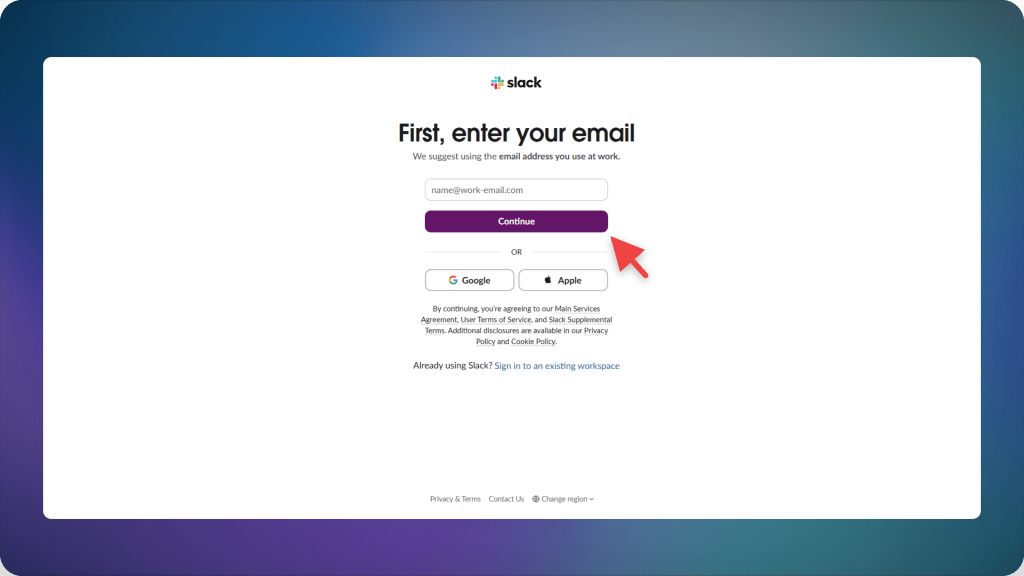
Step 2. Create your workspace
Give your workspace a name and fill in the basic details, like which team it’s for and who you’ll be inviting. This is the workspace Claude will be added to.

Step 3. Open the App Marketplace
Inside your workspace, head to the Connect Apps section. This opens Slack’s app marketplace, where you can browse and add integrations.

Step 4. Find Claude and start the install
Search for Claude in the marketplace and select it. Click Add to Slack to begin the connection process.
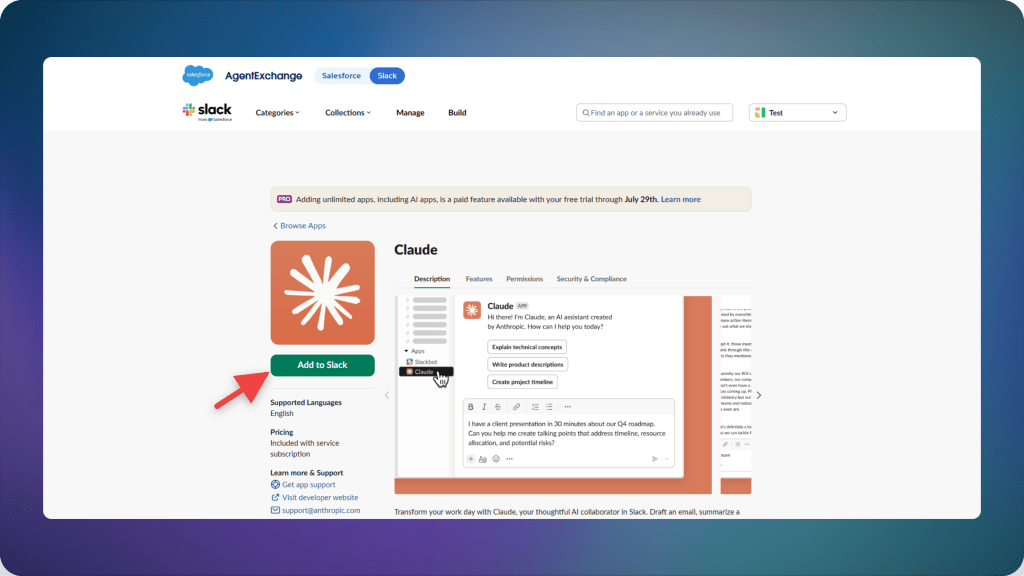
Step 5. Authorize from Claude’s site
You’ll be redirected to Claude’s website to complete the connection. Click Add to Slack again here to confirm.
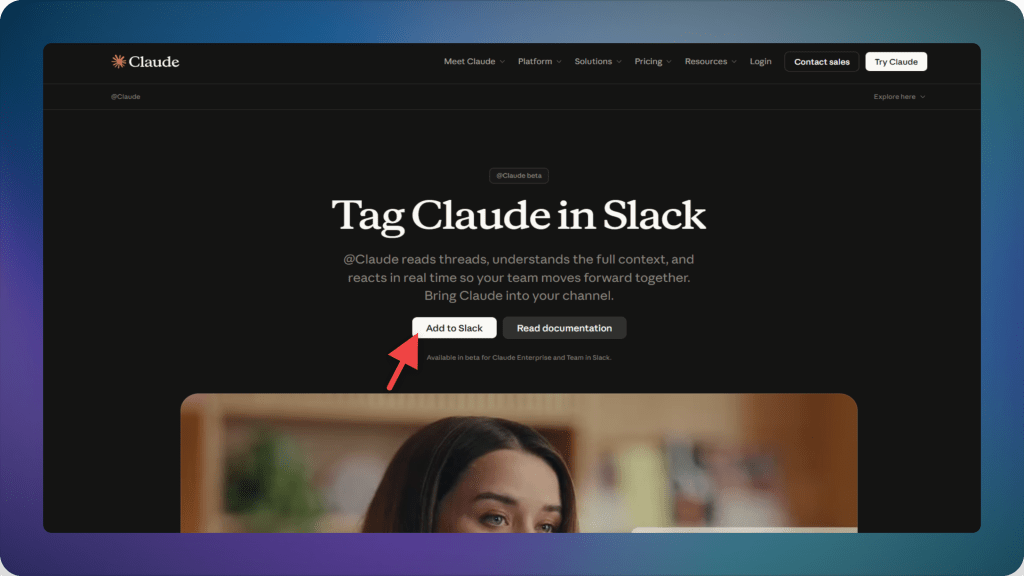
Step 6. Manage permissions
Review the permissions Claude is requesting for your workspace, things like reading messages or posting replies, then click Allow to grant access.
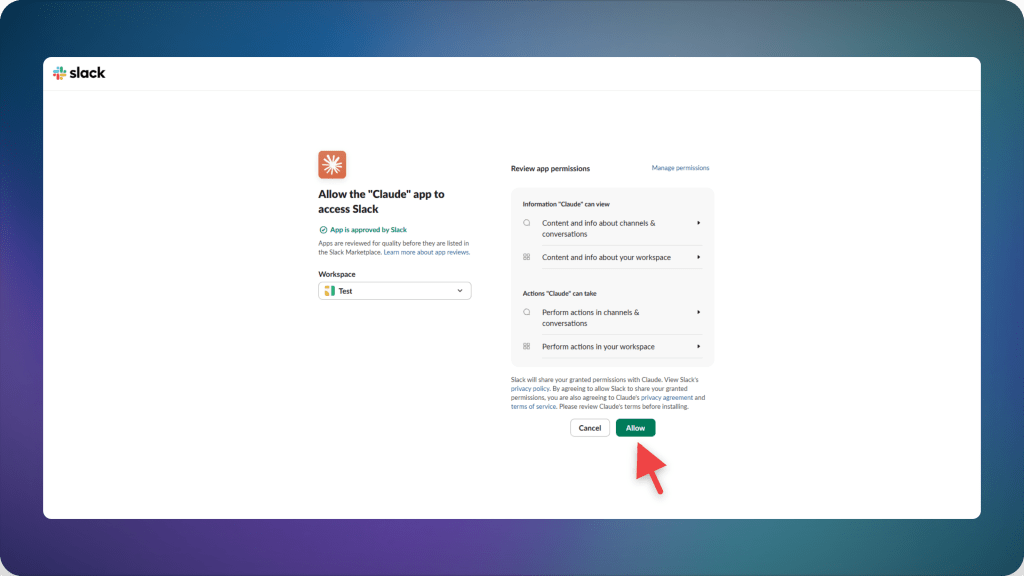
Step 7. You’re connected
Claude now appears in your Slack workspace, ready to use in channels or direct messages.
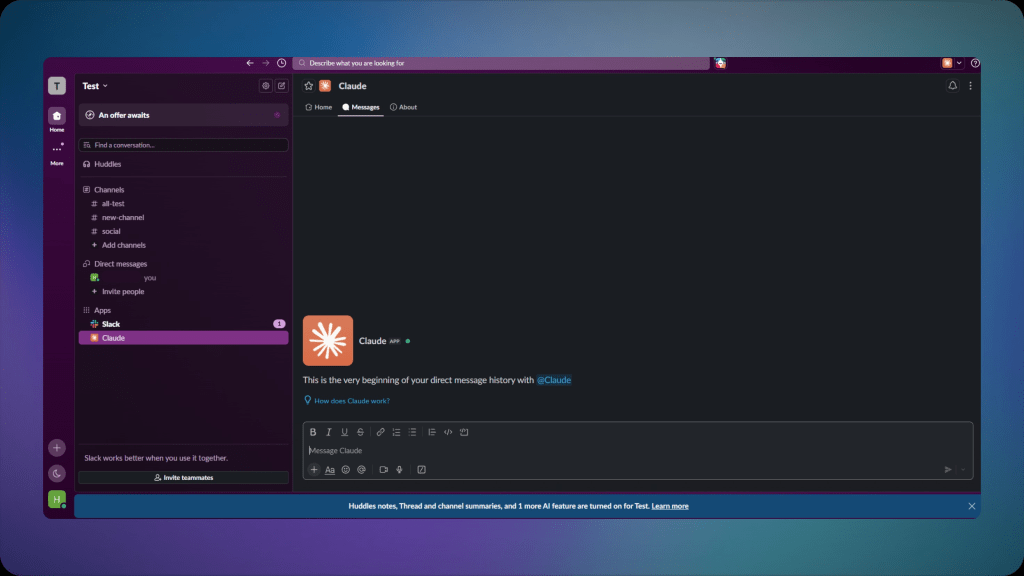
Let me know if you want this tightened further, turned into numbered steps with shorter copy, or paired with an Excalidraw flow diagram of the whole process.
How to Connect Slack to Claude Code
Two prerequisites first. You need the Claude Code CLI installed, and a workspace where an admin has approved the Slack MCP integration. With both in place, the connection is a single command. From inside a session, run the slash command:
/plugin install slack
Or from the command line:
claude plugin install slack
The plugin self-configures and prompts you to authenticate over OAuth. Under the hood it points Claude Code at Slack’s hosted endpoint:
{ "mcpServers": { "slack": { "type": "http", "url": "https://mcp.slack.com/mcp", "oauth": { "clientId": "1601185624273.8899143856786", "callbackPort": 3118 } } }}
Once it loads, ask Claude Code to search a channel for a past discussion, summarize what the team tried, and post a reply. The first tool call triggers the auth prompt if you have not finished it.
How to Connect Slack to Cursor
Cursor takes the same hosted endpoint through its MCP settings. The same prerequisite holds. You need Cursor installed and a workspace where an admin has approved the integration.
Step 1: Open Cursor Settings
Go to Cursor → Settings → Cursor Settings, or use Cmd+, on macOS and Ctrl+, on Windows and Linux.
Step 2: Open the MCP tab
Click the MCP tab to reach the server configuration.
Step 3: Add the Slack server
Paste the configuration, save, then click the connect button that appears and finish the OAuth flow.
{ "mcpServers": { "slack": { "url": "https://mcp.slack.com/mcp", "auth": { "CLIENT_ID": "3660753192626.8903469228982" } } }}
Picking the Right Slack MCP Server
The three routes solve different problems. The official server is the default for giving an agent Slack context under workspace governance. A self-hosted community server gives you the most control and runs without admin sign-off. A managed gateway consolidates Slack with the rest of your tools.
| Option | Setup | Admin Approval | Hosting | Best For |
|---|---|---|---|---|
| Slack official mcp.slack.com |
OAuth, one-click connector, or plugin setup | Required, off by default | Slack-hosted | Teams wanting governed, audited Slack access |
| Self-hosted korotovsky |
Run the binary or Docker, then supply Slack tokens | Not required in stealth mode | You host it | Solo users, developers, and power self-hosters |
| Managed gateway MCP360 |
One endpoint plus API key | Depends on your setup | Vendor-hosted | Teams connecting Slack alongside many other tools |
The most-used community option, korotovsky/slack-mcp-server, supports Stdio, SSE, and HTTP transports and can run in OAuth mode or in a stealth mode that uses browser session tokens with no bot and no admin approval. The project reports more than 9,000 active users as of mid-2026. Posting is disabled by default for safety, which tells you something about how the maintainer thinks about risk.
If you are already wiring an agent to several services, the gateway route keeps the connection count down. Our walkthrough on connecting Claude to MCP360 covers that setup, and the best MCP servers for Claude Desktop lists tools worth running next to Slack.
Security Risks and Controls
A Slack connection hands an agent the keys to your team’s most sensitive surface, so read this section before you grant write access anywhere.
- Deprecated reference server: Anthropic’s early reference Slack MCP server carried a data-exfiltration flaw through link unfurling. A prompt injection could make it post a crafted link, and Slack’s automatic preview fetch would call out to an attacker server with sensitive data in the URL. Anthropic archived it in 2025. Do not run it.
- Inherited data access: Every Slack MCP server returns whatever the authenticated account can read. That routinely includes customer PII, internal credentials, and source code pasted into a thread, and all of it enters the model’s context the moment a tool runs.
- No audit trail in stealth mode: Self-hosted servers in stealth mode authenticate with browser session tokens, leaving no admin approval and no install record. Convenient for one person, a blind spot for a shared workspace. Prefer OAuth over stealth wherever more than one person is involved.
- Write access risk: Reads are recoverable. Posting messages, creating channels, and editing canvases are not. Start an agent read-only, confirm which tools it calls, then enable writes on the specific channels you trust.
- Official server guardrails: Slack’s hosted server runs under admin approval, respects your existing permissions, and writes to audit logs. Use those controls rather than engineering around them.
If a connection fails at OAuth or the tools never appear, the cause is almost always missing admin approval or a token mismatch. The MCP server connection fixes guide covers the usual culprits.
Slack MCP Server Use Cases by Team
Once Slack is connected to an AI agent, the same MCP server can support different teams in practical, everyday workflows.
- Engineering teams pull incident context faster
Engineering teams can use an agent to search #incidents, follow linked threads, surface what was already tried, and draft a postmortem back into the channel. Instead of scrolling through weeks of Slack history to rebuild a timeline, engineers can stay inside Claude Code, Cursor, or their preferred agent environment and retrieve the context on demand.
- Support teams reuse past fixes for repeat tickets
Support teams can use Slack history as a living knowledge base. When a new ticket looks similar to an old issue, the agent can find the earlier thread, summarize the fix that worked, and post the answer where the team is already discussing the case. What used to require searching across multiple channels becomes a single contextual query.
- Marketing teams turn campaign threads into briefs
Marketing teams can use an agent to read campaign planning threads, extract decisions, owners, and deadlines, then turn that context into a clear brief or Slack canvas. When Slack runs through a gateway like MCP360, the same workflow can also connect to keyword, SERP, or analytics tools without setting up each source separately.
- Leadership gets recaps grounded in real messages
Leadership teams can ask for a weekly recap of what shipped, what changed, or what needs attention. The agent reads the relevant Slack channels and builds the update from actual team messages, not from memory or secondhand summaries. The result is a more accurate view of progress, blockers, and decisions across the organization.
Frequently Asked Questions
What is MCP (Model Context Protocol)?
MCP (Model Context Protocol) is an open protocol that lets AI agents discover and call external tools through a standard interface instead of building custom integrations for every service. An AI agent asks an MCP server which tools are available, receives a list, and calls the appropriate one. Services like Slack, GitHub, and Google Drive can expose functionality this way.
What is a Slack MCP server?
A Slack MCP server exposes Slack actions, such as searching messages, reading conversations, posting replies, and managing canvases, as tools an AI agent can call. Slack’s official MCP server supports a portion of the Slack Web API, allowing agents to search workspace history or respond to messages directly. Gateways like MCP360 can combine Slack with many other MCP tools through a single endpoint.
Is the Slack MCP server safe to use?
It depends on which server you use. Slack’s official MCP server relies on workspace admin approval, OAuth authentication, and audit logging. Community-hosted servers may bypass those controls, making them suitable for personal use but less appropriate for team environments. Anthropic’s early reference implementation was archived in 2025 after a reported data exfiltration issue, so it is generally not recommended.
What’s the difference between Slack’s official MCP server and a self-hosted one like korotovsky’s?
Slack’s official MCP server requires workspace admin approval, uses OAuth authentication, and records activity for governance. The self-hosted korotovsky server can operate with browser tokens and without admin approval, giving individuals greater control but without the same auditing and governance capabilities.
How do I connect Slack to Claude Code?
Install the Claude Code CLI and verify that your workspace administrator has approved the Slack MCP integration. Run /plugin install slack from a Claude Code session or claude plugin install slack from the command line. Complete the OAuth sign-in, and you can ask Claude Code to search Slack channels or post replies.
Can I connect Slack MCP to Cursor?
Yes. Open Cursor Settings, navigate to the MCP section, paste the Slack MCP server configuration, save it, and complete the OAuth flow. As with other MCP clients, your Slack workspace administrator must first approve the Slack MCP integration.
What can an AI agent actually do once it’s connected to Slack?
An AI agent can search channel history, read conversations, draft and post replies, and combine Slack with other tools in multi-step workflows. For example, it can summarize a bug report with related code, retrieve previous support resolutions, or prepare campaign updates before posting them back to Slack.
Should I use a self-hosted Slack MCP server or connect through a gateway?
For most organizations, the official Slack MCP server is the better choice because it provides governed access, OAuth authentication, and audit logging. A self-hosted server is useful when an individual needs full control without admin approval. If your AI agent also needs search, SEO, scraping, or other external tools, a gateway like MCP360 simplifies everything through a single endpoint and API key.
Conclusion
The wiring takes about ten minutes. The harder question is who controls a live path into your team’s most sensitive data. For most teams, the official Slack MCP server is the right default, since it ships with admin approval, OAuth, and audit logging. Reach for a self-hosted server only when one person needs full control, and a gateway like MCP360 when Slack sits among many tools an agent must reach.
Start small. Connect one read-only channel to a client you already use, ask the agent something buried in an old thread, and watch which tools it calls. Widen access on evidence, one channel at a time, and keep write permissions scoped to the channels you trust.
Tags

Article by
RajniAI & Tech | Senior Content Writer
Rajni is a senior content writer covering AI agents, automation, and no-code tools. She writes across the AI space, from chatbots and customer support to MCP and agent workflows, focused on how businesses actually put these tools to work.