

The TL;DR
AI agents can automate tasks like coding, emails, and document processing, but connecting them across multiple tools usually adds integration and setup complexity.
-
• What Lutra AI Does
Lutra AI handles structured workflows like email processing and extracting data from documents such as PDFs, enabling focused task automation.
-
• How MCP360 Helps
MCP360 acts as a single gateway to 100+ tools, removing the need for separate integrations and letting Lutra AI access everything through one connection.
-
• The Outcome
Together, Lutra AI and MCP360 make multi-tool automation simpler, more stable, and easier to scale across systems.
AI agents can generate code and automate tasks, but connecting them across multiple tools and services often slows things down. Each integration requires separate authentication, setup, and data handling between systems.
Lutra AI automates structured tasks like email processing and extracting information from documents such as PDFs. It allows agents to perform useful actions, but managing multiple external tools can get complex when each service needs its own configuration.
MCP360 acts as a single integration layer across 100+ tools. Instead of managing individual connections, Lutra can access all connected services through one gateway. This simplifies authentication, reduces repetitive setup, and keeps workflows running even when underlying tools change.
Together, Lutra AI and MCP360 let agents work across multiple systems more reliably. This guide covers how Lutra AI works, how MCP360 extends its capabilities, and how to connect them to build more consistent AI workflows.
Lutra AI: Automate Workflows Without Coding
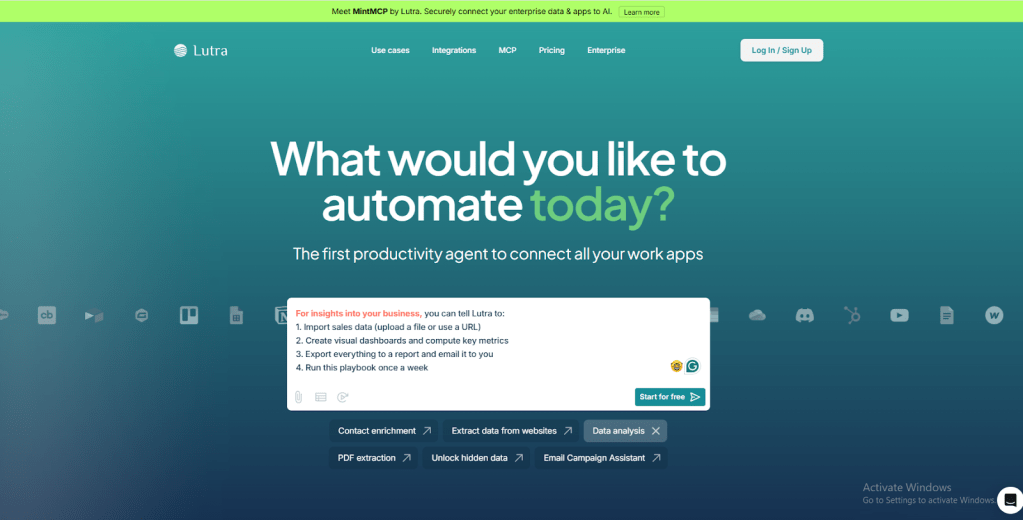
Lutra AI is a platform for automating tasks that can turn text instructions into operational workflows. You tell Lutra what you need, and it automatically constructs the logic, produces the code, and connects the steps. It doesn’t offer quick fixes that only function on the surface. Instead, it develops comprehensive processes. You can run, change, or grow these processes as your needs change.
It works with apps, data sources, and internal tools, doing activities that would ordinarily need engineering time. This lets teams automate complicated tasks without having to write code, set things up, or do manual integrations. All they need are clear instructions and reliable execution. These are the unique features of Lutra AI:
Its Main Features
- Natural language to working workflows: Describe your task in plain English. Lutra turns it into fully operational workflows. This removes the need for manual coding while keeping processes reliable.
- AI-powered data extraction and processing: Lutra can extract structured data from emails, PDFs, documents, and web pages. It can also classify, summarize, or convert data into actionable insights.
- Built-in support for popular apps and services: It integrates with tools like Google Workspace, Slack, CRMs, and databases. This allows workflows to span multiple platforms without manual setup.
- Reusable “playbooks” for recurring or scheduled tasks: Workflows can be saved as playbooks. They can be run on demand. They can also be scheduled, ensuring consistency and saving time.
- Custom integrations and plugin support: For apps or internal tools not natively supported, Lutra allows custom integrations. These can be achieved through MCP, REST, OpenAPI, or plugins. This feature gives teams the flexibility to meet unique workflow requirements.
- Reliable execution environment: Lutra generates real, production-ready code that runs securely. Proper handling of authentication, data access, and logging ensures workflows are robust and scalable.
Once you set up workflows in Lutra AI, the next step is to enable them. You need to connect them with more tools and services. That’s where MCP360 comes in. It acts like a central hub. It lets your workflows talk to all your apps easily, without extra setup hassle.
MCP360: Your Gateway to Multi-Tool AI Workflows
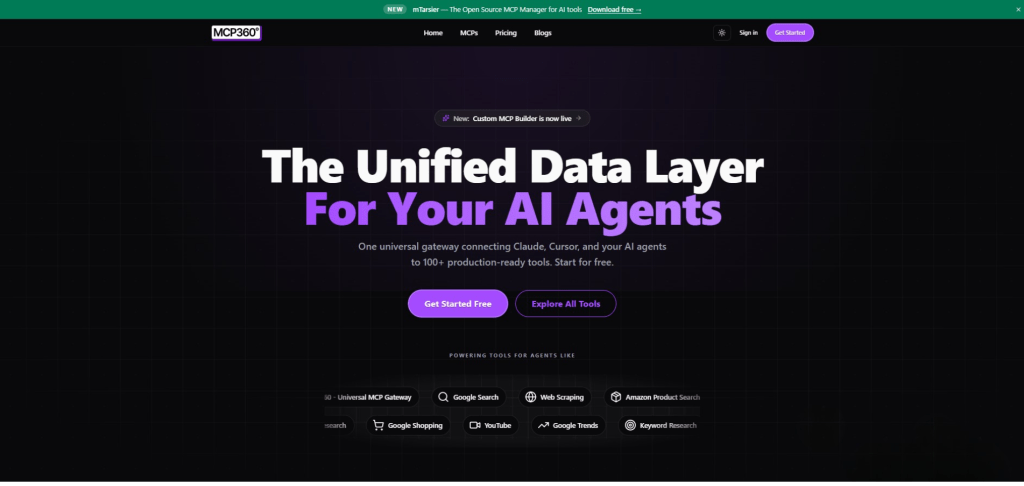
MCP360 is a unified AI gateway that connects AI agents to multiple external tools and services through a single integration. Instead of setting up each API separately, you can configure MCP360 once. This allows instant access to a wide range of tools. It simplifies workflow automation and reduces technical overhead. Here are its unique features:
Features of MCP360
- One Integration for Many Tools: With a single integration, you gain instant access to over 100 tools. There’s no need to manage multiple API keys or separate accounts, which simplifies setup and reduces administrative overhead.
- Wide Range of Tools: MCP360’s library includes web search, web scraping, SEO audits, domain checks, product research, and more. This allows your AI agent to perform diverse, real-world tasks without requiring additional configuration for each tool.
- Easy Setup and Low Maintenance: Connecting your AI agent is as simple as adding a single configuration line. MCP360 handles authentication, updates, and error management automatically, minimizing maintenance and technical complexity.
- Automatic Access to New Tools: Whenever new tools are added to MCP360’s library, your workflows gain immediate access. This ensures your AI workflows can expand and evolve seamlessly over time, without extra effort.
- Reliable and Consistent Workflows: Standardized response formats and centralized error handling ensure predictable execution. This is true even when multiple tools are used together; they improve reliability and reduces mistakes in automated processes.
Now that we understand what Lutra AI and MCP360 are, and the unique features each brings. We can continue to the next step. It’s important to see how they can work together. By integrating Lutra AI with MCP360, you can build smart workflows. These workflows are connected to a wide range of tools. All of this can be done from a single, streamlined setup.
Benefits of Connecting Lutra AI with MCP360
Integrating Lutra AI with MCP360 creates a smarter, more reliable, and scalable workflow system. This combination enhances automation in ways that single tools can’t.
- Centralized Tool Management: With MCP360 integrated, Lutra AI can access all tools through a single connection. There’s no need to set up each tool separately or manage them individually. This makes workflows much easier to handle. It keeps all processes organized in one place.
- Intelligent Task Execution: Lutra AI automatically selects the most suitable MCP360 tool for each task. MCP360 ensures that parameters, authentication, and data formats are correctly handled. This allows workflows to run smoothly with precise results and reduces the chance of errors.
- Reduced Technical Work: Instead of manually setting up APIs or managing keys for multiple tools, one MCP360 integration handles everything. Updates, error handling, and authentication are managed automatically, saving teams significant time and effort.
- Scalable and Flexible Workflows: As MCP360 adds new tools, Lutra AI can instantly access them. This allows teams to expand their automation capabilities without rebuilding or reconfiguring workflows. It makes the system highly scalable and also adaptable to the changing needs.
- Consistent and Reliable Outcomes: MCP360 standardizes responses and manages errors centrally. Combined with Lutra AI, this feature ensures that multi-step workflows produce consistent results. It ensures reliability even when using multiple tools together.
- Focus on Higher-Value Work: The integration reduces setup and maintenance. It frees teams to focus on strategy, analysis, and improvement. They prioritize these over technical tasks. This allows businesses to leverage AI for meaningful outcomes instead of just task execution.
Lutra AI and MCP360 make automation accurate, efficient, and flexible. They allow teams to manage intricate workflows with ease. Teams can concentrate on important outcomes. To fully benefit from these advantages, let’s go through a straightforward guide. It will show you how to set up Lutra AI with MCP360.
Guide to Linking Lutra AI and MCP360
You connect Lutra AI with MCP360. This creates a strong link between your AI workflows and external tools. Once connected, Lutra AI can instantly interact with any MCP360 product. It passes the proper parameters to give speedy, accurate, and intelligent outcomes throughout your workflows.
With this integration, teams can handle automation, trigger commands, and do complicated tasks all on one platform. This approach saves time and cuts down on mistakes.
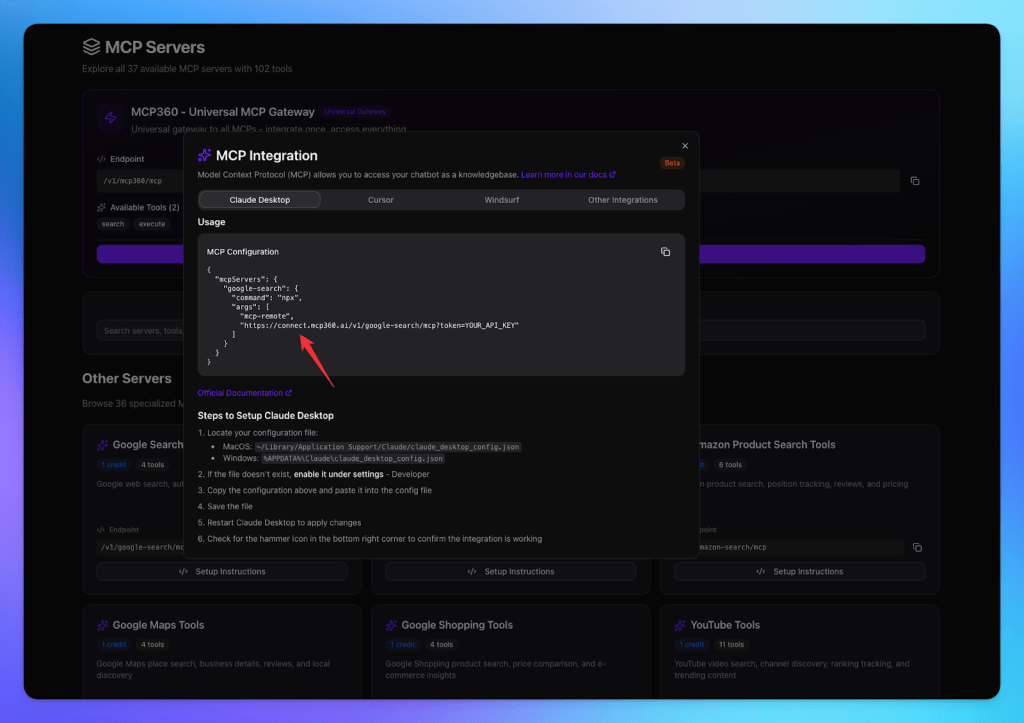
Step 1: Get MCP tools
- Log in to your MCP360 dashboard.
- Open an existing project or create a new one.
- Go to the MCP Server option in the sidebar.

- Copy the URL of the tool you want to integrate.
Step 2: Open Lutra AI
- In Lutra AI, click on the Tools option from the sidebar.

- Click on the Add MCP button.

Step 3: Connect MCP Server
- Paste the tool URL and token copied from MCP360.
- Click Connect.
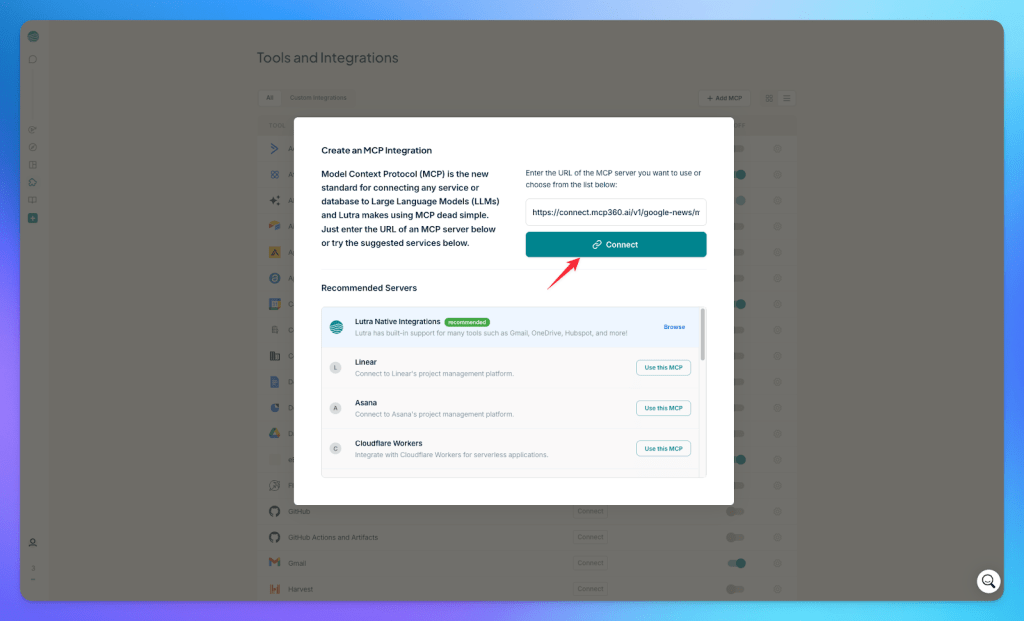
- Once connected, all added tools will appear in your Lutra AI dashboard.
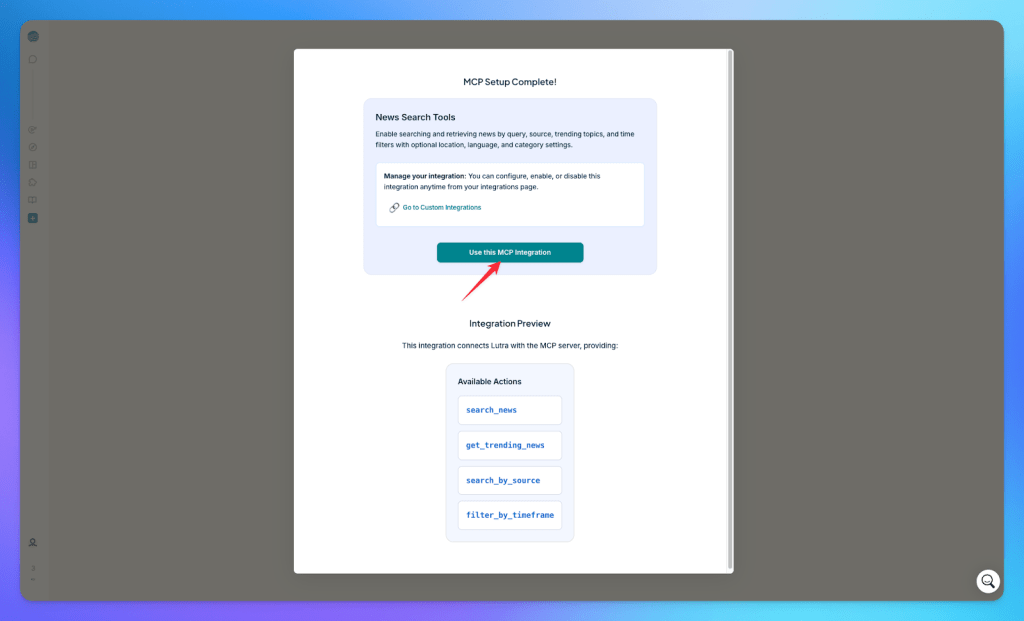
Step 4: Run queries and get results
- Lutra AI will automatically select the most appropriate MCP tool based on your query.
- The parameters are configured automatically to ensure accurate and relevant results for your workflows.
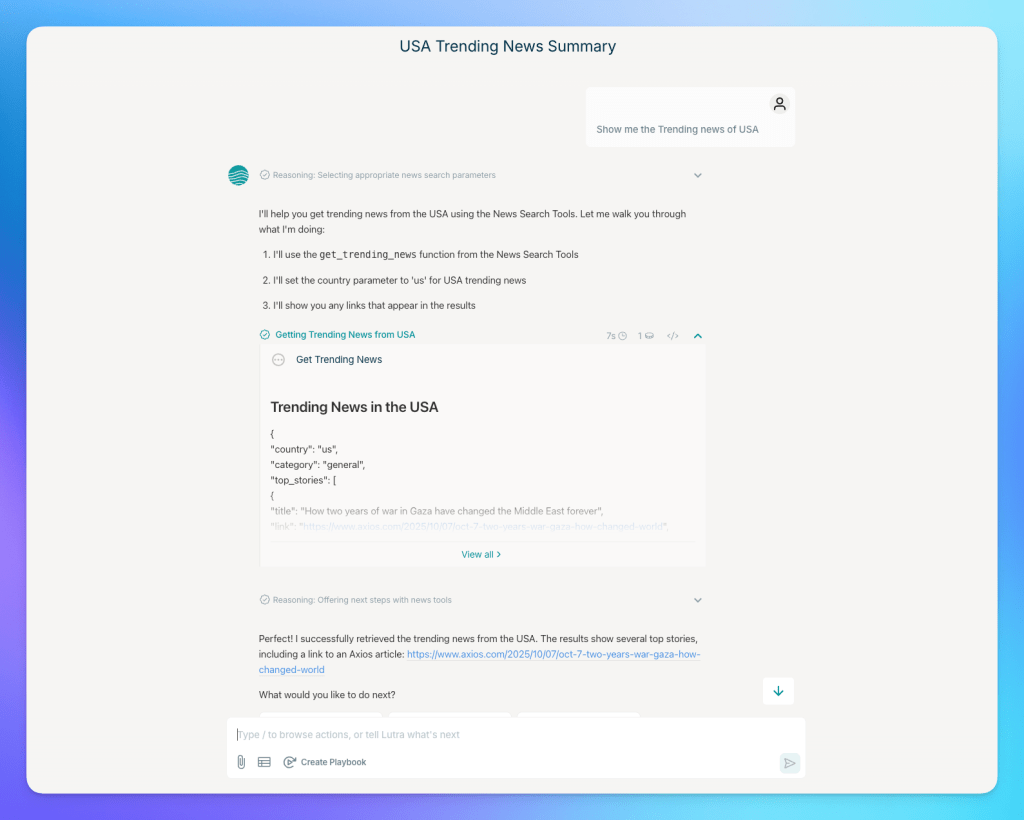
From here, you can start using MCP tools inside your workflows right away. You can access any MCP tool with the required parameters, making testing, automation, and task execution smooth and efficient. Next, let’s look at the main benefits of combining these two tools.
Conclusion
Integrating Lutra AI with MCP360 solves a common workflow challenge. It connects AI agents to multiple tools without managing dozens of separate integrations. By adding MCP360 as a single connection point, Lutra AI gains immediate access to our full library of tools. These include web search and scraping. They also cover domain checks and product research.
The setup takes minutes. First, copy your MCP server URL. Then, paste it into Lutra AI’s MCP integration settings. Once done, the connection is complete. From there, Lutra AI automatically selects the right MCP360 tools based on your workflow requirements and handles the parameters.
This integration is designed for teams that build automated workflows across multiple services. It is ideal if these teams want to avoid the overhead of maintaining individual API connections. It’s also useful if you’re expanding your automation capabilities and need quick access to new tools as they become available.
If you’re already using Lutra AI for workflow automation, connect MCP360 to extend what your workflows can do. This addition does not add complexity to your setup. And if you’re exploring options for AI agent tooling, this pairing demonstrates how a unified gateway approach simplifies multi-tool coordination.
To get started, log into your MCP360 dashboard and navigate to the MCP Server section. The integration guide above walks you through each step.