

The TL;DR
BoltAI runs AI models locally on your Mac, while MCP360 connects them to 100+ live tools through a single hosted gateway instead of requiring separate integrations for every service.
-
• Why Standalone BoltAI Stalls
BoltAI models rely on their training data by default, so they cannot access live search results, pricing, domain records, or other real-time information. Adding each external service separately means managing a new API, authentication key, and configuration every time.
-
• Connecting MCP360 to BoltAI
Add your MCP360 gateway URL in Settings → Plugins using the mcp-remote bridge, then enable the connection from BoltAI’s Plugin dropdown. This gives your local AI instant access to all supported MCP360 tools.
-
• What This Integration Solves
A single MCP360 connection replaces individual tool integrations, reducing setup complexity while automatically making newly supported tools available as the MCP360 platform expands.
BoltAI puts a capable model on your Mac, but a model alone falls short the moment a task needs live information. You might be writing copy and want the pages currently ranking for a keyword, pricing a product against what a competitor charges today, or checking whether a domain is free before you register it. None of that lives in the model. It works from training data frozen at its cutoff, so anything current has to come from an external tool.
Adding those tools one at a time is the slow part. Each service is a separate signup with its own API key, and some need a server you host and keep running yourself. When a provider changes its API, the connection breaks and you stop to fix it. Credentials and billing scatter across accounts, and the maintenance climbs with every tool you bolt on.
MCP360 collapses that sprawl into a single connection. Connect BoltAI to MCP360 once on macOS, and its entire tool catalog comes with it, reached through one gateway URL you can rotate or revoke from a single dashboard.
What Is BoltAI?
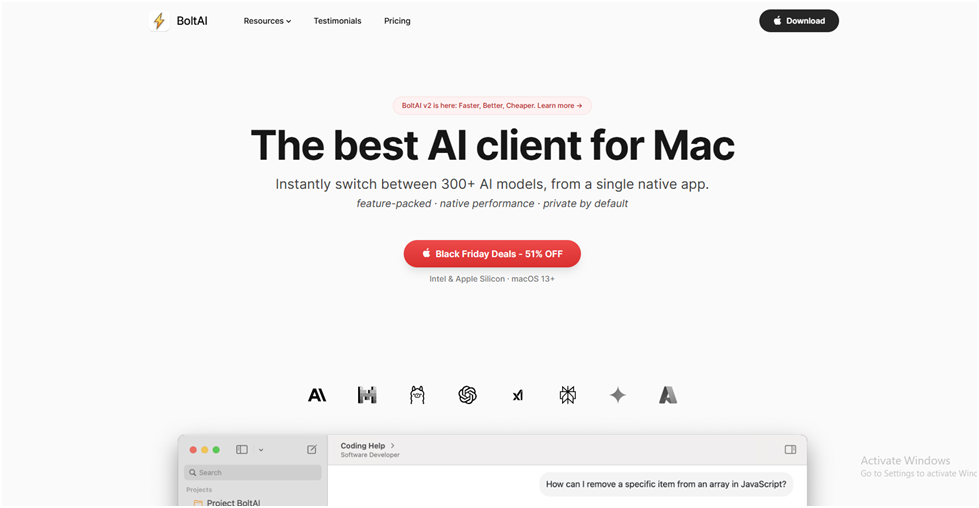
BoltAI is a native macOS AI client built with SwiftUI and AppKit, so it runs as a real Mac app rather than a browser wrapper. It works with models from major providers including OpenAI, Anthropic, and Google, plus local models through Ollama. You can call any of them from a chat window, or straight from a text field or IDE with a keyboard shortcut.
Beyond chat, BoltAI can analyze images and PDFs, work with code, and save reusable prompts, so one app covers most of the work people otherwise split across separate AI tools. You bring your own API keys and pay each provider directly, and the app itself is a one-time purchase.
BoltAI also supports the Model Context Protocol, the open standard that lets an AI client call external tools. That support is what the MCP360 connection plugs into.
What Is MCP360?
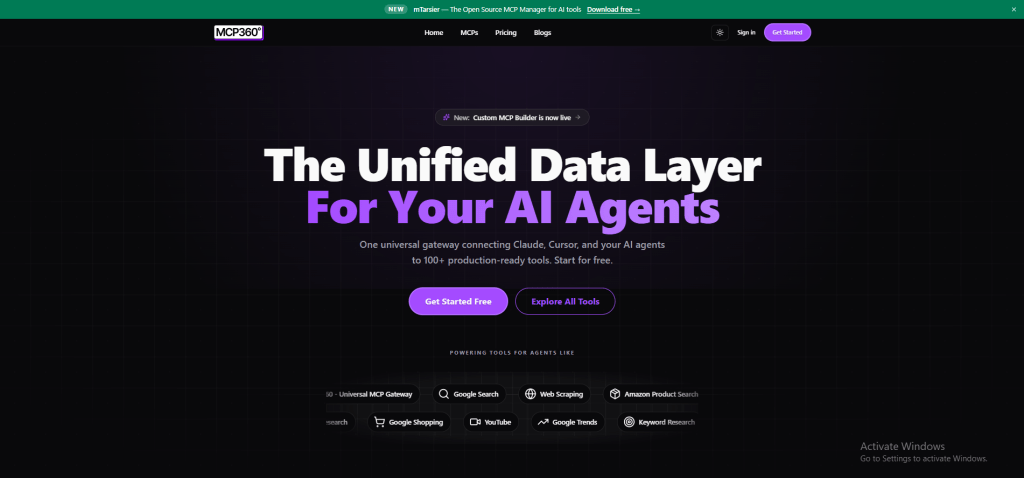
MCP360 is a unified gateway that connects AI agents to external tools through one integration. It is built on the Model Context Protocol, and a single gateway URL reaches its full catalog of 100+ tools across 37 MCP servers, covering search, SEO, e-commerce, media, maps, domain lookups, finance, and verification.
Each server bundles several related tools. The YouTube server alone ships eleven, including video search, transcripts, comments, and trend data, which is how the catalog passes a hundred tools in total. You can reach all of them from any MCP-compatible client, such as BoltAI, Claude Desktop, or Cursor, or over a plain REST API.
Connecting more does not slow things down. Tools load on demand through two meta-tools, search_tools and execute_tool, so adding servers never bloats your prompt with tools the current task isn’t using. When an upstream API changes or breaks, MCP360 handles routing and failover, so the connection keeps working.
BoltAI and MCP360 Integration Requirements
Before you start, confirm three things are ready on your Mac:
- BoltAI on macOS with MCP support, meaning version 1.34 or later. Version 2 is recommended for per-tool control.
- Node.js installed. Check it by running node -v in Terminal. The connection uses the mcp-remote bridge, which launches through npx.
- An MCP360 account and API key. A free tier is available, so you can test the setup before committing to a paid plan.
With those in place, the connection takes three steps.
How to Connect BoltAI with MCP360
Step 1: Copy your MCP360 gateway URL
Start in MCP360, where you collect the single URL that BoltAI will use.
- Sign in to the MCP360 dashboard.
- Open an existing project or create a new one, then go to the MCP Server section.
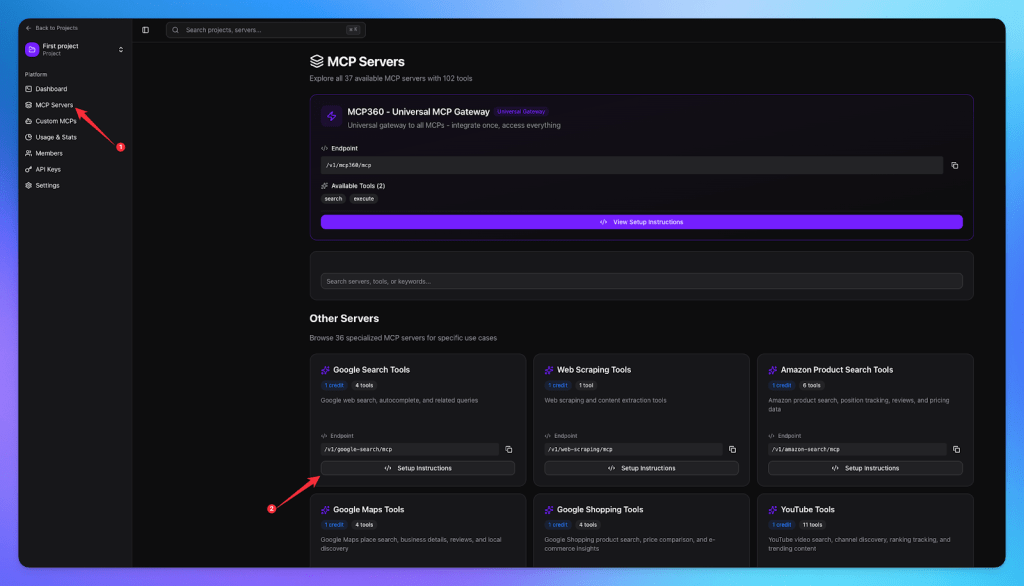
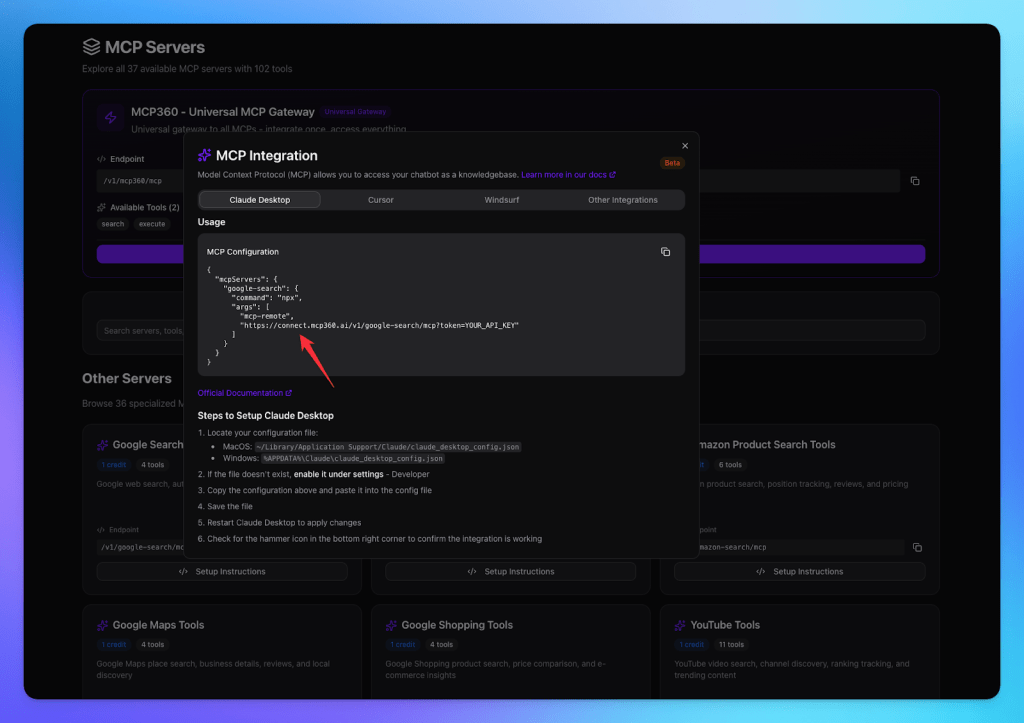
- Copy the Universal Gateway URL, which carries your token. If you only need one tool domain, copy a single server URL instead.
Step 2: Add MCP360 as a plugin in BoltAI
Next, register that URL inside BoltAI as an MCP plugin.
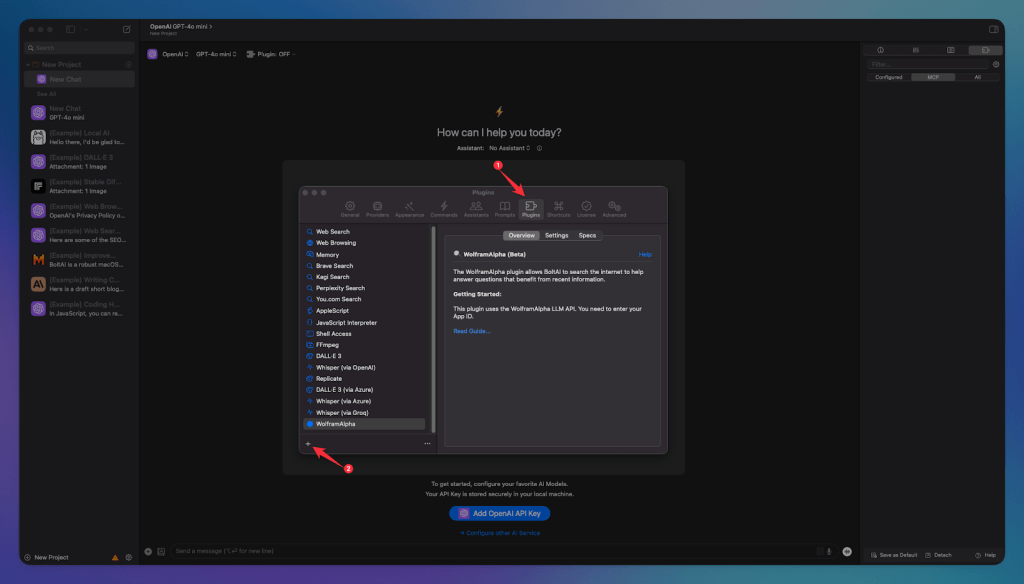
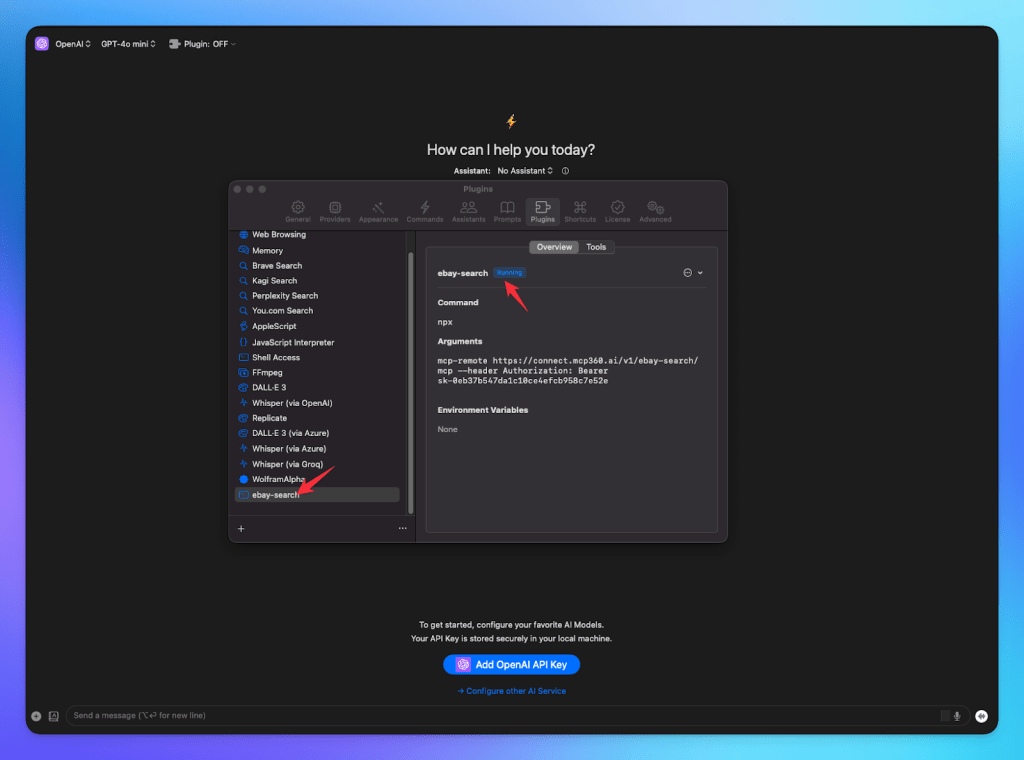
- Open BoltAI, go to Settings, then Plugins.
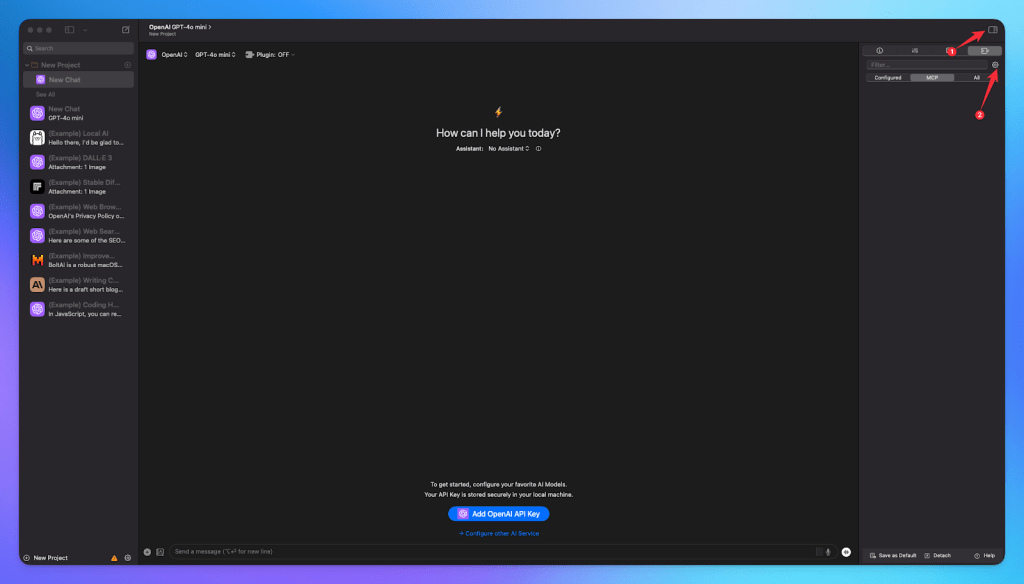
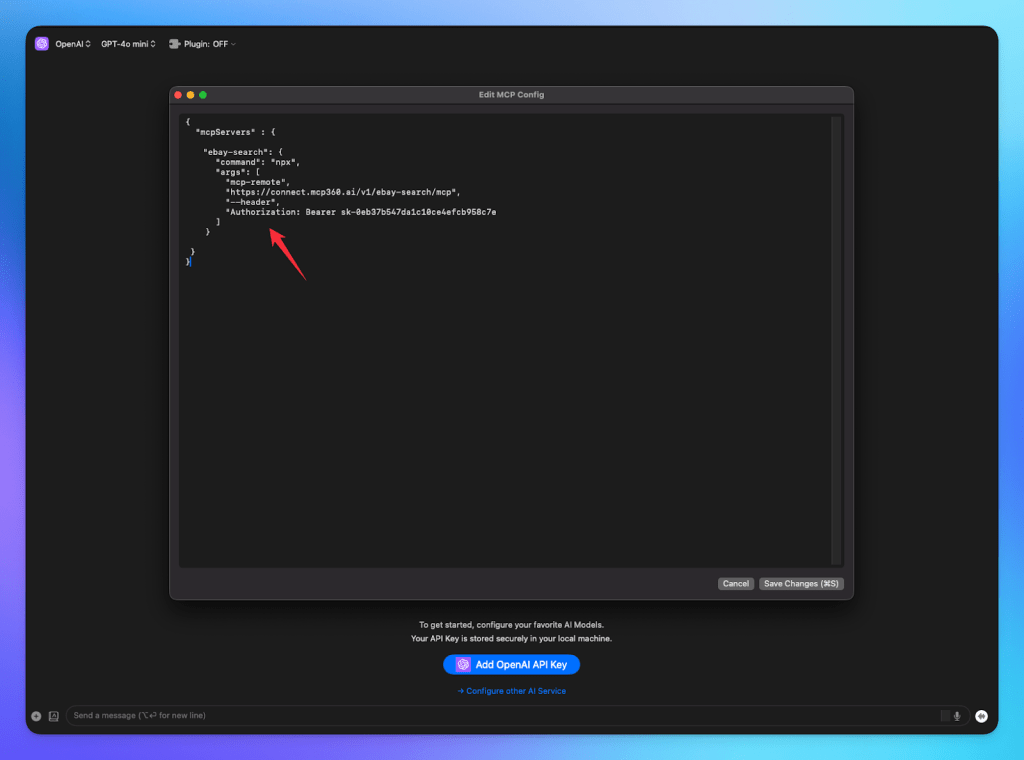
- Click the + button. BoltAI opens an mcp.json editor.
- BoltAI’s plugin system runs STDIO-transport servers, so a remote server like MCP360 connects through the mcp-remote adapter.
- Paste the config below and replace YOUR_API_KEY with your token.
- Save the config. BoltAI reloads plugins on save, so the change takes effect without restarting the app.
Step 3: Enable MCP360 and run a tool
Finally, switch the connection on and confirm it works.
- Start a new chat. Open the Plugin dropdown and turn on MCP360. You can also toggle it mid-conversation from the Chat Configuration popover.
- Use a model that supports function calling. If the Plugin option is missing, switch to a more capable model.
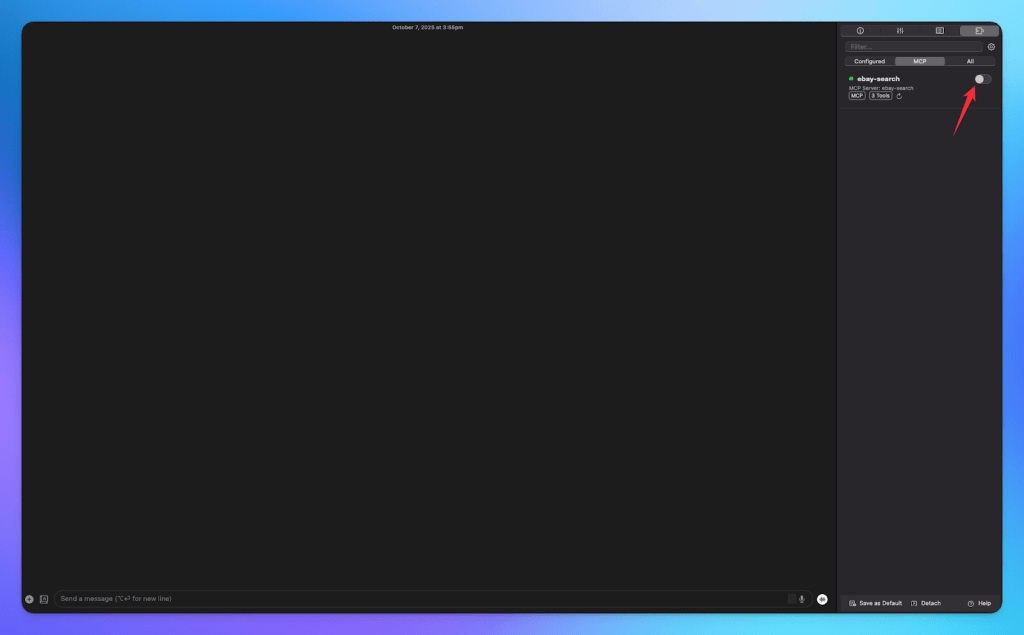
BoltAI is now connected to MCP360 and every tool in the catalog is reachable through that one connection.
How to Keep Your MCP360 API Key Secure in BoltAI
The connection handles a credential and runs a local bridge, so a few habits keep it safe.
- Treat the gateway URL as a secret. It carries your token. Keep it out of shared configs, screenshots, and version control, and rotate it from the MCP360 dashboard if it ever leaks.
- Know where your data goes. BoltAI stores its plugin configuration locally per install, and your prompts go straight to the AI provider you picked. Chats stay on your Mac by default.
- Manage a single credential. Authentication for every tool sits inside MCP360, so you rotate or revoke one key rather than chasing logins across services.
- Keep your bridge source trusted. The mcp-remote adapter runs locally through npx, so keep Node.js current and installed from a source you trust.
MCP360 handles the platform side and lists SOC 2 Type II, GDPR, and ISO 27001 compliance. Your side is smaller than it looks. Guard the gateway URL, keep Node.js current, and the connection is safe to run daily.
What the BoltAI and MCP360 Integration Enables
With MCP360 connected, BoltAI can chain several tools into a single request instead of stopping at one lookup. Here is what that looks like across four common tasks.
- SEO and content research. Ask BoltAI to assess a keyword and it can read search interest from Google Trends, pull volume and difficulty from the keyword research tool, scrape the top-ranking pages to see how they cover the topic, and audit your own draft for on-page gaps. What comes back is one read on what your page is missing, with those four checks already combined.
- Product and price intelligence. For a buying or pricing call, BoltAI can compare the same product across Amazon, Walmart, eBay, and Google Shopping, pull recent reviews, and note where each listing sits, so the comparison reflects today’s prices, not the model’s training data.
- Lead and domain checks. During outreach or research, BoltAI can verify a batch of email addresses, then run WHOIS, DNS, and IP lookups on the domains behind them. You get back a list sorted by which contacts are real and which domains are worth a closer look.
- Source gathering for a brief. To get up to speed on a topic, BoltAI can pull a YouTube transcript, collect recent Google News coverage, and add Google Scholar citations, then draft a short summary from all of it. One pass gives you a sourced starting point with the citations already attached.
When the 37 ready-made servers do not cover a need, the Custom MCP Builder lets you wrap an internal REST API or run your own Python or JavaScript, and that custom tool becomes reachable through the same connection. For the tools worth enabling first, see 10 essential MCP servers.
FAQs
What is an MCP server? ▼
An MCP server is a small program that exposes tools to AI models through the Model Context Protocol (MCP). Instead of building custom integrations for every service, AI clients connect to the server and call its tools using a shared open standard.
What does BoltAI do? ▼
BoltAI is a native macOS application that works with AI models from OpenAI, Anthropic, Google, and local engines like Ollama. It lets you chat with models or use them in any text field or IDE through keyboard shortcuts, while also supporting images, PDFs, and code.
How do I connect MCP360 to BoltAI? ▼
Copy your MCP360 Universal Gateway URL from the dashboard. In BoltAI, open Settings → Plugins, click the plus button, configure the gateway through the mcp-remote bridge in mcp.json, save the changes, start a new chat, and enable MCP360 from the Plugin menu.
Why does BoltAI need a function-calling model for MCP tools? ▼
BoltAI depends on the AI model to decide when to call external tools. That capability requires a model with function calling support. If the Plugin option is unavailable or tools never execute, switching to a compatible model from providers like OpenAI or Anthropic usually resolves the issue.
Do I need Node.js to use a remote MCP server in BoltAI? ▼
Yes. Remote MCP servers connect through the mcp-remote bridge, which runs with npx and requires Node.js to be installed. You can verify the installation by running node -v in Terminal. Local stdio-based MCP servers do not require this step.
Does connecting many tools make BoltAI slower? ▼
No. Gateways that load tools on demand only provide the tools required for the current task instead of loading every available tool. This keeps prompts small even when many servers are connected.
What can BoltAI do once it is connected to MCP360? ▼
Once connected, BoltAI can use live tools instead of relying only on model knowledge. It can perform web searches, keyword research, SEO audits, price comparisons, email verification, YouTube transcript retrieval, Scholar searches, and combine results into a single response.
Is it safe to put my API key in the BoltAI config? ▼
Your MCP360 gateway URL contains an access token, so it should be treated like a password and never committed to shared repositories or public configuration files. BoltAI stores plugin settings locally, and you can rotate the token from the MCP360 dashboard if it is ever exposed.
Conclusion
Connecting BoltAI to MCP360 changes where your research happens. The lookups you used to run in a browser tab now happen in the same window where you write and code, so getting the current number and using it stop being two separate jobs.
The bigger payoff is what you don’t repeat. Every tool runs through one gateway and one credential, so the next server takes one toggle and nothing else. A server MCP360 ships next month, or a custom MCP you wrap around an internal API, shows up through the connection you already made. The setup you finished today is the last setup this catalog asks of you.
So start small and deliberate. Pick the one tool that maps to a task you run most often. Keyword research, price checks, email verification. Put it on real work three or four times this week before you add a second. That tells you whether the tool earns a place in your workflow or just sits in the list. If a tool fails to load, the MCP server connection troubleshooting guide covers the common causes.