

The TL;DR
Amazon Q Developer becomes significantly more capable when connected to MCP360, giving it secure access to 100+ external tools and APIs through a single hosted MCP endpoint instead of custom integrations.
-
• Why Use MCP360
Amazon Q Developer can reason about problems and generate code, but it cannot directly interact with most external APIs or business systems on its own. MCP360 bridges that gap by exposing over 100 integrations through one hosted MCP server, eliminating the need to build and maintain custom connectors.
-
• Quick Setup
Integration typically takes around ten minutes. Copy your hosted MCP gateway URL from the MCP360 dashboard, register it as an HTTP MCP server in Amazon Q Developer, and authenticate every request by adding your MCP360 API token in the HTTP headers.
-
• Common Setup Mistakes
Most connection issues are caused by selecting Amazon Q Business instead of Q Developer, malformed JSON configuration, invalid or missing authentication tokens, or configuring a local stdio transport instead of the hosted HTTP MCP endpoint.
Amazon Q Developer can read a codebase, suggest changes, run commands, and call AWS services. The limit shows up the moment a task needs something outside that built-in set. A workflow that has to pull live market data, check a competitor listing, verify an email list, or query a third-party API stalls, because Q has no native path to those sources.
The usual answer is to wire each service in by hand. Every new tool brings its own authentication, request shape, and error handling. Maintaining that web of connections becomes its own job, separate from the work the tools are supposed to support.
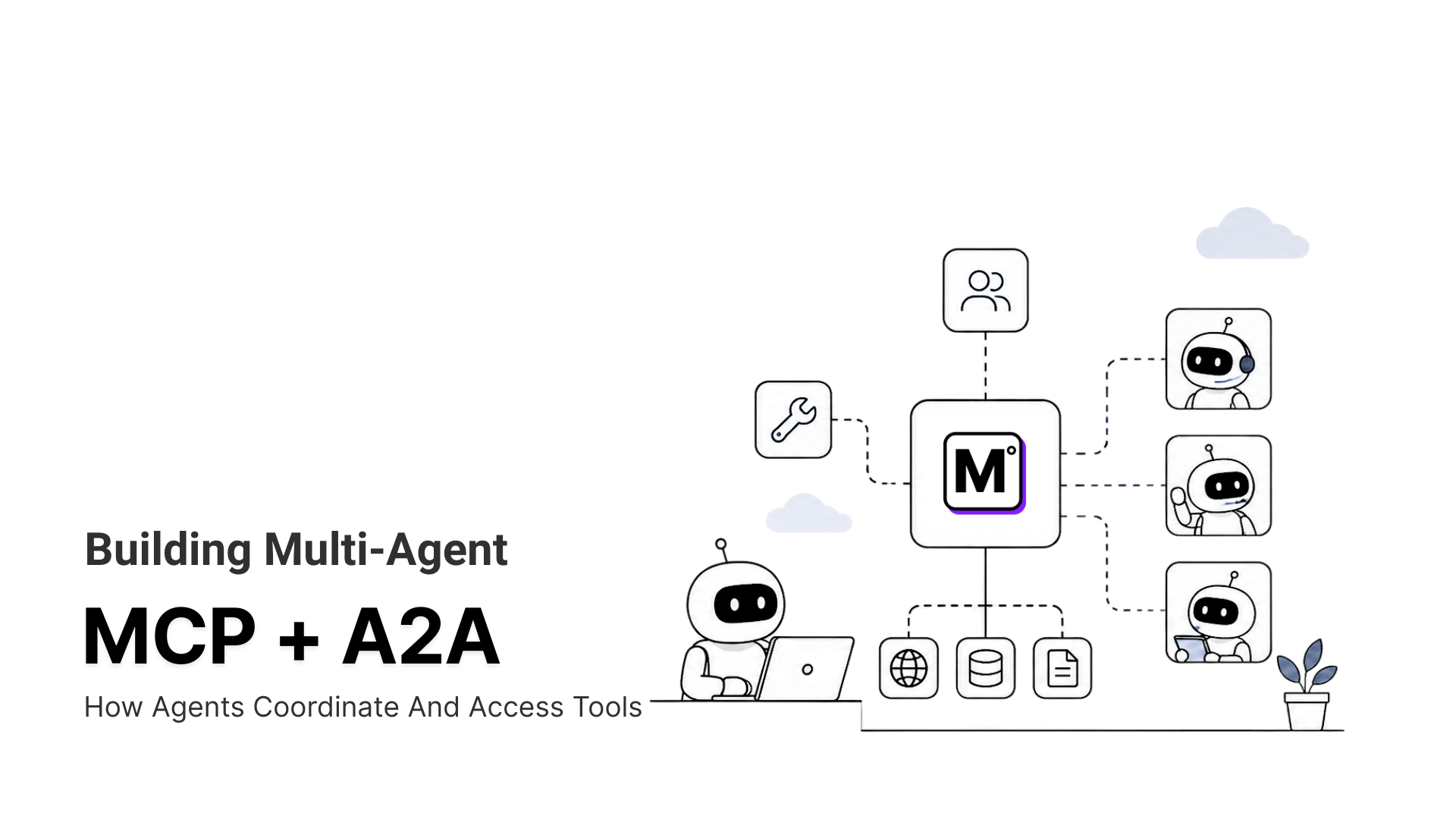
MCP360 takes that integration layer off your plate. Amazon Q Developer connects to one MCP endpoint, and behind it sits a catalog of tools that Q can call in a single, consistent format. This blog covers what each product does, why the pairing helps, how to set it up correctly, and the security points worth checking before you connect a production account.
What Is Amazon Q, and Which Product Supports MCP
Amazon Q comes in two forms, and the distinction matters for this setup.
Amazon Q Business is an enterprise assistant that connects to internal knowledge bases, documents, and business applications, with role-based access and Amazon Q Apps for lightweight internal workflows. It answers questions and runs tasks against company data the user is permitted to see.
Amazon Q Developer is the coding assistant. It runs in VS Code, JetBrains IDEs, Visual Studio, Eclipse, and the AWS console, and also as a command-line tool. According to AWS, Q Developer supports the Model Context Protocol natively, which lets you connect custom MCP servers and extend it with outside tools and data.
Custom MCP server support is a Q Developer feature. If your goal is to give Amazon Q access to MCP360’s tools, Q Developer is the surface you configure. The rest of this guide works against Q Developer in the IDE and CLI.
What Is MCP360
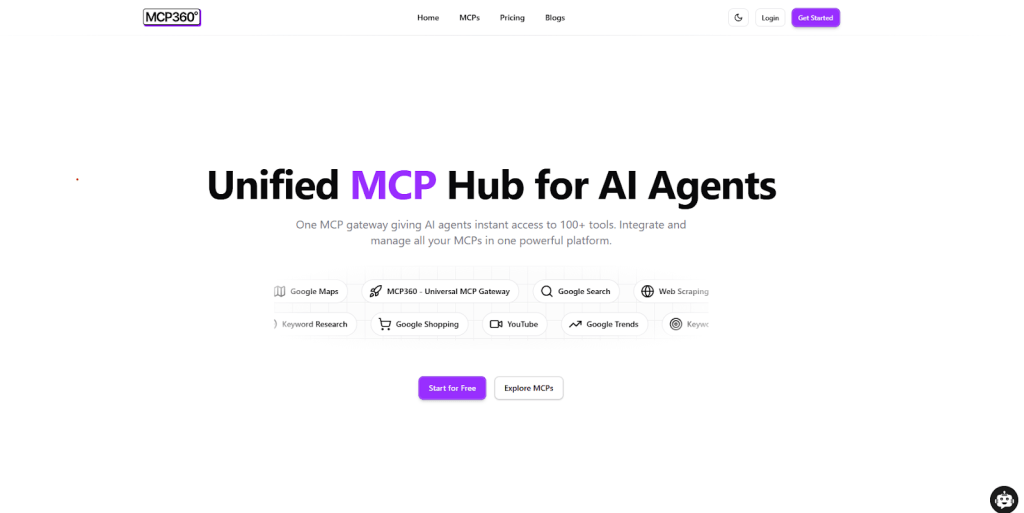
MCP360 is a unified gateway that connects an AI agent to external tools and data through one integration point. Rather than wiring each API in separately, you connect once and reach the whole catalog, which currently spans more than 100 tools across web search, scraping, keyword research, SERP analysis, e-commerce data, domain and DNS lookups, and more.
Three things matter for this pairing. MCP360 standardizes how every tool is called and how each response comes back, so Q receives data in a consistent structure regardless of the underlying service. It manages authentication, rate limits, and automatic failover behind the gateway, so a single upstream change does not break your setup. And it includes a Custom MCP Builder, so you can turn an internal or third-party REST API into a tool that Q reaches the same way it reaches the rest.
If you are new to the protocol underneath all of this, our guide on what the Model Context Protocol is covers the basics, and the difference between MCP and traditional APIs explains why a gateway model reduces integration work.
Why Connect Amazon Q to MCP360
Connecting tools to Q one by one creates the same problems the original workflow was meant to solve. Here is what the gateway changes.
A single task often spans several outside systems. A research request might touch a web search, a product API, and a SERP scraper. Wired individually, each dependency carries its own auth pattern and its own response format, and the execution path splits into separate integrations to maintain. Routed through MCP360, Q sends one type of request and gets one type of response.
Step reliability stops depending on every individual API. Retries, rate-limit handling, credential rotation, and failover happen inside the gateway. Q receives structured output rather than raw HTTP errors, so a single expired key or changed endpoint does not silently break a workflow.
Adding tools later costs less. New tools in the MCP360 catalog become reachable through the same endpoint, with no change to the Q configuration you already set up. You expand what Q can do without re-plumbing the connection.
How to Connect MCP360 to Amazon Q Developer
The setup has two supported paths. Use the IDE flow if you work in VS Code or JetBrains. Use the CLI flow if you run Amazon Q Developer in the terminal. Both point Q at the same MCP360 gateway URL.
Step 1. Copy your MCP360 gateway URL
- Log in to your MCP360 dashboard and open or create a project.
- Open MCP Servers in the sidebar.
- Select the Universal Gateway to reach the full catalog, or a single server for one tool domain.
- Copy the gateway URL and your access token. You will paste these into Amazon Q.

- Copy the URL of any tool you want to connect.

Step 2. Open the MCP configuration in Amazon Q Developer (IDE)
- Open your IDE and sign in to Amazon Q Developer.
- Open the Amazon Q chat panel, then open the tools or MCP configuration view.
- Choose the plus (+) to add a server, and select the scope. Global scope stores the entry in
~/.aws/amazonq/and applies to all projects. Local scope stores it in.amazonq/inside the current project.

- Select Add MCP Server to start adding your MCP servers.
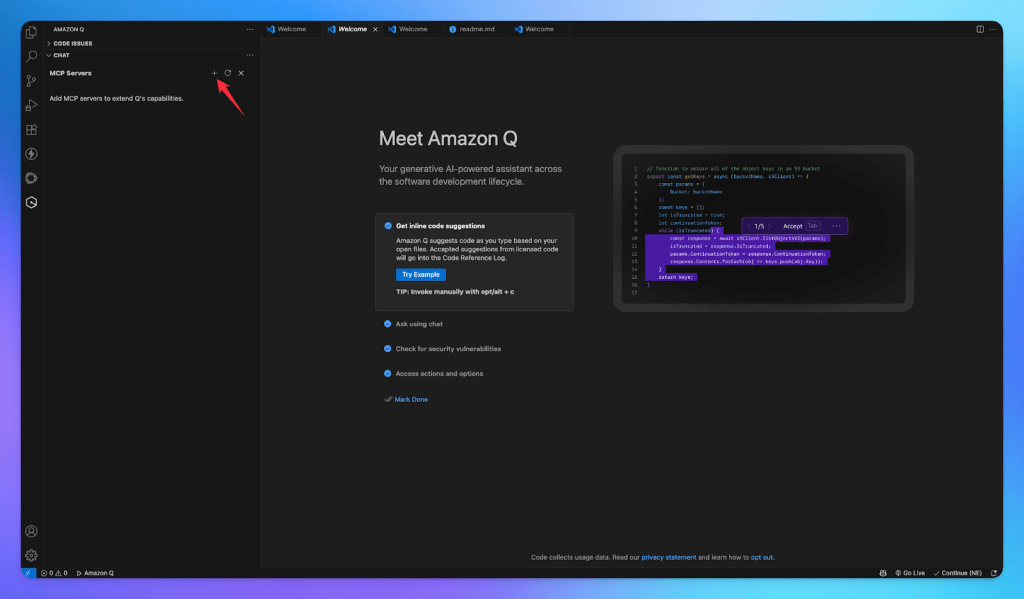
Step 3. Add the MCP360 server details
- Enter a server name, for example
mcp360. - Set the transport to HTTP, since MCP360 is a remote gateway.
- Paste the MCP360 gateway URL into the URL field.
- If your gateway uses a bearer token, add it under Headers as
Authorization: Bearer YOUR_TOKEN. Set a timeout value if you want a longer initialization window, then save.
When you save, Amazon Q attempts to connect. If the endpoint requires OAuth, Q opens a browser page so you can authorize it. If a configuration alert appears at the top of the panel, choose Fix Configuration and correct the entry before continuing.

Step 4. Verify the connection and tools
- In the IDE, confirm MCP360 shows as connected in the MCP Servers panel, and enable it if it is listed as disabled.
- In the CLI, run
/toolsto see which servers have loaded and which tools are available. Q loads servers in the background, so tools appear as each one finishes initializing. - Run a tool-dependent prompt to confirm real execution, for example asking Q to look up live product data, then cross-check the result against the source.
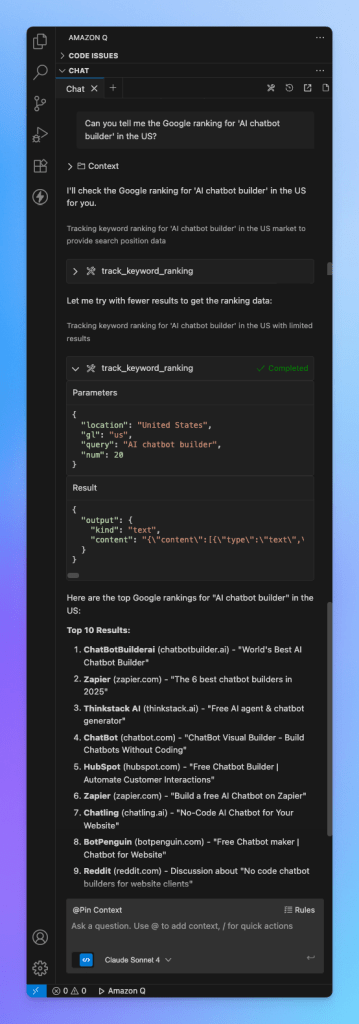
If tools do not appear or a call fails after the server connects, our guide on how to troubleshoot MCP connection issues walks through the failure points in order.
Security and Access Control
Connecting an MCP gateway means Amazon Q can call outside services with your credentials, so a few controls are worth setting before you connect anything sensitive.
- Scope the connection. Add MCP360 at local (workspace) scope first if you only need it for one project, rather than global scope across every workspace. Local scope keeps the tool access contained to where you actually use it.
- Keep credentials out of the config body. Pass your token through the Headers field or the gateway URL, and avoid pasting secrets into files that get committed. Amazon Q stores workspace MCP config in
.amazonq/inside the project, so add that path to your ignore rules if the repo is shared. - Review tool permissions. Amazon Q Developer marks tools by permission level, including ones that run automatically and ones flagged as needing explicit approval. Check the permission state for MCP360 tools and require approval for anything that writes or takes an action, rather than auto-approving the whole set.
- Use admin governance for teams. On the Pro tier with IAM Identity Center, an administrator can turn MCP on or off for the organization and publish an allow-list of permitted servers through an MCP registry. For shared environments, vet MCP360 once at the admin level so individual developers connect a known-good entry instead of arbitrary servers.
- Prefer official OAuth where offered. When the gateway supports an authorized OAuth flow, use it over a static token, since it is easier to rotate and revoke.
What This Setup Makes Possible
With MCP360 connected, Amazon Q Developer can mix coding work with live external data inside one session. The examples below each span more than one source.
- Build features against live data: Pull marketplace, keyword, or SERP data before writing a feature, so the code starts from real inputs instead of placeholders. Useful for developers building data-driven product features.
- Research before you implement: Ask Q to gather domain records, DNS data, and webpage metadata for a target, then summarize them into a brief while you stay in the IDE. Useful for technical teams scoping an integration or a migration.
- Monitor competitors and products on a schedule: Query product listings across marketplaces, compare price and positioning, and flag what changed since the last run. Useful for growth and product teams that track external signals.
- Enrich internal output with outside context: Combine what Q already knows about your codebase or documents with external data pulled through MCP360, so a generated report or check carries current market context. Useful for teams turning internal data into decisions.
The pattern stays the same across all of these. Amazon Q Developer handles the reasoning and the code. MCP360 handles the tools underneath. You add or swap tools in the gateway without rebuilding the connection.
FAQs
What is the difference between Amazon Q Business and Amazon Q Developer? ▼
They are separate products. Amazon Q Business is an enterprise assistant for internal knowledge bases, documents, and business applications with role-based access. Amazon Q Developer is the coding assistant that works in IDEs and the CLI. Custom MCP server support is available in Amazon Q Developer, making it the product you configure for external tools.
Does Amazon Q support MCP servers? ▼
Yes, through Amazon Q Developer. AWS added native Model Context Protocol support so Q Developer can connect to custom MCP servers and access tools beyond its built-in capabilities. Both the CLI and IDE support local stdio servers and remote HTTP servers. Amazon Q Business does not expose MCP support.
How do you connect MCP360 to Amazon Q Developer? ▼
Copy your gateway URL and token from the MCP360 dashboard. In Amazon Q Developer, open the MCP configuration, add a new server, choose HTTP as the transport, and paste the gateway URL. Add your token in the Headers section as an Authorization bearer value, save the configuration, and confirm the tools appear in the tools view.
Does Amazon Q Developer support remote HTTP MCP servers? ▼
Yes. Along with local stdio servers, Amazon Q Developer supports remote MCP servers over HTTP, which is how hosted gateways connect. Remote servers can authenticate with OAuth or tokens passed through request headers. Make sure your Amazon Q Developer version is up to date, since HTTP support was introduced in a later release.
What can Amazon Q do once it is connected to MCP360? ▼
Amazon Q can combine coding tasks with live external data in the same session. It can retrieve marketplace, keyword, and SERP data before generating code, gather website and domain information for research, compare product listings across platforms, and use more than 100 tools available through a single MCP360 gateway.
How do you keep MCP credentials secure in Amazon Q Developer? ▼
Pass authentication tokens through the Headers field or gateway URL instead of storing them in committed files. If the repository is shared, add the workspace configuration path to your ignore rules. Use workspace-level servers when only one project needs access, and require approval for tools that modify data or perform write operations.
Can an admin control which MCP servers a team can use in Amazon Q? ▼
Yes. On the Pro tier with IAM Identity Center, administrators can enable or disable MCP across the organization and publish an allow-list of approved servers through an MCP registry. Amazon Q Developer retrieves that registry and limits users to approved servers instead of allowing arbitrary connections.
Can you connect a custom internal API to Amazon Q through MCP? ▼
Yes. Internal or third-party REST APIs can be exposed as MCP tools, allowing Amazon Q Developer to access them like any other MCP server. MCP360 includes a Custom MCP Builder that converts REST APIs into MCP tools without requiring you to write or host a separate MCP server.
Conclusion
Amazon Q Developer is strong at reasoning and code, and weak at reaching the outside systems most real tasks depend on. MCP360 closes that gap with one HTTP connection that carries a catalog of tools in a consistent format, with authentication and failover handled at the gateway.
Set it up against Q Developer, not Q Business, scope and permission the connection before you point it at production data, and verify with a real tool call before you rely on it. Once the single server entry is in place, expanding what Q can do is a matter of enabling more tools in the gateway, not configuring new integrations one at a time.