


The TL;DR
Grok now connects to MCP servers across three different surfaces. This guide explains each setup before using MCP360 with Grok Build as the practical integration example.
-
• Why “Grok MCP” Gets Confusing
Grok MCP can refer to three separate setups: the Grok app’s Connectors page, the developer API, and the Grok Build CLI. Most guides cover only one of them, which can leave users following instructions for the wrong interface.
-
• How the Integration Works
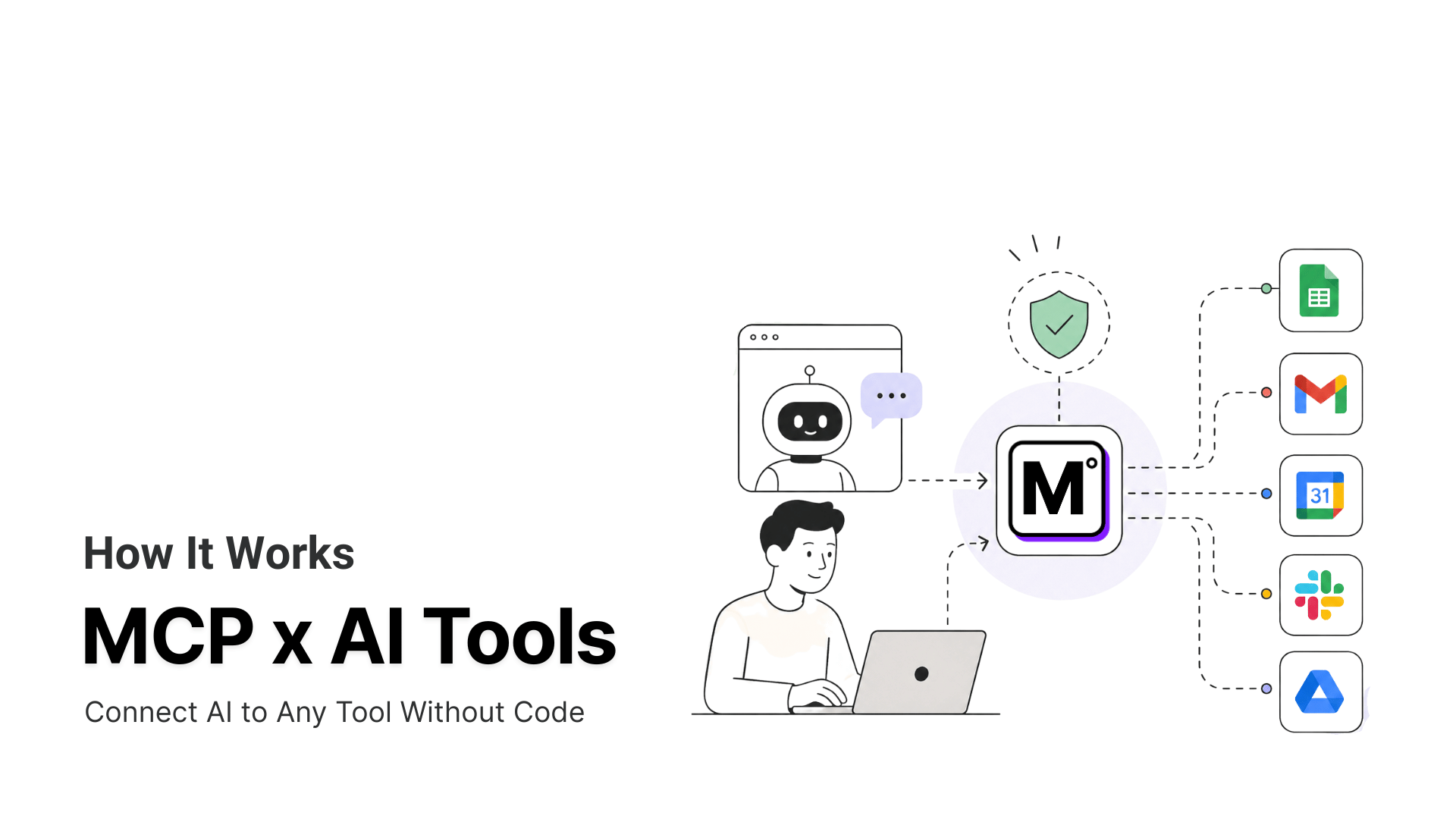
Grok Build manages the coding and development workflow, while MCP360 acts as a single connection point for external tools, services, and live data sources.
-
• What You Can Do After Connecting
Once connected, Grok Build can run workflows that combine coding with live search, web scraping, SEO research, product research, and other external data sources through one interface.
Grok helps developers solve problems, write code, and search the web. But many practical tasks depend on data that public search cannot access, including live pricing, private business records, analytics, customer information, and production APIs.
Without MCP, every external service needs a separate integration, authentication method, and response format. Even a simple task such as checking competitor pricing, retrieving keyword volume, or testing a live API can require hours of manual setup.
MCP gives Grok a standard way to connect with external tools and data sources, so developers can add new capabilities without building each integration from scratch.
The Model Context Protocol solves this by giving Grok a standard way to connect with external tools and receive structured, real-time data. xAI has built MCP support directly into the Grok ecosystem, including the web app, mobile apps, developer API, and Grok Build CLI.
In this blog, you will learn how Grok MCP works across these different environments, how to connect Grok Build with MCP360, and how to use the integration for live research, scraping, SEO analysis, product intelligence, and development automation.
What Is Grok?
Grok is an AI assistant developed by xAI for research, writing, coding, data analysis, and problem-solving. It can use real-time web and X search to answer questions about current events, companies, products, and public discussions.
xAI also offers Grok Build, a separate terminal-based coding agent powered by grok-build-0.1. It works inside local project directories and supports text and image inputs, function calling, structured outputs, reasoning, and a 256,000-token context window.
How it Works
That makes Grok useful for research, news, and public information. But web search is not the same as direct tool access. Grok can read a product page or summarize public data, but it cannot reliably retrieve structured product records, check WHOIS data, pull SEO metrics, access private systems, or perform actions in external applications without a dedicated API or integration.
This is where MCP extends Grok. It gives the model a standard way to call external tools, work with structured data, and complete tasks that go beyond searching and summarizing webpages.
Why Connect Grok to MCP
MCP closes the gap between what Grok can talk about and what it can actually go check, by giving it a standard way to call a real tool and get back structured data instead of a search result to interpret. Four things change once a server is connected.
- Structured Data, Not Snippets: With nothing connected, Grok reads whatever a search snippet says about a keyword’s volume, if anything indexed it at all. Connect a keyword research MCP server, and it calls the actual metrics endpoint for the current volume, difficulty, and related terms.
- Reaching What Search Can’t Index: Some data has no public web page to begin with, a domain’s WHOIS record, an internal ticketing system, a SaaS dashboard behind a login. MCP gives Grok a direct line to the API behind each one instead.
- One Protocol, Not Custom Builds: Without MCP, connecting ten services means building ten separate integrations. Anthropic donated MCP to the Linux Foundation’s Agentic AI Foundation in late 2025, so a server built for one AI client, Claude Code for example, tends to work with Grok Build too, with no changes.
- New Tools, No Reconfiguring: A tool added to a connected server is available the next time Grok needs it, no changes to the Connectors page required. MCP360, for example, loads tools on demand through
search_toolsandexecute_tool, so a new addition to its 100+ tool catalog doesn’t lengthen every request.
Put together, that’s the difference between a model that can only reason about a question and one that goes and checks the answer. The three surfaces below are where that connection actually gets made.
Three Ways to Connect MCP to Grok
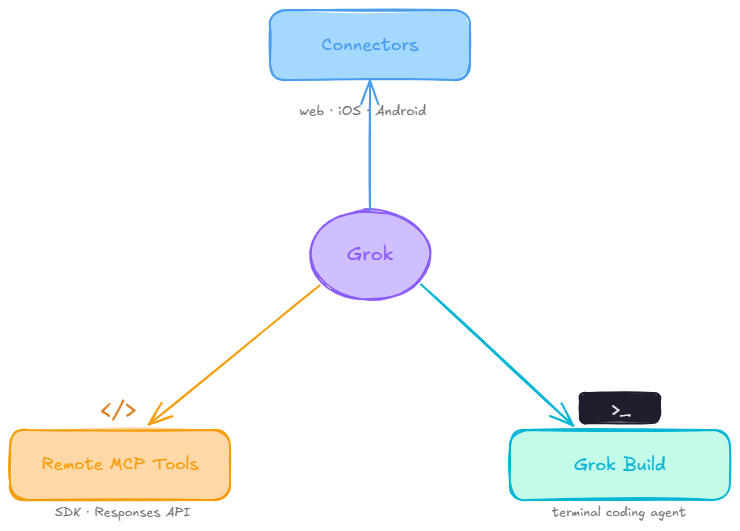
A search for “Grok MCP” surfaces three unrelated setups, and most of the confusion around this topic traces back to a guide describing one while the reader is looking at another.
- Connectors: The point-and-click surface at grok.com/connectors, built into the web, iOS, and Android apps. Best for anyone chatting with Grok who wants a tool connected without writing code.
- Remote MCP Tools: The developer API, available through the xAI native SDK and the OpenAI-compatible Responses API. Best for developers building their own product on top of Grok, covered further down.
- Grok Build: xAI’s separate terminal coding agent, with its own install and its own MCP setup. The walkthrough below covers the setup steps directly, and the companion integration guide goes deeper into the architecture and additional workflows.
The walkthrough below covers Grok, since that’s the surface with the most setup steps worth showing end to end.
Connect MCP360 to Grok Build, Step by Step
The steps below work for any MCP server that speaks Streamable HTTP or SSE. We’re using MCP360 as the working example because it puts one URL in front of a whole tool catalog instead of one tool, so the result is easier to see and test. Connecting MCP360 to Grok cli is a five-step process. Steps 1 through 3 cover setup and configuration. Steps 4 and 5 verify that the connection is working before you run any real workflow through it.
Step 1. Copy Your MCP360 Gateway URL
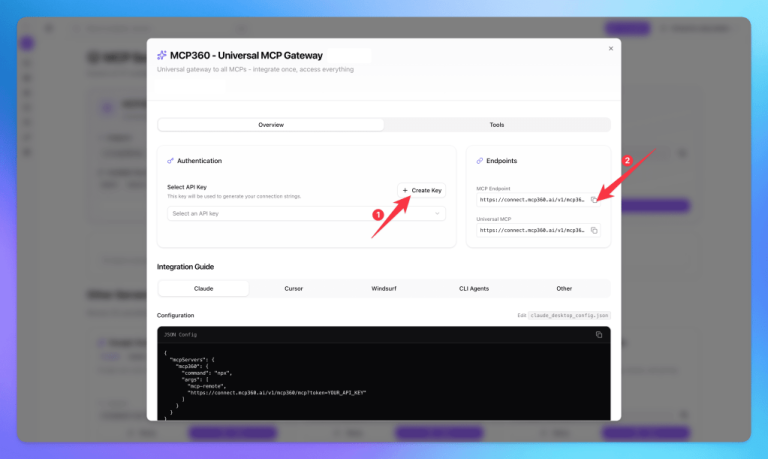
- Log in to your MCP360 dashboard and open an existing project or create a new one.
- From the left navigation menu, open MCP Servers.

- Select a specific MCP server or use the Universal MCP Gateway, which gives access to all tools in your MCP360 workspace.
- Copy the MCP Gateway URL. You will paste this into Grok during configuration.
Step 2. Install Grok Build
To install Grok build on your machine using the official xAI install method. For macOS, Linux and WSL:
curl -fsSL https://x.ai/cli/install.sh | bash
For Windows PowerShell:
irm https://x.ai/cli/install.ps1 | iex
Navigate to your project directory and launch Grok using these commands:
cd your-project # To go to your project directorygrok
On first launch, Grok launches a browser-based authentication flow that allows you to use the same grok subscription. For environments without browser access, you can use an API key.
Once inside the session, add your MCP360 Gateway URL and token. Grok will confirm that the MCP connection is active and list the available tools.
Step 3. Start Grok and Connect MCP360
After copying your MCP360 token, paste it into Grok with the following prompt:
Please help me add and configure MCP360 in Grok.The URL below is my MCP360 Gateway endpoint and already contains the required authentication token. Use this URL to set up the MCP360 server and ensure it is configured correctly:[Paste your MCP360 Gateway URL here]
If you want to set up MCP360 manually using the terminal, run the following commands.
Open Terminal (macOS/Linux) or PowerShell/Terminal (Windows).
Then run this:
grok mcp add mcp360 --url "https://connect.mcp360.ai/v1/mcp360/mcp"
Launch Grok to start the Grok CLI:
grok
Connect your MCP360 account. Inside Grok, open the MCP server manager:
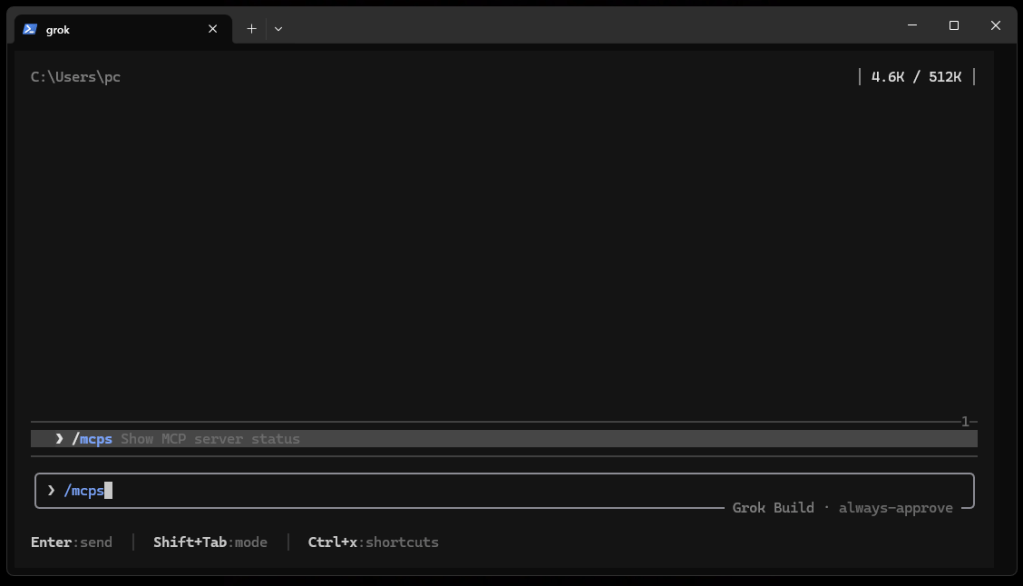
/mcps
Select mcp360 from the list and complete the authentication flow. A browser window may open for authorization. Follow the prompts and grant access to your MCP360 account.
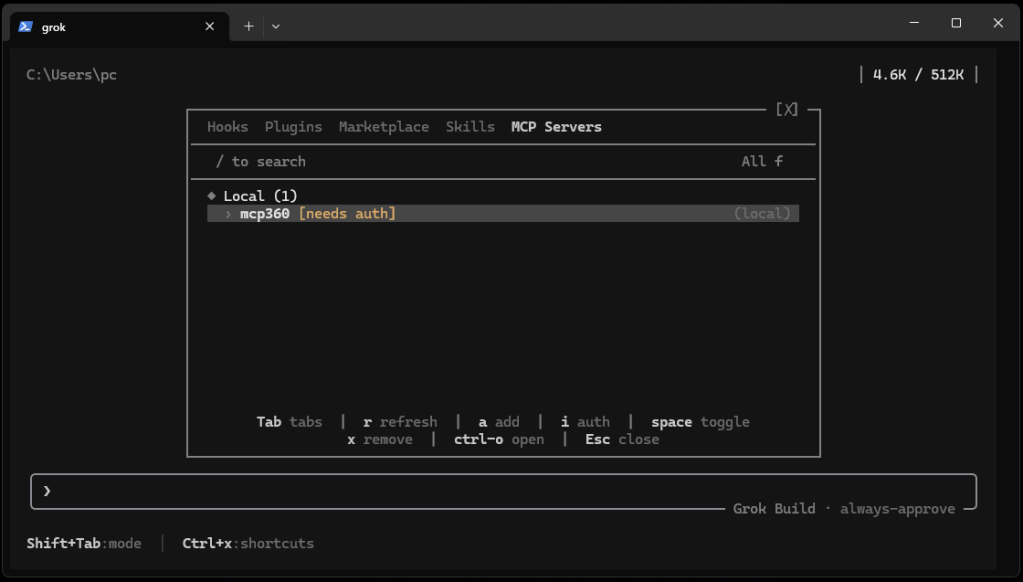
After the authentication is complete, return to your terminal and exit Grok if needed.
Step 4. Verify the MCP360 Connection
To Verify the connection, run:
grok mcp doctor mcp360
If everything is configured correctly, you should see that:
- The server started successfully
- The handshake completed successfully
- MCP360 tools were discovered
Once these checks pass, MCP360 is connected to Grok and ready to use.
If MCP360 appears in the output, the connection is active. List configured MCP servers. To see all registered MCP servers.
using the terminal:
grok mcp list
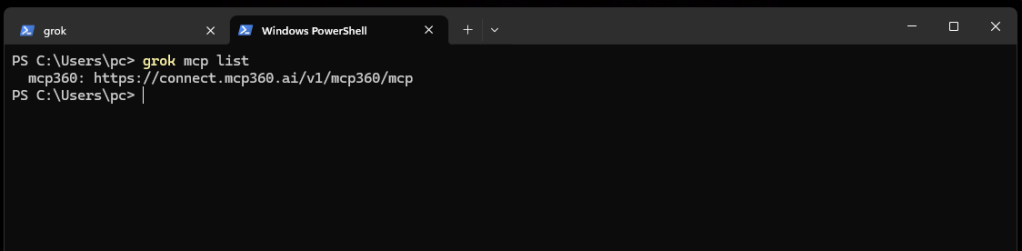
An alternative approach, to run the grok build CLI test, execute the command /mcps.
It will provide a comprehensive list of all the MCP tools available.

Step 5. Test the Integration With a Real Request
Inside the Grok session, run a request that depends on an external tool:
Use MCP360's Walmart Product Search tools and give me details of Electric-Pressure-Washer
Grok should route this through MCP360 and return structured product data.
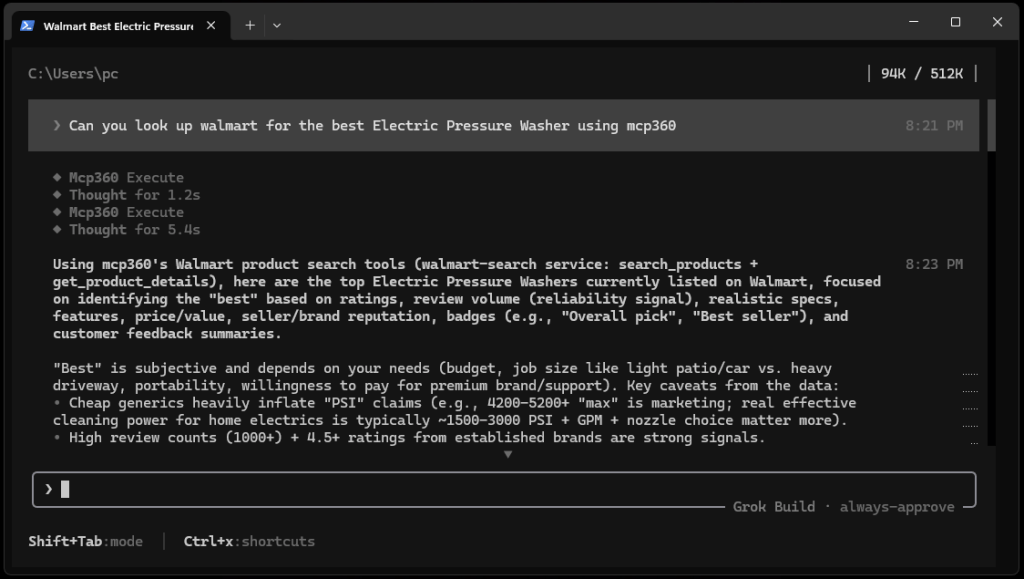
Cross-check the result against a direct Walmart search. If the key details match, the integration is working correctly.
Grok MCP for Developers: Remote MCP Tools via the API
Building an agent on top of Grok rather than using the chat app means skipping Connectors entirely and passing the server directly in the request.
import osfrom xai_sdk import Clientfrom xai_sdk.chat import userfrom xai_sdk.tools import mcpclient = Client(api_key=os.getenv("XAI_API_KEY"))chat = client.chat.create( model="grok-4.3", tools=[ mcp( server_url="https://connect.mcp360.ai/v1/mcp360/mcp", server_label="mcp360", allowed_tool_names=["search_tools", "execute_tool"], ), ],)chat.append(user("Look up current keyword volume for 'grok mcp'."))response = chat.sample()print(response.content)
A few details worth knowing before wiring this into anything production-facing. server_url and server_label are required, allowed_tools (or allowed_tool_names in the native SDK) is optional but keeps the model from loading every tool definition a large server exposes. If you’re coming from OpenAI’s Responses API, the shape is nearly identical, with one gap: require_approval and connector_id are accepted but silently ignored, so any human-in-the-loop approval flow needs to live in your own application code rather than in the API call itself.
What You Can Do After Connecting
The workflows below show what Grok can do when external tool access is no longer a separate setup problem. Each one combines active development work with live external data in the same session.
- Building Features That Depend on Live External Data : Some features require current data before the code can be written. Pricing logic needs real marketplace data. Keyword tools need live search volumes. SEO copy needs current SERP results. With MCP360 connected, Grok can pull that data through a tool call, use it to inform the implementation plan, and move directly into writing code in the same session.
- Researching APIs and Competitors Before Writing Code : Before building an integration or a competing feature, developers often spend time manually researching how a target API behaves or what a competitor’s product actually does. A Grok workflow can handle that research step through MCP360’s search and scraping tools, compile the findings, and feed them directly into the coding task that follows.
- Keeping Documentation Current With Product Changes : Documentation drifts when product details change faster than writers can update pages. A Grok workflow can query live product data or pricing through MCP360, compare it against existing documentation in the repo, identify what has changed, and generate updated copy ready for review. The full cycle runs in one session without switching tools.
- Product and Pricing Monitoring Across Marketplaces : A Grok workflow running in headless mode can query Walmart and Amazon listings through MCP360 on a schedule, compare current data against a stored baseline, and flag anything that changed. Because MCP360 covers both platforms through the same tool layer, no separate credentials or parsing logic are needed for each marketplace.
- Automating Research Before Outreach or Partnerships : Pre-call research across domain records, website metadata, and search visibility is repetitive work. A Grok workflow can pull all of it through MCP360 tools, compile a structured briefing per company, and write results to a file. The same workflow runs for every target without manual effort.
- Running Multi-Source Research as Part of a Coding Task : Some coding tasks require understanding a domain before the implementation makes sense. A Grok workflow can run parallel subagents through MCP360 to gather search data, scrape relevant pages, and pull SERP results at the same time. The results feed into a consolidated brief that informs the implementation in the same session.
Frequently Asked Questions
What is Model Context Protocol (MCP)?
Model Context Protocol is an open standard that lets an AI model call external tools and get back structured data instead of reading a search result and guessing. A server exposes a set of tools over the protocol, and any MCP-compatible client, including Grok, Claude, and ChatGPT, can connect to that server and use its tools directly inside a conversation.
How does MCP work?
An MCP client, like the Grok app, connects to an MCP server over a defined transport, usually Streamable HTTP or SSE for remote servers. The server lists the tools it exposes, the client makes those tools available to the model, and a tool call sends a structured request to the server and returns structured data instead of a page to read.
What does “Grok MCP” actually mean?
“Grok MCP” covers three separate things depending on where you’re connecting from. Connectors is the point-and-click surface at grok.com for the web and mobile apps. Remote MCP Tools is the developer API for building agents on top of Grok. Grok Build is a separate terminal coding agent with its own MCP setup. Most people searching the term mean Connectors.
Why connect MCP to Grok instead of relying on its built-in search?
Built-in search returns pages to read and summarize, not structured data to act on. MCP lets Grok call an actual API and get back a real answer, a current price, a keyword’s exact volume, a domain’s WHOIS record, instead of inferring one from a search snippet that might be outdated or wrong for the region.
What’s the difference between Grok Connectors, Remote MCP Tools, and Grok Build?
Connectors is the no-code surface in the Grok app for anyone chatting in a browser or on a phone. Remote MCP Tools is the API version for developers building their own product on Grok. Grok Build is a separate terminal coding agent with its own install. All three can point at the same server, MCP360’s gateway included, without any of the tool logic changing.
How do I connect a custom MCP server to Grok?
Go to grok.com/connectors, click New Connector, then Custom, and paste the server’s URL. Grok discovers the tools that server exposes and makes them available in your next conversation. Any hosted MCP server works this way. MCP360’s Gateway URL is one example, since it puts a whole tool catalog behind a single connector instead of one tool at a time.
Can I connect a local MCP server to Grok?
Only through a tunnel. Grok’s servers need to reach yours over the public internet, so localhost and private addresses get rejected outright. Tools like ngrok or Cloudflare Tunnel expose a local server with a public URL you can paste into the same Custom connector dialog. A hosted server like MCP360’s gateway skips this step entirely since it’s already public.
Does connecting MCP to Grok require a paid plan?
It depends on when you check. xAI’s own pricing page currently lists Connectors under the Free tier, though several sources from earlier in 2026 said custom connectors needed a SuperGrok subscription. This is a fast-moving part of Grok, so confirm the current requirement at grok.com/connectors before assuming either way.
Conclusion
Grok’s native MCP support extends it beyond research and coding by giving it access to live APIs, structured data, and external services.
For Grok Build, copy the Gateway URL from the MCP360 dashboard, add it to your configuration, verify the connection, and test it with a real task. New tools added through MCP360 can then become available without building separate integrations inside Grok.
For a visual setup, follow xAI’s Connectors documentation to configure MCP servers through the Grok app instead of the terminal.
Start with one practical use case, such as retrieving live product data, checking SEO metrics, or calling an external API. Validate the output before expanding the connection into larger workflows.

Article by
MitaliAI & Automation | Content Writer
Mitali is a content writer covering AI agents, automation, and no-code tools. Her writing spans the AI landscape, from support and sales automation to MCP integrations and agent workflows, with a focus on practical business use.