

The TL;DR
Flowise agents can reason on their own, but they need tools to access live systems. MCP360 gives them instant access to 100+ integrations through a single hosted MCP endpoint—without writing custom integration code.
-
• Why Flowise Agents Stall
A standalone Flowise agent can’t query real-world APIs or business systems by itself. Building custom function nodes works initially, but those integrations become difficult to maintain whenever upstream APIs change.
-
• Connecting MCP360 to Flowise
Setup takes about ten minutes. Copy your hosted MCP URL from the MCP360 dashboard, add a Custom MCP tool to your Flowise agent, and store your MCP360 API key as a Flowise Variable to securely authenticate every request.
-
• Fixing Common Errors
Most setup issues come from invalid JSON, incorrect API key variables, models without function-calling support, or using a local stdio transport instead of the hosted MCP endpoint after deploying to the cloud.
A Flowise agent that can reason but can’t reach your CRM is a demo, not a workflow. It answers questions in the chat window and stops the moment real work starts. Without an MCP connection to your tools, it has no way to pull a customer record, check inventory, or send the email it just drafted. The intelligence is there. The hands are missing.
Most teams hit this wall at the same point. The agent demos well on day one, then the first real task arrives and it needs live data, so someone writes a custom function to call an API. Then another for the next tool. Then a third. Within a week the workflow is half agent logic and half brittle integration code that breaks every time an upstream API changes. The agent that looked ready to ship never actually ships, because keeping the plumbing alive eats the time that was supposed to go into the product.
That gap is what MCP360 closes. It connects a Flowise agent to 100+ external tools through a single endpoint, so the agent reaches your real systems without a line of integration code. You build the logic on the Flowise canvas, route every tool call through MCP360, and the thing that only worked in the demo becomes something you can put in front of customers.
This blog covers what Flowise and MCP360 each do, then walks through connecting them step by step, with the exact JSON configuration, a working support-triage example, and the errors that trip most people up on the first run.
What is Flowise

Flowise is an open-source, low-code platform for building AI agents and LLM applications without heavy development work. Its drag-and-drop canvas connects models, prompts, memory, data sources, and tools into visual workflows you can test and deploy from one interface. With Agentflow V2, teams build multi-step agent logic as native nodes, scaling from a simple chatbot to a coordinated multi-agent system without writing the orchestration by hand.
Features of Flowise
- Agentflow V2 orchestration. Build multi-step workflows as native nodes with branches, loops, retries, and multi-agent coordination on a single canvas, instead of relying on external frameworks for the agent logic.
- Agent node and Tool node. The Agent node hands the model a set of tools and lets it choose which to call. The Tool node executes one specific tool you picked at design time with no LLM in the loop. Use the first for dynamic decisions, the second for steps that must run the same way every time.
- Prebuilt model and data nodes. Drop in OpenAI, Anthropic, Llama, or local models, and load data from PDF, CSV, Notion, or GitHub without building the connectors yourself.
- Flexible deployment. Run Flowise locally, on your own cloud, or air-gapped, which matters for teams handling regulated data that can’t leave the network.
- Visual execution logs. Every run produces a step-by-step trace, so debugging a broken workflow is reading the path it took, not guessing.
- Native MCP support. Connect external MCP servers as tools directly in a workflow, which is the door MCP360 walks through.
Flowise builds the brain. What it does not do is reach into your business systems on its own. That is the job of the next piece.
What is MCP360

MCP360 is a unified MCP gateway that connects AI agents to 100+ external tools through a single hosted endpoint. Instead of integrating each API separately, teams connect once and reach search, scraping, SEO, maps, and data tools through one configuration block. MCP360 handles authentication, routing, updates, and error management behind that endpoint, and supports custom MCPs that turn any internal REST API into a callable tool inside the same gateway.
Features of MCP360
- A full marketplace of tools. One connection reaches 100+ pre-built tools for search, web scraping, SEO checks, keyword research, maps, and data, with no per-tool setup.
- Single hosted HTTP endpoint. MCP360 runs as a remote service, not a local process. Flowise connects over the network whether it runs on a laptop or a cloud server, so there is no
npxor stdio requirement to break in production. - Custom MCP builder. Turn an internal REST API, like your CRM or order system, into a callable tool that lives in the same gateway as the marketplace tools.
- Managed authentication and routing. One key covers every tool. When an upstream API changes, MCP360 absorbs it at the gateway and your workflow keeps running untouched.
- Reusable across workflows. Connect once and the same gateway serves every Flowise flow your team builds, so the second workflow starts with the connection already in place.
- Unified billing and credits. One account and one credit pool instead of juggling separate API keys, tokens, and subscriptions per tool.
Why Flowise agents need MCP360
Flowise makes the agent easy to build. The trouble starts at the second step of any real task. Ask a support agent to “check this customer’s last order and tell them when it ships,” and it needs to query your order system, read the result, and act on it. A bare Flowise agent can’t do that. It has no tool to call and no schema describing what that tool expects, so it guesses or it apologizes.
You can patch this with the Custom Tool node, writing a function per API. It holds up until you have three of them and one upstream change breaks a workflow mid-week.
There’s a second trap most tutorials skip. The classic local-MCP approach runs servers through stdio transport, which spins up npx commands on the host. That works on a laptop and breaks the moment you deploy Flowise to the cloud, where command execution is restricted. MCP360’s hosted endpoint removes both problems. One connection, no local plumbing, and it survives a cloud deploy.
Three ways to give a Flowise agent tools
There are really only three paths to the same goal, and they diverge fast once you have more than one tool.
| Approach | Setup effort | Maintenance | Survives cloud deploy | Scales to many tools |
|---|---|---|---|---|
| Custom Tool node (JavaScript) |
High, one function per API |
You own every API change |
✔ Yes | ✕ Poorly, code grows per tool |
| Local MCP server (stdio) |
Medium, run a server per tool |
Per server | ✕ No, npx blocked in cloud |
~ Medium |
|
MCP360 gateway Best for scale |
Low, one config block |
Handled at the gateway |
✔ Yes, hosted HTTP endpoint |
✔ Yes, 100+ tools on one connection |
The gateway row is the only one where adding a tenth tool costs the same as adding the first. That is the property that matters once an agent moves past a demo.
Connect MCP360 to Flowise in three stages
The whole setup is three stages. Get a URL from MCP360, build the agent in Flowise, and add a Custom MCP tool with your connection. Budget about ten minutes.
Stage 1. Get your MCP endpoint from MCP360
- Log in to your MCP360 dashboard.
- Open an existing project or create a new one.
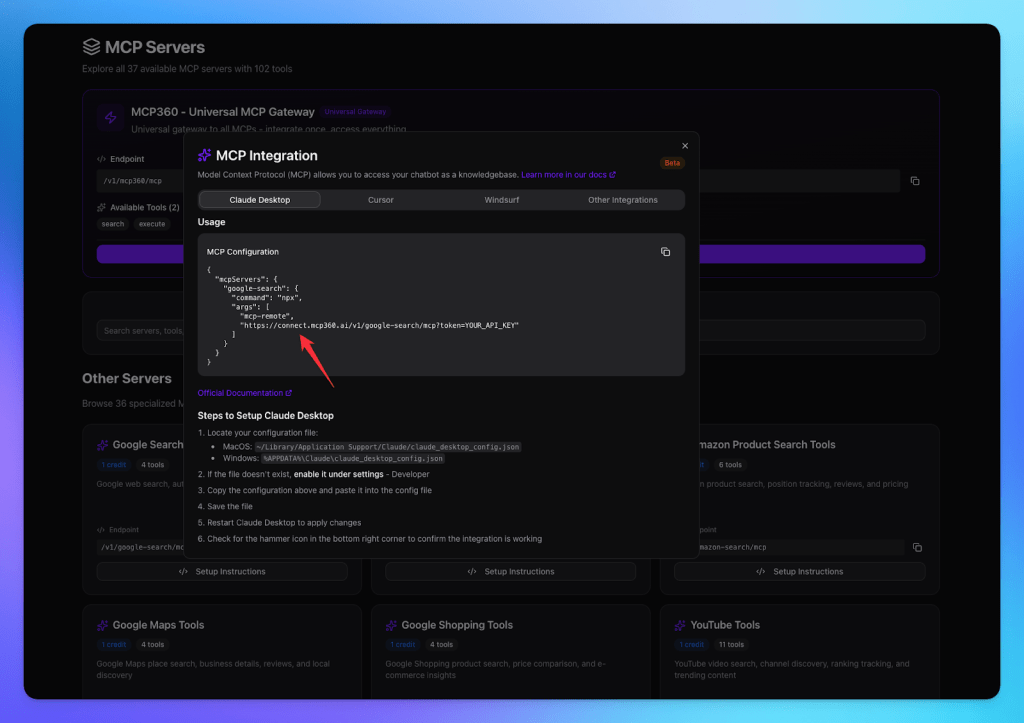
- From the sidebar, select MCP Server.
Single-tool URL versus Universal Gateway is a real choice. A single-tool URL keeps the agent’s options narrow, which means cleaner tool selection and fewer wrong calls. The Universal Gateway gives one agent everything, which is convenient but loads more tool schemas into context. Start narrow. Widen only when a workflow genuinely needs more.

- Find the tool you want and copy its MCP URL, or copy the Universal Gateway URL to give the agent access to every tool at once.
2. The second step is to set up your Flowise account
- Log in to Flowise and open Agent Flow from the sidebar.
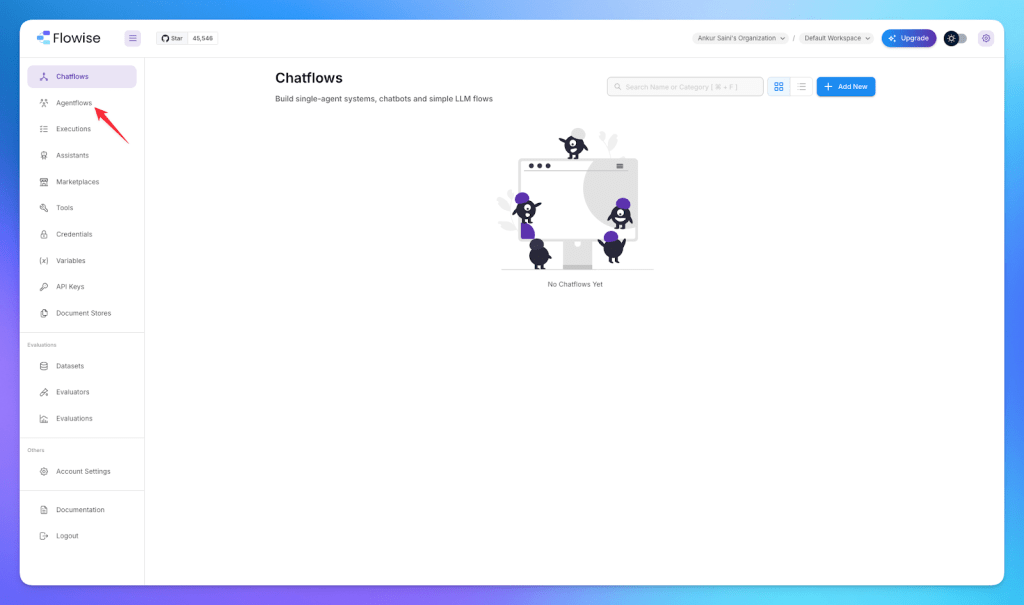
- Click Add New to create a new Agent flow.

- Add an agent node to the canvas.

- Click the agent node to open its settings and attach your AI model.
- Pick one that supports function calling. This is not optional.
- A model without tool-calling support will never invoke your MCP tools no matter how the rest is configured. GPT-4 class models, Gemini Pro, and Claude all work.
- Click Add Tools to open the tool list.

3. Add the Custom MCP tool
- In the tool list, search and select Custom MCP. The MCP Server Config panel opens.
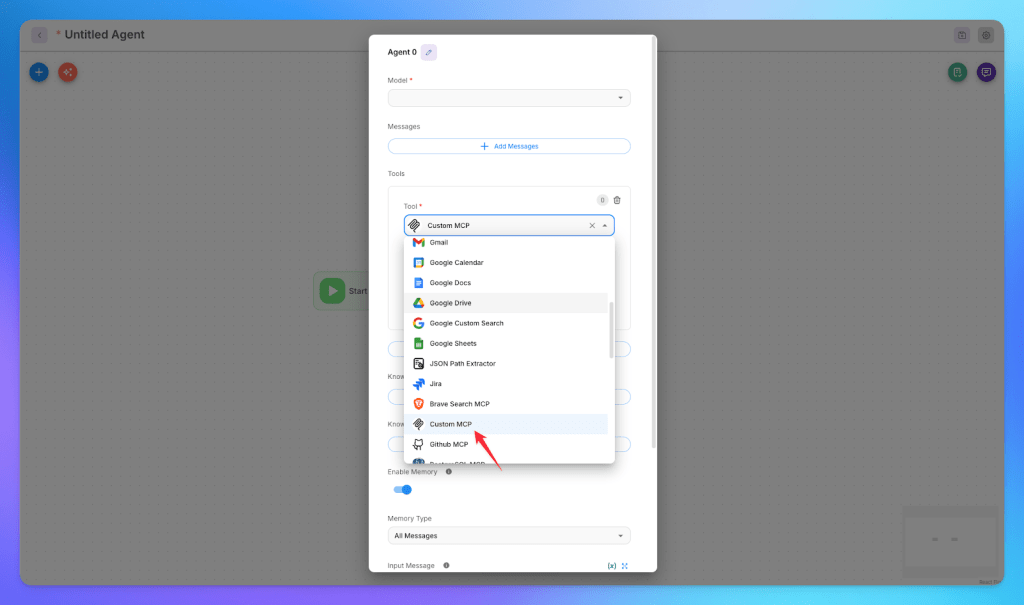
- Click How To Use to view the required format. It is a JSON block with a
urland aheadersobject. - Copy the format and replace the placeholder URL with your MCP360 tool URL. The format looks like this.
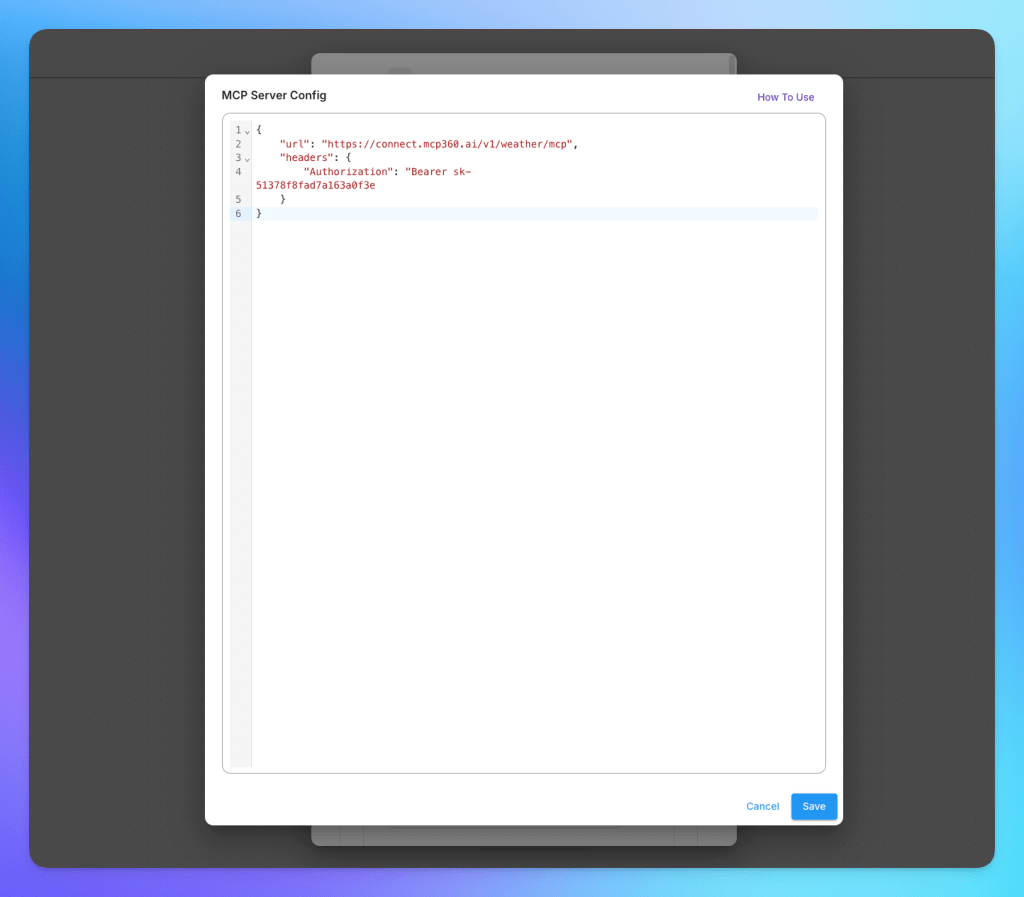
- Add your MCP360 API key as the Authorization bearer token. Store it as a Flowise Variable rather than pasting it raw. Go to Variables in the sidebar, create
MCP360_API_KEYwith your key as the value, and reference it as{{$vars.MCP360_API_KEY}}exactly as shown. Now the key never lives in the flow itself, so exporting or sharing the flow won’t leak it.

- Click Reload. Flowise reads the config, pulls the tool manifest from MCP360, and your MCP360 tools appear in the agent, ready to select.

Order-status triage in one Flowise agent
Abstract steps are easy to follow and hard to picture, so here is a concrete one.
Say you run support for an online store, and a large share of tickets are some version of “where is my order.” You build one agent in Flowise and add two MCP360 tools to it. A custom MCP wraps your order system’s API, and a marketplace tool handles anything that needs a live web lookup.
A ticket comes in. The agent reads it, pulls the order ID, and calls the order-lookup tool through MCP360 to fetch the shipping status. With the status back in context, it drafts a reply with the tracking link and the expected delivery date. The model decides which tool to call and when, because the Agent node holds the whole MCP360 toolset and lets it choose.
Before the integration, that order-lookup was a Custom Tool block your engineer wrote and now maintains. After it, the step is one MCP360 tool call. When your order platform changes its API next quarter, you change nothing in Flowise. MCP360 absorbs it at the gateway.
Drop your real result here once you have it. A line like “this cut first-response time on order-status tickets from 4 hours to under a minute across [X] tickets a week” is what turns this from a tutorial into proof, and it is the one claim only your data can make.
The same pattern handles lead enrichment, content research, and SEO audits. Build the agent once, add the MCP360 tools it needs, and reuse the same connection across every workflow your team builds.
Fix common Flowise MCP connection errors
Most first-run failures fall into five buckets. Here’s how to clear each one.
- The Custom MCP tool won’t load actions. Check the JSON config for syntax errors first, since a trailing comma or a smart quote breaks it silently. Confirm the URL is exact. Then click Reload again, and if it still fails, restart Flowise so it re-reads the configuration.
- The actions list is empty after Reload. This usually means the API key isn’t reaching MCP360. Verify the Flowise Variable exists, that the name in
{{$vars.MCP360_API_KEY}}matches it character for character, and that there are no stray spaces. Confirm the key itself is active in your MCP360 dashboard. - The agent ignores the tools and answers from memory. Two causes. Either the chat model doesn’t support function calling, so swap to one that does, or the Agent node’s system prompt never tells the model the tools exist. Add a line like “Use the available MCP360 tools to look up live data before answering.” Models often need that nudge to reach for a tool.
- The connection times out. Check the API key format, confirm network and firewall settings allow outbound calls to the MCP360 endpoint, and make sure your MCP360 plan isn’t rate-limited or out of credits.
- It worked locally but broke after deploying. This is the stdio trap. If you tested with a local stdio MCP server and only switched to MCP360’s hosted endpoint in production, confirm the deployed flow points at the HTTP URL, not a local command. Remote endpoints are exactly what survive a cloud deploy.
Flowise MCP FAQs
What is MCP in Flowise? ▼
MCP, the Model Context Protocol, is a standard way for a Flowise agent to call external tools and data sources. Instead of writing a custom function for every API, you connect to an MCP server and Flowise pulls in its actions automatically. The agent then chooses which one to run. It turns scattered integrations into one consistent interface your agent can use.
What is an MCP gateway, and why would I use one? ▼
An MCP gateway is a single endpoint that connects an AI agent to many tools at once, instead of wiring each MCP server separately. It handles authentication, routing, and updates in one place, so adding a tool costs no extra setup. MCP360 is one example, giving a Flowise agent access to 100+ tools through a single connection rather than a server per service.
How do I keep my API key out of my Flowise flow? ▼
Store it as a Flowise Variable instead of pasting it into the node. Open Variables in the sidebar, create a key such as MY_API_KEY, then reference it in the Custom MCP config as {{$vars.MY_API_KEY}}. The flow holds the reference, not the secret, so exporting or sharing it never exposes the key. If it renders literally, the variable name doesn’t match, so check for typos or stray spaces.
What’s the difference between Custom MCP and a Custom Tool node in Flowise? ▼
A Custom Tool node runs JavaScript you write to hit one API, so you own the code and maintenance for each tool. A Custom MCP connects to an MCP server that already exposes its actions, so Flowise loads them automatically with no per-tool code. The Custom Tool node fits a single bespoke call. Custom MCP scales better when an agent needs many tools.
Does adding lots of MCP tools bloat my Flowise agent’s context window? ▼
It can. Every tool schema the agent loads consumes tokens before it does any work, so a hundred tools loaded at once is real overhead. MCP360 avoids this with two meta-tools, search_tools and execute_tool, so the agent finds and loads only what each task needs. You get 100+ tools without paying the token cost of all of them upfront.
Can I connect my own internal API to a Flowise agent? ▼
Yes, through a custom MCP. Rather than writing a tool node for your internal API, you wrap it once as a custom MCP and the Flowise agent calls it like any other tool. MCP360’s Custom MCP Builder turns a REST API into a callable tool in minutes, with no separate server to host. The agent then reaches your internal system the way it reaches a marketplace tool.
Conclusion
Once the gateway is in place, the question changes. It stops being how do I connect this tool and becomes which tool does this job. The first is plumbing. The second is product. Getting your team out of the first and into the second is the entire payoff.
You don’t get there by connecting everything at once. Take the one workflow bleeding the most hours this week, the order-status reply, the lead lookup, the Monday SEO pull, and ship just that, end to end, with MCP360 behind it. Pick the tool the agent needs, drop it in, and watch a task that used to route through three tabs resolve in a single pass.
Do that a few times and the pattern flips. Adding a capability stops being a project and starts being a decision. The agent needs to read a sitemap or verify an email, and that is a tool away, not a sprint away. Build the first one this week, and let the next be the easy part.