


TL;DR
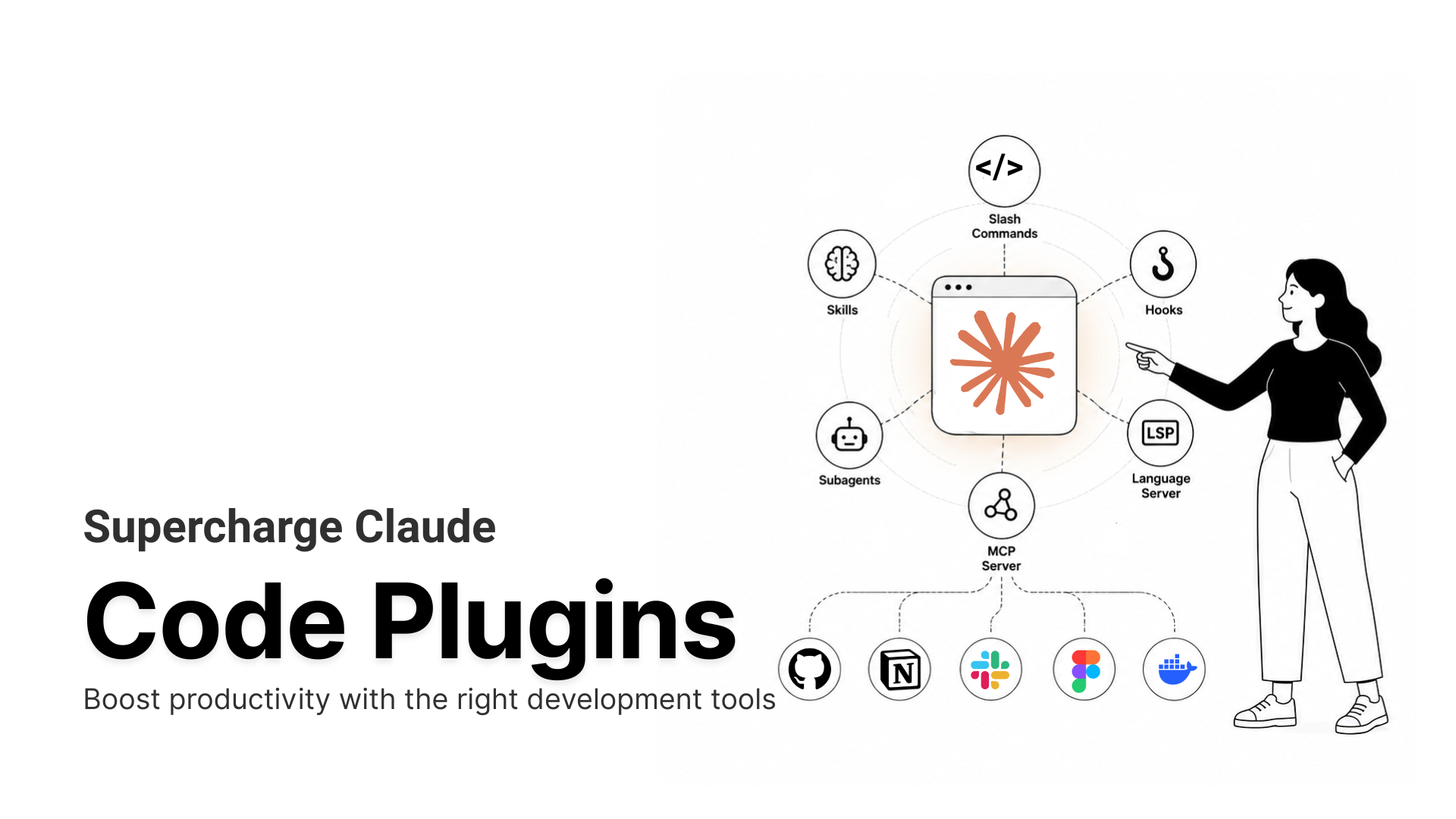
Cursor MCP setup covers three setup paths, a tool ceiling to plan around, and a security history worth knowing first.
- Cursor’s Tool Cap
- Cursor caps active tools at roughly 40 per session, so fewer, well-scoped servers, or one gateway like MCP360, works better.
- Three Setup Paths
- A deep link, the Customize page, or a direct mcp.json edit, all shown here using MCP360 as the example.
- Security Worth Knowing First
- Cursor has patched several MCP-related RCE flaws since mid-2025, each fixed by requiring fresh approval on every config change.
Cursor’s Agent already reasons well over your own code, but connecting it to anything outside your open files means picking through conflicting instructions first. Cursor’s own docs, its community forum, and half a dozen third-party guides each describe a slightly different flow, and several of them predate Cursor’s June 2026 Customize page redesign. Follow an outdated screenshot and you’ll spend ten minutes hunting for a settings tab that already moved, or hit a 40-tool ceiling that gives no warning before tools start disappearing.
This guide works from what’s current today, not a screenshot from a year ago. It covers the tool limit that should shape how many servers you connect in the first place, all three setup methods Cursor supports right now, the security history behind why Cursor demands re-approval on every config change, and the fixes for the errors that show up most often, so you connect a server once and get back to your actual work.
What Is Cursor AI

Cursor AI is an AI-native code editor built by Anysphere as a fork of Visual Studio Code, not a plugin added on top of an existing editor. The AI layer sits inside the editor’s core rather than being bolted on through an extension, and it runs on Windows, macOS, and Linux.
Out of the box, Cursor’s Agent only knows what’s in your open files and whatever training data it shipped with. It can’t check whether a package updated last week, pull your production database schema, or read a ticket from your issue tracker unless you paste the content in yourself. That gap between what the Agent can see and what your actual work touches is what Model Context Protocol closes.
Model Context Protocol is an open standard, released by Anthropic in November 2024 and now governed by the Agentic AI Foundation under the Linux Foundation, that lets an AI client call external tools through a shared interface. The protocol has grown fast. As of its December 2025 donation announcement, MCP had passed 10,000 active public servers with client support built into ChatGPT, Claude, Cursor, Gemini, Microsoft Copilot, and Visual Studio Code.
Inside Cursor, an MCP server is a small program, running locally or hosted remotely, that exposes a set of callable functions called tools. Connect a GitHub MCP server and Cursor’s Agent gains tools for reading issues, opening pull requests, and searching code across repositories it otherwise couldn’t touch. Connect a Postgres server and the Agent can inspect your schema and run read-only queries instead of you pasting table structures into the chat by hand.
Cursor talks to servers over one of two transports.
- stdio: Cursor launches the server as a local child process and talks to it over standard input and output. This is the right choice for servers that run on your own machine.
- Streamable HTTP or SSE: Cursor connects to a remote, hosted server over the network. Streamable HTTP is the current standard for MCP’s remote transport, though some servers still run the older SSE format.
Which transport a server needs determines what its block in mcp.json looks like, covered in the setup steps below.
Cursor’s Tool Limit and Why It Matters
Cursor enforces a practical ceiling of roughly 40 active tools across every connected server at once. Cross that line and the Agent doesn’t slow down so much as lose visibility into whatever falls past the cutoff, with no error shown, so it’s worth knowing exactly where that line sits before you get there.
The limit exists because every tool definition Cursor loads consumes context tokens before the Agent ever sees your prompt. A GitHub server alone can expose a dozen or more tools, and stacking three or four fully-loaded servers gets you to 40 fast, well before you’ve connected everything on your list.
Two practical responses, both worth deciding on before you start adding servers.
- Turn off what you’re not using: Open each server on the Customize page and disable individual tools you don’t need, rather than leaving every tool from every server switched on by default.
- Prefer gateways that load tools on demand: A gateway like our unified MCP gateway, MCP360, works differently from a stack of individually configured servers. Instead of registering 100+ tools with Cursor up front, it exposes two meta-tools,
search_toolsandexecute_tool, and loads the specific tool a task needs at call time. Adding more servers behind the gateway never adds to what Cursor has to hold in context.
Consolidating several narrow, single-purpose servers behind one gateway connection is usually the more scalable approach compared with auditing tools one by one after the fact, and it’s worth deciding on before you hit the ceiling rather than after. The setup steps below use MCP360 as the worked example for exactly this reason.
Cursor MCP Setup Requirements
A few things worth confirming before you touch mcp.json.
- Keep Cursor current: Several of the security fixes covered later in this guide shipped as point releases, and the current UI (the Customize page) only exists from version 3.9 onward. Check Cursor’s version under the app menu and update if you’re behind.
- Node.js, for local servers: Most stdio-based MCP servers run through npx, so a working Node.js installation matters if you’re connecting anything local. Run node -v in a terminal to confirm one is installed before you start.
- Decide project-scoped or global: A server you want available in every repo belongs in your global config. A server specific to one codebase, like a project’s own database, belongs in that project’s config instead.
One more thing worth knowing before you add anything. Cursor caps how many tools can be active at once, and that number should shape which servers you pick and how you connect them.
How to Add MCP Servers to Cursor
Cursor supports three ways to add a server, and they aren’t mutually exclusive. Use whichever fits the server you’re adding. For the Customize page and the direct mcp.json edit, the steps below walk through connecting MCP360, since it’s the example already introduced above, but the same fields and file locations apply to any MCP server.
Step 1: Set Up Your MCP360 Server
- Log in to the MCP360 dashboard.
- Open an existing project or create a new one.
- Navigate to the MCP Server option from the sidebar.
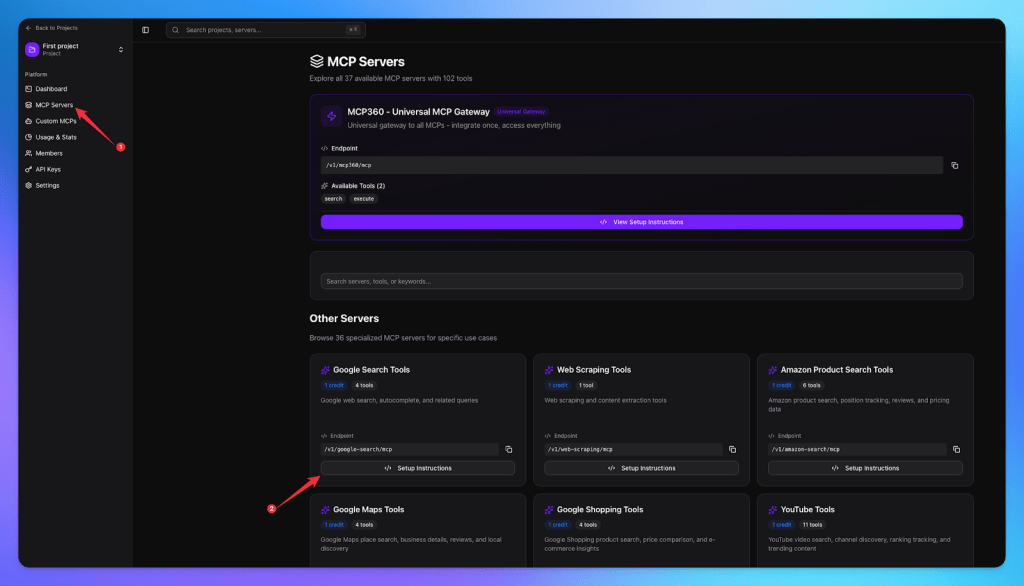
- Copy the URL of the tool you want to connect.
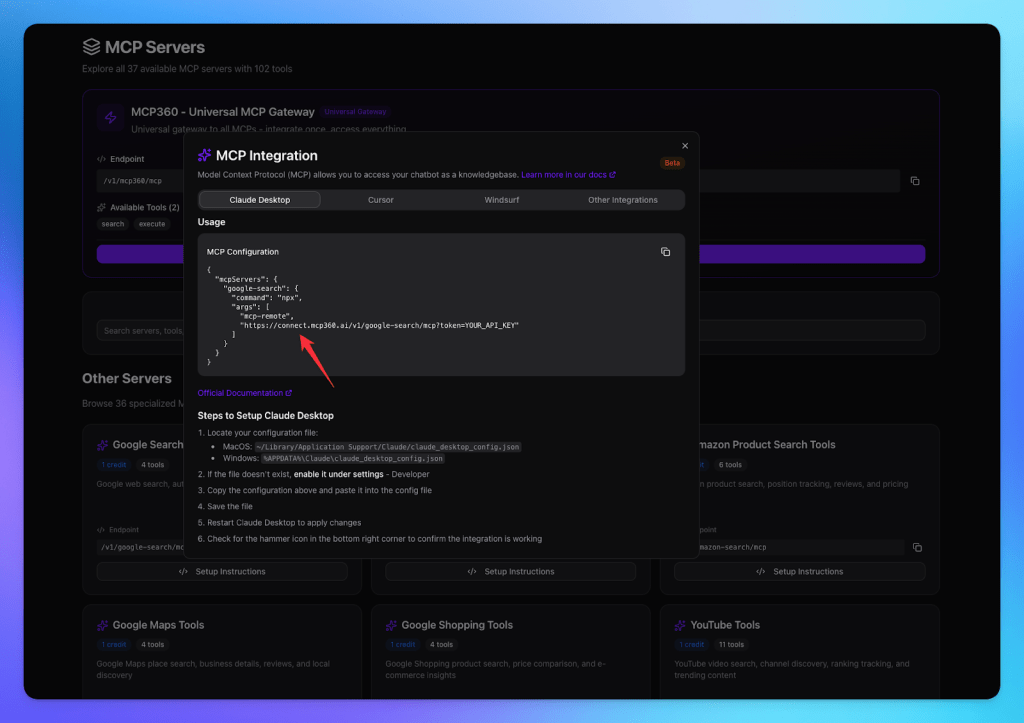
Step 2: Connect Cursor to MCP360
- Open Cursor and go to Settings.
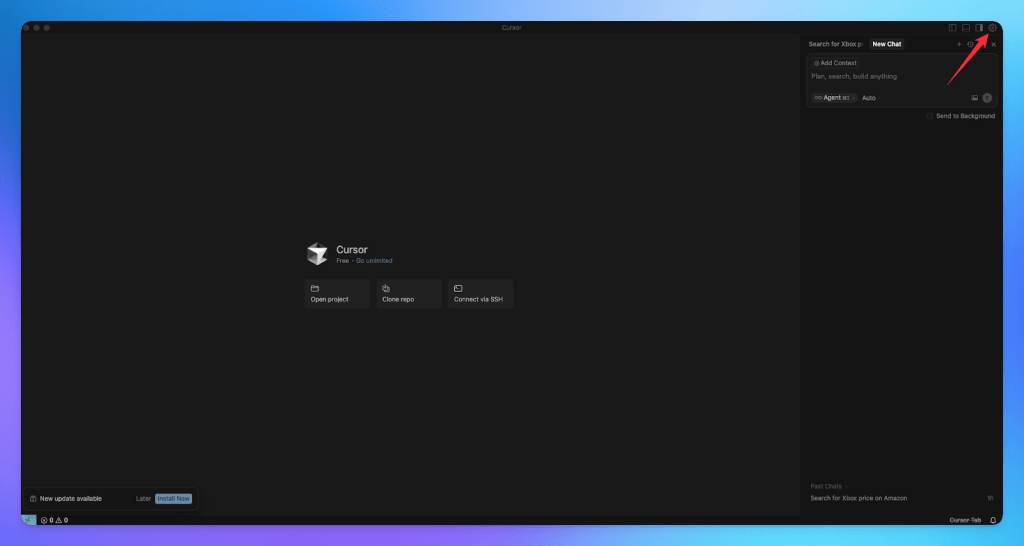
- Navigate to Tools & Integration from the sidebar.
- Click New MCP Server to add a new connection.
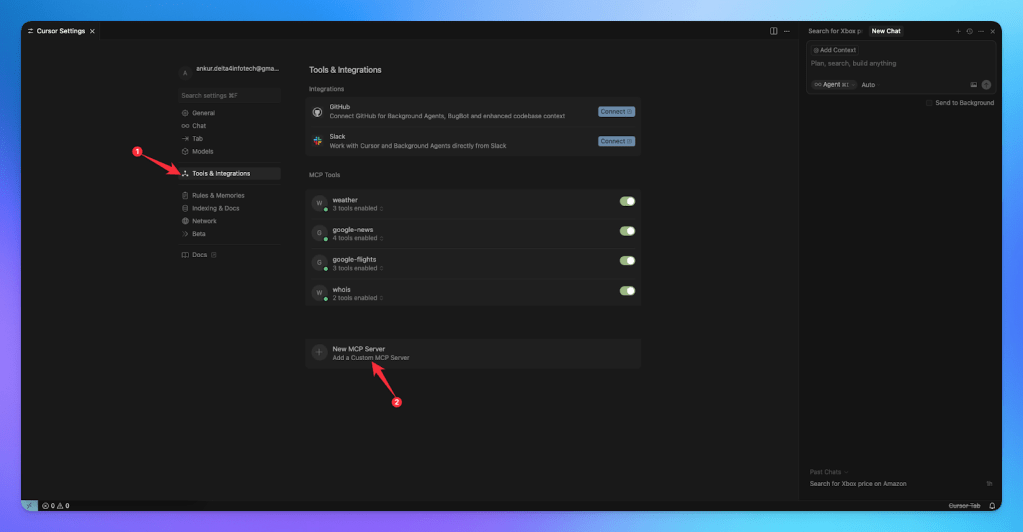
- Paste the MCP server URL copied from MCP360.
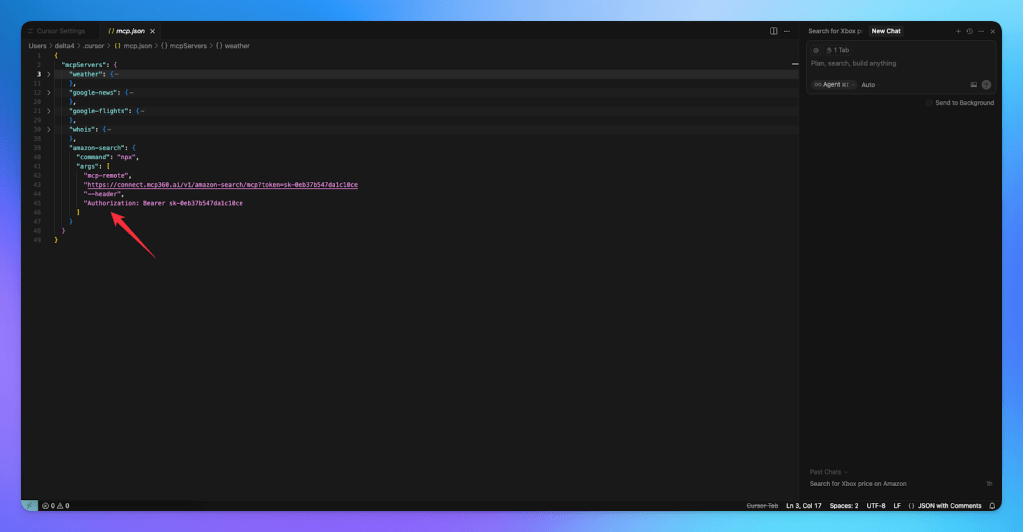
Step 3: Verify the Connection
- Run a quick test to confirm that Cursor is communicating with MCP360.
- Once connected, the agent will automatically select the most appropriate tool provided by MCP360. This selection ensures queries are accurately configured, and also makes sure that results are relevant.

Cursor has successfully connected your MCP360 server, enabling smarter automation and seamless tool integration for your development workflow.
Cursor MCP Use Cases
Once a server or a gateway is live, what changes depends on what you connected it for.
- Debugging gets a real-time upgrade: The Agent can check a package’s current version, pull live documentation, or verify how an API actually behaves right now instead of relying on training data that’s already out of date on fast-moving libraries.
- Research and content work stay inside the editor: Keyword checks, on-page SEO audits, and competitor pricing lookups can happen in the same session as an edit, without tabbing out to a browser and pasting results back in.
- Shared projects onboard themselves: A committed, project-scoped mcp.json means every teammate who clones the repo gets the same tool access automatically, with no separate onboarding step for MCP.
- One gateway replaces a stack of servers: A single connection like the MCP360 example shown above covers dozens of tools through one entry in mcp.json, which keeps things simple even as the list of connected services grows.
- Live Data During Development: Agent can pull current documentation, check a package’s latest version, or verify an API’s current behavior against live responses instead of relying on what it learned during training. That matters most on fast moving dependencies where the training data is already months behind the actual release.
All of this only works if the servers behind it behave. Here’s what Cursor’s own security history says about that.
Security and Risk in Cursor MCP Setup
Connecting an MCP server means letting Cursor’s Agent run code and reach services on your behalf, and that’s worth treating with the same caution as installing a browser extension with broad permissions. Cursor’s own security history backs that up.
- MCPoison, CVE-2025-54136: Disclosed by Check Point Research in July 2025. Once a collaborator approved an MCP config in a shared repository, an attacker with write access could silently swap in a malicious command, and Cursor would run it without a second prompt. Fixed in version 1.3, which made any change to a config file, even a single added space, trigger a fresh approval request.
- CurXecute, CVE-2025-54135: A parallel flaw where a crafted message through a connected service, such as Slack, could rewrite Cursor’s mcp.json and get commands executed through prompt injection alone, no local file access required. Fixed alongside MCPoison in the same 1.3 release.
- DuneSlide, CVE-2026-50548 and CVE-2026-50549: Disclosed by Cato AI Labs and fixed in Cursor 3.0, these let a prompt injected through an MCP server or a web page escape Cursor’s terminal sandbox entirely. Both carry a CVSS score of 9.8.
MCP carries roughly the same risk profile as any other way of extending an editor with third-party code. The trust boundary simply extends to the config file and the tool output alongside the code you write, and Cursor’s fixes have consistently closed the gap between when you approve a server and when it actually runs.
A few habits keep the risk manageable.
- Never hardcode credentials in a committed mcp.json: Use environment variable references, and keep secrets, including an MCP360 API key, in your global config or a secrets manager instead.
- Keep manual approval on: Cursor asks before running most MCP tool calls by default. Leaving that on, rather than switching to a fully automatic run mode for convenience, is the single biggest mitigation against the injection-based attacks above.
- Treat tool output as untrusted input: A web search or a scrape can return content built to manipulate the Agent. This applies to any MCP server, not a specific vendor, and matters most for tools with write access to real systems.
- Only add servers you’d trust with your terminal: A local stdio server runs with your full user permissions. Check who publishes it and how actively it’s maintained before pointing it at a real project.
The far more common failure mode is mundane by comparison. A missing comma or a skipped restart accounts for most setup problems, no malicious intent required.
Cursor MCP Troubleshooting
Most Cursor MCP setup failures trace back to one of a handful of causes, and none of them involve the CVEs above.
- Server shows no error but tools never appear: Nine times out of ten this is a missing Node.js installation, a PATH issue, or invalid JSON. A single missing comma breaks the whole file silently, so validate it before assuming the server itself is broken.
- Global config seems ignored: Confirm you edited the file at ~/.cursor/mcp.json and not a .cursor folder created somewhere else by accident, and remember that a project-level entry with the same name always overrides the global one.
- Changes don’t take effect: Cursor reads MCP configuration at startup. A save alone doesn’t apply it. Reload the window or restart Cursor completely.
- Tools load, but the Agent never calls them: Check that you’re in Agent mode rather than Ask mode, since MCP tools aren’t available in the latter. If tools are visible but ignored, you may be past the 40-tool ceiling described above.
For anything not covered here, our connection troubleshooting guide walks through the less common failure modes in more depth.
Frequently Asked Questions
What is MCP?
MCP, or Model Context Protocol, is an open standard Anthropic released in November 2024. It lets an AI client call external tools through a shared interface instead of relying only on pasted-in content. It’s now governed by the Agentic AI Foundation and covers more than 10,000 active servers, with support in Cursor, Claude, ChatGPT, and Gemini.
What is an MCP server?
An MCP server is a small program, local or remote, that exposes callable functions called tools. A GitHub server gives an agent tools for reading issues and opening pull requests. A Postgres server lets it inspect a schema and run read-only queries. Cursor connects over stdio locally or Streamable HTTP and SSE remotely.
How do you add an MCP server to Cursor?
Cursor supports three setup paths. A one-click deep link auto-fills the config when a server offers one. The Customize page lets you add a server through a form instead of editing JSON. Editing mcp.json directly works best for bulk setups or configs you want in version control. MCP360 works as an example for either method.
What is Cursor’s MCP tool limit?
Cursor caps active tools at roughly 40 across every connected server. Cross that line and tools past the cutoff simply disappear from view, with no error shown. Fix it by disabling tools you don’t need on the Customize page, or connecting a gateway like MCP360 that loads tools on demand instead of registering them all up front.
What’s the difference between global and project-scoped mcp.json in Cursor?
Cursor reads two config locations. The global file at ~/.cursor/mcp.json applies to every project, good for tools you use everywhere. A project-scoped file inside a repo’s own .cursor folder applies only there, good for anything tied to that codebase. If the same server name appears in both, the project-level entry wins.
Is it safe to commit mcp.json to version control?
Yes, as long as you never hardcode API keys or other secrets in the file. Route credentials through environment variable interpolation instead, so the committed file only holds variable references, not actual values. Every teammate who clones the repo then gets the same tool access automatically, with no secrets exposed in git history.
Is MCP safe to use in Cursor?
Connecting an MCP server lets Cursor’s Agent run code and reach services on your behalf, roughly the same risk as a browser extension with broad permissions. Cursor has patched several MCP-related remote code execution flaws since mid-2025, including MCPoison and CurXecute, each fix requiring fresh approval on every config change. Keeping manual approval on is the biggest mitigation.
What is an MCP gateway, and when should you use one?
An MCP gateway is one connection that gives an AI client access to many tools, instead of a separate server per tool category. MCP360 is one example, using two meta-tools that load only the tool a task needs at call time. It makes sense once you’re running more than two or three servers and want to stay under Cursor’s tool limit.
Conclusion
Cursor MCP setup is a five-minute task once you pick the right path for what you’re adding, and the three methods here cover every case you’ll run into. A deep link is fastest when a server offers one. The Customize page is the safest default for anyone connecting a handful of servers by hand. Direct mcp.json edits are the only option for bulk configuration or team-shared setups you want in version control.
Pay close attention to the security section. Cursor’s MCP-related fixes over the past year have all pointed at the same lesson, that a config file needs re-verification on every change after approval, on an ongoing basis rather than as a one-time check. Keep that approval step on, keep Cursor updated, and the rest of this setup holds up.
Anyone setting up more than two or three servers and already watching the tool count climb should start with the free MCP360 tier and connect the gateway shown above instead of adding servers one at a time.

Article by
RajniAI & Tech | Senior Content Writer
Rajni is a senior content writer covering AI agents, automation, and no-code tools. She writes across the AI space, from chatbots and customer support to MCP and agent workflows, focused on how businesses actually put these tools to work.