


TL;DR
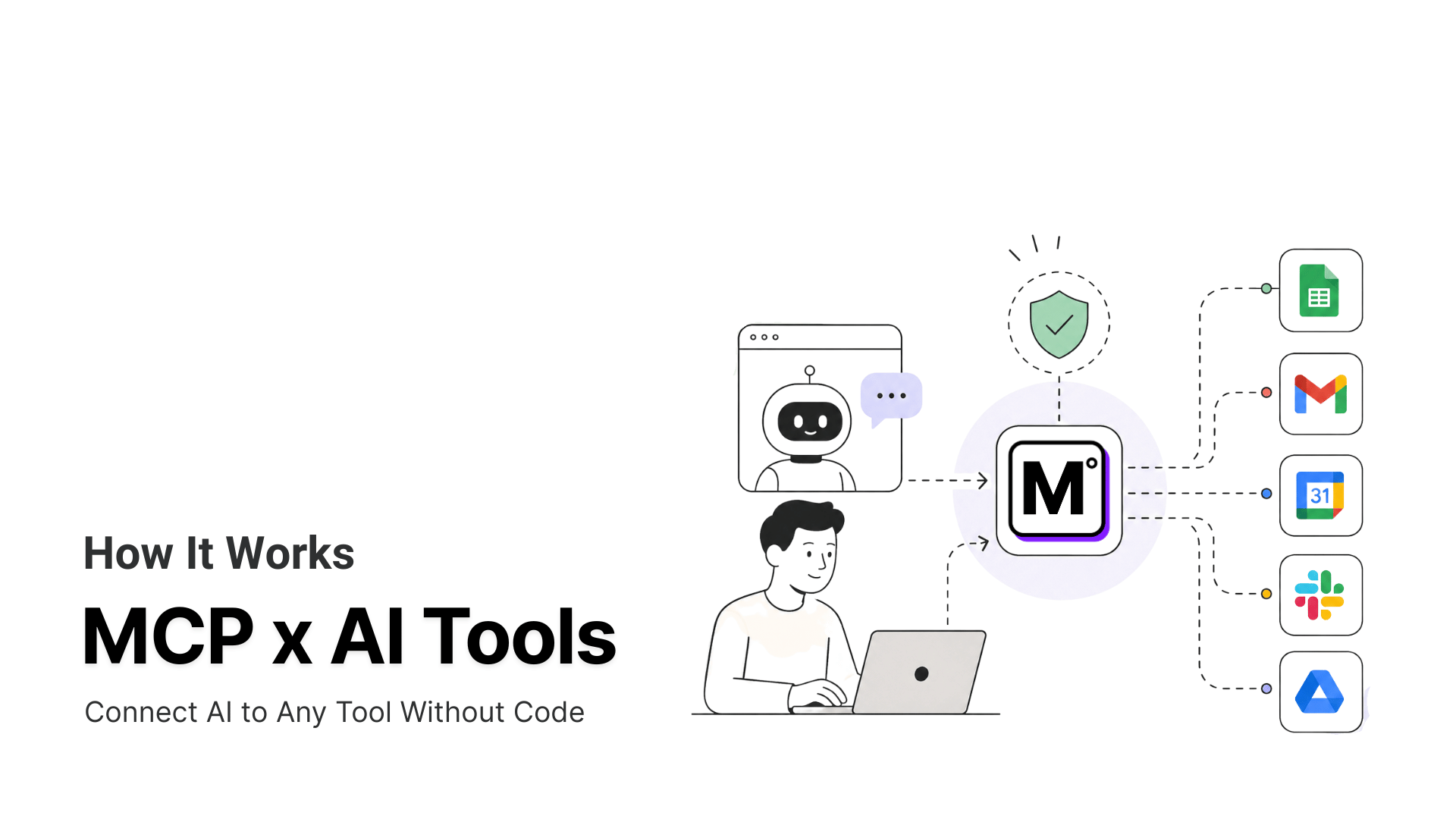
Flowise agents can reason, but they cannot reach outside systems without an MCP connection. The Custom MCP node closes that gap for any MCP-compliant server.
- Why Flowise Agents Stall
A standalone Flowise agent cannot query live systems on its own. A Custom Tool function per API works at first, then becomes brittle to maintain as APIs change.
- Connecting Any MCP Server the Right Way
The Custom MCP node accepts a JSON config for any MCP-compliant server. Use Streamable HTTP, not stdio, which carries a known remote-code-execution risk and does not survive a cloud deploy.
- Fixing Common Connection Errors
Most first-run failures trace back to invalid JSON, a mismatched header key, a model without function calling, or a leftover stdio config after deployment. Each has a specific fix.
A Flowise agent with no MCP connection can draft a reply but not send it, describe a ticket but not look up the order behind it. It reasons well and stops exactly where the useful work starts. The Custom MCP node exists to close that gap, giving an agent flow a live list of tools it can call instead of a static prompt it can only talk about.
The alternative is writing a Custom Tool node in JavaScript for every API the agent needs. A single function is manageable for one API. By the third or fourth, the flow is half agent logic and half integration code that someone has to keep patched every time an upstream API changes shape.
An MCP connection replaces that per-tool code with one node that reads a live tool list. Getting there means the exact JSON shape, the transport decision most setup guides skip, and the handful of errors that break a first attempt.
What is Flowise

Flowise is an open-source, low-code platform for building AI agents and LLM applications on a visual canvas instead of a codebase. Drag a model node onto the canvas, connect it to memory, a data source, and a tool, and the agent runs without a line of orchestration code behind it. The project has passed 52,800 stars on GitHub and ships under an Apache 2.0 license, with active releases through 2026.
Features of Flowise
- Agentflow V2 orchestration: Build multi-step workflows as native nodes with branches, loops, retries, and multi-agent coordination on a single canvas, instead of relying on external frameworks for the agent logic.
- Agent node and Tool node: The Agent node hands the model a set of tools and lets it choose which to call. The Tool node executes one specific tool picked at design time with no LLM in the loop. Use the first for dynamic decisions, the second for steps that must run the same way every time.
- Prebuilt model and data nodes: Connect OpenAI, Anthropic, Llama, or local models, and load data from PDF, CSV, Notion, or GitHub without building the connectors from scratch.
- Flexible deployment: Run Flowise locally, on a private cloud, or air-gapped, which matters for teams handling regulated data that cannot leave the network.
- Visual execution logs: Every run produces a step-by-step trace, so debugging a broken workflow means reading the path it took rather than guessing.
- Native MCP support: Connect external MCP servers as tools directly in a workflow, without writing a Custom Tool function for each one.
Flowise handles the reasoning and the workflow logic. It does not reach into business systems on its own. An MCP connection is what closes that gap, and Agent Flow with the Custom MCP tool inside it is where that connection gets made.
Flowise runs locally, self-hosted on your own infrastructure, or through Flowise Cloud, and that choice determines which MCP transport is available, covered in Step 3 below.
Why Flowise agents need MCP
Flowise makes the agent easy to build. The trouble starts at the second step of any real task. Ask a support agent to “check this customer’s last order and tell them when it ships,” and it needs to query your order system, read the result, and act on it. A bare Flowise agent can’t do that. It has no tool to call and no schema describing what that tool expects, so it guesses or it apologizes.
You can patch this with the Custom Tool node, writing a function per API. It holds up until you have three of them and one upstream change breaks a workflow mid-week.
There’s a second trap most tutorials skip. The classic local-MCP approach runs servers through stdio transport, which spins up npx commands on the host. That works on a laptop and breaks the moment you deploy Flowise to the cloud, where command execution is restricted. Model Context Protocol is a standard that lets an agent call external tools and read their results without custom code for each one. MCP360‘s hosted endpoint removes both problems. One connection, no local plumbing, and it survives a cloud deploy.
Three ways to give a Flowise agent tools
There are really only three paths to the same goal, and they diverge fast once you have more than one tool.
| Approach | Setup effort | Maintenance | Survives cloud deploy | Scales to many tools |
|---|---|---|---|---|
| Custom Tool node (JavaScript) |
High, one function per API |
You own every API change |
✔ Yes | ✕ Poorly, code grows per tool |
| Local MCP server (stdio) |
Medium, run a server per tool |
Per server | ✕ No, npx blocked in cloud |
~ Medium |
|
MCP360 gateway Best for scale |
Low, one config block |
Handled at the gateway |
✔ Yes, hosted HTTP endpoint |
✔ Yes, 100+ tools on one connection |
The gateway row is the only one where adding a tenth tool costs the same as adding the first. That is the property that matters once an agent moves past a demo.
Connect an MCP Server to Flowise
We will be using MCP360 as a practical example for connecting MCP to Flowise. The whole setup is three stages. Get a URL from MCP360, build the agent in Flowise, and add a Custom MCP tool with your connection. Budget about ten minutes.
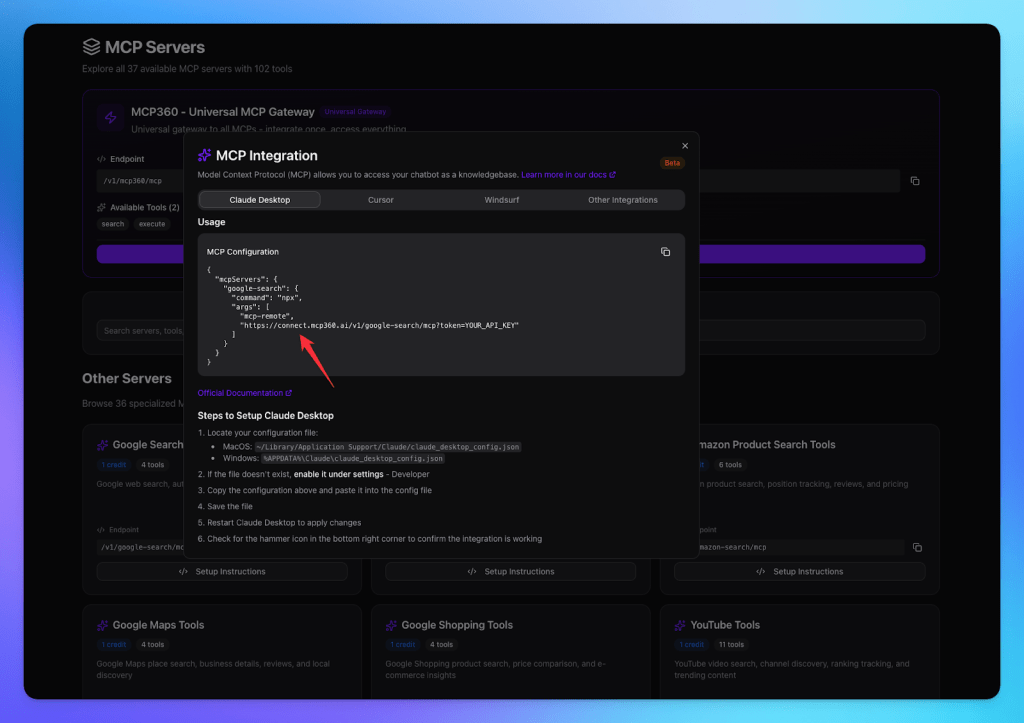
Stage 1. Get your MCP endpoint from MCP360
- Log in to your MCP360 dashboard.
- Open an existing project or create a new one.
- From the sidebar, select MCP Server.
Single-tool URL versus Universal Gateway is a real choice. A single-tool URL keeps the agent’s options narrow, which means cleaner tool selection and fewer wrong calls. The Universal Gateway gives one agent everything, which is convenient but loads more tool schemas into context. Start narrow. Widen only when a workflow genuinely needs more.

- Find the tool you want and copy its MCP URL, or copy the Universal Gateway URL to give the agent access to every tool at once.
Stage 2. Build the agent in Flowise
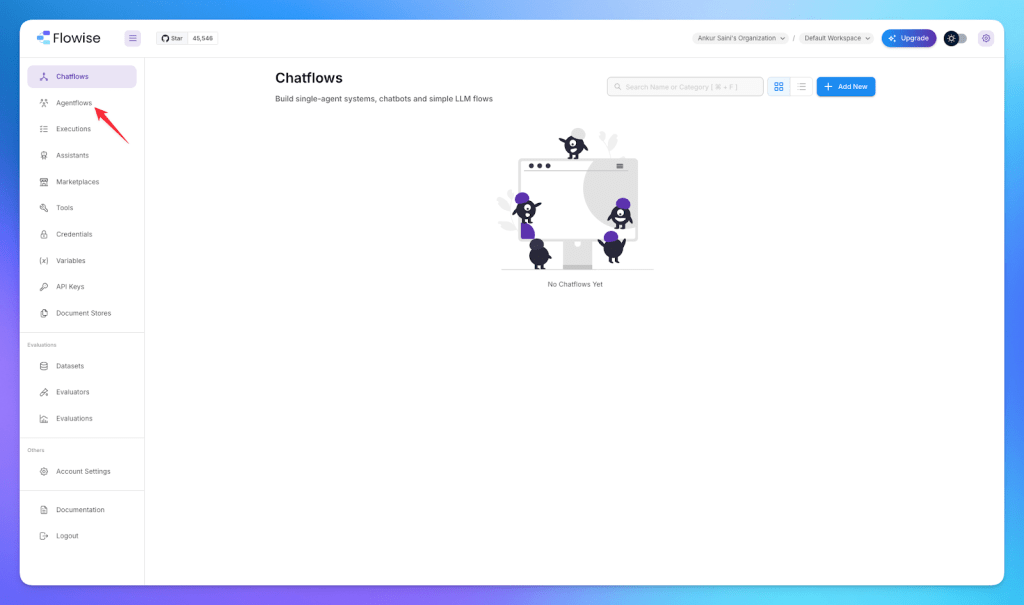
- Log in to Flowise and open Agent Flow from the sidebar.
- Click Add New to create a new Agent flow.
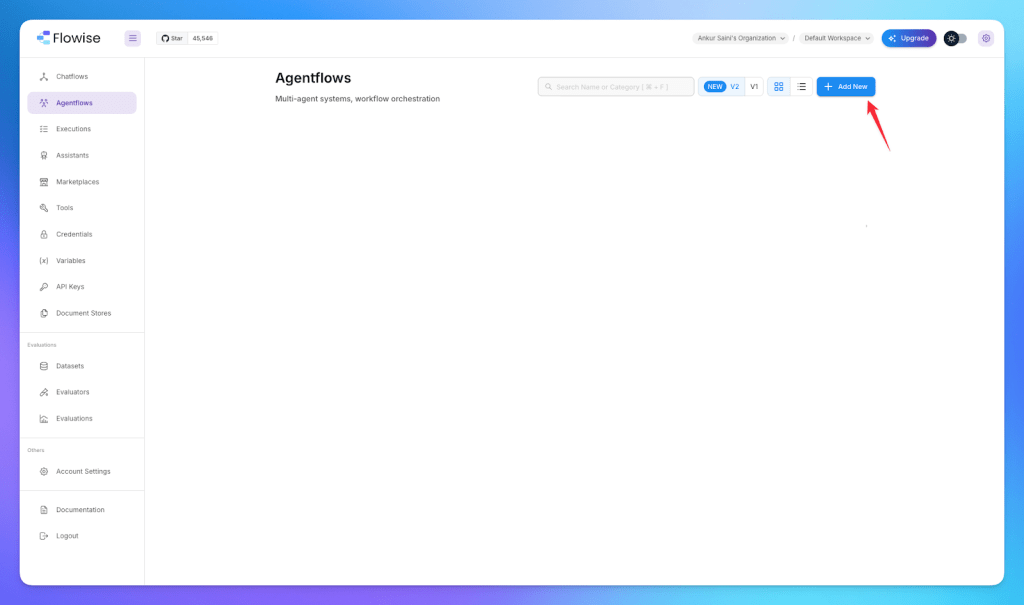
- Add an agent node to the canvas.

- Click the agent node to open its settings and attach your AI model.
- Pick one that supports function calling. This is not optional.
- A model without tool-calling support will never invoke your MCP tools no matter how the rest is configured. GPT-4 class models, Gemini Pro, and Claude all work.
- Click Add Tools to open the tool list.

Stage 3. Add the Custom MCP tool
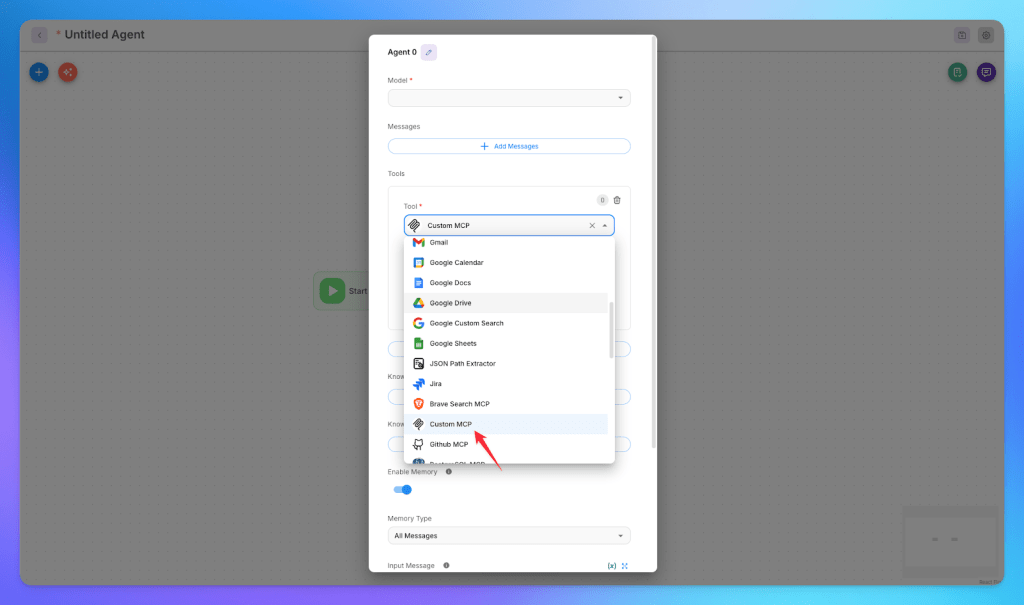
- In the tool list, search and select Custom MCP. The MCP Server Config panel opens.
- Click How To Use to view the required format. It is a JSON block with a
urland aheadersobject. - Copy the format and replace the placeholder URL with your MCP360 tool URL. The format looks like this.
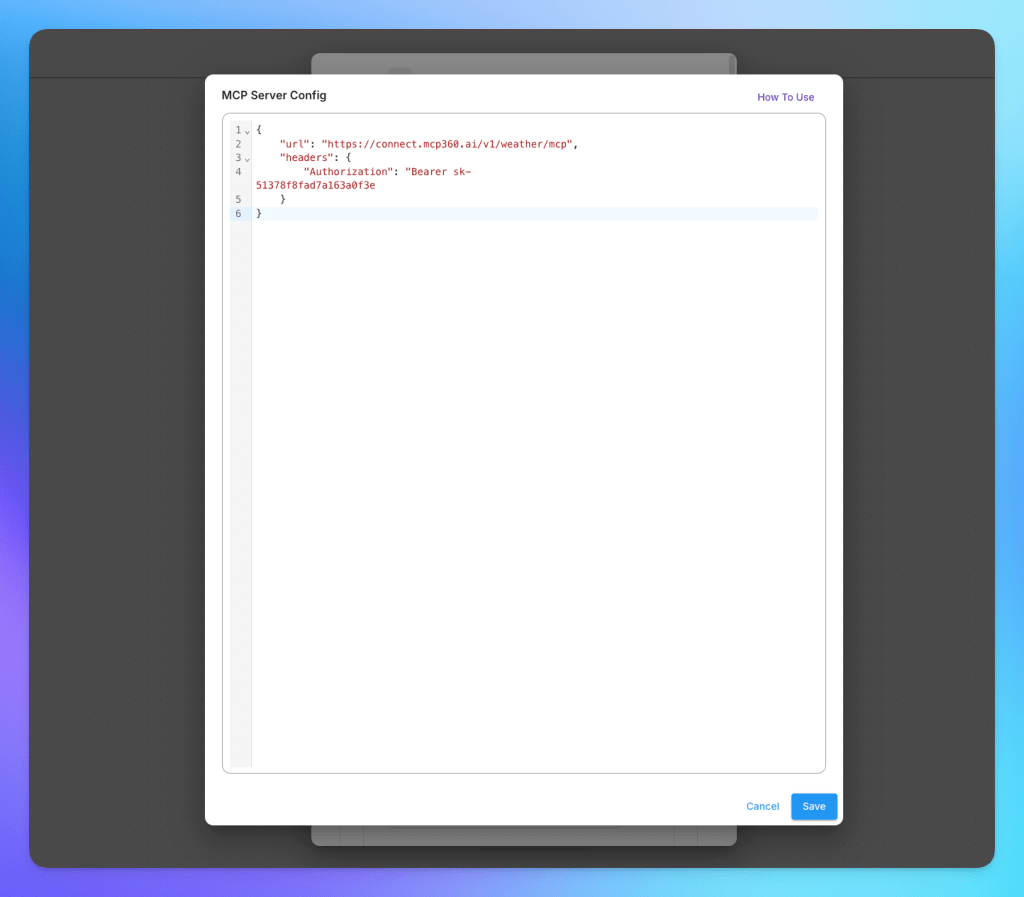
- Add your MCP360 API key as the Authorization bearer token. Store it as a Flowise Variable rather than pasting it raw. Go to Variables in the sidebar, create
MCP360_API_KEYwith your key as the value, and reference it as{{$vars.MCP360_API_KEY}}exactly as shown. Now the key never lives in the flow itself, so exporting or sharing the flow won’t leak it.

- Click Reload. Flowise reads the config, pulls the tool manifest from MCP360, and your MCP360 tools appear in the agent, ready to select.

What This Integration Enables
A single MCP connection turns tasks that used to mean switching between three tools into calls the agent makes on its own. Four patterns show up most often.
- Order-status triage: A support flow has an order-lookup tool wired into the Agent node. A ticket arrives asking where an order is, the model reads it, calls the tool with the order ID, and drafts a reply with the tracking link and delivery date pulled from a live query instead of a canned response. When the order platform changes its API next quarter, the flow itself needs no edit, the tool call target absorbs the change.
- Keyword and SERP research: A content flow checks search volume and ranking position mid-conversation before a writer commits to a topic, instead of tabbing out to a separate tool and pasting numbers back in by hand.
- CRM and lead lookups: A sales flow checks a CRM record before drafting a follow-up, pulling deal stage and last-contact date into the reply instead of a rep switching tabs to look it up first.
- Internal API access: An internal API, a CRM, an order system, a ticketing tool, gets wrapped once as a custom MCP and becomes reusable across every agent flow the team builds afterward, instead of being rebuilt per workflow.
Every one of these starts the same way, one Custom MCP connection wired into an Agent node, then reused for whatever the next workflow calls for.
Fix common Flowise MCP connection errors
Five failures cover most first-run problems, each with a specific fix. The same connection issues show up across most MCP clients, not just Flowise.
- No actions load in Custom MCP: Check the JSON for a trailing comma or a curly quote pasted from a word processor, both break the parser silently. Confirm the URL is exact, then Reload. Still empty? Restart Flowise.
- Actions load once, then disappear: Usually a credential problem, not a config problem. Confirm the key is still active on the server’s dashboard, a revoked key fails the same way a missing one does. Match the header name exactly to the server’s documentation, Flowise sends it verbatim.
- Agent answers from memory instead of using a tool: Either the model lacks function calling, the requirement from Step 1, or the system prompt never mentions the tools exist. Add a line like “use the available tools before answering” and retest.
- Connection times out: Check the key format, some servers expect a raw key, others need
Bearerin front of it. Confirm firewall rules allow outbound calls to the server’s domain. If both check out, confirm the account has not hit a rate limit. Worked locally, broke after deployment. Not a credential issue, this is the stdio trap from Step 3. Switch the Custom MCP config to the URL-and-headers shape.
A connection that clears these five checks on the first test run rarely fails later. The stdio trap is the one worth retesting after every deploy.
Frequently Asked Questions
What is an MCP server?
An MCP server is a program that exposes a set of tools or data sources in a standard format an AI agent can read and call, using the Model Context Protocol. Instead of writing custom code for every API, an agent connects once and gets a live list of available actions with their inputs and outputs, then decides which one fits the task in front of it.
What is the difference between a local and a remote MCP server?
A local MCP server runs as a process on the same machine as the AI client, started with a command such as npx, and communicates over stdio. A remote MCP server runs elsewhere and is reached over HTTP with a URL and credentials. Local setups are simpler for testing on a laptop, remote setups are what survive a cloud deployment.
Can I connect any MCP server to Flowise, or only certain ones?
Flowise's Custom MCP node works with any MCP-compliant server, not one specific vendor. It sends a JSON config with a URL, and Flowise pulls in whatever tools that server exposes. A single-purpose server built for one API and a gateway bundling hundreds of tools both connect the same way, using the identical four-step setup described above.
Is it safe to run a local stdio MCP server with Flowise?
Not in production. CVE-2026-40933 shows a Custom MCP node set to stdio transport can run a configured command as an unrestricted process on the Flowise server itself. Flowise Cloud disables stdio by default, but self-hosted instances stay exposed unless the protocol is explicitly set to sse. Routing through a hosted endpoint like MCP360 avoids the local process risk entirely.
What is the difference between the Custom Tool node and the Custom MCP node in Flowise?
A Custom Tool node runs one specific JavaScript function written at design time, with no model reasoning involved in whether it fires. A Custom MCP node connects to an MCP server and lets the model choose from a live list of available actions at run time. Use the first for a fixed step, the second when the right tool depends on the request.
Why use a gateway instead of connecting one MCP server at a time?
Connecting one server per tool means a separate Custom MCP node, URL, and credential for each one, and the maintenance grows with every tool added. A gateway like MCP360 routes 100+ tools through a single Custom MCP connection, so adding a new tool means selecting it from the gateway rather than standing up a new server and a new key.
What should I check if my Flowise agent ignores the MCP tools I connected?
Two causes cover most cases. The model attached to the Agent node may not support function calling, which is required before it can invoke any tool at all. Or the system prompt never tells the model the tools exist. Adding a line such as use the available tools before answering is often enough to fix it.
Can I connect an internal API, like a CRM, to a Flowise agent through MCP?
Yes, by wrapping it as a custom MCP rather than writing a Custom Tool function for it. MCP360's Custom MCP Builder turns an internal REST API into a callable tool inside the same gateway connection Flowise already uses, so it becomes reusable across every agent flow a team builds afterward instead of rebuilt per workflow.
Conclusion
Once the gateway is in place, the question changes. It stops being how do I connect this tool and becomes which tool does this job. The first is plumbing. The second is product. Getting your team out of the first and into the second is the entire payoff.
You don’t get there by connecting everything at once. Take the one workflow bleeding the most hours this week, the order-status reply, the lead lookup, the Monday SEO pull, and ship just that, end to end, with MCP360 behind it. Pick the tool the agent needs, drop it in, and watch a task that used to route through three tabs resolve in a single pass.
Do that a few times and the pattern flips. Adding a capability stops being a project and starts being a decision. The agent needs to read a sitemap or verify an email, and that is a tool away, not a sprint away. Build the first one this week, and let the next be the easy part.
Tags

Article by
RajniAI & Tech | Senior Content Writer
Rajni is a senior content writer covering AI agents, automation, and no-code tools. She writes across the AI space, from chatbots and customer support to MCP and agent workflows, focused on how businesses actually put these tools to work.