



The TL;DR
AI agents can automate workflows and execute tasks, but managing integrations across multiple tools becomes difficult at scale.
-
• The Challenge: Separate Setup for Every Integration
OpenAI Agent Builder supports structured AI workflows, but each external system still requires individual APIs, authentication, and maintenance.
-
• The Solution: MCP360’s Unified Gateway
MCP360 connects AI agents to 100+ tools through a single integration layer with a standardized interface.
-
• The Result: Less Integration Complexity
Agent Builder handles workflow orchestration while MCP360 manages external tool connectivity, reducing the overhead of maintaining multiple integrations.
OpenAI’s Agent Builder allows organizations to create AI agents that plan tasks, use tools, and execute structured workflows. While it defines the logic and decision-making steps for these agents, it does not automatically connect to external systems. Each API or business system still requires separate setup, authentication, and maintenance. As more tools are added, the effort grows. This procedure makes enterprise-scale automation more complex.
MCP360 simplifies this process by providing a unified gateway that connects AI agents to external tools. With one integration, agents gain access to a broad range of capabilities through a consistent interface. This reduces setup and maintenance for each individual system.
This lets Agent Builder focus on orchestrating workflows while MCP360 handles the connections agents need to operate effectively. In this blog, we’ll explore how Agent Builder and MCP360 streamline integrations. They enable AI agents to play a more active role in enterprise operations.
What is OpenAI Agent Builder?

OpenAI Agent Builder is a platform for creating AI agents that can perform tasks autonomously using reasoning, tools, and external data. Unlike traditional chatbots that only respond to prompts, these agents can handle multi-step workflows such as retrieving information, analyzing inputs, calling APIs, and generating responses.
The platform allows developers to connect workflows visually or through code, making it easier to build agents that can interact with tools, databases, and applications. These agents can also use built-in capabilities like web search, file retrieval, and memory to complete tasks more effectively.
OpenAI Agent Builder is designed for building AI systems that can automate processes, assist users, and execute actions across different business or product workflows.
Major Features of OpenAI Agent Builder
OpenAI’s Agent Builder is designed to create AI agents that can handle structured workflows, use tools, and complete multi-step tasks with a higher degree of autonomy. Its core features focus on orchestration, tool use, and controllable decision-making.
- Multi-step task execution: Agents can break down complex instructions into smaller steps and execute them sequentially. Each step is based on intermediate outputs, allowing the agent to adjust its next action depending on what it has already learned or produced.
- Seamless tool integration: Agents can connect to external tools and APIs to retrieve data or perform actions. This enables workflows that combine reasoning with real-time information and system-level operations.
- Visual workflow canvas: The platform provides a structured way to design agent logic through a visual interface. Workflows can be mapped as connected steps, making it easier to understand how inputs move through tools, decisions, and outputs.
- Adaptive decision logic: Agents can follow conditional paths, loops, and branching logic. This allows workflows to change based on input type, tool response, or intermediate results instead of following a fixed sequence.
- Context and knowledge grounding: Agents can use external knowledge sources such as documents, databases, or retrieval systems. This helps them generate responses based on relevant context rather than isolated prompts.
- Deployment flexibility: Built agents can be deployed through applications using the Agents SDK or embedded experiences like ChatKit. This allows integration into chat interfaces, internal tools, or customer-facing products.
- Monitoring and iteration: The platform supports tracing, debugging, and reviewing agent behavior across steps. It makes it easier to identify failure points and refine workflows over time.
Agent Builder provides the structure for building agents that can plan and execute tasks. However, real-world usefulness depends on how effectively these agents connect to external systems and tools. That is where MCP360 becomes important.
Why Connect Agent Builder with MCP360?
Many AI automation projects fail during implementation, not planning. The difficulty lies not in deciding what tasks agents should perform but in linking them to the necessary systems.
Traditional integration approaches require:
- Separate API authentication for each service
- Custom error handling for every tool
- Continuous updates when APIs change
- Data mapping between different response formats
- Rate limit handling across multiple services
This adds significant engineering overhead, so even simple automation workflows can take much longer to ship and require ongoing upkeep.
- Automatic tool selection: Agent Builder focuses on deciding what needs to be done at each step. MCP360 exposes connected tools through a single access layer. The agent can choose the appropriate tool dynamically based on context without hardcoding individual integrations.
- Lower maintenance effort: When an API changes authentication methods or updates endpoints, MCP360 handles those changes behind the scenes. Existing Agent Builder workflows continue to run without requiring updates in the workflow logic.
- Multi-tool workflows: Agents can pull data from research systems, pass it into SEO tools for analysis, and combine it with competitor insights in a single flow. Each tool handles its own specialization, while MCP360 manages the coordination layer between them.
- Faster deployment: Instead of building and maintaining separate integrations for every data source, teams connect once through MCP360 and reuse that connection across multiple Agent Builder workflows.
For teams building agents that depend on real-world data and external actions, this setup reduces integration effort and keeps the focus on how the agent behaves rather than how systems are connected.
Step-by-Step: How to Connect MCP360 with Agent Builder
Integrating MCP360 with Agent Builder is a simple process. Once it’s set up, your agent can use any MCP360 tool inside a workflow. Follow these steps for the pairing:
Step 1: Get MCP360 tool URLs
Before setting up anything in Agent Builder, you need the tool URLs from your MCP360 dashboard.
- Log in to your MCP360 Dashboard.
- Open an existing project or create a new one.
- In the sidebar, go to MCP Server.
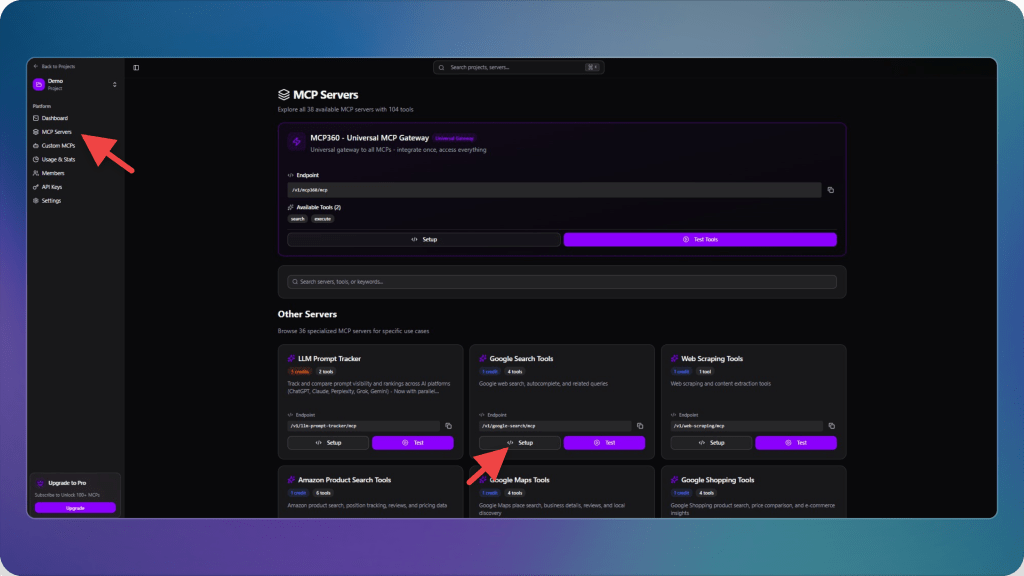
- Copy the URL of the tool you want to connect.
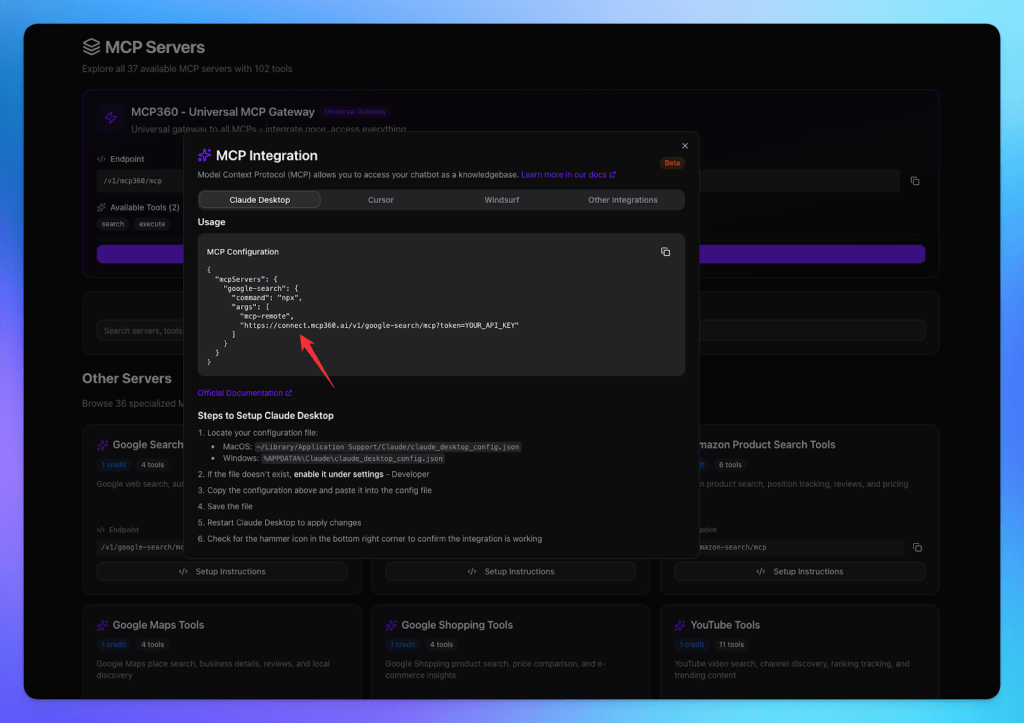
These URLs will be used inside Agent Builder to link your workflow with real MCP360 tools.
Step 2: Open OpenAI Agent Builder
Next, move to the OpenAI platform, where you’ll set up your workflow.
- Navigate to platform.openai.com.
- Log in to your account and go to the Dashboard.
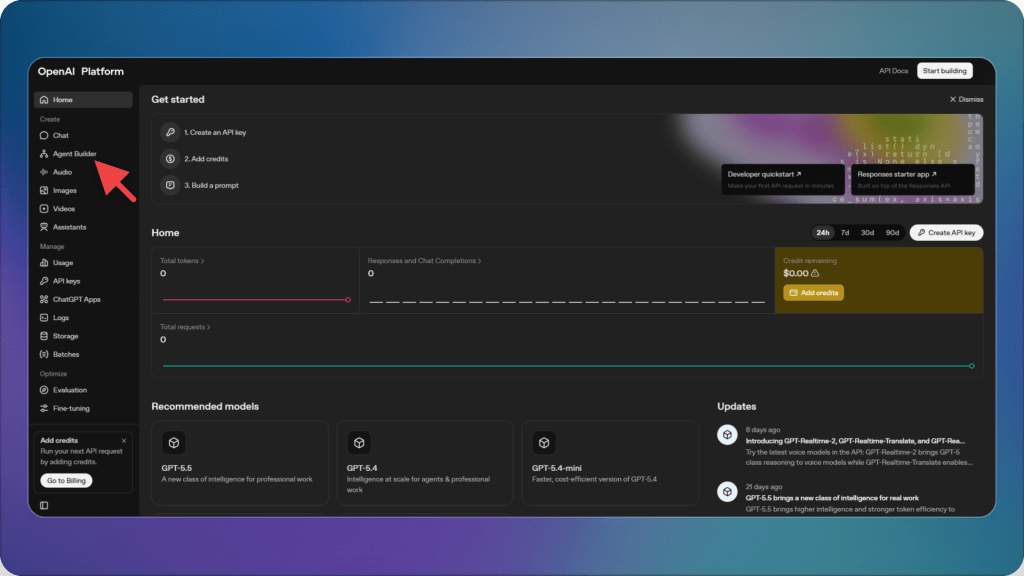
- Select Agent Builder from the sidebar.
- Create a new workflow.
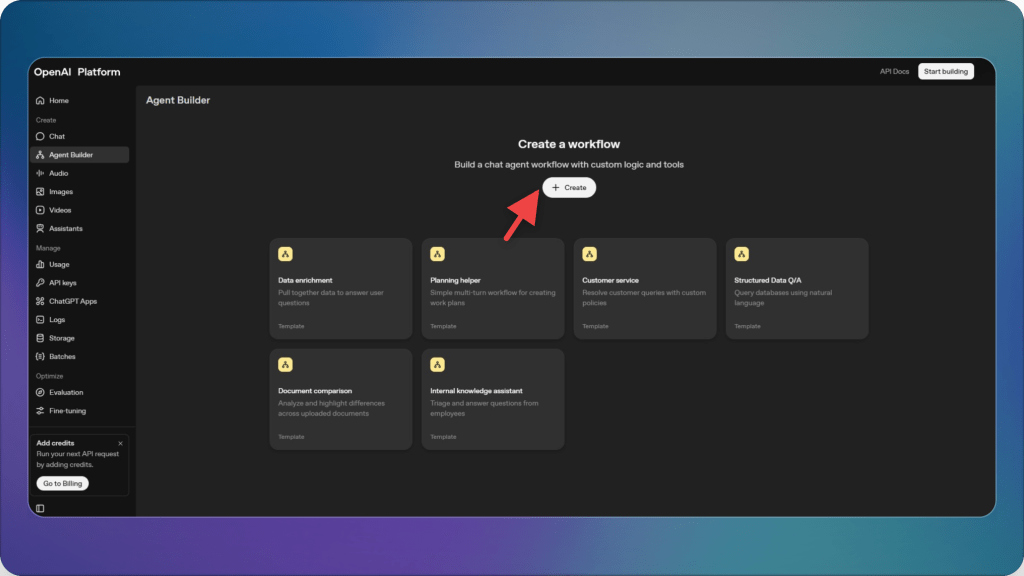
This procedure provides you a blank workflow canvas where you’ll add the MCP360 connection.
Step 3: Add your MCP server to the agent node.
Now you’re ready to link the MCP360 tool to your agent.
- Drag an Agent Node into your canvas.
- Click on the node to open its settings.
- Go to the Tools section.
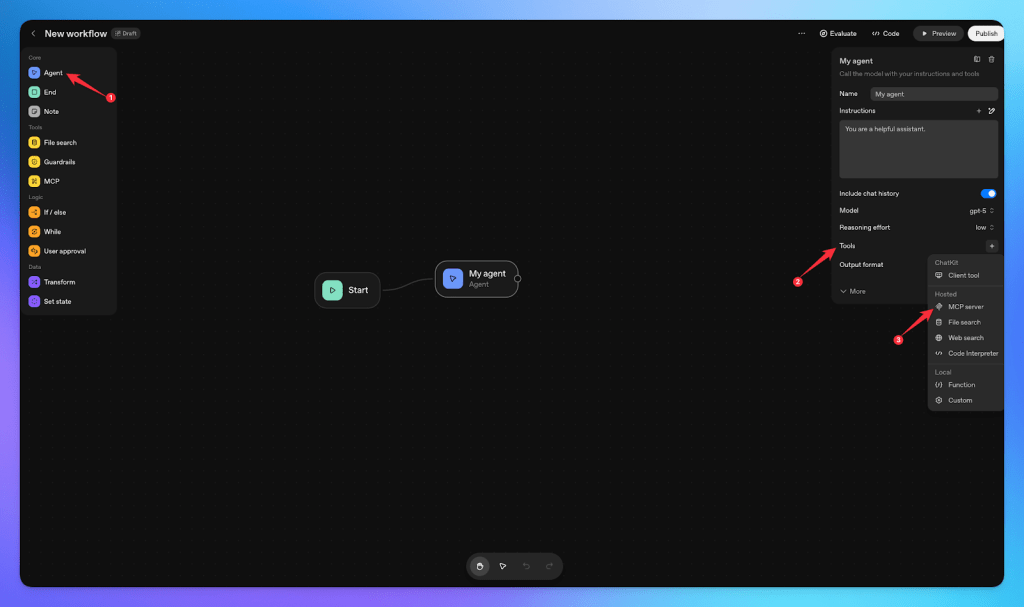
- Choose MCP server from the list.
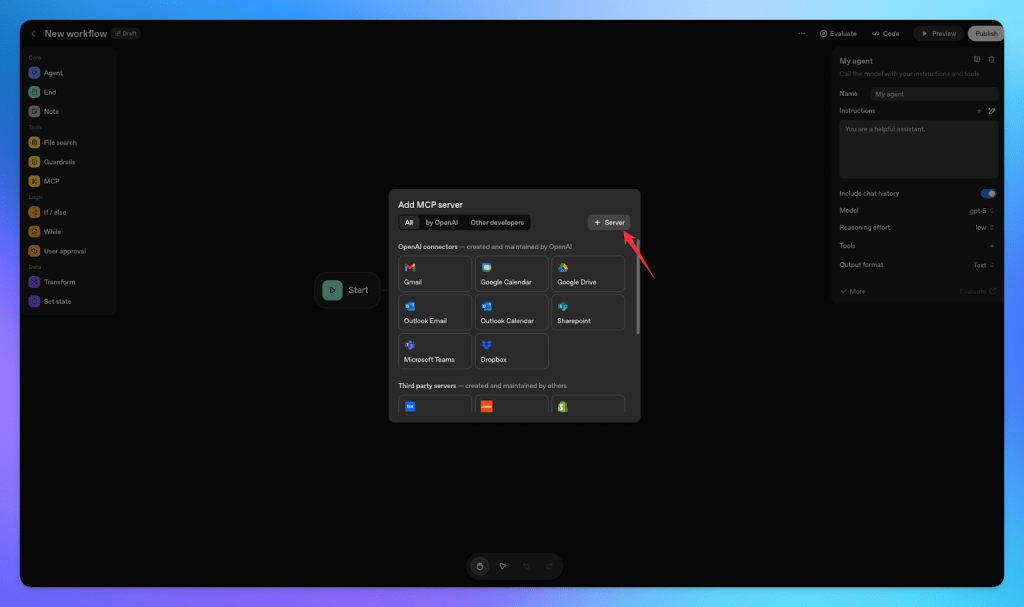
- Please paste the MCP360 tool link you copied earlier.
- Click Connect.
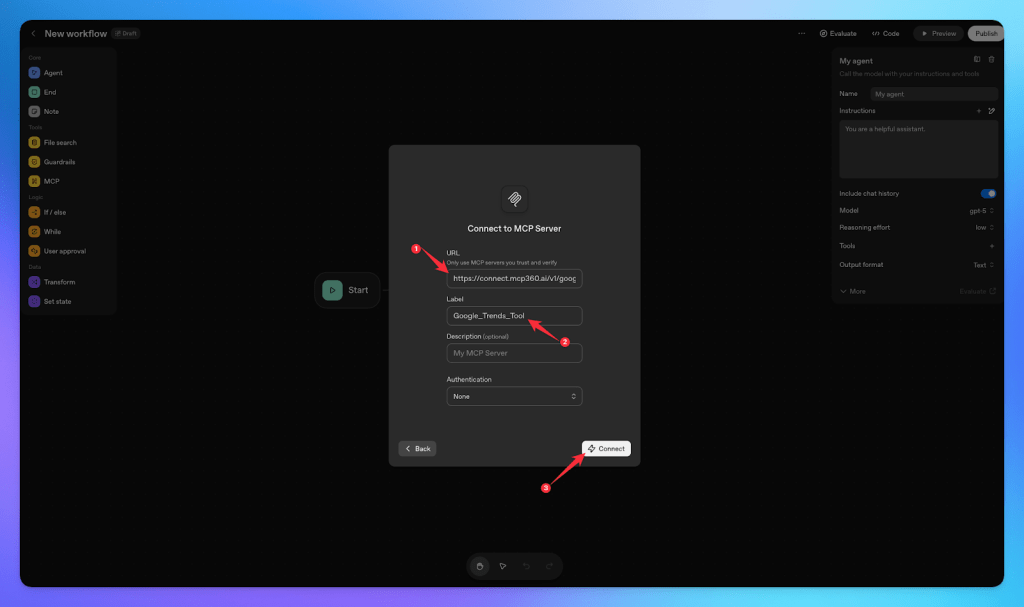
- Once connected, the tool will be inside the agent’s tool list.

You’re ready to build. Your agent builder workflow is now connected to MCP360.
From this point on, the agent can trigger any MCP360 tool using the parameters you define. This capability makes your workflow more powerful, which also becomes more connected and easier to automate.
What You Can Build with Agent Builder + MCP360
When Agent Builder connects with MCP360, the two systems fill each other’s gaps. Agent Builder gives structure and reasoning; MCP360 gives real-world access. They work together to make AI workflows that are reliable, adaptable, and easier to grow. Let’s look at the most important things that Agent Builder can do to help AI agents.
- Agents can pick the right tool on their own: Agent Builder decides what needs to be done. MCP360 provides a whole set of tools through one connection. This enables the agent to choose the correct tool for each step automatically. It does this based on the situation. There is no need to hardcode every action.
- No more breaking APIs or repeating integrations: Normally, every tool needs its own integration, and it breaks when APIs change. MCP360 manages all tools under one gateway. This ensures Agent Builder workflows stay working. They function even if services update or change behind the scenes.
- One workflow can use many tools at the same time: Agents can gather information from several tools. These tools include SEO, research, analytics, and web search. They can combine the results into a single decision. This makes the workflow more complete and avoids the limitations of single-tool automation.
- You can build complex processes without a complex setup: MCP360 handles all tool connections, while Agent Builder handles the logic. This lets you create multi-step workflows for researching, analysing, generating, and publishing without building separate systems for each part.
- More reliable workflows that don’t break easily: MCP360 fixes mistakes. It addresses timeouts or data mismatches with what other tools provide you. This makes Agent Builder’s workflows more stable, so they keep working even when something goes wrong in the background.
The result lets teams focus on more important work instead of having to deal with repetitive tasks.
Frequently Asked Questions
Can I add custom tools to MCP360?
Yes. MCP360 allows you to create custom MCP servers for proprietary systems or internal tools. This means you can extend the platform beyond the tools library to include your organization’s specific APIs and services.
Can multiple agents share the same MCP360 connection?
Yes. Once configured, the connection works across all Agent Builder workflows in your organization. This includes both pre-integrated tools and any custom MCP servers you’ve created.
Does this work with other AI platforms besides OpenAI?
MCP360 follows the Model Context Protocol standard, so it can work with other platforms that support MCP. Check compatibility for your specific platform.
How do I debug workflows that use multiple MCP360 tools?
Agent Builder provides execution logs showing which tools were called and what data was returned. Review these logs to identify where workflows break.
Conclusion
Identify one workflow that your team runs repeatedly. Map out the data sources and tools it requires. If MCP360 covers most of those tools, you have a viable first use case.
Build the simplest version of that workflow in Agent Builder connected to MCP360. Test whether the agent can complete the task end-to-end without manual intervention. Measure how long it takes compared to doing it manually.
If it works, the next workflow will be faster to build. If it doesn’t, you’ll learn what tools or capabilities are missing before investing heavily in the approach.
The combination of Agent Builder and MCP360 doesn’t reduce complexity. It changes where the complexity lies. The focus shifts from integration tasks to designing workflows. This change is important because effective workflow design can improve business results, while integration tasks only ensure functionality.
For teams ready to move AI automation from interesting experiments to operational systems, the journey starts with addressing integration challenges. Removing these bottlenecks is crucial. This is where production deployment actually starts.

Article by
MitaliAI & Automation | Content Writer
Mitali is a content writer covering AI agents, automation, and no-code tools. Her writing spans the AI landscape, from support and sales automation to MCP integrations and agent workflows, with a focus on practical business use.